The LoadLibrary failed with error 126 message blocks an application from launching on Windows 11 and Windows 10. The full error reads: LoadLibrary failed with error 126: The specified module could not be found.

Windows displays this message when a required DLL file is missing, corrupted, or loaded by a faulty graphics driver. LoadLibrary is a core Windows API function that loads a module into a process’s address space at runtime, so when it fails, the application cannot start. Applications frequently affected include Adobe Suite, Steam, Minecraft, BlueStacks, VirtualBox, Microsoft Remote Desktop, Logitech peripheral software, and Civilization VI.
What Causes LoadLibrary Failed With Error 126
Before jumping to fixes, it helps to understand what triggers the error:
- Missing or corrupted DLL files prevent Windows from loading the required library module.
- Outdated or corrupted graphics drivers are the most common cause. The error often appears right after a Windows update or a driver update that went wrong.
- Multiple graphics adapters can confuse applications that try to initialise both GPUs simultaneously.
- Lack of administrator rights stops certain apps from accessing protected system resources.
- Corrupted Windows system files break the load chain for DLL-dependent processes.
- Software conflicts from background apps can interfere with a process at launch.
How to Fix LoadLibrary Failed With Error 126
Work through the fixes below in order. Most users resolve the error by fix 3 or fix 4.
Fix 1: Restart the Application and Your PC
A temporary system glitch can trigger a one-off DLL load failure. Before trying anything else, close the application completely.
- Press Ctrl + Shift + Esc to open Task Manager.
- Find every process related to the application, right-click each one, and select End Task.
- Relaunch the application.
If the error returns, restart your PC and try again. A full restart clears temporary data that a simple app close does not.
Fix 2: Run the Application as Administrator
Applications that lack administrative rights cannot access certain system resources, which causes the LoadLibrary error to appear at launch.
- Press the Windows key, type the application name, and press Enter.
- Right-click the application in the results and select Open file location.
- Right-click the application’s
.exefile and choose Properties. - Click the Compatibility tab.
- Check Run this program as an administrator.
- Click Apply, then OK.
- Restart your PC and launch the application.
To make this permanent for a desktop shortcut:
- Right-click the shortcut and choose Properties.
- Go to the Shortcut tab and click Advanced.
- Enable Run as administrator and click OK.
- Click Apply, then OK.
Fix 3: Update Your Graphics Card Driver
An outdated or partially broken graphics driver is the leading cause of the LoadLibrary failed with error 126 error. Updating to the latest driver resolves the issue in most cases.
Via Device Manager:
- Right-click the Start button and select Device Manager.
- Expand Display adapters.
- Right-click your graphics card and choose Update driver.
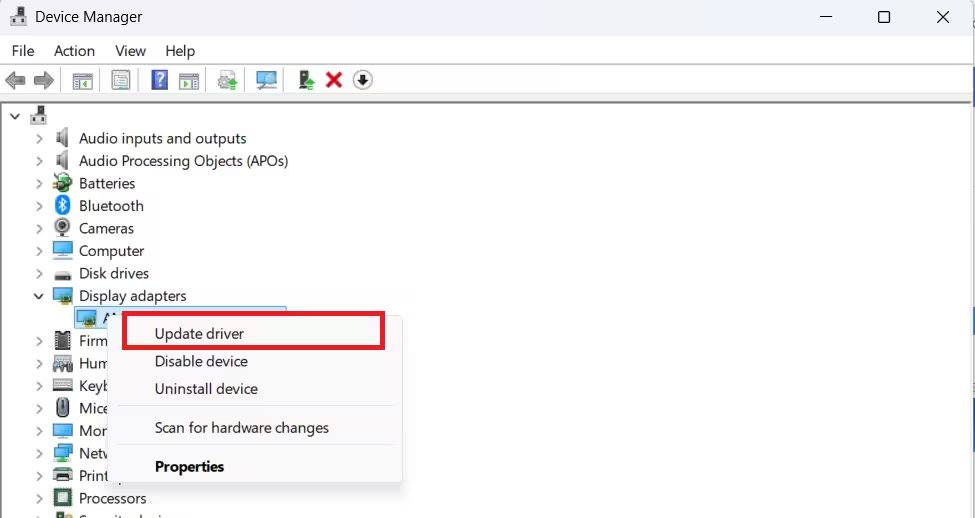
- Select Search automatically for drivers.
- Install any available update and restart your PC.
Via the manufacturer’s website:
If Device Manager finds nothing new, visit the manufacturer’s website directly:
- NVIDIA: nvidia.com/drivers
- AMD: amd.com/support
- Intel: intel.com/download-center
Download the latest driver for your GPU model, run the installer, and restart your PC.
Via Windows Update (Optional Updates):
- Open Settings and go to Windows Update.
- Click Advanced options, then Optional updates.
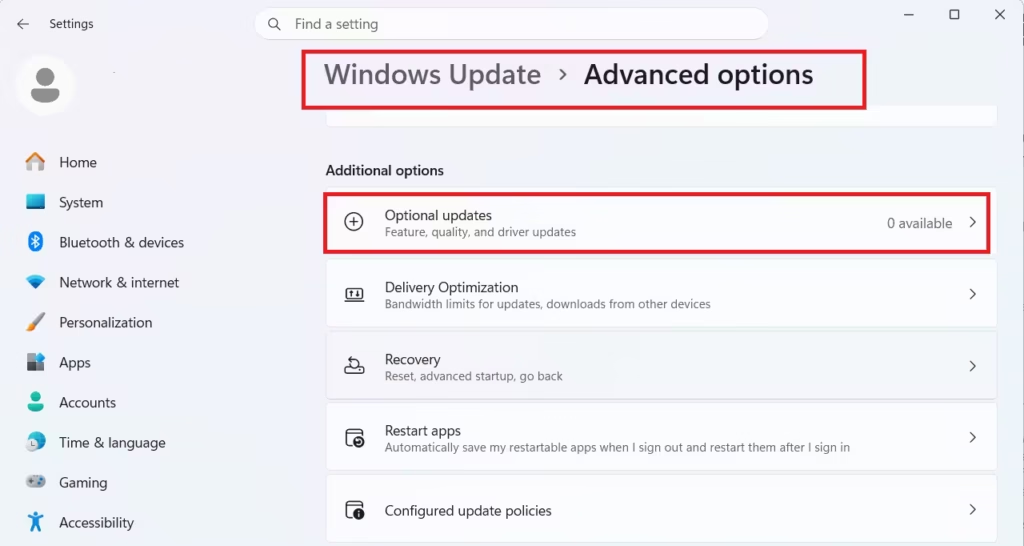
- Look for any driver update listed under Driver updates and install it.
Fix 4: Reinstall Your Graphics Card Driver
If updating the driver did not help, the existing driver installation may be corrupted. A clean reinstall removes broken files and replaces them with a working set.
- Open Device Manager.
- Expand Display adapters, right-click your graphics card, and select Uninstall device.
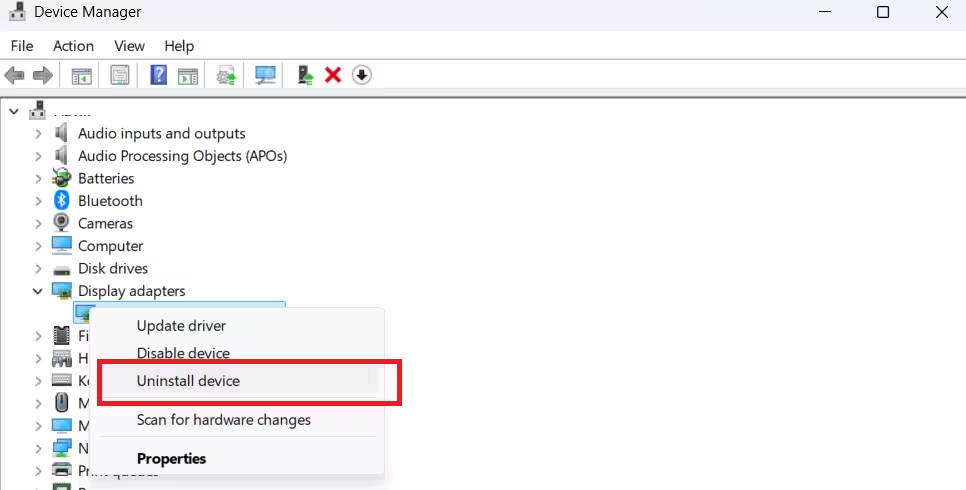
- Check Attempt to remove the driver for this device and click Uninstall.
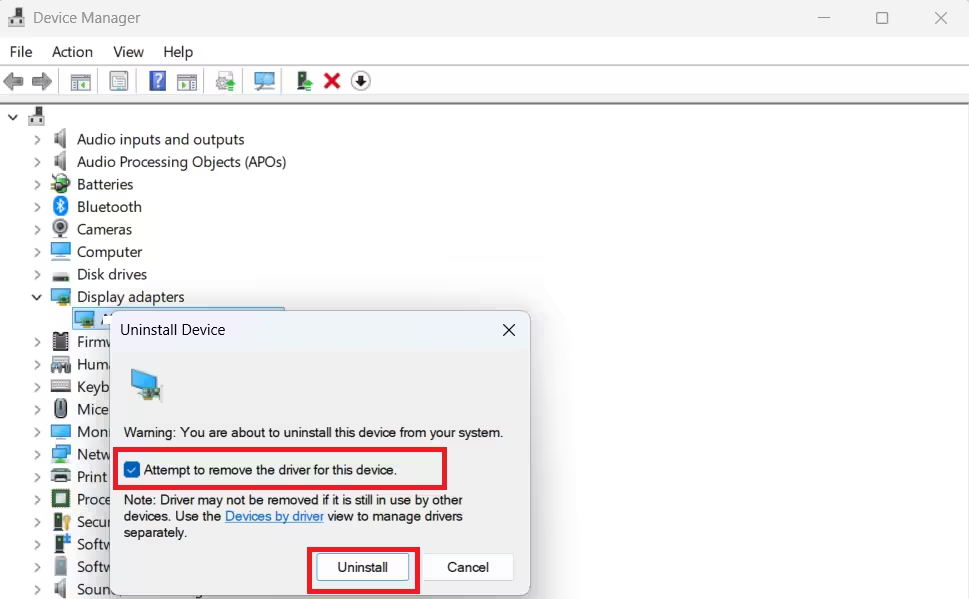
- Open Control Panel, go to Programs and Features, and uninstall any graphics card utility software (for example, NVIDIA GeForce Experience or AMD Adrenalin).
- Restart your PC. Windows installs a basic driver automatically.
- Download the full driver package from your GPU manufacturer’s website and install it.
- Restart your PC again.
Fix 5: Disable the Secondary Graphics Adapter
If your PC contains two graphics adapters (a dedicated GPU and an integrated GPU, for example), some applications fail to initialise properly because they detect conflicting adapters. Disabling the secondary adapter forces the application to use only one GPU.
- Right-click the Start button and select Device Manager.
- Expand Display adapters.
- Right-click the adapter you do not want the application to use and choose Disable device.
- Click Yes to confirm.
- Launch the application and check whether the error clears.
Re-enable the adapter later from the same menu if needed.
Fix 6: Disconnect or Reconfigure Your Secondary Monitor
Running more than one monitor can cause the LoadLibrary failed with error 126 error when an application cannot identify which display to target at startup.
Quick test: Unplug the secondary monitor and launch the application. If it opens without the error, the display configuration is the issue.
Set a primary display in Windows 11:
- Open Settings and go to System, then Display.
- Select your primary monitor.
- Scroll down to Multiple displays and enable Make this my main display.
Set a primary display in Windows 10:
- Open Settings and go to System, then Display.
- Select your primary display and enable Make this my main display.
Fix 7: Copy the Missing DLL File to System32
If the error points to a missing DLL file, copying it manually to the System32 folder resolves the problem directly. This fix applies most often to AMD GPU users.
- Press Windows + R, paste the following path, and press Enter:
C:\Windows\System32\DriverStore\FileRepository\- Search inside that folder for a subfolder containing
atio6axx.dll. The folder name varies by system but typically starts with a hardware ID string. - Copy
atio6axx.dll. - Paste it into
C:\Windows\System32. - Confirm the replacement if prompted.
- Restart your PC and launch the application.
Fix 8: Close Background Applications
A large number of background processes can consume system resources to the point where critical DLL files fail to load at application startup.
- Press Ctrl + Shift + Esc to open Task Manager.
- Under the Processes tab, right-click any application you do not need and select End Task.
- Focus on browser tabs, update services, and media apps that are running but not in active use.
- Launch the affected application and check for the error.
Fix 9: Run an SFC Scan
Corrupted Windows system files can break the LoadLibrary process entirely. The System File Checker (SFC) tool scans for corrupted files and restores them automatically.
- Press the Windows key, type Command Prompt, and select Run as administrator.
- Click Yes on the UAC prompt.
- Run the DISM command first to repair the Windows image:
DISM.exe /Online /Cleanup-image /Restorehealth- Once DISM completes, run the SFC scan:
sfc /scannow- Wait for the scan to finish. Do not close the window mid-scan.
- Restart your PC when the process completes.
If SFC reports that it found and repaired corrupted files, launch the application again and check whether the error is gone.
Fix 10: Clean Boot Windows
A third-party application or service running in the background may interfere with the DLL load process. A clean boot starts Windows with only essential Microsoft services active, which helps identify whether a conflicting program causes the error.
- Press Windows + R, type
msconfig, and press Enter. - Go to the Services tab.
- Check Hide all Microsoft services and click Disable all.
- Go to the Startup tab and click Open Task Manager.
- Disable every startup item listed.
- Close Task Manager, click OK in System Configuration, and restart your PC.
- Launch the application.
If the error disappears under clean boot, re-enable services in small groups to identify the conflicting software. Once found, uninstall or update it.
Frequently Asked Questions
How do you fix error code 126 on Minecraft?
Run Minecraft as administrator, perform a clean boot, run an SFC scan, and update your graphics driver. If none of those work, uninstall and reinstall the game.
What is LoadLibrary failed with error 1114?
Error 1114 means a DLL initialization routine failed. It usually points to a graphics driver issue. Updating or reinstalling your GPU driver resolves it in most cases.
What is LoadLibrary failed with error 1455?
Error 1455 indicates the paging file is too small for this operation to complete. Increasing your virtual memory size in Windows settings can help alongside the driver fixes above.
What is LoadLibrary failed with error 87?
Error 87 relates to an invalid parameter passed during the library load, most often tied to the graphics card configuration. Downloading the latest graphics driver update resolves it.

