If Windows 11 suddenly shows the message “An extended error has occurred”, the system failed to complete a background operation. The error does not display a code, which makes it difficult to identify the root cause immediately. In most cases, corrupted system files, broken Windows components, permission conflicts, or failed updates trigger this message.

This guide walks you through official Microsoft-recommended repair steps that safely restore system stability without risky registry edits or third-party tools.
What Causes the “An Extended Error Has Occurred” Message?
Windows displays this error when a system service or application fails silently. Common triggers include:
- Corrupted or missing system files
- Damaged Windows component store
- Incomplete Windows updates
- Explorer shell crashes
- Faulty drivers or blocked permissions
- App dependency failures
Because the error is generic, you must validate system health first before troubleshooting specific apps.
Step 1 – Restart Windows Explorer
Windows Explorer controls the desktop, taskbar, and shell services. A frozen shell process can trigger this error.
- Press Ctrl + Shift + Esc to open Task Manager.
- Locate Windows Explorer in the Processes list.

- Right-click it and select Restart.
If the error disappears, the issue came from a temporary shell glitch.
Step 2 – Scan and Repair System Files Using SFC
System File Checker verifies and repairs protected Windows files automatically.
- Click Start and type cmd.
- Right-click Command Prompt and select Run as administrator.
- Run this command:
sfc /scannowLet the scan finish completely. The process may take several minutes.
If SFC reports that it repaired corrupted files, restart your PC and test again.
Step 3 – Repair the Windows Image Using DISM
If SFC cannot repair all files, the Windows image itself may contain corruption. DISM restores healthy system components directly from Microsoft servers.
- Open Command Prompt as Administrator again.
- Run this command:
DISM /Online /Cleanup-Image /RestoreHealthWait until the repair completes. Restart the system afterward and run sfc /scannow once more.
Step 4 – Install Pending Windows Updates
Microsoft frequently releases stability patches that fix background service errors.
- Open Settings → Windows Update.
- Click Check for updates.
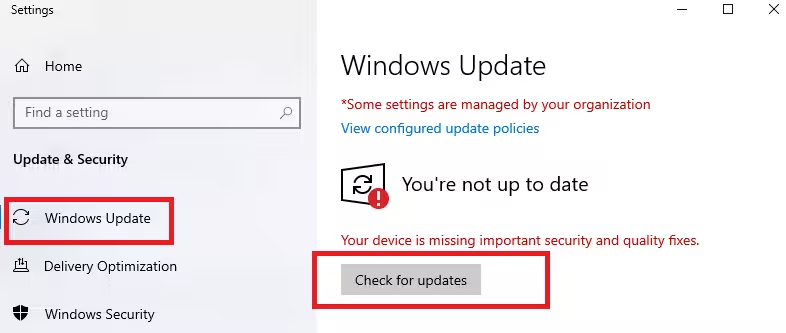
- Install all available updates.
- Restart the PC after installation.
Step 5 – Identify the Exact Error Using Event Viewer
Event Viewer reveals which application or service triggered the failure.
- Press Win + X and select Event Viewer.
- Navigate to:
Windows Logs → Application- Locate recent Error entries that match the time the issue appeared.
- Open the log and check the Faulting application name and module.
This information helps isolate whether a driver, Windows service, or third-party application caused the problem.
Step 6 – Repair the Affected Application (If Identified)
If Event Viewer points to a specific app:
- Open Settings → Apps → Installed apps.
- Select the app → Advanced options.
- Click Repair or Reset.
If the issue persists, uninstall the app and reinstall the latest version from the official source.
What to Avoid While Fixing This Error
Avoid unsafe troubleshooting shortcuts that can damage system stability:
- Do not use registry cleaners or random registry edits.
- Do not disable Windows services blindly.
- Do not download DLL files from third-party websites.
- Do not install unknown “PC optimizer” tools.
- Do not run unverified scripts from forums or videos.
Stick to built-in Windows repair tools and verified fixes only.
When to Consider a System Restore
If the error started immediately after a driver update or software installation, System Restore can revert the system safely.
- Search Create a restore point in Start.
- Click System Restore.

- Choose a restore point created before the issue appeared.
- Complete the restore and reboot.
FAQs
What does “an extended error has occurred” mean on Windows 11?
The message means Windows failed to complete a background operation due to system file corruption, component issues, or a service crash.
How do I fix an extended error has occurred on Windows 11?
Run sfc /scannow, repair the system image using DISM /RestoreHealth, install pending Windows updates, and restart Windows Explorer.
Can corrupted system files cause an extended error has occurred Windows 11?
Yes. Damaged or missing system files commonly trigger this error and cause Windows services to fail silently.
Does updating Windows fix an extended error has occurred problem?
Yes. Microsoft often releases stability patches that fix system errors, service crashes, and background failures.
Is it safe to run SFC and DISM commands on Windows 11?
Yes. Both tools are official Microsoft utilities designed to safely repair Windows system files and components.
Why does an extended error has occurred appear without an error code?
Windows shows this message when the system cannot display a detailed fault code for a background failure.
Can a driver issue trigger an extended error has occurred message?
Yes. Faulty graphics, network, or printer drivers can crash background services and generate this error.
Should I reinstall Windows to fix this error?
No. Most cases resolve using system file repair and updates. Reinstall Windows only if all repairs fail.
The “An extended error has occurred” message usually indicates underlying system file or component corruption rather than a single broken setting. Running SFC, DISM, and Windows Update resolves the issue in most cases without reinstalling Windows or modifying system internals.
If the error continues after these steps, Event Viewer logs provide the best path for deeper diagnosis.

