If you’re trying to share a file on Dropbox and suddenly see a “banned member” or “sharing activity interrupted” error, you’re not alone. Many users run into this issue when Dropbox temporarily suspends their ability to share files. The error usually isn’t permanent—but understanding the cause will help you resolve it faster and prevent it from happening again.
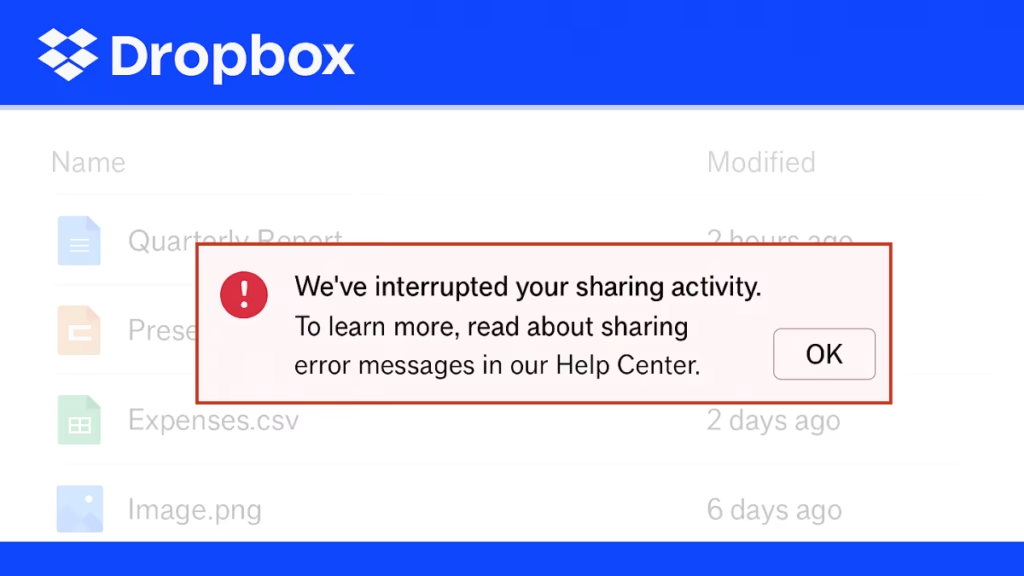
Why Does Dropbox Show “Banned Member” Error?
Dropbox may interrupt your sharing activity for several reasons. Here are the most common ones:
- Malware or Suspicious Content Detected
- If a file in your account is flagged as malware, phishing, or spam, Dropbox will immediately block sharing to protect other users.
- Bandwidth Limit Exceeded
- Basic accounts: 20 GB per day and up to 100,000 downloads.
- Paid plans (Plus, Professional, Business, etc.): Higher limits (1 TB to 4 TB daily) with unlimited downloads.
If your shared links exceed these limits, Dropbox suspends your sharing activity for 24 hours or more.
- Too Many Invites Sent
- Sending a large number of sharing invites in a short period triggers an automatic block. This is a spam-prevention measure.
- Copyright Complaint (DMCA)
- If Dropbox receives a copyright complaint about one of your files, sharing will be stopped until the matter is resolved.
- Link Overuse
- A shared link that’s been downloaded or viewed too many times in 24 hours will be temporarily disabled.
How to Fix the Dropbox Banned Member Error
1. Wait It Out
Most bans last 24 hours for the first occurrence. After that, sharing is automatically restored. Repeated issues may extend the suspension.
2. Check Your Files
- Run an antivirus scan on files you’re trying to share.
- Remove anything that might look suspicious to Dropbox’s systems.
3. Reduce Sharing Activity
- Avoid sending mass invites.
- Share a single link instead of multiple invites to reduce load.
4. Review Copyright Issues
If you received a DMCA email, follow the instructions in it to appeal or resolve the issue before Dropbox re-enables sharing.
5. Contact Dropbox Support
If you believe the suspension is a mistake (for example, harmless files being flagged), submit a support ticket. Dropbox will review and may restore your account’s sharing privileges.
How to Prevent It from Happening Again
- Compress and share smaller files instead of very large single uploads.
- Don’t share copyrighted movies, music, or software.
- Avoid spammy file names or suspicious links.
- For heavy sharing needs, consider upgrading from Basic to a paid plan with higher bandwidth allowances.
See also: Windows 11 Snipping Tool Missing? 8 Ways to Restore and Fix It
The Dropbox “banned member” error is frustrating, but in most cases it’s only temporary. Whether it’s caused by bandwidth overuse, suspicious content, or copyright complaints, the fixes usually involve waiting 24 hours, cleaning up files, and adjusting your sharing habits.
If you’re confident the suspension is a mistake, reaching out to Dropbox Support is your best option for a quick resolution.

