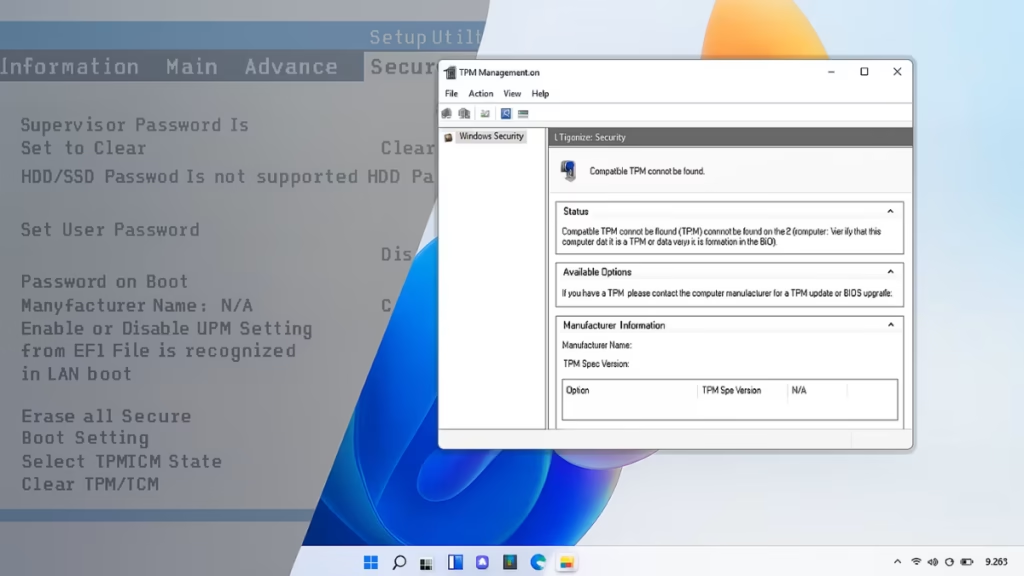
Trusted Platform Module (TPM) is required for Windows 11 installation and security features like BitLocker and Windows Hello. But some users find that TPM is enabled in BIOS/UEFI yet Windows still says it’s missing or unavailable.
This guide walks you through all basic and advanced fixes so you can get TPM working properly in Windows 11.
Why TPM Doesn’t Show in Windows 11
Even when enabled in BIOS, TPM may not appear due to:
- Outdated BIOS/UEFI firmware that doesn’t expose TPM correctly
- Incorrect BIOS setting labels (Intel PTT or AMD fTPM instead of TPM)
- Driver or OS issues preventing TPM detection
- Corrupted system configuration (registry, policies, or services)
- Virtual machine misconfiguration (no vTPM enabled in VM)
Step 1: Verify TPM Status in Windows
Before fixing, check if Windows detects TPM:
- Press Win + R, type
tpm.msc, and hit Enter.- If TPM is available, you’ll see its status and version.
- If you see “Compatible TPM cannot be found”, continue with the steps below.
You can also check in Device Manager → Security Devices → Trusted Platform Module.
Step 2: Double-Check BIOS Settings
Sometimes TPM is listed under a different name:
- Intel systems → Look for Intel PTT (Platform Trust Technology)
- AMD systems → Look for AMD fTPM
Also check:
- Enable Secure Boot.
- Save BIOS settings properly before exiting.
Step 3: Update BIOS/UEFI Firmware
Older BIOS versions may not fully support TPM 2.0.
- Visit your PC or motherboard manufacturer’s website.
- Download and apply the latest BIOS/UEFI update.
- Carefully follow the instructions to avoid update failures.
Step 4: Update Windows and Drivers
- Go to Settings → Windows Update → Check for updates.
- Install the latest chipset drivers and firmware updates from your manufacturer.
- Restart and check TPM again.
Step 5: Reset TPM (If Detected but Malfunctioning)
If TPM shows up but isn’t functioning properly:
- Open Settings → Privacy & Security → Windows Security → Device Security.
- Select Security processor details → Security processor troubleshooting.
- Choose Clear TPM.
Clearing TPM will reset stored keys. If you use BitLocker, back up your recovery key first.
Step 6: Check Group Policy and Registry
Sometimes TPM may be disabled by Windows settings:
- Group Policy Editor (
gpedit.msc)- Navigate to:
Computer Configuration → Administrative Templates → System → Trusted Platform Module Services - Ensure TPM isn’t disabled.
- Navigate to:
- Registry Editor (
regedit)- Path:
HKEY_LOCAL_MACHINE\SYSTEM\CurrentControlSet\Services\TPM - Make sure Start value =
2(Automatic).
- Path:
Advanced Fixes for TPM Not Showing
If the above steps don’t work, try these advanced fixes:
1. Check Windows Services
- Press Win + R, type
services.msc. - Locate TPM Base Services.
- Ensure it’s set to Automatic and running.
2. Reinstall TPM Drivers
- Open Device Manager → Security Devices.
- Right-click Trusted Platform Module 2.0 → Uninstall device.
- Restart PC → Windows will reinstall drivers automatically.
3. Run System File and Image Repair
If Windows files are corrupted, TPM detection may fail. Run these commands in Command Prompt (Admin):
sfc /scannow
DISM /Online /Cleanup-Image /RestoreHealth
Restart and check TPM again.
4. Fix Virtual Machine TPM (If Running Windows 11 in VM)
If you’re using a VM:
- Hyper-V: Go to VM settings → Security → Enable Trusted Platform Module.
- VMware/VirtualBox: Add a vTPM module (supported only in newer versions).
5. Reset BIOS to Defaults
As a last resort:
- Enter BIOS/UEFI.
- Reset to Default/Optimized Defaults.
- Re-enable TPM/Intel PTT/AMD fTPM.
How to Prevent TPM Detection Errors
- Keep BIOS/UEFI and chipset drivers updated.
- Check TPM after major Windows updates.
- Avoid clearing TPM unless necessary.
If TPM is enabled in BIOS but not showing in Windows 11, the issue is usually due to firmware settings, outdated BIOS, or corrupted system files. Start with basic fixes, and if the problem persists, move to advanced solutions like reinstalling drivers, checking services, or resetting BIOS.
With these steps, you can restore TPM and keep your Windows 11 PC compliant with security requirements.

