Many Windows gamers are facing a frustrating issue — as soon as the Microsoft Game Input plugin installs, all games start lagging, frame rates tank, and performance drops drastically. Yet uninstalling the plugin breaks controller support in certain titles like Minecraft Bedrock Edition, where even the mouse stops responding in the menus.
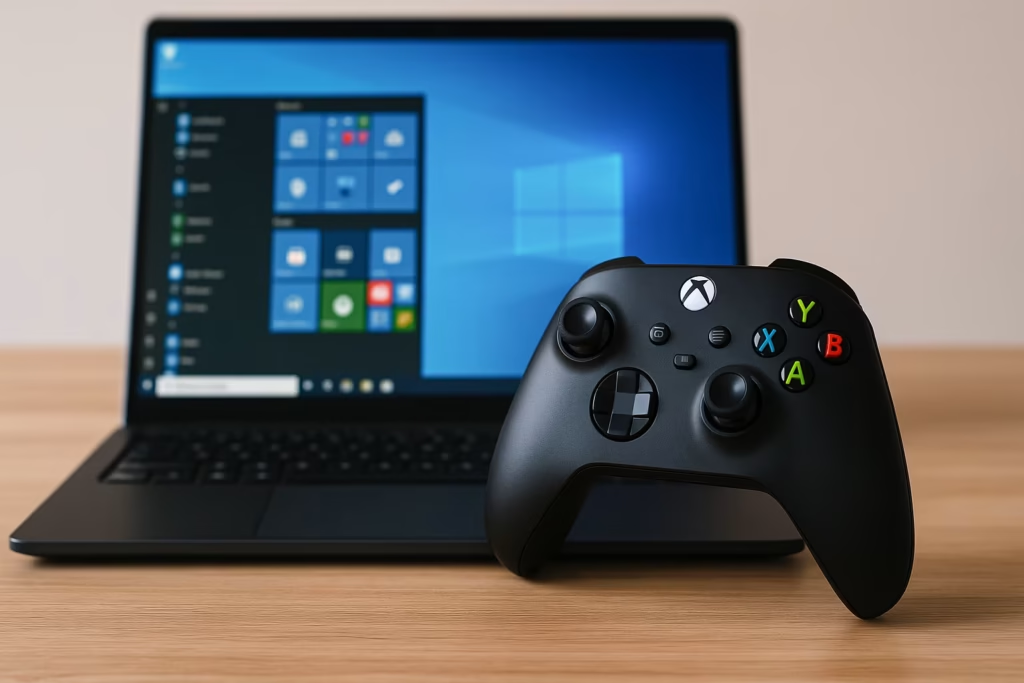
What Causes the FPS Drop?
The Microsoft Game Input plugin manages communication between your controller and Windows apps (especially UWP games). However, it can:
- Conflict with DirectInput or XInput drivers when multiple controllers are connected.
- Constantly poll input devices, consuming CPU resources.
- Interfere with background input APIs across games, not just Minecraft.
As a result, system-wide performance drops even in unrelated titles.
Fix 1: Update Windows and the Microsoft Game Input Plugin
The first step is to make sure you’re running the latest version.
- Press Win + I → Windows Update → Check for updates.
- Install all optional and driver updates.
- Open Microsoft Store → Library → Get updates.
- Update Microsoft Game Input if it appears in the list.
- Restart your PC and test your games again.
Microsoft often rolls out silent fixes for performance issues through Store updates.
Fix 2: Reinstall the Game Input Plugin
If updating didn’t help, reinstall the plugin completely.
- Press Win + R, type
powershell, and press Ctrl + Shift + Enter to open as admin. - Run this command:
Get-AppxPackage *MicrosoftGameInput* | Remove-AppxPackage- Restart your PC.
- Reinstall the plugin from the Microsoft Store by searching “Microsoft Game Input.”
This resets corrupted dependencies that may cause the slowdown.
Fix 3: Disconnect or Disable Extra Input Devices
Multiple connected devices can overload the plugin.
- Disconnect all unnecessary controllers, VR gear, or steering wheels.
- Open Device Manager → Human Interface Devices.
- Right-click and Disable duplicate entries like HID-compliant game controller.
- Reboot your system and test again.
Many users reported normal FPS after disabling duplicate device entries.
Fix 4: Change Power and USB Settings
To ensure the controller doesn’t repeatedly disconnect or re-initialize:
- Go to Control Panel → Hardware and Sound → Power Options.
- Select High performance.
- Under Device Manager → Universal Serial Bus controllers, right-click each USB Root Hub → Properties → Power Management.
- Uncheck Allow the computer to turn off this device to save power.
This maintains stable USB input without interrupting polling rates.
Fix 5: Use Steam Input or Native XInput Controllers
If you’re using a third-party controller, the Game Input plugin can struggle with compatibility.
Two alternatives:
- Use an Xbox controller, which uses native XInput and doesn’t rely on the plugin.
- Or, use Steam Input:
- Go to Steam → Settings → Controller → General Controller Settings.
- Enable support for your controller type (PlayStation, Switch, etc.).
Steam Input bypasses the problematic Windows plugin for most titles.
Fix 6: Reinstall Minecraft Bedrock Edition (if affected)
For Minecraft users forced to use the plugin:
- Backup your saved worlds.
- Uninstall Minecraft Bedrock Edition.
- Delete leftover folders from
Get-AppxPackage *MicrosoftGameInput* | Remove-AppxPackage- Reinstall the game from the Microsoft Store.
This refreshes the dependency link between Minecraft and Game Input.
Fix 7: Report the Issue to Microsoft
Since this plugin impacts system-wide performance, you can submit a report directly:
- Open Feedback Hub → Report a problem → Gaming → Game performance.
- Include your hardware info, game titles affected, and FPS behavior.
The more users report it, the faster Microsoft can roll out a stable patch.
Additional Tips
- Avoid uninstalling the plugin completely if you need it for Minecraft Bedrock Edition.
- If you mostly play non-UWP (Steam/Epic) games, you can remove it safely until a fix arrives.
- Always reboot after reinstalling or removing the plugin for changes to apply.
The Microsoft Game Input plugin should make controllers easier to use across games — not cause slowdowns. Until Microsoft addresses the issue, the best workaround is keeping the plugin updated, limiting connected devices, and using Steam Input or native Xbox controllers whenever possible.
Read More:

