Joining a private server on Roblox PS5 isn’t as straightforward as PC or mobile, because the PlayStation version does not support clicking VIP links or entering server URLs. However, you can still join private servers using a simple workaround that only needs to be set up once. After that, you can enter private servers anytime without repeating the whole process.
Why Private Servers Don’t Appear on PS5
Roblox PS5 currently lacks a direct Join Private Server button. That means you cannot:
- Paste private server links
- Search VIP servers in-game
- Join by clicking invite links like PC or mobile
To bypass this, you must connect through another device or join through a player already inside the private server.
Method 1 – Create the Private Server on Mobile/PC and Join from PS5
This method works for PS5, PS4, Xbox and is ideal if you own or control the VIP server.
Step-by-Step
- Open Roblox on Mobile or PC.
- Search the game you want (example: 999 Days, Grove A Garden, Still a Brain Rot).
- Scroll to the bottom and open the Servers section.
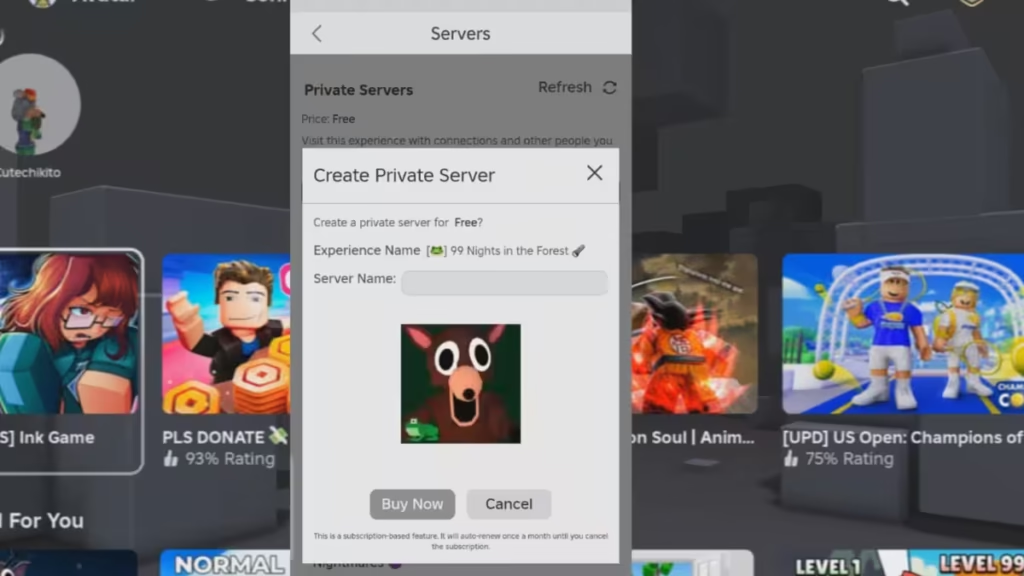
- Select Create Private Server and name it.
- Some servers are free
- Others cost Robux monthly (example: 80 Robux)
- Press Customize/Configure Server.
- Turn ON Allow Connections or Friends Allowed.
- Add the username of your PS5 account to the allowed list.
- Join the server once using mobile/PC to activate it.
- Now open Roblox on PS5 and press Play.
Your console will load directly into your private server.
Tip: After the PS5 successfully enters, the mobile/PC device can leave – server stays active.
Method 2 – Join Through a Friend Already Playing in the Private Server
If someone else owns the VIP server:
- Ask them to join the private server first.
- Add that player as a friend on Roblox.
- On PS5 → open Friends > Select their Profile > Join Game.
- You will enter the same private server if you are whitelisted or Friends Allowed is ON.
Method 3 – Your Friend Sends a Direct Private Server Invite
Useful when you don’t have another device.
- Ask the VIP server owner to send an in-game invite.
- You will get a popup on PS5, select Join.
- You will be placed into the private server immediately.
Note: This only works if your username is added to server access settings.
Method 4 – Join with an Alt Account Logged In on Mobile
Ideal if you want privacy without depending on other players.
- Create a second Roblox account.
- Log into it on mobile or PC.
- Use that account to join the private server.
- On PS5, use your main account → open your alt’s profile → Join Game.
- You will be transferred into the private VIP server.
The mobile account acts as a bridge that unlocks private server access.
Free vs Paid Private Servers
| Server Type | Cost | Notes |
|---|---|---|
| Free VIP Servers | 0 Robux | Available in some games like “999 Days in the Forest”, “Grove a Garden” |
| Paid VIP Servers | Monthly Robux | Requires subscription (example: Still a Brain Rot – 80 Robux/month) |
How to Cancel Private Server Subscription
- Open the game page on mobile/PC.
- Go to the Servers section.
- Click three dots beside your server.
- Select Cancel Subscription.
- You can still use the server until next billing date.
Roblox PS5 does not currently support direct private server joining like PC does, but you can still play VIP servers reliably by using a paired device or joining through another player.

