Windows 11 update error 0x800f0983 appears when a cumulative update fails during the installation phase, even though the download completes successfully. Many affected systems report this error while installing KB5066835, where the update either stalls, rolls back after restart, or exits with an “installation failed” message.
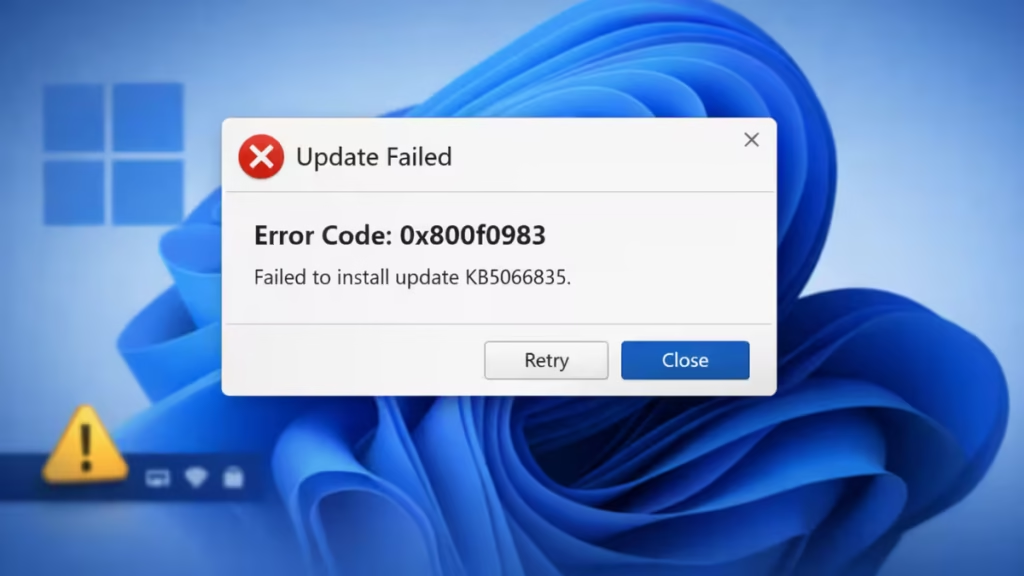
In most cases, the failure happens because Windows Update cannot correctly validate or apply system components. Corrupted update cache files, damaged servicing components, and mismatched language packs commonly trigger this behavior. If the issue persists, Windows repeatedly retries the same update and continues to fail.
This guide walks through proven methods to repair update components, reset corrupted services, and restore Windows Update functionality safely.
What Is Windows 11 Error 0x800f0983?
Error 0x800f0983 is a servicing stack installation failure that occurs when Windows cannot successfully apply update packages to the operating system. It usually affects cumulative updates because those packages depend on multiple system components working correctly.
Even a small corruption inside the component store or update cache can prevent the installer from completing the process.
Users typically notice the following issues:
- Update repeatedly failing during installation
- “Installation failed” or generic update error messages
- System rolling back changes after restart
- KB update remaining stuck in the installing phase
When this error appears, Windows Update continues attempting the same update until the underlying issue is resolved.
Fix 1: Reset Windows Update Components
Corrupted update cache files are the most frequent reason for error 0x800f0983. Resetting Windows Update services clears blocked or damaged files.
Steps
- Open Command Prompt (Admin)
- Run the following commands one by one:
net stop wuauserv
net stop bits
net stop cryptsvc
del /s /q %windir%\SoftwareDistribution\*
del /s /q %windir%\System32\catroot2\*
net start wuauserv
net start bits
net start cryptsvc- Restart your PC
- Go to Settings → Windows Update → Check for updates
Fix 2: Uninstall and Reinstall KB5066835 Manually
If the update installed partially, removing it before reinstalling often resolves the issue.
Steps
- Open Command Prompt (Admin)
- Run:
wusa /uninstall /kb:5066835- Restart your PC
- Visit the Microsoft Update Catalog
- Search for KB5066835
- Download the correct
.msufile for your system - Install it manually and restart
Fix 3: Run the Windows Update Troubleshooter
Windows includes a built-in troubleshooter that can automatically fix common update issues.
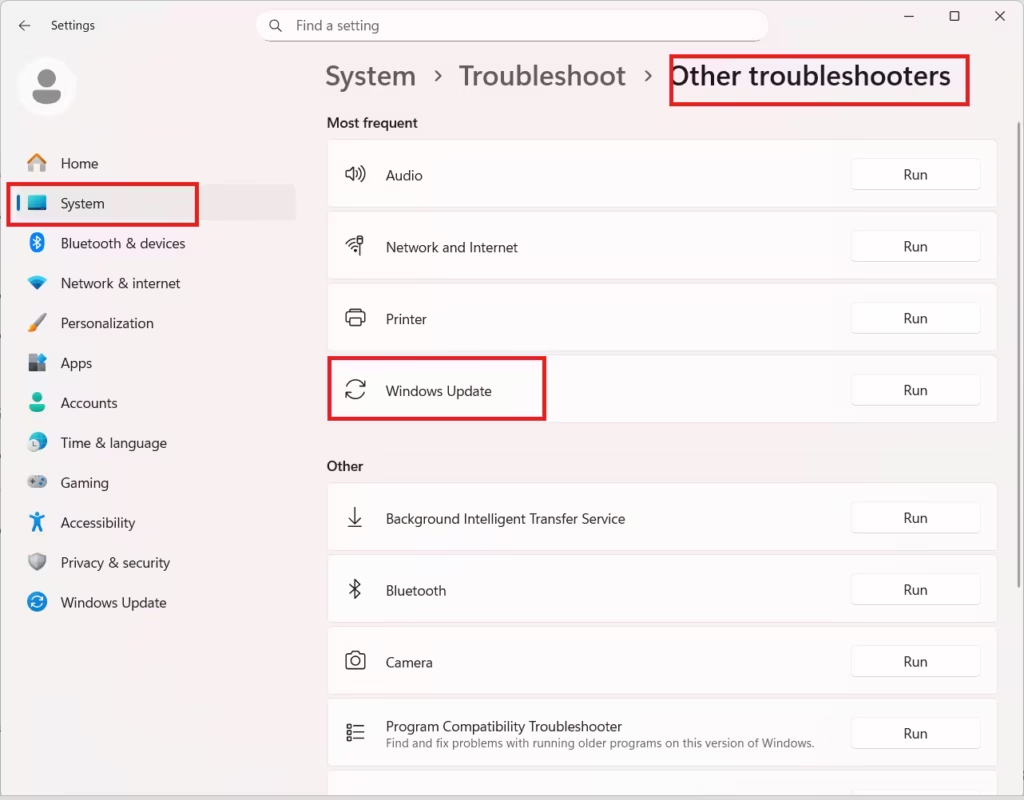
Steps
- Open Settings
- Go to System → Troubleshoot → Other troubleshooters
- Click Run next to Windows Update
- Apply recommended fixes
- Restart your system
Fix 4: Clear Pending Update and Temporary Files
Leftover update files can block new installations.
Steps
- Press Win + R
- Paste:
C:\Windows\SoftwareDistribution\Download- Delete all files inside the folder
- Go to:
C:\Windows\WinSxS\Temp- Delete
Pending.xmlif it exists - Restart and try updating again
Fix 5: Repair System Files Using DISM and SFC
If system files are corrupted, Windows Update will fail repeatedly.
Steps
- Open Command Prompt (Admin)
- Run:
DISM /Online /Cleanup-Image /RestoreHealth- After completion, run:
sfc /scannow- Restart your PC before checking for updates
Fix 6: Switch or Reinstall the Language Pack
Language pack mismatches are a known cause of error 0x800f0983.
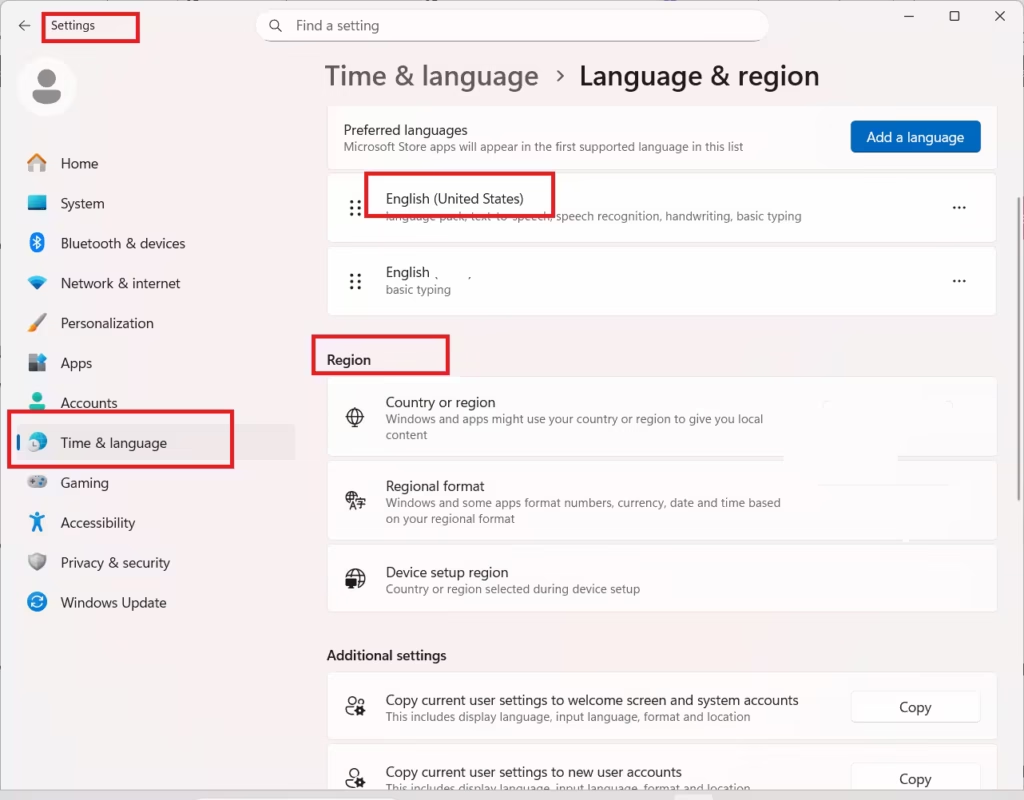
Steps
- Open Settings → Time & Language → Language & Region
- Change Windows display language to English (United States)
- Restart your PC
- Install the update
- Switch back to your preferred language after completion
Fix 7: Perform an In-Place Upgrade (Last Resort)
If none of the above fixes work, an in-place upgrade refreshes Windows system files without deleting personal data.
Steps
- Download the Windows 11 Installation Assistant
- Run the tool
- Choose Upgrade this PC now
- Complete the setup process
This method repairs system components and resolves persistent update errors like 0x800f0983.
FAQs Windows 11 Update Error 0x800f0983 (KB5066835 Failed)
What is Windows 11 error 0x800f0983?
Windows 11 error 0x800f0983 is an update installation failure that occurs when Windows cannot apply a cumulative update correctly. It usually appears during updates like KB5066835 and causes the update process to stop or roll back after restart.
Why does KB5066835 fail to install with error 0x800f0983?
KB5066835 fails due to corrupted Windows Update cache files, damaged system components, or language pack mismatches. In some cases, an interrupted update download or previous failed updates can also trigger error 0x800f0983.
Can Windows 11 error 0x800f0983 be fixed without reinstalling Windows?
Yes. In most cases, Windows 11 error 0x800f0983 can be fixed without reinstalling Windows. Resetting Windows Update components, running DISM and SFC scans, or manually reinstalling the update usually resolves the issue.
Is error code 0x800f0983 harmful to my PC?
No. Error code 0x800f0983 does not damage your PC or delete files. However, it prevents important security and stability updates from installing, which is why fixing it is strongly recommended.
Does changing the language pack fix error 0x800f0983?
Yes, switching the Windows display language to English (United States) has fixed error 0x800f0983 for many users. Language pack conflicts are a known cause of cumulative update failures in Windows 11.
What should I do if error 0x800f0983 keeps coming back?
If error 0x800f0983 keeps returning after multiple fixes, performing an in-place upgrade using the Windows 11 Installation Assistant is the most reliable solution. It repairs system files without removing personal data or apps.
Can I skip KB5066835 if it keeps failing?
Skipping KB5066835 is not recommended. Cumulative updates include critical security patches, and skipping them may leave your system vulnerable. Fixing Windows 11 error 0x800f0983 ensures your system stays fully updated and secure.
Windows 11 update error 0x800f0983 (KB5066835 failed) is usually caused by corrupted update files, system component issues, or language pack conflicts. By following the fixes above in order, most users can restore Windows Update functionality without reinstalling Windows.
If the issue continues after all fixes, manually installing the update or performing an in-place upgrade is the safest solution.

