While installing Windows 11 on a PC or laptop, you may suddenly get stuck at a setup screen that says “Install driver to show hardware”. At this stage, Windows Setup does not display any internal hard drive or SSD, making it impossible to continue the installation.
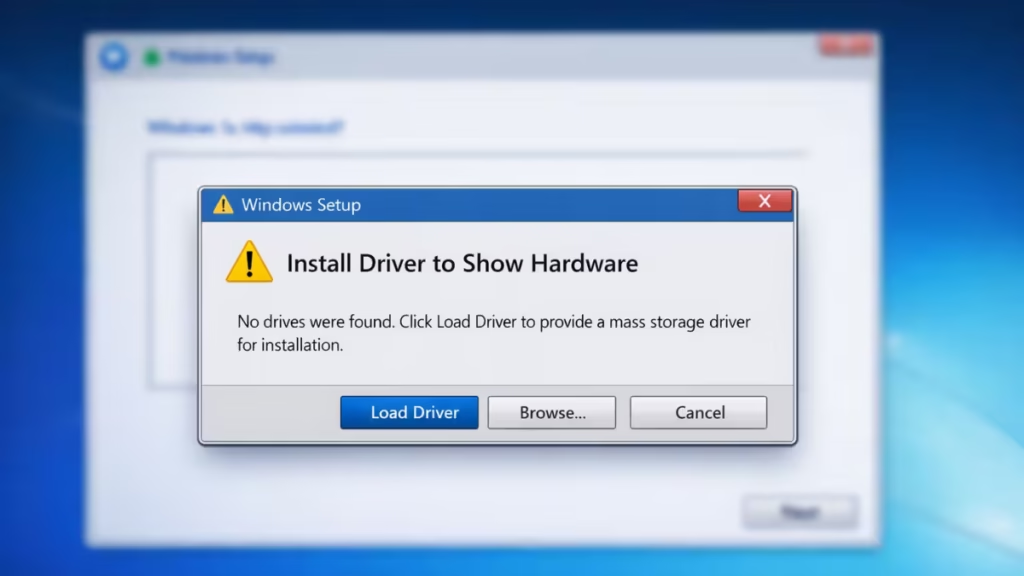
This error is common on modern systems and does not mean your storage drive is faulty. In most cases, Windows Setup is unable to detect the drive due to missing storage drivers, BIOS storage settings, or improperly created installation media.
What Does “Install Driver to Show Hardware” Mean?
This message appears when Windows Setup cannot detect your internal storage device. The installer asks for a driver so it can communicate with the storage controller and display the hard drive or SSD.
The most common reasons include:
- Corrupted or incomplete Windows installation USB
- Missing SATA, NVMe, or Intel storage drivers
- Storage controller set to RAID or Intel VMD mode
- Incorrect boot configuration in BIOS
Before You Start
Make sure you have:
- A USB flash drive (8 GB or larger)
- A working PC with internet access
- Windows 11 ISO or Media Creation Tool
- A keyboard and mouse connected to the target PC
Fix 1: Recreate the Windows 11 Installation USB (Recommended First)
In many cases, this error appears because the Windows USB installer was created incorrectly or became corrupted.
What to Do
- Create a fresh Windows 11 USB installer using one of these tools:
- Windows PC: Windows Media Creation Tool
- Any system: Ventoy or Balena Etcher
- Use a USB drive with at least 8 GB capacity
- Plug the USB into a different USB port on your PC
- Restart the installation and check if the drive appears
Fresh installation media ensures Windows Setup loads all required driver files properly.
Fix 2: Load the Storage Driver Manually During Setup
If Windows Setup still does not show your drive, the system likely needs the correct storage controller driver.
Steps
- On another PC, visit your motherboard or laptop manufacturer’s support page
- Download the Intel Rapid Storage Technology (RST) driver or the NVMe storage driver
- Extract the downloaded ZIP file completely
- Copy the extracted driver folder to the Windows installation USB
- Boot into Windows Setup again
- When you see “Install driver to show hardware”, click Browse
- Select the driver folder and load the
.inffile
Once the driver loads, the internal SSD or HDD should appear instantly.
Advanced Fix: Disable Intel VMD / RAID Mode in BIOS (Modern Intel Systems)
On newer Intel-based systems, the internal NVMe drive may be hidden behind Intel VMD (Volume Management Device) or RAID mode. Windows Setup cannot detect the drive unless the correct driver is loaded or the mode is changed.
How to Disable It Safely
- Restart the PC and enter BIOS / UEFI
- Open Storage Configuration
- Disable:
- Intel VMD
- RAID mode
- Set storage mode to AHCI
- Save changes and restart Windows Setup
After this change, Windows Setup should detect the drive without requiring additional drivers.
This setting can be re-enabled later if needed and does not harm the SSD.
Fix 4: Verify Boot Mode Settings (Quick Check)
Incorrect boot settings can also prevent Windows Setup from detecting storage devices.
Make sure the following are set in BIOS:
- Boot Mode: UEFI
- Legacy / CSM: Disabled
- Secure Boot: Enabled or Disabled (either is fine)
Do not switch boot modes randomly. Only verify that UEFI is active, as Windows 11 requires it.
Why Does Windows Setup Show Only “USB C:” Drive?
During installation, Windows creates a temporary virtual USB drive for setup files. Seeing a drive like USB C: is normal and not the problem.
The issue is that the internal drive is missing, not the USB installer.
Remove Extra Drives and Peripherals (Optional)
If the error persists:
- Disconnect additional SSDs or HDDs
- Remove external USB devices and SD cards
- Leave only the target drive, keyboard, and mouse connected
This simplifies hardware detection during setup.
What You Should Not Do
- Do not format the internal drive blindly
- Do not install random third-party driver packs
- Do not change multiple BIOS settings at once
Fix the root cause before retrying installation.
FAQs
What does “Install driver to show hardware” mean in Windows 11 installation?
The “Install driver to show hardware” message appears when Windows 11 Setup cannot detect the internal storage drive. This usually happens because a required storage driver is missing or the drive is hidden by BIOS storage settings.
Why does Windows 11 installation not show my SSD or hard drive?
Windows 11 installation may not show your SSD if the storage controller is set to RAID or Intel VMD mode, or if the correct SATA or NVMe driver is not loaded during setup.
How do I fix the “Install driver to show hardware” error in Windows 11?
To fix the Install driver to show hardware Windows 11 error, recreate the installation USB, load the correct storage driver manually, or disable Intel VMD/RAID mode in BIOS so Windows Setup can detect the drive.
Which driver should I load when Windows 11 asks for a driver?
In most cases, Windows 11 requires the Intel Rapid Storage Technology (RST) driver or the NVMe storage driver provided by the motherboard or laptop manufacturer.
Can a corrupted USB installer cause the Install driver error?
Yes. A corrupted or incorrectly created Windows 11 USB installer can prevent setup from loading storage drivers, causing the Install driver to show hardware error during installation.
Is Intel VMD the reason my drive is not detected?
Yes. On newer Intel-based systems, Intel VMD can hide NVMe drives from Windows Setup unless the correct driver is loaded or VMD is disabled in BIOS.
Does switching SATA mode to AHCI fix this problem?
Yes. Setting the storage mode to AHCI instead of RAID often allows Windows 11 Setup to detect the internal drive without needing additional drivers.
Is my SSD faulty if Windows 11 Setup cannot detect it?
No. In most cases, the SSD is working normally but is hidden due to missing drivers or incorrect BIOS storage configuration.
Why does Windows Setup only show a USB drive during installation?
Windows Setup creates a temporary virtual USB drive during installation. Seeing only a USB drive is normal when the internal storage is not detected.
Is this error common on new Windows 11 laptops?
Yes. The Install driver to show hardware Windows 11 error is common on modern laptops shipped without an operating system, especially those using newer Intel processors.

