When restoring files or a full system image using Windows Backup, many users get stuck at a screen asking them to “Enter the name of the computer that contains the backup.” Windows does not clearly explain where this name should be entered or what it actually refers to, which makes the restore process confusing and frustrating.
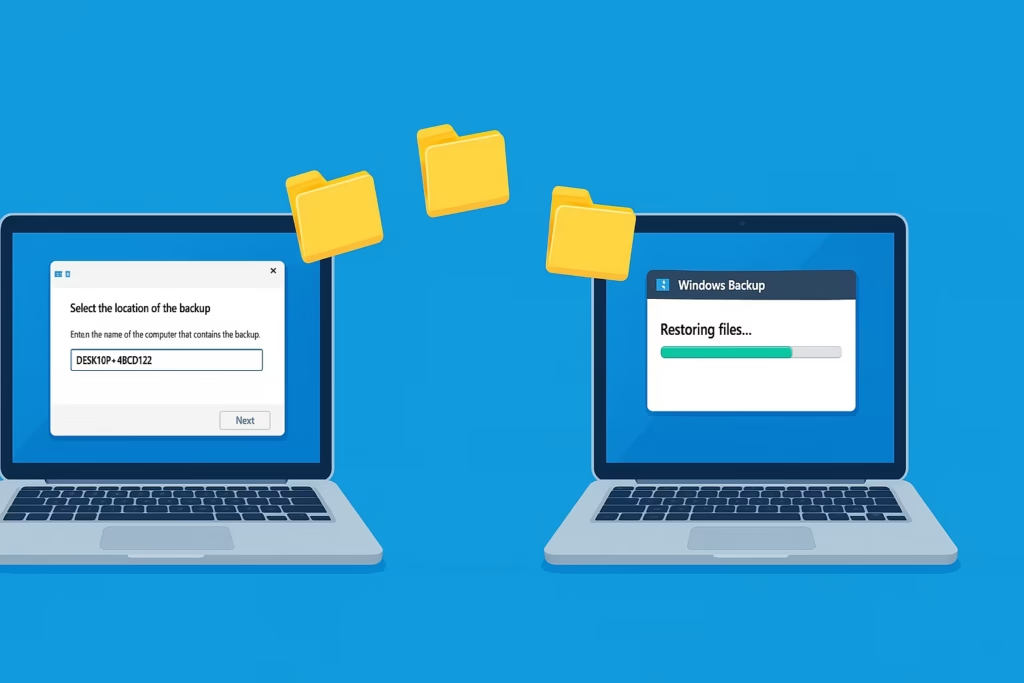
When Windows Backup asks for the old PC name, it is not asking you to sign in to your previous computer.
Instead, Windows is trying to locate the backup folder created by your old system. Every Windows system image backup is stored inside a folder that uses the computer name of the original PC. Windows relies on this exact name to identify and restore the backup correctly.
If the folder name does not match what Windows expects, the restore wizard fails to detect the backup and shows this confusing prompt.
Where Windows Stores Old PC Backups (WindowsImageBackup Explained)
Windows stores system image backups in a specific folder structure. Your backup drive must look like this:
<DriveLetter>:\WindowsImageBackup\<OldComputerName>\For example:
E:\WindowsImageBackup\DESKTOP-ABCD123\Here:
- WindowsImageBackup is mandatory
- DESKTOP-ABCD123 is the old PC name
- Even a small mismatch can cause detection failure
If this structure is broken or renamed incorrectly, Windows Backup cannot find your system image.
How to Find Your Old PC Name for Windows Backup Restore
If you still have access to the old PC:
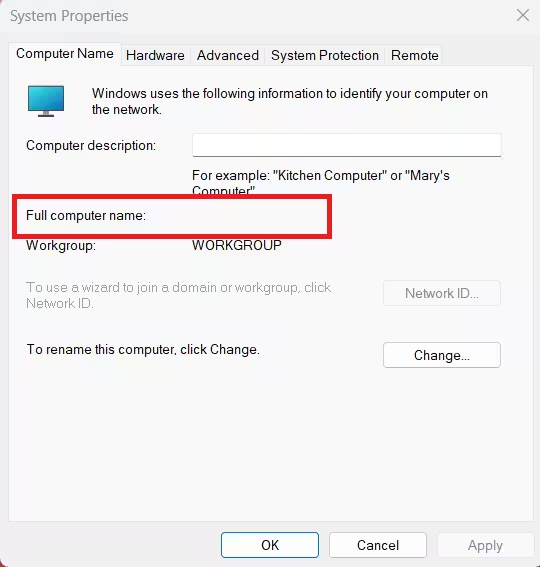
- Press Windows + R
- Type sysdm.cpl and press Enter
- Open the Computer Name tab
- Note the Full computer name
This is the exact name Windows expects in the backup folder.
If you no longer have access to the old PC:
You usually don’t need it.
The old PC name is already embedded in the backup folder name inside WindowsImageBackup on your external drive or network location.
Where to Enter the Old PC Name in Windows Backup Restore
This is the part that confuses most users.
Windows does NOT provide a text box in most restore screens to manually type the old PC name.
Instead:
- Windows automatically scans connected drives
- It looks for the WindowsImageBackup<OldPCName> structure
- If found, the backup appears instantly
When manual entry is required
If restoring from a network location, Windows may ask for a computer name or path. In that case, enter it like this:
\\OLD-PC-NAMEOr the full network path:
\\OLD-PC-NAME\BackupFor local or USB drives, manual entry is usually not required.
Windows Backup Cannot Find Old Computer Name? Try This Fix
If your backup drive is connected but Windows still cannot detect it, the folder name is usually the problem.
Follow these steps carefully.
Rename WindowsImageBackup Folder to Fix Restore Detection
- Open File Explorer
- Go to your backup drive
- Open the WindowsImageBackup folder
- Check the subfolder name inside it
- Rename it to exactly match the old PC name
- No extra spaces
- No spelling changes
- Use the original name shown in the backup
After renaming:
- Close the restore wizard
- Restart the restore process
- Windows should now detect the backup automatically
The folder name must match the old PC name exactly. Even a minor mismatch can break detection.
Additional Tips for Successful Windows Backup Restore
If you are restoring across different Windows versions (for example, Windows 10 to Windows 11), follow these best practices:
- Run the restore wizard as Administrator
- Ensure the backup drive is formatted as NTFS
- Temporarily disable antivirus software
- Avoid USB hubs — connect the drive directly
- Do not rename files inside the backup folder
These steps prevent permission and access errors during restore.
FAQs
Why does Windows Backup ask to enter the old PC name?
Windows Backup uses the old PC name to locate the system image stored inside the WindowsImageBackup folder. The backup is saved under the original computer name, and Windows needs this exact name to identify and restore the backup correctly.
Where do I enter the old PC name in Windows Backup?
In most cases, Windows does not provide a text box to manually enter the old PC name. Windows automatically detects the backup by scanning the WindowsImageBackup<OldPCName> folder. Manual entry is only required when restoring from a network location.
What should I do if Windows Backup cannot find my old computer backup?
If Windows Backup cannot detect your backup, check the folder structure on your backup drive. Make sure the backup is stored as WindowsImageBackup<OldPCName> and that the folder name exactly matches the original computer name.
Can I restore a Windows backup if I don’t remember my old PC name?
Yes. You can find the old PC name by opening your backup drive and checking the folder name inside the WindowsImageBackup directory. That folder name is the old computer name Windows expects.
Does restoring a Windows backup require the old PC to be turned on?
No. The old PC does not need to be available. As long as the backup files exist and the folder structure is correct, Windows can restore the backup without access to the original system.
Why does Windows Backup fail even when the backup folder exists?
This usually happens due to incorrect folder naming, permission issues, antivirus interference, or unsupported drive formats. Ensuring the drive is formatted as NTFS and running the restore wizard as Administrator often resolves the issue.
Can I restore a Windows 10 backup on Windows 11 using the old PC name?
Yes. Windows 11 supports restoring backups created on Windows 10, provided the WindowsImageBackup folder structure and old PC name remain unchanged.
The “enter the name of the computer that contains the backup” message is misleading, but the fix is simple once you understand how Windows organizes backups. In most cases, ensuring the correct WindowsImageBackup folder structure is enough to make your backup appear instantly.
If your restore still fails after following these steps, the issue is usually related to permissions, drive format, or corrupted backup files.

