If you’re unable to update to Windows 11 version 25H2 and keep seeing error code 0x8007001F, you’re not alone. This error usually appears during the middle of a feature update and stops the installation completely.
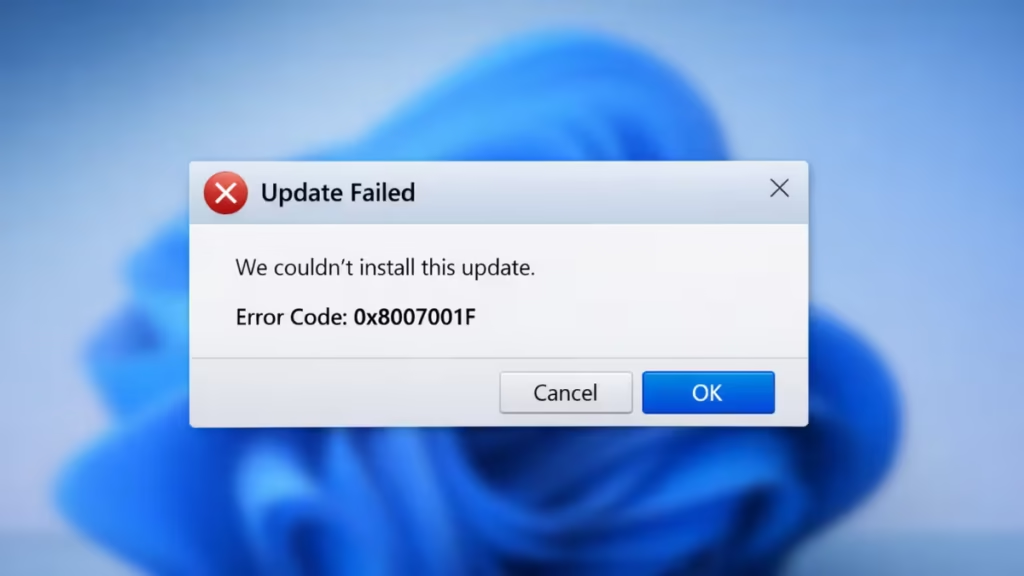
Why Windows 11 25H2 Update Fails With Error 0x8007001F
The most common causes include:
- Conflicting audio drivers (Realtek, Dolby, DTS, Nahimic)
- Stuck or broken Windows Audio services
- Third-party antivirus or security software
- Corrupted Windows Update cache
- Incomplete system files from a previous update attempt
Fix 1: Restart Windows Audio Services
This is the most effective fix for error 0x8007001F.
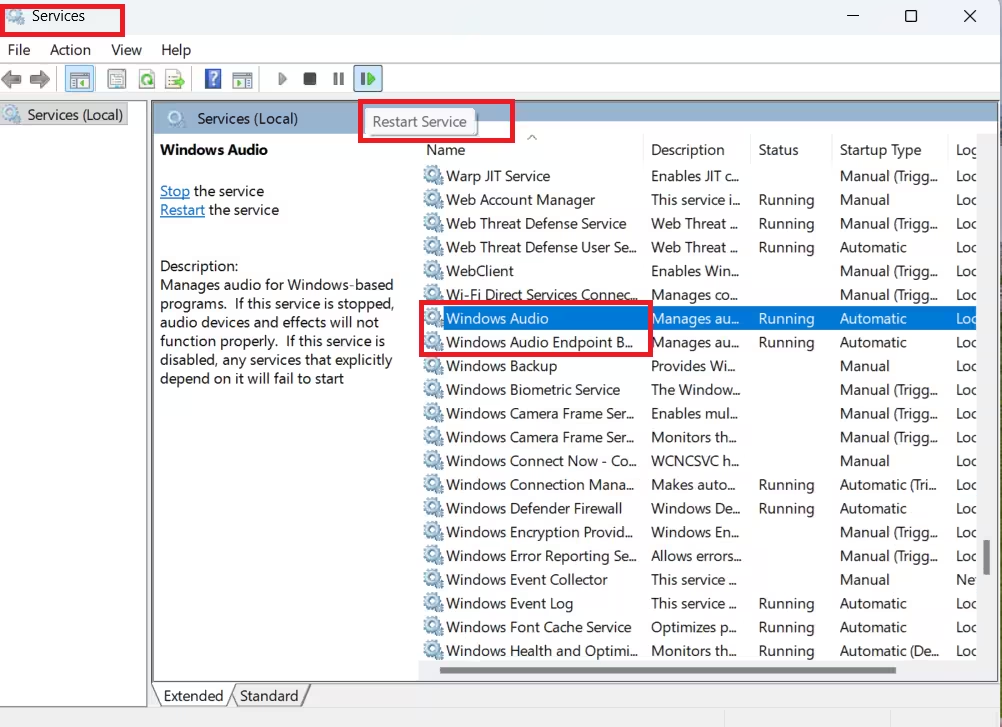
Steps:
- Press Win + R
- Type
services.mscand press Enter - Locate and restart:
- Windows Audio
- Windows Audio Endpoint Builder
- Close the window
- Restart your PC
- Try updating to Windows 11 25H2 again
Why this works: Windows feature updates reconfigure audio components. If these services are stuck, the update fails immediately.
Fix 2: Temporarily Disable or Remove Third-Party Antivirus
Some antivirus tools block driver migration during feature upgrades.
What to do:
- Temporarily disable real-time protection
or - Fully uninstall the antivirus
- Restart the system
- Run Windows Update again
You can reinstall the antivirus after the update completes.
Fix 3: Reset Windows Update Components
Corrupted update files are a major trigger for this error.
Steps:
- Open Command Prompt (Run as Administrator)
- Run the following commands one by one:
net stop wuauserv
net stop bits
net stop cryptsvc
ren C:\Windows\SoftwareDistribution SoftwareDistribution.old
ren C:\Windows\System32\catroot2 catroot2.old
net start wuauserv
net start bits
net start cryptsvc- Restart your PC
- Retry the Windows 11 25H2 update
This clears broken update data without deleting personal files.
Fix 4: Update Audio Drivers Manually
Outdated audio drivers are a known cause of error 0x8007001F.
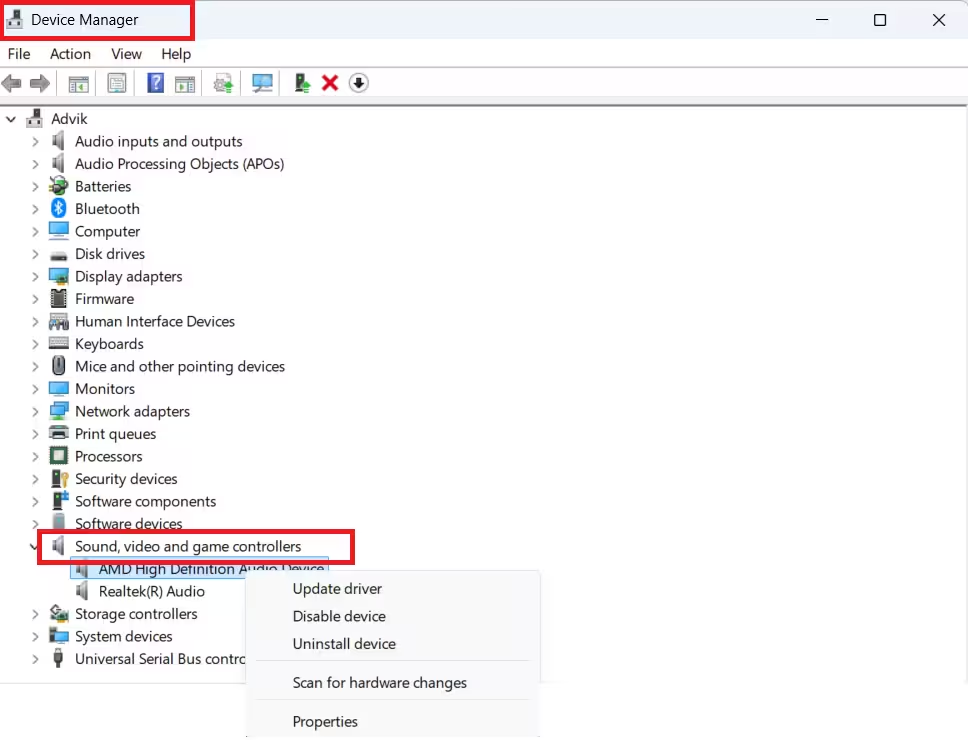
Recommended steps:
- Open Device Manager
- Expand Sound, video and game controllers
- Right-click your audio device
- Select Update driver
- Choose Search automatically
If Windows doesn’t find an update:
- Visit your laptop or motherboard manufacturer’s official support page
- Download the latest Windows 11 audio driver
- Install it manually
- Restart and try the update again
Fix 5: Repair System Files Using SFC and DISM
System file corruption can silently block feature updates.
Steps:
- Open Command Prompt (Admin)
- Run:
sfc /scannow- After it finishes, run:
DISM /Online /Cleanup-Image /RestoreHealth- Restart the PC
- Try updating to Windows 11 25H2 again
Fix 6: Upgrade Using Windows 11 Installation Assistant
If Windows Update keeps failing, use Microsoft’s official upgrade tool.
Steps:
- Download Windows 11 Installation Assistant from Microsoft (official site)
- Run the tool
- Choose Upgrade this PC now
- Keep files and apps when prompted
This method bypasses Windows Update cache issues.
Fix 7: Perform a Clean Boot Before Updating
Background services from OEM tools can interfere with updates.
Steps:
- Press Win + R
- Type
msconfig - Open the Services tab
- Check Hide all Microsoft services
- Click Disable all
- Restart the PC
- Run the Windows 11 25H2 update
- Re-enable services after the update completes
What You Should NOT Do
- Do not edit the registry
- Do not use driver-cleaner tools
- Do not downgrade Windows
- Do not change BIOS settings
These actions can permanently break Windows Update.
Is Error 0x8007001F a Serious Problem?
No.
Error 0x8007001F does not indicate hardware failure. Once the conflicting service or driver is fixed, Windows 11 version 25H2 installs normally.
FAQs: Windows 11 25H2 Error 0x8007001F
What is Windows 11 25H2 update error 0x8007001F?
Windows 11 error 0x8007001F occurs when the 25H2 feature update fails due to driver conflicts, audio service issues, or corrupted Windows Update components. The update usually downloads but stops during installation.
Why does Windows 11 version 25H2 fail to install with error 0x8007001F?
This error is commonly triggered by outdated or conflicting audio drivers, third-party antivirus software, broken Windows Audio services, or damaged update cache files from a previous failed upgrade.
Is error 0x8007001F caused by hardware problems?
No. Error 0x8007001F is not a hardware failure. It is a software-level issue related to drivers or system services and can be fixed without replacing any hardware components.
Can audio drivers really block Windows 11 25H2 updates?
Yes. During major feature updates, Windows reinitializes audio services. Faulty or incompatible audio drivers can interrupt this process and cause the update to fail with error 0x8007001F.
Will resetting Windows Update components delete my files?
No. Resetting Windows Update components only removes cached update files. Your personal data, installed apps, and system settings remain unchanged.
Is it safe to upgrade using Windows 11 Installation Assistant after error 0x8007001F?
Yes. The Windows 11 Installation Assistant is an official Microsoft tool and is safe to use. It bypasses Windows Update cache issues and often completes the 25H2 upgrade successfully.
Should I edit the registry to fix error 0x8007001F?
No. Editing the registry is not required and may cause additional system issues. This error can be resolved using standard Windows repair steps without registry changes.
Does error 0x8007001F affect future Windows updates?
No. Once the underlying driver or service conflict is resolved, Windows Update works normally and future updates install without issues.
Can I prevent error 0x8007001F from happening again?
Yes. Keeping audio drivers updated, avoiding outdated OEM utilities, and uninstalling unused third-party security software reduces the chances of this error during future feature updates.

