Keeping drivers updated is essential for Windows 11 stability, performance, and compatibility. Outdated or broken drivers can cause common issues like Wi-Fi disconnects, sound problems, display glitches, game crashes, and even Blue Screen errors. While Windows Update handles basic drivers, it often misses newer or optional updates.
This is where driver update tools help. They automatically scan your system, detect outdated or missing drivers, and install the correct versions safely.
Best Driver Update Tools for Windows 11
1. Driver Booster (IObit) – Best Overall Choice
Best for: Most users (beginners to advanced)
Platforms: Windows 11, 10
Free + Paid versions available

Driver Booster is one of the most widely used driver update tools for Windows. It scans your system, compares installed drivers with a large online database, and updates them with a single click.
Key features
- Large driver database covering GPUs, audio, network, chipset, USB, printers
- One-click scan and update
- Automatic restore point creation before updates
- Game-ready drivers for better performance
- Offline driver support (limited)
Pros
- Very easy to use
- Fast scanning
- Good balance of automation and safety
Cons
- Free version has speed and update limits
- Occasional upgrade prompts
Recommended for: Home users, gamers, and general Windows 11 systems.
2. AVG Driver Updater – Best for Reliability & Safety
Best for: Users who prioritize stability
Platform: Windows 11
Paid (free scan only)
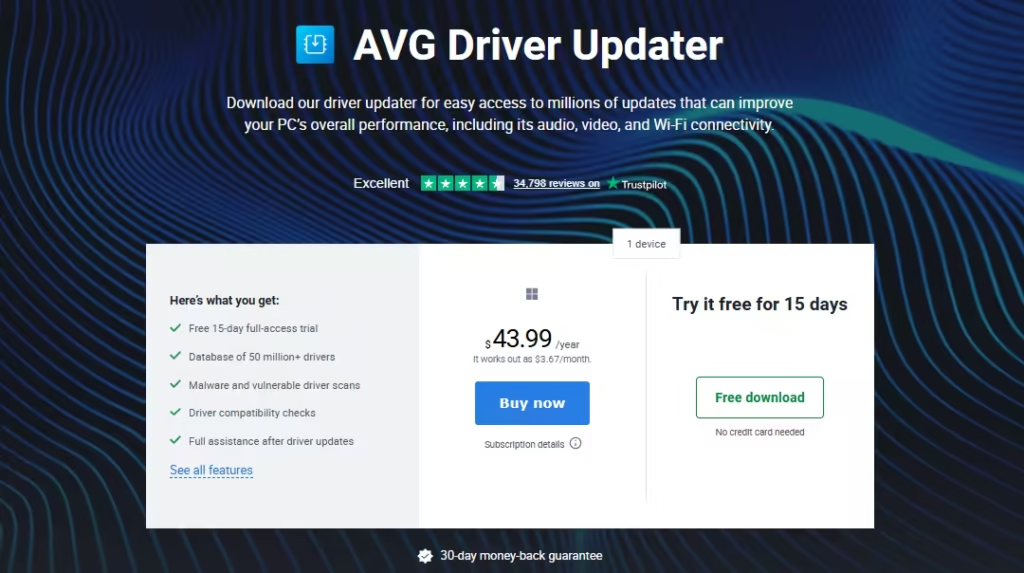
AVG Driver Updater focuses on safe, tested drivers rather than aggressive updates. It checks millions of drivers from major hardware manufacturers and avoids unstable releases.
Key features
- Automatic scanning and alerts
- Detects missing, outdated, and corrupted drivers
- Backup and rollback support
- Emphasis on WHQL-certified drivers
Pros
- Strong brand reputation
- Reliable updates
- Good for work and business PCs
Cons
- No fully free version
- Slightly heavier system usage
Recommended for: Office PCs, non-gaming systems, users who want maximum stability.
3. Snappy Driver Installer – Best Free & Offline Tool
Best for: Advanced users and technicians
Platform: Windows 11
100% Free & Open Source
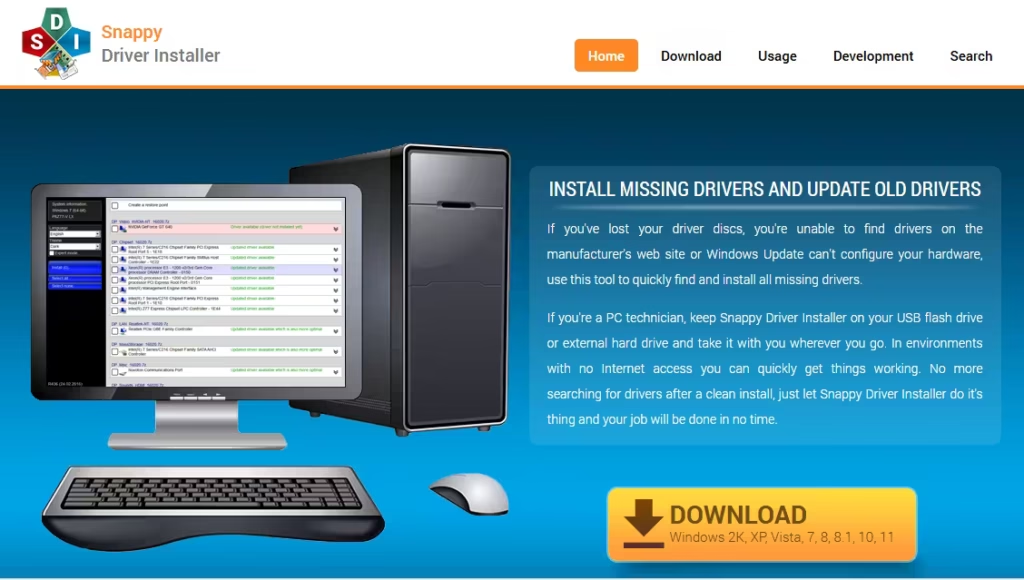
Snappy Driver Installer (SDI) is different from commercial tools. It allows you to download complete driver packs and install drivers without an internet connection, making it ideal for clean Windows installations.
Key features
- Offline driver packs (large downloads)
- No ads, no subscriptions
- Works on multiple PCs
- Full user control over driver selection
Pros
- Completely free
- Excellent for fresh installs
- No forced updates or promotions
Cons
- Interface is not beginner-friendly
- Requires manual decisions
Recommended for: IT professionals, repair technicians, advanced users.
4. Driver Easy – Best for Simplicity
Best for: Beginners who want clarity
Platform: Windows 11
Free + Paid versions
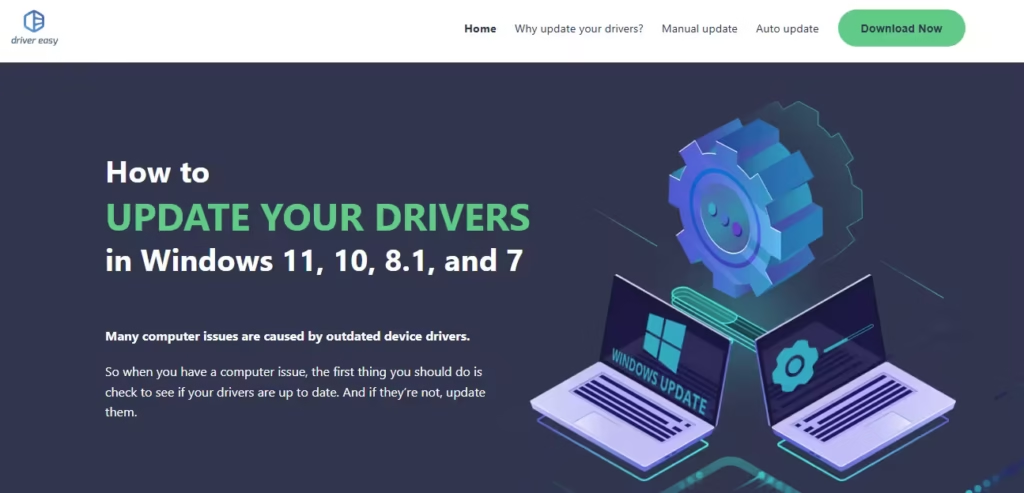
Driver Easy offers a clean interface and clear explanations. It scans your system and lists outdated drivers with version details.
Key features
- Easy-to-understand driver information
- Restore point creation
- Hardware identification
- Manual download in free version
Pros
- Beginner-friendly
- Clear driver details
- Reliable database
Cons
- Free version does not auto-install
- Slower download speeds unless upgraded
Recommended for: New Windows users who want guidance without complexity.
5. EaseUS DriverHandy – Balanced Alternative
Best for: Users looking for a lesser-known option
Platform: Windows 11
Free + Paid versions

EaseUS DriverHandy is a newer tool that combines driver scanning, backup, and updates in one package.
Key features
- Large driver database
- Driver backup and restore
- Automatic scanning
- Simple UI
Pros
- Clean design
- Backup support
- Easy setup
Cons
- Less community feedback
- Smaller support ecosystem
Recommended for: Users who already trust EaseUS tools.
Quick Comparison Table
| Tool | Best For | Free Version | Offline Support |
|---|---|---|---|
| Driver Booster | Overall use | Yes | Limited |
| AVG Driver Updater | Stability & safety | Scan only | No |
| Snappy Driver Installer | Advanced & offline | Yes | Yes |
| Driver Easy | Beginners | Limited | No |
| EaseUS DriverHandy | Balanced option | Yes | No |
Should You Use Driver Update Tools?
Yes — if used correctly.
Use a driver updater when:
- Hardware stops working after Windows updates
- Device Manager shows unknown devices
- You face frequent crashes or errors
- You’ve upgraded from Windows 10 to 11
Avoid aggressive updates when:
- Your system is already stable
- Manufacturer tools provide newer drivers (Dell, HP, Lenovo)
- BIOS or chipset updates are involved (manual updates preferred)
Best Practices for Safe Driver Updates
Before using any driver update tool:
- Create a system restore point
- Update critical drivers (chipset, GPU, network) first
- Avoid beta or experimental drivers
- Restart after updates
- Test stability before updating everything at once
Windows Update and manufacturer support tools should always be your first option. Third-party tools work best as a supplement, not a replacement.
FAQs
What are driver update tools for Windows 11?
Driver update tools are utilities that scan a Windows 11 system, identify outdated or missing drivers, and install the correct versions to keep hardware working properly.
Does Windows 11 automatically update drivers?
Windows 11 updates basic drivers through Windows Update, but it may not install the latest optional or performance-focused drivers for all hardware.
Are driver update tools safe to use on Windows 11?
Driver update tools are safe when downloaded from official sources and used carefully, especially those that create restore points and install verified drivers.
Which is the best driver update tool for Windows 11?
The best driver update tool for Windows 11 depends on user needs, with some tools focusing on ease of use, others on stability, and some offering offline driver support.
Are free driver updater tools good enough?
Free driver updater tools can detect outdated drivers, but they often limit automatic installation, download speed, or advanced safety features.
Can driver update tools fix Windows 11 hardware problems?
Yes, driver update tools can fix issues like Wi-Fi not working, no sound, display problems, or device errors if the cause is an outdated or missing driver.
Is it safe to update all drivers at once?
Updating all drivers at once is usually safe, but updating critical drivers first and restarting the system helps avoid stability issues.
Do driver update tools improve gaming performance?
Driver updates can improve gaming stability and compatibility, especially through graphics driver updates, but they do not significantly increase hardware performance.
Should I use manufacturer tools or third-party driver updaters?
Manufacturer tools are best for branded laptops and desktops, while third-party driver update tools are useful for custom-built PCs or unsupported hardware.
How often should drivers be updated on Windows 11?
Drivers should be updated when hardware issues appear, after major Windows updates, or when new drivers are released for compatibility or security fixes.
Why does Windows 11 show unknown devices in Device Manager?
Unknown devices usually appear when required drivers are missing or incompatible, and installing the correct driver resolves the issue.
Can driver update tools cause system crashes?
System crashes can occur if incorrect or unstable drivers are installed, which is why using trusted tools and restore points is important.

