If your Windows 11 PC keeps changing audio output on its own — switching from headphones to speakers, Bluetooth to HDMI, or randomly selecting another device — this issue can quickly break your workflow, calls, music, or gaming sessions. Many users face this problem even when they haven’t changed any settings themselves.
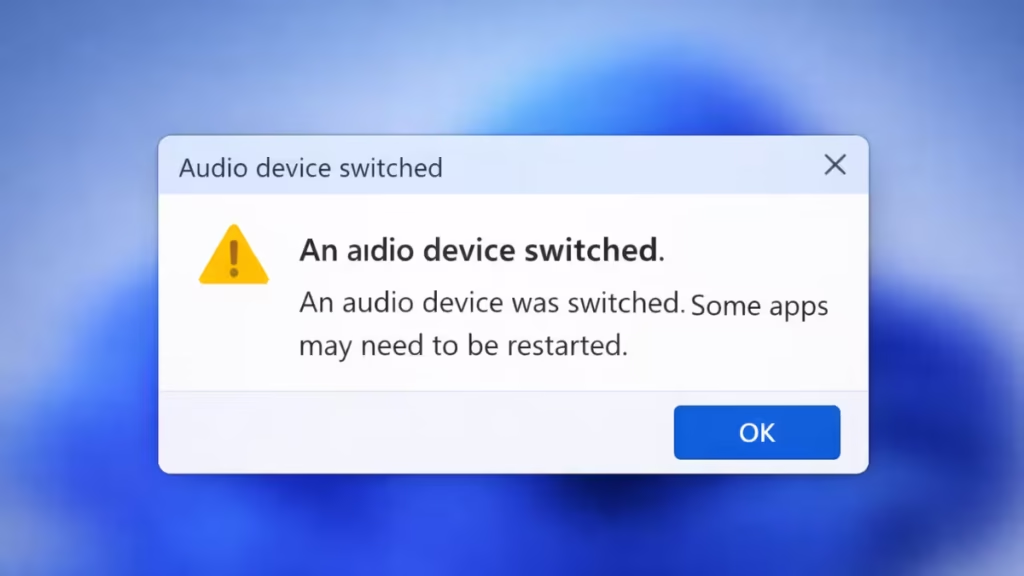
In most cases, the issue is caused by Windows detecting new audio devices, driver conflicts, Bluetooth reconnections, or apps taking control of sound settings. The good news is that this problem is fixable without reinstalling Windows if you follow the correct troubleshooting order.
Quick Checks Before You Start
Before applying deeper fixes, confirm the basics:
- Your preferred audio device is connected and powered on
- Bluetooth headphones are charged and not dropping connection
- Only necessary audio apps are running
- The correct output device is visible in Settings → System → Sound
If the problem continues after these checks, move on to the fixes below.
Fix 1: Manually Set and Lock the Default Audio Output Device
This is the most important fix and should always be done first.
- Open Settings → System → Sound
- Under Output, select your main device (speakers or headset)
- Scroll down and click All sound devices
- Select your preferred device
- Click Set as default for audio
This tells Windows which device must always be used unless you manually change it.
Fix 2: Disable Unused Playback Devices
Having multiple enabled outputs often causes Windows to switch audio automatically.
- Press Win + R, type
mmsys.cpl, press Enter - Open the Playback tab
- Right-click devices you don’t use (HDMI, virtual audio, monitor speakers)
- Select Disable
- Keep only your primary output enabled
This prevents Windows from routing sound to inactive devices.
Fix 3: Update Audio Drivers Properly
Driver issues are one of the most common causes of audio switching.
- Right-click Start → Device Manager
- Expand Sound, video and game controllers
- Right-click your audio device → Update driver
- Select Search automatically for drivers
- Restart your PC
If Windows reports the driver is up to date but the issue continues, continue to the next fix.
Fix 4: Reinstall Audio Drivers (Clean Reset)
A corrupted audio driver can ignore default device rules.
- Open Device Manager
- Right-click your audio device → Uninstall device
- Confirm removal
- Restart your PC
Windows will reinstall a fresh audio driver automatically.
For best results, download the latest driver from your PC or motherboard manufacturer.
Fix 5: Restart Windows Audio Services
Audio services control how devices are detected and prioritized.
- Press Win + R, type
services.msc, press Enter - Restart these services:
- Windows Audio
- Windows Audio Endpoint Builder
- Ensure both are set to Startup type: Automatic
This resets how Windows manages audio routing.
Fix 6: Disable Exclusive Mode (Very Important)
Some apps take exclusive control of your sound device and force output switching.
- Press Win + R, type
mmsys.cpl, press Enter - Right-click your active audio device → Properties
- Open the Advanced tab
- Uncheck:
- Allow applications to take exclusive control of this device
- Give exclusive mode applications priority
- Click Apply → OK
This prevents apps from overriding your audio selection.
Fix 7: Run the Windows Audio Troubleshooter
Windows can automatically detect common routing issues.
- Open Settings → System → Troubleshoot → Other troubleshooters
- Find Playing Audio
- Click Run
- Apply suggested fixes and restart
Fix 8: Prevent Bluetooth Devices from Auto-Switching Audio
Bluetooth headsets often trigger automatic output changes.
- Disconnect unused Bluetooth devices from Settings → Bluetooth & devices
- Disable hands-free or telephony profiles if not needed
- Turn off Bluetooth headsets when not in use
- Avoid connecting multiple Bluetooth audio devices at once
This stops Windows from re-routing audio when Bluetooth reconnects.
Fix 9: Install Windows Updates and Optional Driver Updates
Some audio issues are caused by known Windows bugs.
- Go to Settings → Windows Update
- Click Check for updates
- Install optional driver updates if available
- Restart your PC
Fix 10: Perform a Clean Boot to Check App Conflicts
Third-party audio tools and gaming utilities often override sound settings.
- Press Win + R, type
msconfig, press Enter - Under Services, check Hide all Microsoft services
- Click Disable all
- Open Startup → Task Manager
- Disable all startup items
- Restart the system
If audio stops switching, re-enable apps one by one to find the cause.
Fix 11: Reset Windows Audio Settings
If nothing else works, reset all sound configurations.
- Open Settings → System → Sound
- Scroll to Volume mixer
- Click Reset sound devices and volumes for all apps
This restores clean default audio behavior.
Fix 12: Reset Windows (Last Resort)
If audio output still changes automatically, Windows system files may be corrupted.
Go to Settings → System → Recovery → Reset this PC
- Choose Keep my files first
- Use Cloud download for a clean system copy
Only use this option if all other fixes fail.
FAQs
Why does Windows 11 keep changing audio output automatically?
Windows 11 changes audio output automatically when new devices connect, Bluetooth reconnects, HDMI audio activates, or drivers reset default sound settings.
How can I stop Windows 11 from switching audio output on its own?
Set your preferred device as default, disable unused playback devices, turn off exclusive mode, and update audio drivers.
Can Windows updates cause audio output to keep changing?
Yes, Windows updates can reset sound preferences or reinstall drivers, causing the default audio output to change.
Why does Windows 11 switch from headphones to speakers?
This usually happens when headphones disconnect briefly, Bluetooth drops signal, or HDMI audio becomes active.
Does Bluetooth cause audio output switching in Windows 11?
Yes, Bluetooth devices often reconnect automatically and trigger Windows to change the audio output.
Can apps force Windows 11 to change audio output?
Yes, apps using exclusive audio control can override the default output unless exclusive mode is disabled.
Is reinstalling Windows required to fix audio output switching?
No, most cases are fixed by adjusting settings and drivers without reinstalling Windows.
When Windows 11 keeps changing audio output automatically, the cause is almost always driver behavior, Bluetooth interference, or multiple active output devices. Locking a single default device, disabling unused outputs, and preventing apps from taking exclusive control will permanently stop the issue for most users.
If you rely on stable audio for work, gaming, or content creation, these fixes ensure Windows respects your chosen sound device — every time.

