If Intel Extension 2.1.10105.19 keeps reinstalling on your Windows 11 PC, you’re not alone. Many users report that Windows Update installs the driver successfully, asks for a restart, and then shows the same update again the next day—creating an endless update loop.
This issue is not caused by malware or system damage. It’s usually the result of a driver mismatch or a Windows Update detection error. Below is a verified, step-by-step guide to stop the Intel Extension update from reinstalling permanently.
Why Intel Extension 2.1.10105.19 Keeps Reinstalling
The Intel Extension reinstall loop usually happens due to one or more of the following reasons:
- The Intel Extension driver is not fully compatible with your specific CPU or motherboard
- Windows Update detects a version mismatch after every reboot
- Corrupted Windows Update cache forces repeated installation
- The driver installs but fails to register correctly
- The update was incorrectly pushed to certain systems
This problem started appearing widely in late October to early November 2025, following a driver rollout through Windows Update.
Is Intel Extension 2.1.10105.19 Safe to Ignore?
Yes. If your system is running normally, ignoring this update is safe.
The Intel Extension driver does not affect system performance, gaming, or daily tasks on most consumer PCs. Microsoft often resolves these driver loops silently in later cumulative updates.
However, if the repeated restart notifications are annoying, you can safely apply one of the fixes below.
Fix 1: Hide the Intel Extension 2.1.10105.19 Update (Recommended)
The easiest way to stop the reinstall loop is to hide the faulty update so Windows Update no longer offers it.
Steps to hide the update:
- Download Microsoft’s official tool: wushowhide.diagcab
- Run the tool and choose Hide updates
- Let it scan available updates
- Select Intel – Extension – 2.1.10105.19
- Click Next and close the tool
Once hidden, Windows Update will stop reinstalling this driver.
Tip: If the update does not appear in the list, move on to Fix 2.
Fix 2: Clear Windows Update Cache (Fixes Corrupted Install Loops)
Sometimes the update keeps reinstalling because Windows Update cache files are corrupted. Clearing them forces Windows to re-evaluate installed drivers.
Step 1: Open Command Prompt as Administrator
Step 2: Stop Windows Update services
net stop wuauserv
net stop bits
Step 3: Delete cached update files
del /s /q C:\Windows\SoftwareDistribution\Download\*Step 4: Restart the services
net start wuauserv
net start bits
Restart your PC and check Windows Update again.
In most cases, the Intel Extension update will no longer reappear.
Fix 3: Manually Install the Correct Intel Extension Driver
Windows Update sometimes pushes generic Intel drivers that don’t match OEM configurations. Installing the correct driver manually can stop the loop.
How to do it:
- Open Device Manager
- Go to System Devices → Intel Extension
- Right-click → Properties → Details
- Select Hardware IDs
- Copy the ID and search for it on:
- Your PC or motherboard manufacturer’s website (Dell, HP, Lenovo, ASUS, etc.)
- Or the official Intel Download Center
- Install the correct driver manually
- Restart your PC
Once installed, Windows Update should stop offering the same Intel Extension update again.
Fix 4: Run Windows Update Troubleshooter
Windows includes a built-in troubleshooter that can automatically fix update detection errors.
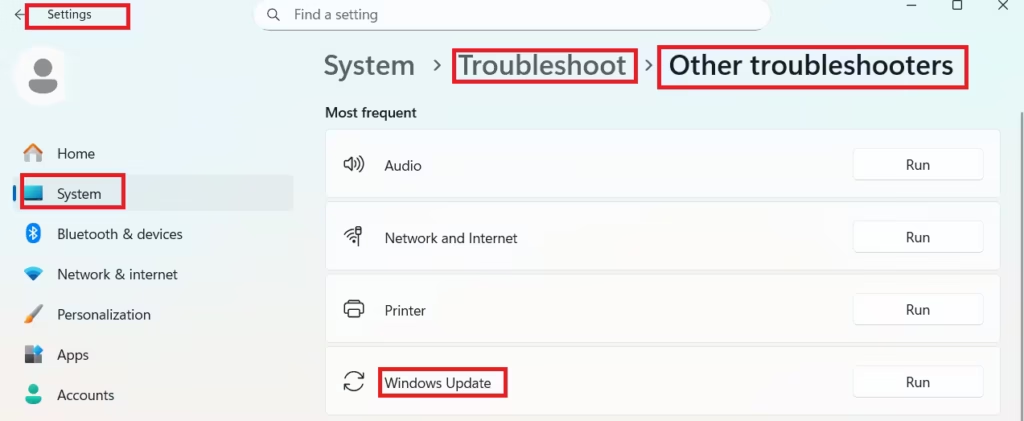
Steps:
- Open Settings
- Go to System → Troubleshoot → Other troubleshooters
- Run Windows Update
- Apply the suggested fixes
- Restart your system
This can resolve hidden issues that cause update loops.
Does the Intel Extension Update Affect Performance?
No. The Intel Extension 2.1.10105.19 update does not impact gaming performance, CPU speed, or system stability on most systems.
The issue is related to update detection, not actual driver failure.
Best Practice: Avoid Driver Updates from Windows Update
To prevent similar issues in the future:
- Get Intel drivers directly from your OEM
- Use the Intel Driver & Support Assistant
- Avoid installing optional drivers unless needed
OEM drivers are tested for compatibility and are far less likely to cause reinstall loops.
FAQs
Why does Intel Extension 2.1.10105.19 keep reinstalling on Windows 11?
Intel Extension 2.1.10105.19 keeps reinstalling because Windows Update detects a driver version mismatch or fails to properly register the Intel Extension driver after reboot, causing an update loop.
Is Intel Extension 2.1.10105.19 a critical update?
No, Intel Extension 2.1.10105.19 is not a critical update. It does not impact system performance, security, or everyday usage on most Windows 11 PCs.
Can I safely ignore the Intel Extension 2.1.10105.19 update?
Yes, you can safely ignore the Intel Extension 2.1.10105.19 update if your system is working normally. Microsoft usually fixes such update loops in later Windows updates.
How do I stop Intel Extension 2.1.10105.19 from reinstalling?
You can stop Intel Extension 2.1.10105.19 from reinstalling by hiding the update using Microsoft’s wushowhide tool, clearing the Windows Update cache, or manually installing the correct OEM Intel driver.
Does Intel Extension 2.1.10105.19 affect gaming or performance?
No, Intel Extension 2.1.10105.19 does not affect gaming performance, CPU speed, or system stability. The issue is limited to Windows Update behavior.
Should I install Intel drivers from Windows Update?
It is better to install Intel drivers directly from your PC manufacturer’s website or the Intel Download Center, as OEM drivers are tested for compatibility and reduce update loop issues.
Will Microsoft fix the Intel Extension reinstall issue?
Yes, Microsoft typically resolves Intel Extension update loops through future Windows Update patches without requiring user action.
Does this Intel Extension reinstall issue occur on Windows 10?
The Intel Extension 2.1.10105.19 reinstall issue mainly affects Windows 11, but similar driver update loops can occasionally appear on Windows 10 systems.
If you’re facing the Intel Extension 2.1.10105.19 error, you can safely ignore the update as long as your PC is working fine. Microsoft is expected to fix the rollout in future updates.

