Switching from Google Chrome to Microsoft Edge becomes easier when your saved passwords, addresses, and payment details move with you. Microsoft Edge actively promotes Chrome imports across its settings to help users migrate faster and avoid re-entering login details.
If you recently noticed Edge pushing import prompts, you can complete the transfer in under two minutes. This guide shows exactly how to import Chrome passwords and autofill data into Microsoft Edge safely and correctly.
How to Import Chrome Passwords and Autofill Data Into Microsoft Edge (Automatic Method)
Use this method when Chrome is installed on the same computer.
Step 1: Open Edge Settings
- Launch Microsoft Edge.
- Click the three-dot menu in the top-right corner.
- Select Settings.
Step 2: Open Profile Import Settings
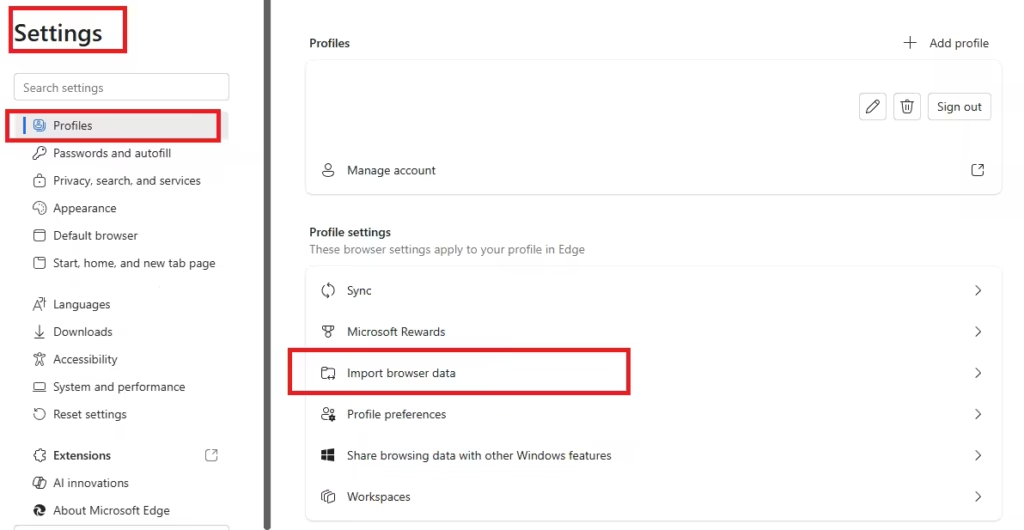
- Click Profiles in the left panel.
- Select Import browser data.
Step 3: Select Google Chrome
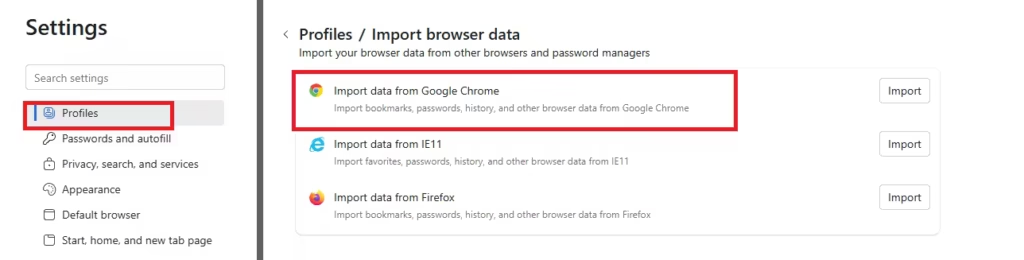
- Open the dropdown menu.
- Choose Google Chrome.
Edge displays the available data types.
Step 4: Choose What to Import
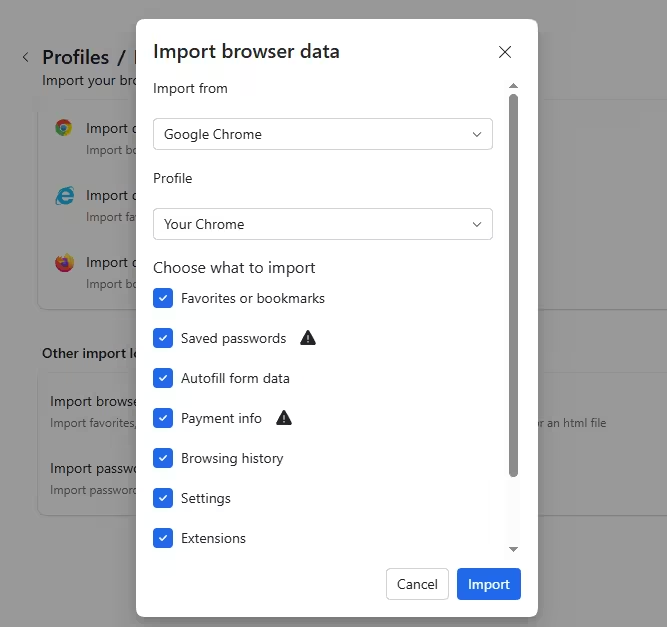
Enable the items you want:
- Saved passwords
- Autofill form data (addresses, phone numbers)
- Payment info (optional)
- Favorites and bookmarks
- Browsing history
Step 5: Start the Import
- Click Import.
- Wait a few seconds for the transfer to complete.
Edge immediately stores the imported data in your profile.
How to Import Chrome Passwords Into Edge Using a CSV File (Manual Method)
Use this method when Edge cannot detect Chrome or when you move data from another computer.
Step 1: Export Passwords From Chrome
- Open Google Chrome.
- Type this address in the address bar:
chrome://password-manager/passwords- Click the three dots next to Saved passwords.
- Select Export passwords.
- Confirm and save the CSV file.
Step 2: Import the CSV File Into Edge
- Open Microsoft Edge.
- Type this address:
edge://settings/passwords- Click the three dots near Saved passwords.
- Select Import passwords.
- Choose the CSV file.
Edge imports the passwords instantly.
Delete the CSV file after import. The file stores passwords in plain text.
How to Enable Autofill in Microsoft Edge After Import
Make sure Edge uses the imported data correctly.
- Open Edge Settings.
- Click Profiles.
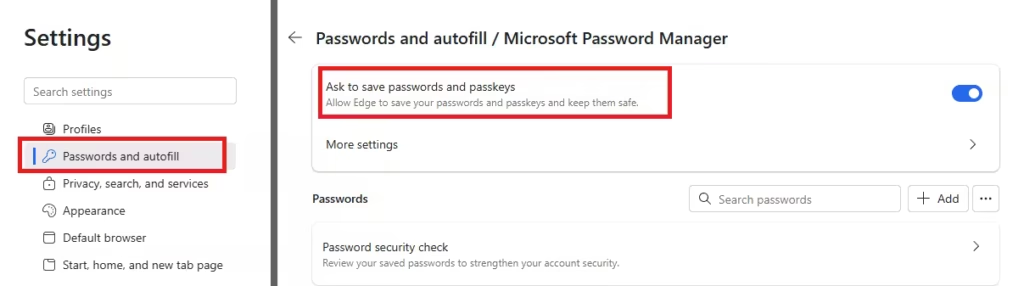
Enable these sections:
- Passwords → Turn on “Offer to save passwords” and “Auto sign-in.”
- Personal info → Turn on address autofill.
- Payment info → Enable card autofill if needed.
Edge now fills forms automatically.
How to Stop Microsoft Edge From Showing Chrome Import Prompts
If Edge keeps displaying import reminders, you can reduce them.
- Open:
edge://settings/profiles- Disable profile suggestions and sync recommendations when available.
- Dismiss banners when they appear.
Microsoft does not offer a permanent disable switch yet, but these steps reduce interruptions.
Is Importing Passwords Into Edge Safe?
Edge encrypts saved passwords using your Windows account security. Only your signed-in profile can access the data. Avoid sharing your Windows account or Edge profile on public systems.
Always delete exported CSV files after use.
FAQs
How do I import Chrome passwords to Microsoft Edge?
Open Microsoft Edge, go to Settings → Profiles → Import browser data, select Google Chrome, enable Saved passwords, and click Import. Edge transfers the passwords instantly.
Can I import Chrome autofill data into Microsoft Edge?
Yes. Edge imports autofill data such as addresses and phone numbers when you enable the Autofill option during the import process.
Is it safe to import Chrome passwords to Microsoft Edge?
Yes. Edge encrypts saved passwords using your Windows account security. Only your signed-in Edge profile can access the imported passwords.
Why does Microsoft Edge keep asking me to import Chrome data?
Edge detects Chrome on your system and promotes imports to simplify browser switching. Microsoft now also shows the import option inside Passwords and Autofill settings.
Can I import Chrome passwords into Edge using a CSV file?
Yes. Export passwords from Chrome as a CSV file and import the file into Edge using the password settings page.
What should I do after importing Chrome passwords to Edge?
Enable autofill and password saving in Edge settings to allow automatic form filling and sign-ins.
Why are my imported passwords not autofilling in Edge?
Turn on autofill options under Edge Profiles settings and restart the browser. Sign into your Edge profile if autofill remains disabled.
Can I stop Microsoft Edge from showing Chrome import prompts?
You can dismiss the banners and disable profile suggestions in Edge settings. Microsoft does not provide a permanent disable option yet.
Does importing Chrome data also transfer bookmarks and history?
Yes. Edge allows you to import bookmarks, browsing history, and saved form data along with passwords.
Will importing Chrome passwords delete them from Chrome?
No. The import process only copies the data. Chrome keeps the original passwords unchanged.
Microsoft Edge makes Chrome imports simple and fast. You can migrate passwords and autofill data in minutes without losing important login details. If Edge continues to prompt you for imports, complete the process once and reduce future reminders.
This method keeps your browsing workflow smooth while maintaining security.

