The 2026 Roku Home screen update moved installed apps below recommendation rows, Quick Access tiles, and promotional content. Many owners now press buttons at the top of the screen and see no way to delete an app. Removal still works on every Roku player and Roku TV. You just need to reach the right part of the screen first.
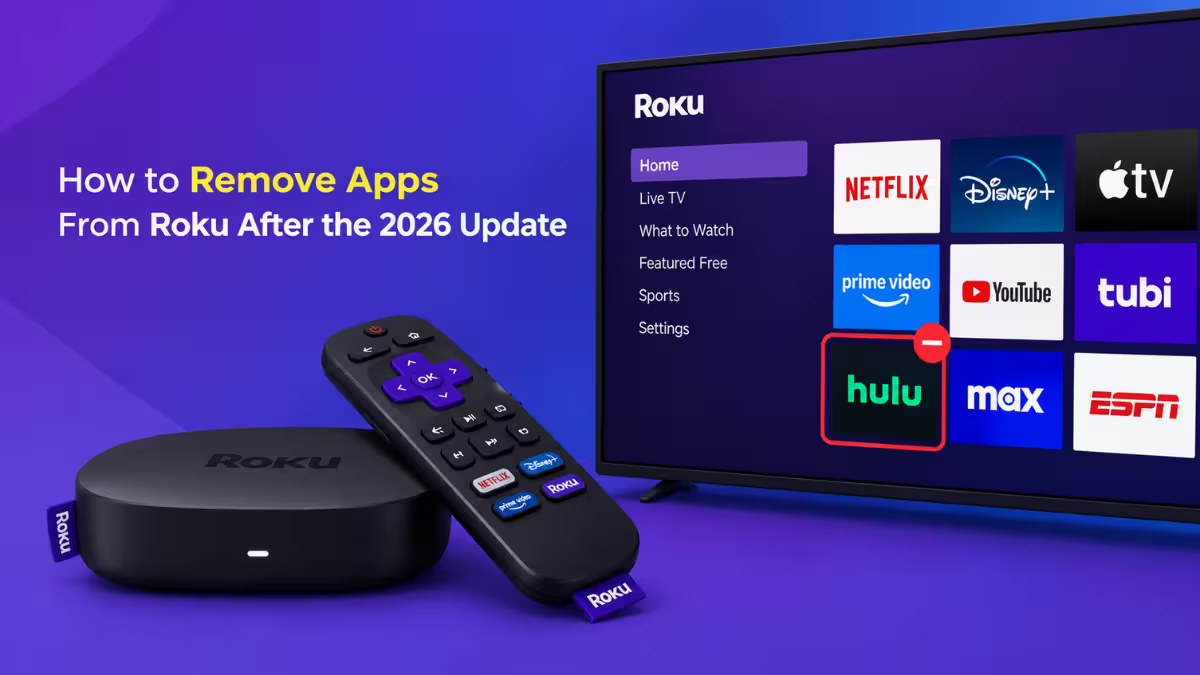
Why Can’t You Remove Apps From the Roku Home Screen After the 2026 Update?
The tiles at the top of the redesigned Home screen are shortcuts, not the full app list.
The Quick Access row only holds shortcuts, so it never offers an uninstall option. Roku keeps the complete installed-app grid in a section called Your Apps, further down the page. Scroll past the recommendation and shortcut rows until the grid of your installed services appears. Every removal method below starts from that grid. If you only want to clear a shortcut tile and keep the app, jump to the Quick Access section near the end.
Method 1: How to Remove an App From Roku Using the Remote
The remote is the fastest route and works the same on Roku players and Roku TVs. Removal applies to every Roku device linked to your account, so confirm nobody else relies on the app before you delete it.
- Open the full app grid: Press Home on your remote, then scroll down with the directional pad until you reach Your Apps. If the scroll feels long, hide the recommendation rows in Settings > Home Screen first.
- Highlight the app you want to delete: Move the highlight onto the app tile. Do not press OK, because that launches the app instead of opening its options.
- Open the Options menu: Press the Star (*) button on your remote. The menu lists choices such as Move app and Remove app.
- Confirm the removal: Select Remove app and confirm the prompt. The tile disappears at once and the remaining apps slide over to fill the gap.
If Remove app does not appear in the menu, an active subscription is the likely cause. The fix is in the missing-option section below.
Method 2: How to Delete a Roku App From the Roku Mobile App
The Roku mobile app lets you delete apps without scrolling through the Home screen.
- Open the Roku mobile app on your phone.
- Tap Devices in the bottom navigation bar and connect to your Roku.
- Open the Apps on Roku tab to see every installed app.
- Tap and hold the app you want to delete. A quick tap opens the remote instead.
- Tap Remove and confirm.
Method 3: How to Remove Roku Apps Using Your Phone as a Remote
This method helps when your physical remote is lost or its buttons no longer respond.
Connect your phone to the same Wi-Fi network as your Roku, then follow these steps:
- Open the Roku mobile app and select your device.
- Tap Remote.
- Use the on-screen Home button and directional controls to reach Your Apps.
- Highlight the app, press the star button, and select Remove app.
- Confirm the removal.
Roku Remove App Option Missing? How to Fix It
A missing Remove app option almost always points to an active subscription that Roku bills.
Roku hides the option while a subscription billed through your Roku account is active or still inside its current billing cycle. Fix it in three steps:
- Highlight the app in Your Apps and press the Star (*) button.
- Select Manage subscription.
- Choose Turn off auto-renew.
After you cancel renewal, return to the app grid and try the removal again. Some subscriptions keep the option locked until the billing period ends, so you may need to wait.
Deleting an app never cancels a subscription on its own. If you pay the streaming service directly, cancel through that provider’s website or account page. Roku has no control over those charges.
How to Remove a Quick Access Tile on Roku Without Uninstalling the App
A Quick Access tile is only a shortcut, and you can clear it while the app stays installed.
- Highlight the tile in the Quick Access row and press the Star (*) button.
- Pick the tile’s removal option. The tile vanishes and the app stays on your device.
To hide the entire row, go to Settings > Home Screen and turn off Quick Access. Hiding the recommendation rows in the same menu shortens the scroll to your app grid.
How to Reinstall a Removed App on Roku
You can reinstall any removed app from the Roku Streaming Store at no extra cost for free apps.
- Open the Streaming Store from the Home screen.
- Search for the app.
- Select Add app.
Paid subscriptions need to be set up again with your login.
How to Remove Apps Added in Roku Guest Mode
If you added apps while using a Roku in Guest Mode, such as in a hotel or vacation rental, you do not need to delete them one by one. Signing out of Guest Mode wipes every app the guest added.
- Press Home and select Guest Mode Options.
- Choose Sign out and clear info.
- Confirm.
The device owner can also end the session from Settings > Guest Options and enter the Roku PIN.
Frequently Asked Questions
Does removing an app on one Roku remove it on all my devices?
Yes. App removal applies across the Roku devices linked to the same account, so check your other players and TVs before you delete something a family member uses.
Can I remove Roku apps from Roku.com?
No. The Roku website does not offer per-app removal. Use your remote or the Roku mobile app instead.
Can I delete all apps at once?
Yes, with a factory reset. It removes every app, unlinks your account, and clears your settings, so you must set up the device again. On the device, open Settings > System > Advanced system settings > Factory reset. Roku TVs show Factory reset everything in the same menu.
How do I stop people from adding apps again?
Sign in to your account at my.roku.com, open PIN/Parental controls, and require a PIN for subscribing, making purchases, and adding apps. Roku then asks for the PIN each time someone tries to add an app on the device.
Why does the Remove app option say Remove channel on my Roku?
Both labels describe the same action. Older Roku software used the word channel, and newer versions use app.
