Forgetting your Windows PIN can feel stressful, especially when your PC uses a Microsoft account for sign-in. Windows provides official and secure recovery options that let you regain access without hacking tools or risky workarounds.
This guide explains exactly how to reset your PC or recover access when you forget your PIN, using only Microsoft-approved methods.
Why Windows PIN Issues Happen
Windows links the PIN to your device and your Microsoft account. If you forget the PIN, Windows blocks sign-in to protect your data. This design prevents unauthorized access and keeps your files secure.
See also: How to Reset Windows Password on Windows 10 & 11 (All Methods)
Because of this security model, Windows does not allow PIN bypassing, but it does allow recovery.
Method 1: Reset Your PIN from the Sign-In Screen (Recommended)
This method works when:
- Your PC connects to the internet
- You remember your Microsoft account password
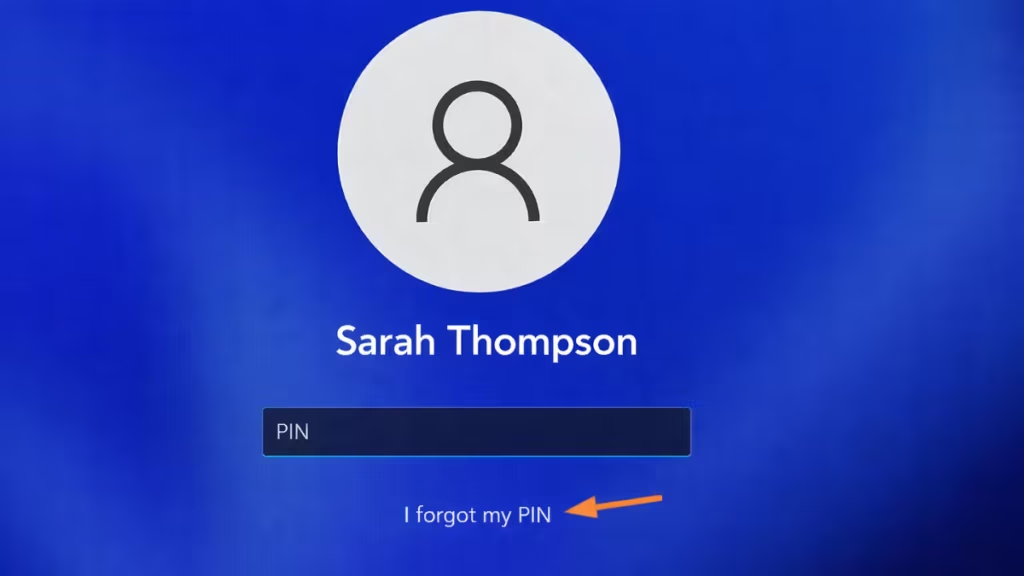
Steps to reset the PIN
- Turn on your PC and stay on the Windows sign-in screen
- Click Sign-in options
- Select PIN
- Click I forgot my PIN
- Enter your Microsoft account email
- Type your Microsoft account password
- Complete the security verification (OTP)
- Create a new PIN
- Sign in normally
What this method keeps safe
- Personal files remain untouched
- Installed apps stay available
- Windows settings remain unchanged
This method fixes the issue without resetting the PC.
If “I Forgot My PIN” Does Not Appear
Windows hides the option when it cannot verify your account.
Fix this first
- Click the Wi-Fi icon on the login screen
- Connect to the internet
- Restart the PC
- Check the PIN option again
If the option still does not appear, move to Method 2.
Method 2: Reset Windows While Keeping Your Files
Use this method when PIN recovery fails or the sign-in screen blocks access completely.
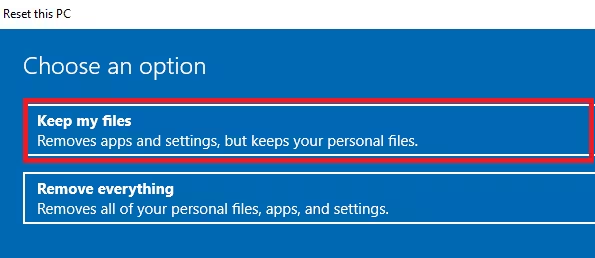
Steps to reset Windows safely
- On the sign-in screen, hold Shift
- Click Power → Restart
- Select Troubleshoot
- Click Reset this PC
- Choose Keep my files
- Select Cloud download
- Sign in with your Microsoft account
- Wait for Windows to complete the reset
What happens during this reset
- Personal files stay safe
- Installed apps get removed
- Windows installs a clean system
This method resolves deep sign-in issues without deleting documents.
Method 3: Full Reset (Last Option Only)
Use this option only when you have backups or no important data.
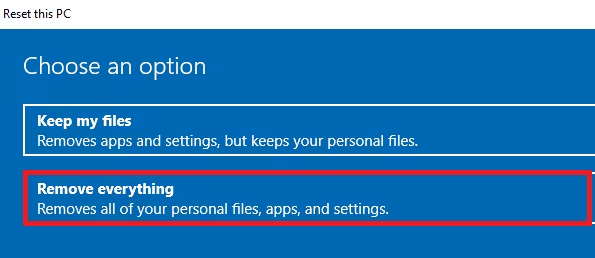
Steps
- Go to Reset this PC
- Choose Remove everything
- Follow on-screen instructions
This process deletes all files, apps, and settings.
Windows PIN Security and Account Protection
- Windows ties PIN recovery to your Microsoft account for security
- No legitimate method exists to bypass a Windows PIN
- Third-party “PIN cracking” tools risk data loss and malware
- Microsoft account verification remains the safest recovery path
Which Method Should You Use?
| Situation | Best Option |
|---|---|
| Internet available + account password known | Reset PIN from sign-in |
| PIN option missing or broken | Reset PC (Keep my files) |
| System corrupted or selling PC | Full reset |
FAQs
How do I reset my PC if I forgot my PIN?
You can reset your PC if you forgot your PIN by clicking “I forgot my PIN” on the sign-in screen and verifying your Microsoft account. Windows then lets you create a new PIN without deleting files.
Can I reset PC forgot PIN without losing files?
Yes. If PIN recovery fails, use Reset this PC → Keep my files. Windows reinstalls the system while keeping your personal data intact.
Why does Windows ask for a Microsoft account to reset the PIN?
Windows links the PIN to your Microsoft account for security. Account verification confirms ownership before allowing a PIN reset.
What if the “I forgot my PIN” option is missing?
The option may not appear if the PC is offline. Connect to the internet, restart the device, and check the PIN option again.
Can I reset PC forgot PIN without a Microsoft account?
No. If the device uses a Microsoft account, Windows requires account verification. If access fails, you must reset Windows using recovery options.
Does resetting Windows remove apps?
Yes. When you reset Windows and keep files, Windows removes installed apps but keeps documents, photos, and user files.
Is it safe to use third-party tools to bypass a Windows PIN?
No. Third-party PIN bypass tools risk data loss and malware. Microsoft-approved recovery methods remain the safest option.
Which Windows versions support PIN recovery?
Windows 10 and Windows 11 both support PIN recovery when the device uses a Microsoft account and has internet access.
Forgetting a Windows PIN does not mean losing your PC or data. Windows includes built-in recovery options that protect your files while restoring access. Always start with PIN recovery, then move to Reset this PC only when needed.
Using official methods keeps your system secure and prevents long-term issues.

