Managing software on Windows often means downloading installers, clicking through setup screens, and manually checking for updates. Chocolatey solves this problem by letting you install, update, and remove applications using simple command-line commands. This guide explains exactly how to install Chocolatey on Windows and how to use it effectively.
What Is Chocolatey?
Chocolatey is a Windows package manager. It automates software installation and updates through commands instead of manual downloads. Once installed, you can set up popular apps like Chrome, VS Code, Git, or VLC in seconds.
See also: How to Install OpenClaw on Windows Using WSL2 (Official Local Setup Guide)
Chocolatey is widely used by developers, IT administrators, and power users who want faster and cleaner system management.
System Requirements
Before installing Chocolatey, make sure your system meets these requirements:
- Windows 10, Windows 11, or supported Windows Server versions
- PowerShell v3 or newer
- .NET Framework 4.8 (Chocolatey installs it automatically if missing)
- Administrator access
Chocolatey also requires TLS 1.2 for secure downloads.
How to Install Chocolatey on Windows
Step 1: Open PowerShell as Administrator
- Open the Start Menu
- Search for PowerShell
- Right-click it
- Select Run as administrator
Running PowerShell with admin rights ensures Chocolatey can configure system paths correctly.
Step 2: Run the Official Install Command
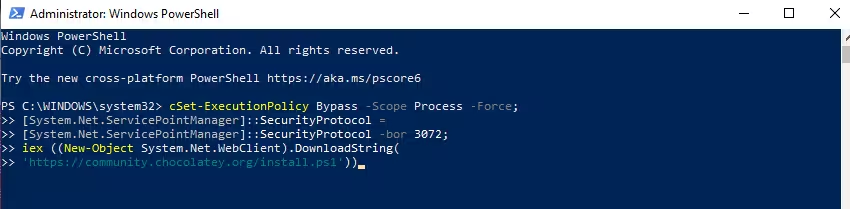
Copy and paste the command below into the PowerShell window, then press Enter:
Set-ExecutionPolicy Bypass -Scope Process -Force;
[System.Net.ServicePointManager]::SecurityProtocol =
[System.Net.ServicePointManager]::SecurityProtocol -bor 3072;
iex ((New-Object System.Net.WebClient).DownloadString(
'https://community.chocolatey.org/install.ps1'))
This command:
- Temporarily bypasses script restrictions
- Forces TLS 1.2 for secure downloads
- Downloads and runs the official Chocolatey installer
Wait a few seconds for the process to finish.
Step 3: Verify the Installation
Close PowerShell, open it again, and run:
choco --versionIf PowerShell shows a version number, Chocolatey installed successfully.
How to Install Software Using Chocolatey
Once Chocolatey is ready, installing software takes a single command.
Example Commands
Install Google Chrome:
choco install googlechrome -yInstall Visual Studio Code:
choco install vscode -yInstall Git:
choco install git -yThe -y flag automatically confirms prompts.
How to Update All Installed Software
Chocolatey can update every installed package at once.
choco upgrade all -yThis command saves time and keeps your system secure with the latest versions.
How to Uninstall Software with Chocolatey
Removing applications is just as simple:
choco uninstall vlc -yChocolatey cleans up files and registry entries automatically.
Common Chocolatey Installation Issues and Fixes
1. “choco is not recognized” Error
Run this command:
refreshenvIf the issue continues, restart PowerShell or reboot Windows.
2. Script Execution Is Blocked
Ensure you opened PowerShell as Administrator. The install command already handles execution policy safely.
Why Chocolatey Is Useful on Windows
Chocolatey offers several practical benefits:
- Faster software installation
- One-command system updates
- No bundled adware or popups
- Consistent installs across multiple PCs
- Ideal for development and IT workflows
FAQs: Install Chocolatey on Windows
What is Chocolatey used for?
Chocolatey is used to install, update, and uninstall software on Windows using simple command-line commands instead of manual setup files.
Is Chocolatey safe to install on Windows?
Yes. Chocolatey uses secure HTTPS downloads, checksum verification, and trusted package sources when installed from the official site.
How do I install Chocolatey on Windows 11 or Windows 10?
You install Chocolatey by running the official PowerShell command as an administrator, which downloads and sets up Chocolatey automatically.
Do I need PowerShell to install Chocolatey?
Yes. Chocolatey requires PowerShell to run its installation script and manage software packages.
What command checks if Chocolatey is installed?
Run this command: choco --version. If a version number appears, Chocolatey is installed.
Can Chocolatey update all software automatically?
Yes. Chocolatey can update all installed packages with one command: choco upgrade all -y
Is Chocolatey better than manual software installation?
Yes. Chocolatey saves time, avoids adware installers, and keeps software updated automatically.
Chocolatey transforms how software management works on Windows. Instead of searching, downloading, and clicking through installers, you control everything from one command line. For users who value speed, automation, and reliability, Chocolatey is one of the most useful tools you can install on a Windows PC.

