If your Vizio TV shows a Home Screen Connection Error, Vizio Home is not available, or the SmartCast home screen refuses to load, the TV is failing to connect to Vizio’s online services. The display panel works fine, but SmartCast cannot reach the network or its servers.
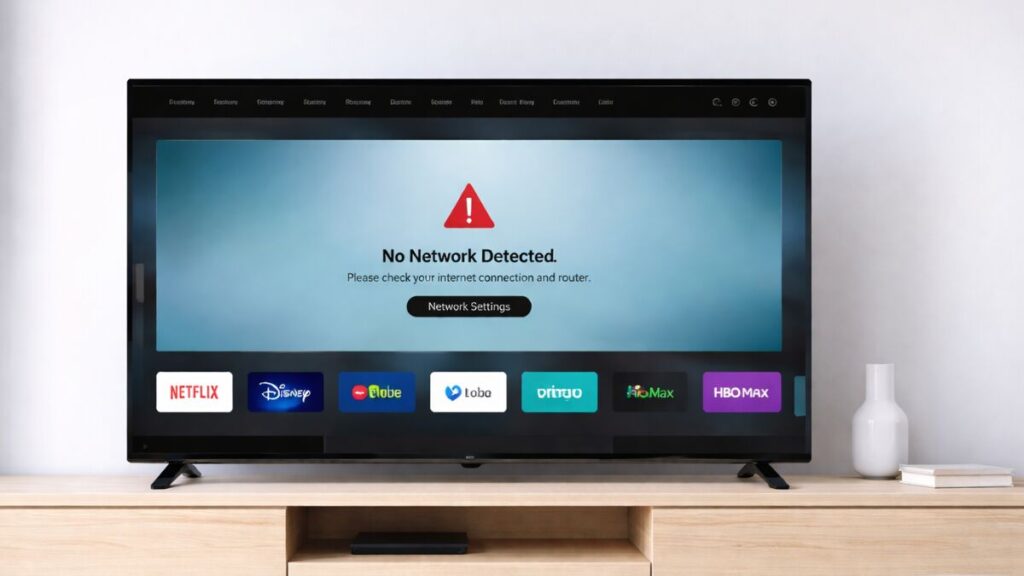
This guide walks you through the correct fix order, starting with the most effective steps. Follow them in sequence and stop once the home screen loads.
What the Vizio Home Screen Connection Error Means
This error appears when SmartCast cannot communicate with Vizio’s servers. It usually happens due to a network handshake failure, cached SmartCast data, or temporary server issues. It is not a hardware problem.
Step 1: Power Cycle the TV and Internet (Do This First)
Power cycling clears temporary network and SmartCast memory issues.
- Turn off the TV.
- Unplug the TV from the wall.
- Unplug your modem and router.
- Wait 60 seconds.
- Plug in the modem and router first.
- Wait until the internet stabilizes.
- Plug the TV back in and turn it on.
In many cases, Vizio Home loads normally after this step.
Step 2: Confirm the TV Is Properly Connected to the Internet
SmartCast fails if the TV shows a weak or inactive connection.
- Open Menu → All Settings → Network → Test Connection
- Confirm that:
- The TV shows Connected
- Internet speed is not 0 or unavailable
If the test fails, fix the network before continuing.
Step 3: Refresh Vizio Home Cache (Official Fix)
Vizio Home stores temporary data that can prevent loading. Refreshing it forces SmartCast to rebuild its cache.
- Go to Menu → All Settings → System → Menu Language
- Change the language from English to Spanish or French
- Do not exit the menu
- Wait for the Vizio Home screen to reload
- Once it loads, switch the language back to English
This step resolves many cases where the home screen stays blank or stuck loading.
Step 4: Reconnect Your Wi-Fi Network
Refreshing the network profile removes corrupted connection data.
- Go to Menu → All Settings → Network
- Select your Wi-Fi network
- Choose Forget Network
- Restart the TV
- Reconnect to Wi-Fi and re-enter the password
Avoid using VPNs or guest networks while testing.
Step 5: Set DNS Manually (Fixes ISP Routing Issues)
Some internet providers fail to route SmartCast traffic correctly.
- Go to Menu → All Settings → Network → Manual Setup
- Set DNS to Manual
- Enter:
- 8.8.8.8
- 8.8.4.4
- Save settings and restart the TV
This often fixes repeated home screen connection errors.
Step 6: Check for TV Firmware Updates
Outdated firmware can break SmartCast connectivity.
- Open Menu → Admin & Privacy → Check for Updates
- Install any available updates
- Restart the TV after completion
Do not unplug the TV during the update process.
Step 7: Factory Reset the TV (Last Resort)
Use this only if all other steps fail.
- Go to Menu → Admin & Privacy → Reset TV to Factory Settings
- Enter the PIN (default: 0000)
- Complete the setup again
This removes all apps, Wi-Fi settings, and preferences.
Will the TV Still Work If Vizio Home Is Down?
Yes. Even if the SmartCast home screen fails:
- HDMI devices still work
- Picture and sound function normally
- Only built-in apps are affected
Using a Fire TV Stick, Chromecast, or game console works as a temporary solution.
FAQs: Vizio Home Screen Connection Error (SmartCast Not Loading)
What is the Vizio Home Screen Connection Error?
The Vizio Home Screen Connection Error appears when SmartCast cannot connect to Vizio’s servers or your internet, which prevents the home screen and built-in apps from loading even though the TV itself continues to work normally.
Why does my Vizio TV say “Vizio Home is not available”?
This message appears when the TV fails to reach SmartCast services due to network instability, cached SmartCast data issues, or a temporary Vizio server outage.
Is the Vizio Home Screen Connection Error a hardware problem?
No, this is not a hardware issue. The display, sound, and HDMI inputs function correctly, but SmartCast software cannot establish a proper network connection.
Does restarting the TV fix the Vizio Home Screen Connection Error?
Restarting alone may not fix the issue, but a full power cycle that includes unplugging the TV and router for at least 60 seconds often clears the SmartCast connection error.
Why does changing the menu language fix Vizio Home not loading?
Changing the menu language forces SmartCast to refresh and rebuild its cached data, which can resolve cases where corrupted cache prevents the home screen from loading.
Can slow internet cause the Vizio Home Screen Connection Error?
Yes, slow or unstable internet can trigger this error, especially when the network test shows zero speed or an unavailable connection.
Should I factory reset my Vizio TV to fix this error?
Factory reset should only be used as a last resort because it removes all settings and apps, and most cases resolve without resetting the TV.
Will my Vizio TV still work if the home screen does not load?
Yes, the TV continues to work normally with HDMI devices like Fire Stick, Chromecast, or gaming consoles even if the SmartCast home screen fails.
How long do Vizio SmartCast server outages last?
Most SmartCast server outages are temporary and usually resolve within minutes to a few hours without user intervention.
Does updating firmware fix the Vizio Home Screen Connection Error?
Yes, installing the latest firmware can fix SmartCast connection issues caused by outdated software or compatibility problems.
Most Vizio home screen connection errors resolve after power cycling or the menu language cache refresh. Always try those first before resetting your TV.

