If Feather Launcher refuses to log you in and shows “Failed to get Minecraft profile (Not Found)”, the problem does not come from Feather itself. This error happens when Microsoft cannot detect your Minecraft Java profile during authentication.
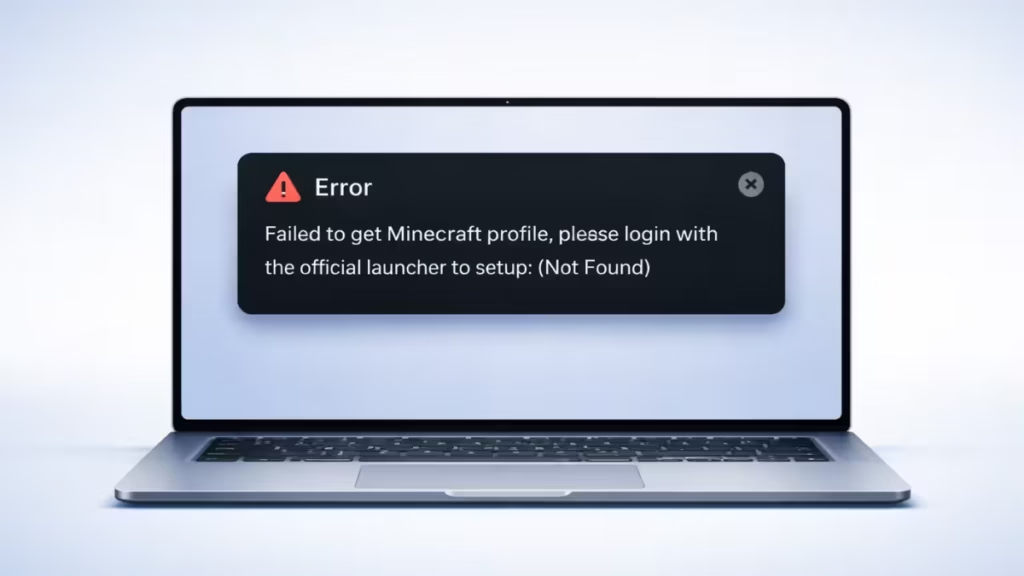
Most users see this error after fixing an XBL token issue, which confirms the root cause lies in Xbox services, Microsoft account sync, or an incomplete Java setup.
What Causes the Feather Launcher “Not Found” Error?
Feather Launcher authenticates your account through Microsoft and Xbox services. If any part of that chain breaks, Feather cannot fetch your Minecraft profile.
This error usually appears when:
- You never launched Minecraft Java Edition from the official launcher
- Xbox Live services are stopped or outdated
- Gaming Services is broken or missing
- Feather cached invalid Microsoft tokens
- You logged into the wrong Microsoft account
- A VPN or DNS filter blocked Microsoft authentication
Step 1: Log In Through the Official Minecraft Launcher (Mandatory)
Feather cannot create a Minecraft Java profile. Only the official launcher can do that.
- Download the official Minecraft Launcher from minecraft.net
- Open it and sign in with the same Microsoft account
- Select Minecraft: Java Edition
- Click Play
- Wait until the main menu loads fully
- Close the game
Do not skip this step.
Simply opening the launcher does not register your Java profile.
Step 2: Confirm You Own Minecraft Java Edition
Many users only own Bedrock Edition, which Feather does not support.
- Go to account.microsoft.com
- Open Services & subscriptions
- Confirm you see Minecraft: Java & Bedrock Edition for PC
If Java Edition does not appear, Feather Launcher will never work on that account.
Step 3: Restart Xbox Services (Fixes XBL Token Errors)
If you previously saw “Failed to acquire XBL token”, Xbox services caused the failure.
- Press Win + R
- Type
services.msc - Restart these services:
- Xbox Live Auth Manager
- Xbox Live Game Save
- Xbox Networking Service
Next:
- Open Microsoft Store
- Update Xbox App
- Update Gaming Services
- Restart your PC
Step 4: Clear Feather Launcher Cache (Critical Fix)
Feather stores broken login tokens and does not auto-refresh them.
- Close Feather Launcher completely
- Press Win + R
- Type:
%appdata%- Delete the folder:
.feather- Reopen Feather Launcher
- Log in again
This step alone fixes the issue for many users.
Step 5: Remove Extra Microsoft Accounts from Windows
Windows often authenticates the wrong Microsoft account silently.
- Open Settings → Accounts → Email & accounts
- Remove all Microsoft accounts
- Restart your PC
- Add back only the account that owns Minecraft
- Try Feather Launcher again
Step 6: Disable VPN, Proxy, and DNS Filters
Microsoft authentication fails silently when traffic gets filtered.
Temporarily disable:
- VPNs
- Ad blockers (AdGuard, NextDNS, Pi-hole)
- Antivirus web shields
- Custom DNS settings
Use automatic DNS, then retry Feather login.
Step 7: Reinstall Xbox Gaming Services (Last Resort)
If nothing worked, reset Gaming Services completely.
- Open PowerShell as Administrator
- Run:
get-appxpackage Microsoft.GamingServices | remove-AppxPackage -allusers
start ms-windows-store://pdp/?productid=9MWPM2CQNLHN- Reinstall Gaming Services
- Restart your PC
- Launch Minecraft from the official launcher once
- Open Feather Launcher and log in
Why the Official Minecraft Launcher Is Mandatory for Feather
Feather only authenticates existing Minecraft accounts. It does not create profiles, licenses, or Java entitlements.
If Microsoft’s backend returns “Not Found”, Feather has nothing to load.
FAQs
Why does Feather Launcher say “Failed to get Minecraft profile”?
This error appears when Microsoft cannot detect your Minecraft Java profile due to account sync, Xbox services, or incomplete Java setup.
Does Feather Launcher require the official Minecraft launcher?
Yes. You must launch Minecraft Java Edition at least once from the official launcher to create the Java profile.
Can this error happen if I only own Minecraft Bedrock Edition?
Yes. Feather Launcher works only with Minecraft Java Edition, not Bedrock-only licenses.
What causes the “Failed to acquire XBL token” error?
Xbox Live services are stopped, outdated, or Gaming Services is broken on your system.
Will reinstalling Feather Launcher fix the problem?
Not always. You must clear the .feather cache and fix Microsoft/Xbox authentication first.
Can VPN or custom DNS cause Feather Launcher login failure?
Yes. VPNs, ad blockers, and DNS filters often block Microsoft authentication silently.
Is this error a Minecraft ban or account suspension?
No. This is an authentication sync issue, not a ban or penalty.
Do I need to reinstall Minecraft to fix this issue?
No. Launching Java Edition once from the official launcher is enough in most cases.
Why does Feather Launcher show “Not Found” even after login?
Microsoft’s backend still cannot see your Java profile due to cached tokens or account mismatch.
Does Feather Launcher work without Xbox services?
No. Feather depends on Xbox Live and Gaming Services for Microsoft login.

