If you want to use mods in Geometry Dash, Geode is the mod loader you need. It adds a built-in mod browser directly inside the game and works with the latest Geometry Dash updates. This guide explains how to download, install, and verify Geode on Windows, Mac, and Linux without confusion or unnecessary steps.
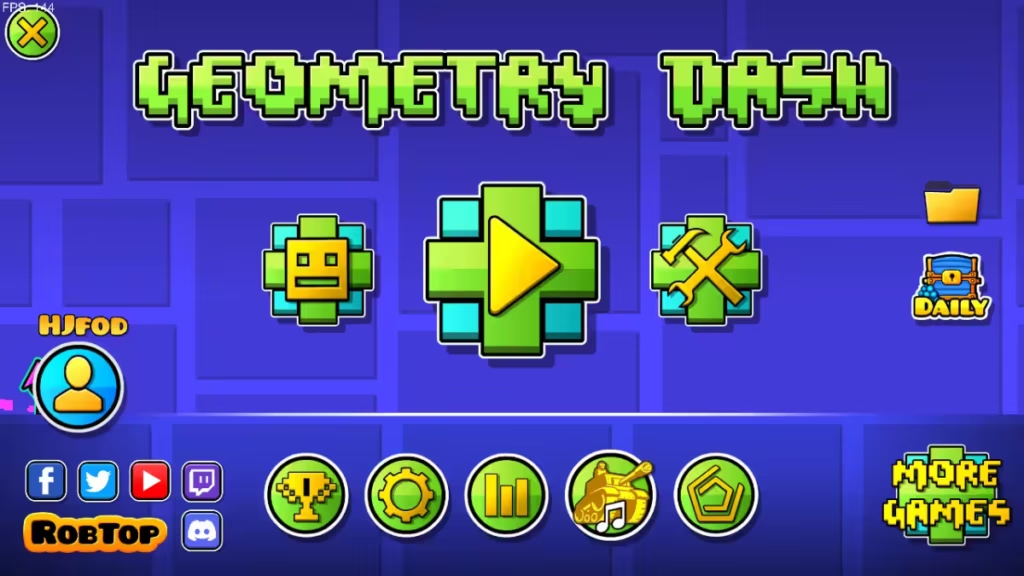
Geode is a free, community-made mod loader for Geometry Dash. It integrates directly into the game and lets you install, update, enable, or disable mods from an in-game menu. Geode is not an official Geometry Dash feature, but it is widely used and actively maintained.
Requirements Before Installing Geode
Before you start, make sure you have:
- Geometry Dash updated to the latest version
- A PC or Mac with admin permissions
- Antivirus temporarily allowing new installers (false positives can occur)
Step 1: Download Geode
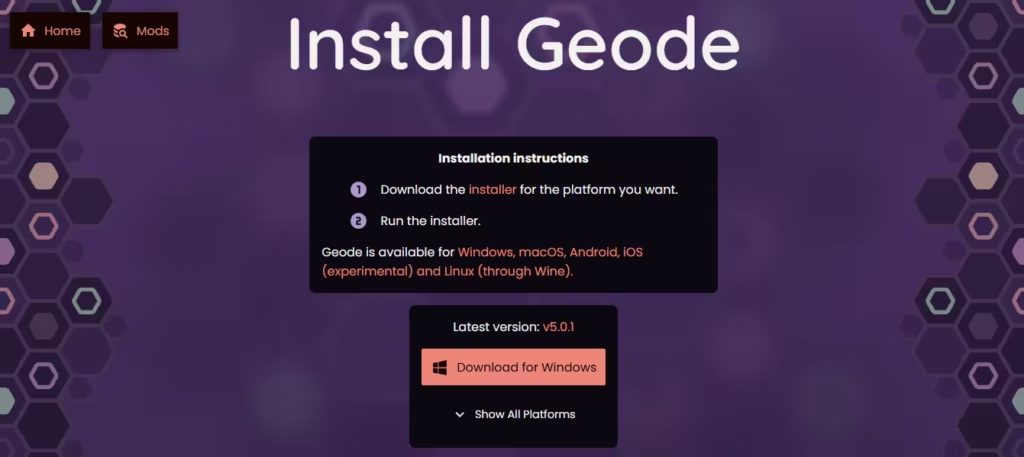
- Open your web browser.
- Search for Geode SDK.
- Open the official Geode website.
- Click Download for Windows (or choose your platform from “Show All Platforms”).
- Windows (
.exe) - macOS
- Linux
- Windows (
Step 2: Install Geode on Windows
- Open your Downloads folder.
- Double-click the Geode installer.
- If Windows SmartScreen appears, click More info → Run anyway.
- Select your language.
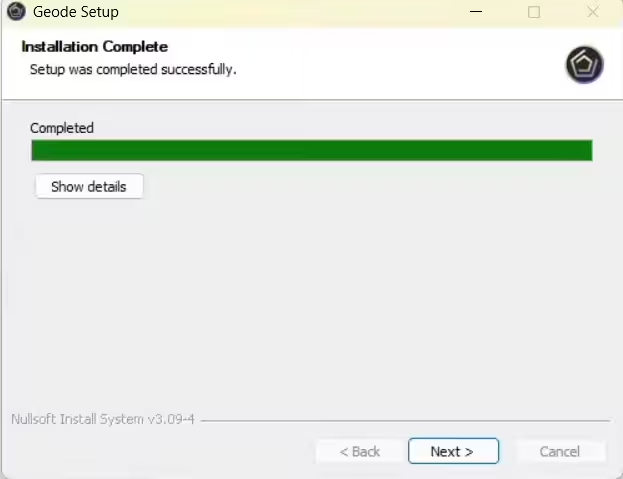
- Click Next → I Agree → Install.
- Approve the User Account Control prompt.
- Click Finish once installation completes.
Install Geode on macOS
- Open the downloaded Geode installer.
- Allow the app in Security & Privacy if macOS blocks it.
- Follow the on-screen installer steps.
- Complete the installation.
Install Geode on Linux
Geometry Dash does not natively support Linux, but Geode works through Wine.
- Install Wine on your system.
- Run the Windows Geode installer using Wine.
- After installation, set DLL overrides:
WINEDLLOVERRIDES="xinput1_4=n,b" %command% - Add this command to Geometry Dash launch options in Steam.
Step 3: Launch Geometry Dash and Verify Geode
- Open Geometry Dash from Steam or desktop.
- Look for a new Geode icon on the main menu.
- Click the icon to open the Geode menu.
If you see the Geode menu, installation succeeded.
How to Install Mods Using Geode
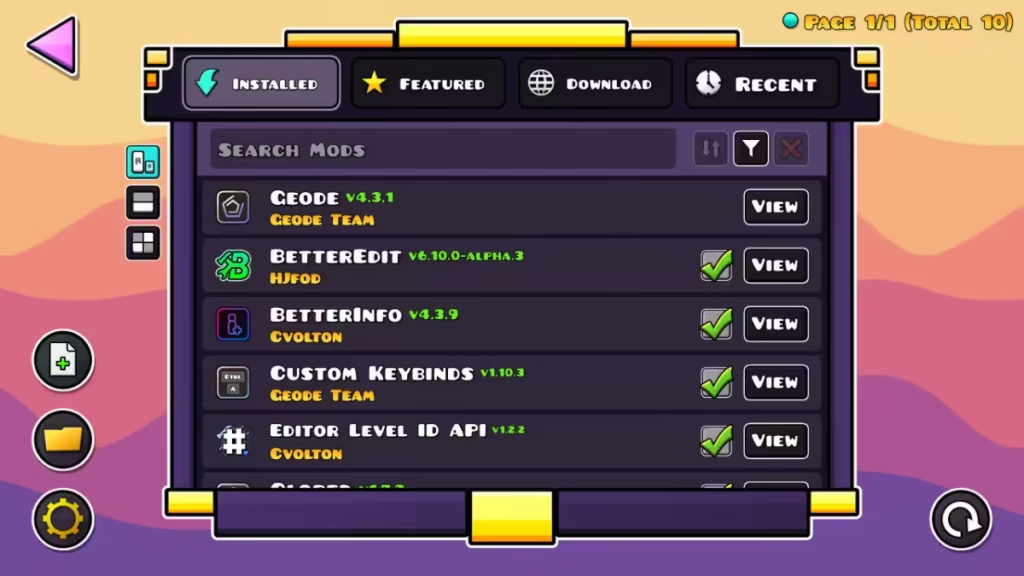
- Open the Geode menu from the main screen.
- Go to the Download tab.
- Search for a mod by name or tag.
- Click Download.
- Enable the mod using the toggle switch.
Geode automatically checks for mod updates when the game starts.
Geode Not Working? Common Problems and Fixes
1. Geode Button Not Showing
- Confirm Geometry Dash is fully updated
- Reinstall Geode
- Check antivirus quarantine (false positives are common)
- Verify these files exist in the game folder:
Geode.dllGeodeUninstaller.exegeodefolderxinput1_4.dll
2. Mods Missing After Update
- Mod developers must update mods after major game patches
- Popular mods update first; complex mods take longer
Is Geode Safe and Free?
Yes. Geode is completely free and open-source. Some individual mods may be paid, but the loader itself always remains free.
Geode is the easiest and safest way to mod Geometry Dash. Once installed, it integrates directly into the game and removes the need for manual file edits. If Geometry Dash updates break mods, reinstalling Geode usually restores compatibility.
If you want to customize your gameplay, experiment with new mechanics, or improve level creation, Geode is the best starting point.

