Outlook 0x800CCC0E error in Windows 11 usually appears when Outlook cannot connect to the mail server during Send/Receive operations. The error message often appears as:
“Outlook cannot synchronize subscribed folders… Cannot connect to the server.”
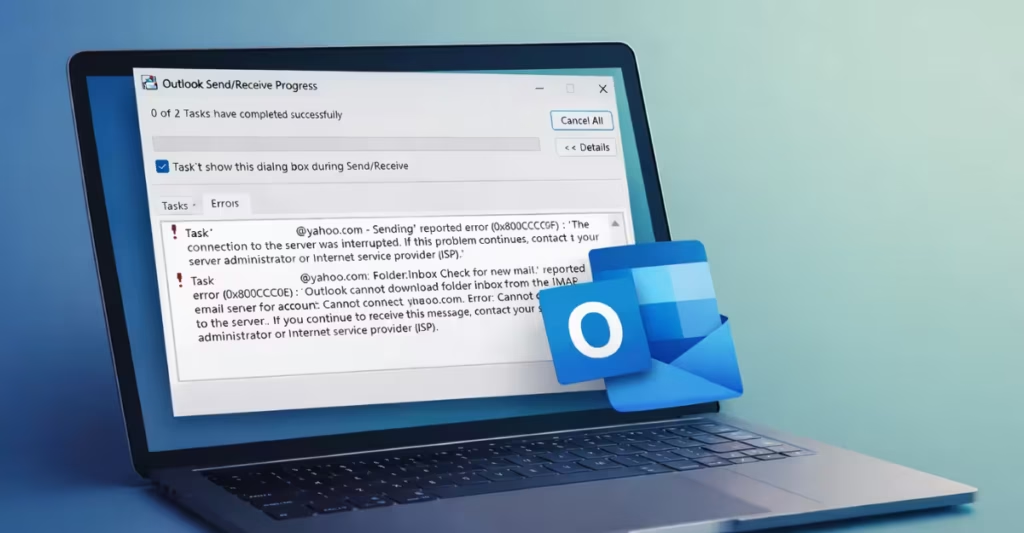
This error often appears suddenly even when the internet works normally. In many recent cases, the issue affects Gmail and Yahoo accounts in classic Outlook after a password change, and Microsoft has confirmed it is investigating the problem.
Fix 1 – Reset the Outlook Identity Registry Key (Most Effective Fix)
This error often occurs when Outlook stores a corrupted identity token. Resetting the Outlook identity cache forces the app to authenticate again and restores synchronization.
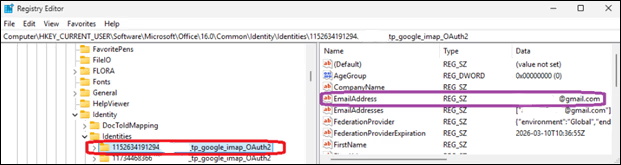
Follow these steps:
- Press Windows + R to open the Run dialog.
- Type regedit and press Enter.
- In Registry Editor, paste this path into the address bar:
Computer\HKEY_CURRENT_USER\Software\Microsoft\Office\16.0\Common\Identity\Identities- Expand the Identities folder.
- Open each subkey until you find the one associated with your email address.
- Delete that identity key.
- Restart Outlook and sign in again.
Outlook will rebuild the identity cache and reconnect to the mail server.
Fix 2 – Create a New Outlook Profile
If the Outlook profile becomes corrupted, Send/Receive operations may fail. Creating a new profile rebuilds the configuration from scratch.
Follow these steps:
- Close Outlook.
- Open Control Panel.
- Select Mail.
- Click Show Profiles.
- Choose Add.
- Create a new profile name.
- Add your email account again.
- Set the new profile as the default profile.
Open Outlook and test Send/Receive.
Fix 3 – Verify IMAP and SMTP Server Settings
Incorrect server settings prevent Outlook from connecting to the mail provider. Confirm that your incoming and outgoing server settings match your provider.
Example Gmail settings:
| Setting | Value |
|---|---|
| Incoming server | imap.gmail.com |
| Port | 993 |
| Encryption | SSL |
| Outgoing server | smtp.gmail.com |
| Port | 587 |
Steps to check settings:
- Open Outlook.
- Click File → Account Settings.
- Select your email account.
- Click Change.
- Verify the server settings.
Click Test Account Settings before saving changes.
Fix 4 – Disable Antivirus Email Scanning
Many antivirus tools block Outlook connections. Try to temporarily disable them:
- Avast Mail Shield
- AVG Email Protection
- Norton Email Scanning
- McAfee Email Protection
After disabling the feature, restart Outlook and test Send/Receive again.
Fix 5 – Allow Outlook Through the Firewall
Firewall rules sometimes block the mail ports Outlook needs.
Steps
- Open Windows Security
- Go to Firewall & Network Protection
- Select Allow an app through firewall
- Ensure Microsoft Outlook is allowed on both networks
Outlook requires ports such as 993 and 587 to communicate with mail servers.
Fix 6 – Repair Microsoft Office
If Outlook program files become corrupted, synchronization errors can appear. Running an Office repair often resolves the issue.
Follow these steps:
- Press Windows + R.
- Type:
appwiz.cpl- Press Enter.
- Select Microsoft Office from the program list.
- Click Change.
- Choose Quick Repair.
- Restart Outlook after the repair finishes.
If the error continues, run Online Repair.
FAQs:
What does the Outlook 0x800CCC0E error mean?
The Outlook 0x800CCC0E error means Outlook cannot connect to the email server during Send/Receive operations, usually due to authentication issues, incorrect server settings, firewall blocks, or a corrupted Outlook profile.
Why does Outlook say “Cannot synchronize subscribed folders” with error 0x800CCC0E?
This message appears when Outlook fails to synchronize IMAP folders with the mail server, often after a password change or when the Outlook identity cache becomes corrupted.
How do I fix the Outlook 0x800CCC0E error in Windows 11?
You can fix the Outlook 0x800CCC0E error by resetting the Outlook identity registry key, creating a new Outlook profile, verifying IMAP and SMTP settings, disabling antivirus email scanning, or repairing Microsoft Office.
Can Gmail or Yahoo accounts cause the Outlook 0x800CCC0E error?
Yes, the Outlook 0x800CCC0E error commonly appears when Gmail or Yahoo authentication fails, especially after changing the email password or when Outlook cannot refresh login credentials.
Can antivirus software trigger the Outlook 0x800CCC0E error?
Yes, some antivirus programs block Outlook’s connection to the mail server through email scanning features, which can trigger the Outlook 0x800CCC0E error.
What ports should Outlook use to avoid the 0x800CCC0E error?
Outlook typically uses IMAP port 993 with SSL and SMTP port 587 with TLS, and incorrect or blocked ports can cause the Outlook 0x800CCC0E error.
Can a corrupted Outlook profile cause error 0x800CCC0E?
Yes, a damaged Outlook profile can break Send/Receive operations and cause the Outlook 0x800CCC0E error, which is why creating a new profile often resolves the issue.
Does repairing Microsoft Office fix the Outlook 0x800CCC0E error?
Repairing Microsoft Office can fix the Outlook 0x800CCC0E error if corrupted Outlook program files prevent proper email synchronization.
If none of the fixes work, remove the email account from Outlook and add it again. Outlook will automatically configure the correct settings and rebuild the connection.