If you see an Unarc.dll error while installing a game or large program, the installer cannot extract compressed files correctly. This issue usually appears with messages like:
Unarc.dll returned an error code: -1or
An error occurred while unpacking: archive corruptedMany PC users encounter this problem when installing large games, repacked installers, or compressed setup files.
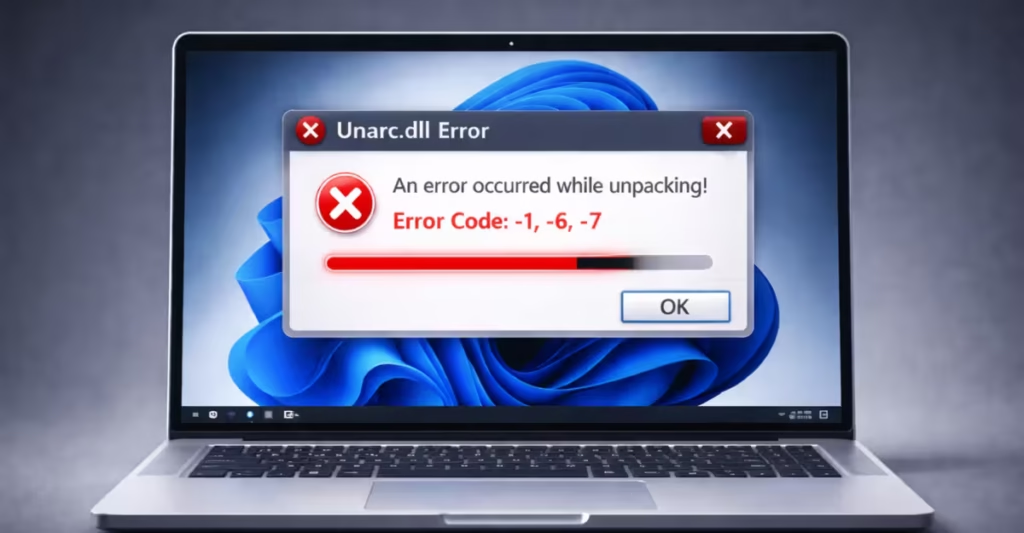
However, you can resolve this issue with a few practical troubleshooting steps. Follow the solutions below in order until the installer runs without errors.
How to Fix Unarc.dll Error
1. Check Available Disk Space First
Large installers require extra space to extract temporary files.
For example:
| Installer Size | Space Needed During Install |
|---|---|
| 40 GB | 60–80 GB |
| 70 GB | 100+ GB |
If your drive does not have enough free space, extraction fails and the Unarc.dll error appears.
Fix
- Open File Explorer
- Right-click the installation drive
- Select Properties
- Confirm you have enough free space
Delete unnecessary files or move data to another drive if space is low.
2. Re-Download the Installer Files
Corrupted downloads are the most common reason for this error.
If even one archive file becomes damaged during download, extraction fails immediately.
Fix
- Delete the current installer files
- Download the setup again from the official source
- Avoid pausing downloads multiple times
If the installer includes multiple .bin or .rar files, make sure all files download completely.
3. Install Microsoft Visual C++ Redistributables
Many installers rely on Visual C++ runtime libraries to unpack compressed files.
Missing or outdated versions can trigger Unarc.dll errors.
Fix
- Download the latest Microsoft Visual C++ Redistributables
- Install both versions:
- x64
- x86
- Restart your PC after installation.
4. Run the Installer as Administrator
Windows permissions sometimes block installers from writing temporary files.
Running the setup with administrator privileges prevents permission conflicts.
Fix
- Right-click the installer file
- Select Run as administrator
- Start the installation again
5. Temporarily Disable Antivirus Protection
Some antivirus tools block archive extraction because installers create temporary files rapidly.
This behavior can trigger a false security warning and stop installation.
Fix
- Disable real-time antivirus protection temporarily
- Run the installer again
- Enable antivirus after installation finishes
Avoid leaving antivirus disabled permanently.
6. Check Your RAM for Errors
Archive extraction heavily stresses system memory. If RAM has stability issues, decompression fails.
Windows includes a built-in tool to test memory.
Fix
- Press Windows + R
- Type
mdsched.exe- Press Enter
- Select Restart now and check for problems
Windows will scan RAM and report issues.
7. Turn Off RAM Overclock or XMP
Unstable memory settings can also cause decompression errors.
If you enabled XMP or RAM overclocking, try disabling it.
Fix
- Restart your PC
- Enter BIOS / UEFI settings
- Disable XMP or DOCP profile
- Save changes and restart Windows
Then try installing the program again.
8. Install the Program in a Short Folder Path
Very long file paths sometimes break installer scripts.
Instead of installing deep inside folders, choose a simple path.
Example:
Good path:
C:\GamesAvoid paths like:
C:\Users\Username\Documents\My Games\Installers\NewFolder\GameSetup9. Check Your Disk for Errors
If your hard drive contains bad sectors, extraction can fail.
Windows provides a built-in disk checking tool.
Fix
- Open Command Prompt as Administrator
- Run this command:
chkdsk C: /f /r- Restart the PC when prompted
This scan repairs file system errors and disk issues.
Common Unarc.dll Error Codes Explained
Different codes point to different issues.
| Error Code | Meaning |
|---|---|
| -1 | Corrupted archive or damaged files |
| -6 | Installer cannot read compressed data |
| -7 | Decompression failed due to memory issues |
| -11 | CRC mismatch or corrupted archive |
| -12 | Installer missing required files |
Re-downloading installer files resolves most of these codes.
FAQs
What is the Unarc.dll error in Windows?
The Unarc.dll error occurs when Windows cannot extract compressed installation files, usually during game or software setup, because of corrupted archives, insufficient disk space, or memory issues.
Why does the Unarc.dll error appear during installation?
The Unarc.dll error appears when the installer fails to decompress archive files due to corrupted setup files, low disk space, faulty RAM, antivirus interference, or missing runtime components.
How do I fix the Unarc.dll error on Windows?
You can fix the Unarc.dll error by freeing disk space, re-downloading installer files, installing Visual C++ Redistributables, running the installer as administrator, disabling antivirus temporarily, and checking RAM stability.
What does Unarc.dll error code -1 mean?
The Unarc.dll error code -1 usually means the installer detected corrupted or incomplete archive files and cannot unpack them correctly.
What does Unarc.dll error code -6 or -7 mean?
The Unarc.dll error codes -6 and -7 indicate decompression failure, which often happens because of unstable RAM, corrupted installer files, or insufficient system memory.
Can antivirus cause the Unarc.dll error?
Yes, antivirus software can cause the Unarc.dll error by blocking temporary extraction files created during installation.
Should I download Unarc.dll manually?
No, you should never download Unarc.dll from random DLL websites because it may contain malware or incompatible versions.
Can RAM problems cause Unarc.dll errors?
Yes, faulty or unstable RAM can trigger the Unarc.dll error because archive extraction uses large amounts of system memory.
Does low disk space trigger Unarc.dll errors?
Yes, insufficient disk space can cause the Unarc.dll error because installers require extra temporary space to unpack compressed files.
Is Unarc.dll related to ISDone.dll errors?
Yes, Unarc.dll and ISDone.dll errors are closely related because both handle archive extraction during installation and usually appear together when decompression fails.

