Microsoft Store error 0x800704CF stops you from signing in and downloading apps. You usually see this error when your system fails to connect properly to Microsoft services.
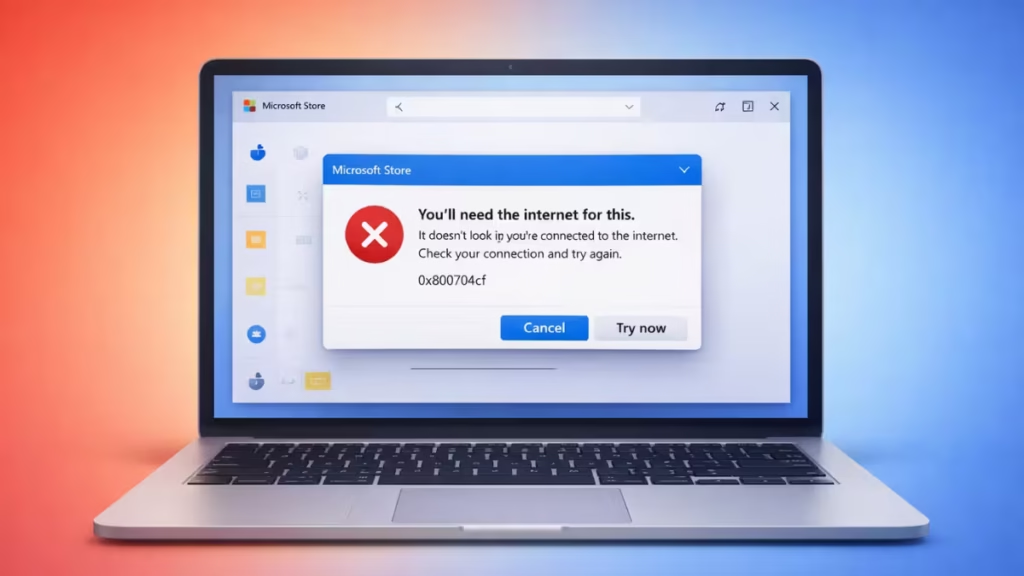
However, you can fix it quickly with the right steps. This guide walks you through every working method in the correct order, so you don’t waste time.
What Causes Microsoft Store Error 0x800704CF
Before fixing it, understand the problem clearly.
This error usually appears when:
- Your network connection is unstable or misconfigured
- Microsoft Store cache gets corrupted
- System files break or go missing
- Microsoft account services stop working
In simple terms: your PC cannot properly “talk” to Microsoft servers.
Method 1: Reset Microsoft Store (Most Effective Fix)
Start with this method because it fixes most cases instantly.
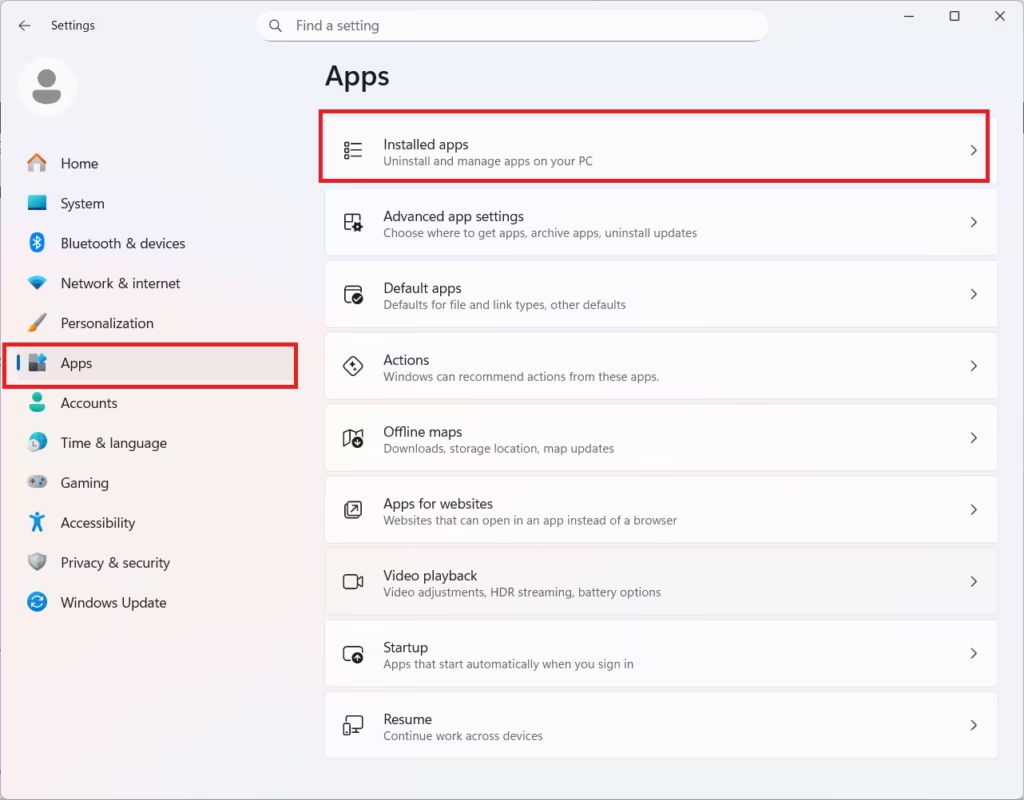
Steps:
- Open Settings
- Go to Apps → Installed apps
- Search for Microsoft Store
- Click Advanced options
- Scroll down and click Reset
This clears corrupted Store data without deleting your apps.
Method 2: Run WSReset Command
This command clears hidden Store cache files.
Steps:
- Press Windows + R
- Type:
wsreset.exe- Press Enter
A blank window opens and resets the Store automatically.
Method 3: Sign Out and Sign Back In
Sometimes your account session breaks.
Steps:
- Open Microsoft Store
- Click your profile icon
- Select Sign out
- Restart your PC
- Sign in again
This refreshes authentication with Microsoft servers.
Method 4: Reset Network Settings (Important for This Error)
Error 0x800704CF is mainly a network issue, so this step is critical.
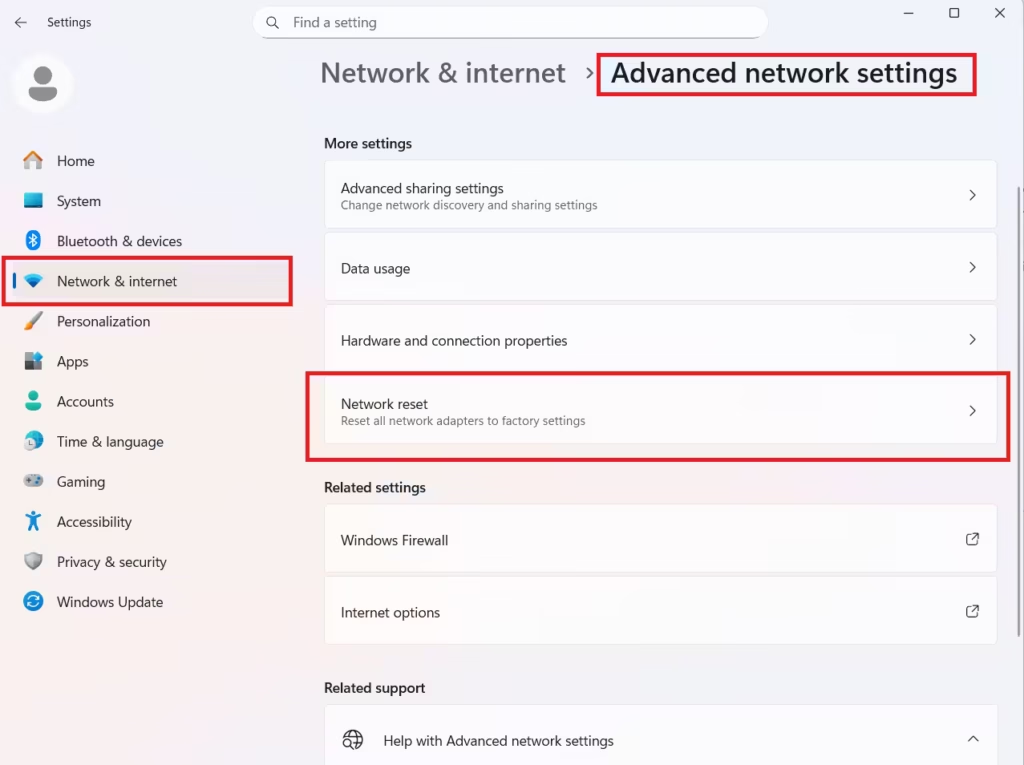
Steps:
- Open Settings
- Go to Network & Internet
- Click Advanced network settings
- Select Network reset
- Restart your PC
This removes all broken network configurations.
Method 5: Re-register Microsoft Store Using PowerShell
If Store files are damaged, this fix repairs them.
Steps:
- Right-click Start → Select Terminal (Admin)
- Run this command:
Get-AppXPackage | Foreach {Add-AppxPackage -DisableDevelopmentMode -Register "$($_.InstallLocation)\AppXManifest.xml"}- Wait for completion
- Restart your PC
This rebuilds all Store components.
Method 6: Check Date, Time, and Region
Incorrect system time blocks login.
Steps:
- Open Settings → Time & Language
- Enable:
- Set time automatically
- Set time zone automatically
This ensures secure connection with Microsoft servers.
Method 7: Enable Required Windows Services
Microsoft Store depends on key services.
Steps:
- Press Windows + R
- Type:
services.msc- Ensure these are running:
- Microsoft Account Sign-in Assistant
- Windows Update
- Background Intelligent Transfer Service (BITS)
Method 8: Disable VPN or Proxy
VPNs often cause this error.
Steps:
- Turn off VPN
- Go to Settings → Network → Proxy
- Disable all proxy settings
Microsoft Store needs a direct connection.
Method 9: Perform In-Place Upgrade (Last Fix)
Use this only if nothing works.
An in-place upgrade repairs Windows without deleting files.
It replaces damaged system files and fixes deep issues.
Common Mistakes to Avoid
Before trying again, avoid these:
- Using VPN while signing in
- Skipping network reset step
- Not restarting after fixes
- Running PowerShell without admin rights
FAQs
What is Microsoft Store error 0x800704CF?
Microsoft Store error 0x800704CF occurs when your PC cannot connect to Microsoft servers due to network issues, corrupted cache, or system file problems.
How do I fix Microsoft Store error 0x800704CF quickly?
To fix Microsoft Store error 0x800704CF fix, reset the Store, run wsreset.exe, sign out and back in, reset network settings, and re-register the Store using PowerShell.
Why can’t I sign in to Microsoft Store error 0x800704CF?
You cannot sign in because your system fails to establish a proper connection with Microsoft services due to network errors, VPN interference, or corrupted Store data.
Does resetting Microsoft Store fix error 0x800704CF?
Yes, resetting Microsoft Store clears corrupted cache and settings, which fixes Microsoft Store error 0x800704CF in most cases without affecting apps.
Can a network issue cause Microsoft Store error 0x800704CF?
Yes, this error is mainly network-related and occurs when DNS, IP settings, or connectivity issues block communication with Microsoft servers.
Is wsreset.exe safe to fix Microsoft Store error 0x800704CF?
Yes, wsreset.exe safely clears Microsoft Store cache and helps fix Microsoft Store error 0x800704CF without deleting apps or personal data.
How do I reset network settings to fix error 0x800704CF?
You can fix Microsoft Store error 0x800704CF by resetting network settings from Settings → Network & Internet → Advanced network settings → Network reset and then restarting your PC.
Can VPN cause Microsoft Store error 0x800704CF?
Yes, VPN or proxy settings can block Microsoft Store connections, causing error 0x800704CF, so disabling them often resolves the issue.
Do I need to reinstall Windows to fix error 0x800704CF?
No, you do not need to reinstall Windows as you can fix Microsoft Store error 0x800704CF using reset, cache clearing, and network troubleshooting methods.
Will this error affect other apps on Windows?
Yes, Microsoft Store error 0x800704CF can affect other services like Xbox app, Microsoft account login, and Windows Update due to shared connectivity issues.

