If you want full control over your Windows installation, downloading the Windows 11 25H2 ISO file is the best option. Unlike standard updates, the ISO lets you perform a clean install, upgrade manually, or create a bootable USB for offline use.
The official ISO is available directly from Microsoft and includes all editions — Home and Pro — in one file. This guide shows you the safest way to download Windows 11 25H2 and why keeping a backup copy is always a smart move.
Current release: Windows 11 2025 Update — Version 25H2. Always download from the official Microsoft website to ensure authenticity.
Option 1: Windows 11 Installation Assistant (Recommended)
This is the easiest option if you’re upgrading the PC you’re currently using. The Installation Assistant guides you through the process step by step.
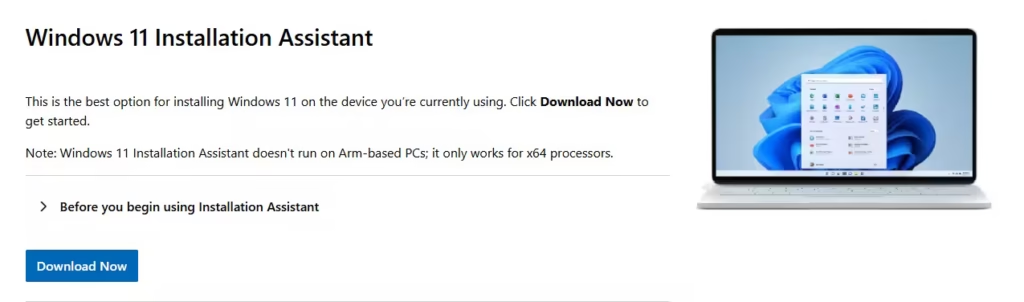
Note: The Installation Assistant only works on x64 (Intel/AMD 64-bit) processors. It does not run on Arm-based PCs.
Before you begin
- You must have a valid Windows 10 or Windows 11 licence.
- Your PC must be running Windows 10 version 2004 or later.
- At least 9 GB of free disk space is required.
How to use it
- Download the Installation Assistant from the official Microsoft Windows 11 download page.
- Run the downloaded file — you must be an administrator to proceed.
- The tool will verify your hardware is compatible.
- Accept the licence terms when prompted, then select Accept and Install.
- Click Restart Now to complete the installation.
Your PC will restart several times during installation. Do not turn off your PC until the process is complete.
Option 2: Create Windows 11 Installation Media (USB or DVD)
Use this option to create a bootable USB drive or DVD — ideal for installing Windows on another PC or doing a clean install.
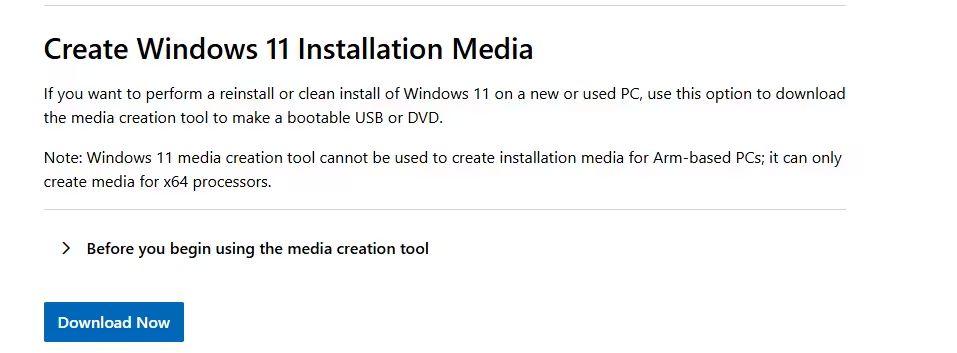
Note: The Media Creation Tool creates installation media for x64 processors only. It cannot create media for Arm-based PCs.
What you’ll need
- USB Drive: At least 8 GB (all content will be erased)
- Or DVD: Blank DVD with 8 GB+ capacity (use Dual Layer if “disc too large” error appears)
- Internet: Active connection required during download
- CPU: 64-bit (x64) processor required
How to create installation media
- Download the Media Creation Tool from the official Microsoft download page.
- Run the tool as an administrator and accept the licence terms.
- On the “What do you want to do?” page, select Create installation media for another PC, then click Next.
- Select your language, edition, and 64-bit (x64) architecture.
- Choose your media type — USB flash drive or ISO file (for burning to DVD).
- Follow the on-screen instructions to complete media creation.
Installing from the bootable media
- Attach the USB or insert the DVD into the target PC.
- Restart the PC and enter the boot menu (usually F2, F12, Delete, or Esc at startup).
- Select the USB or DVD as the boot device.
- On the Install Windows page, choose your language, time, and keyboard settings, then click Next.
- Select Install Windows and follow the prompts.
Tip: After installation, remember to revert any boot order changes you made in BIOS/UEFI settings so your PC boots normally from the internal drive.
Option 3: Download Windows 11 25H2 ISO Directly
This option is for users who want to download the ISO file directly — for creating bootable media, setting up virtual machines, or keeping an offline backup.

Note: This is a multi-edition ISO that uses your product key to unlock the correct edition (Home or Pro). ISO files for Arm64 devices are available separately on the Microsoft download page.
Before you download
- Windows 11 is 64-bit only — 32-bit is not supported.
- The ISO file is typically 6–7 GB in size.
- Ensure you have sufficient free storage on your drive or USB.
- An active internet connection is required for download.
How to download the ISO
- Visit the official Windows 11 download page on Microsoft’s website.
- Scroll to Download Windows 11 Disk Image (ISO) for x64 devices.
- Under “Select download”, choose Windows 11 (multi-edition ISO for x64 devices).
- Click Download Now and select your preferred language.
- Click Confirm, then download the 64-bit Download link.
Installing from ISO — upgrade without losing data
- Right-click the ISO file and select Mount.
- Open the virtual drive that appears in File Explorer.
- Double-click setup.exe to launch Windows 11 setup.
- When prompted, select Keep personal files and apps.
- Click Install. Your PC will restart and complete the upgrade.
Clean install (fresh setup)
- Mount the ISO and run setup.exe.
- Click Change what to keep.
- Select Nothing and proceed.
Warning: Choosing “Nothing” will permanently delete all files and apps on the drive. Back up your data before proceeding.
Which option is right for you?
- Installation Assistant (Recommended) : Best for upgrading your current PC easily
- Media Creation Tool (USB / DVD): Best for installing Windows on another PC or offline
- ISO Download (Direct File): Best for backup, virtual machines, or full control
Why you should always save a copy
Saving a Windows ISO is one of the most useful things you can do for long-term PC maintenance. Once downloaded, store it on:
- An external hard drive
- A dedicated USB flash drive
- A cloud storage service
It means you can fix boot issues, perform clean installs, or reinstall Windows any time — without re-downloading 6+ GB.
Once you download Windows 11 25H2, don’t delete it. A saved ISO can save you hours of frustration when something breaks — and you’ll have exactly the version you need, ready to go.
FAQs
Is Windows 11 25H2 ISO safe to download?
Yes — as long as you download it directly from microsoft.com/software-download/windows11. Avoid third-party mirror sites.
Can I install Windows 11 without an internet connection?
Yes. Once the ISO is downloaded, the installation itself works fully offline. You may be prompted to install updates during setup, but this step can be skipped.
Does the ISO include the latest updates?
The ISO includes the build available at the time of download. Windows Update may offer additional patches after installation completes.
Can I use this ISO on an Arm-based PC?
The standard x64 ISO and Media Creation Tool do not support Arm-based PCs. A separate Arm64 ISO is available on the Microsoft download page.
When should I use the ISO instead of Windows Update?
Use the ISO when Windows Update is stuck or failing, you want a clean install, you’re upgrading multiple PCs, or you need an offline installer. Windows Update is simpler for routine upgrades on a single device.

