Wi-Fi not connecting is one of the most common network issues users face across every device. The problem can come from the device itself, the router, the modem, or even a simple password typo. This guide covers every practical fix so you can isolate the exact cause and resolve it quickly.
1. Check Your Wi-Fi Password
A one-character typo in the Wi-Fi password stops the connection every time. Before trying anything else, confirm you have the correct password.
Ask the router owner to share the password again, or check the label on the back of the router. Then delete the saved password on your device and retype it carefully. Pay close attention to uppercase letters, zeros versus the letter O, and special characters.
If the password is correct and the connection still fails, move to the next step.
2. Restart Your Device
A quick restart clears temporary network states that block a Wi-Fi connection. This fix resolves the issue more often than most users expect.
On Windows:
- Click the Start menu.
- Click the Power icon.
- Select Restart (not Shut down).
On Android:
- Hold the power button.
- Tap Restart.
On iPhone:
- Hold the side button and either volume button.
- Slide to power off.
- Wait 30 seconds, then power the device back on.
Apple provides model-specific restart instructions on their restart your iPhone support page if the steps above differ on your model.
After the restart, try connecting to the Wi-Fi network again.
3. Forget the Network and Reconnect
Saved Wi-Fi profiles can hold outdated settings, including old passwords or mismatched security configurations. Deleting the saved profile forces your device to connect fresh.
On Windows 11:
- Open Settings and go to Network and Internet.
- Click Wi-Fi, then Manage known networks.
- Find the network and click Forget.
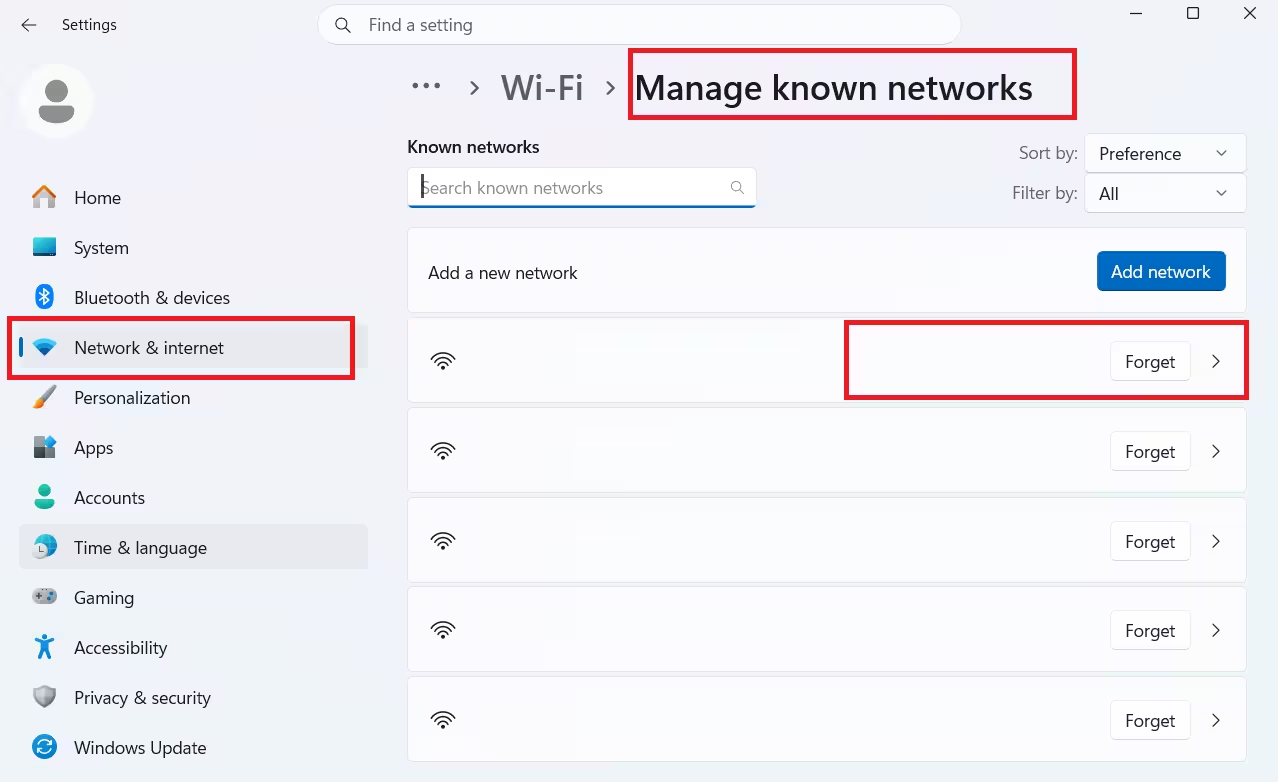
- Reconnect and enter the password again.
On Android:
- Open Settings and tap Wi-Fi.
- Long-press the network name.
- Tap Forget network.
- Reconnect from the list.
Google’s connect to Wi-Fi on Android guide covers additional steps for specific Android versions.
On iPhone:
- Go to Settings, then Wi-Fi.
- Tap the (i) icon next to the network.
- Tap Forget This Network.
- Reconnect and enter the password.
4. Restart Your Router or Access Point
Router firmware can enter a stuck state after extended uptime, causing devices to fail during the connection handshake. A power cycle clears this.
- Unplug the router from the power outlet.
- Wait at least 30 seconds.
- Plug it back in and wait for all indicator lights to stabilize.
- Try to connect from your device.
If other devices on the network also lose connection after the restart, wait an additional 60 seconds before trying again. Some routers take longer to fully initialize.
Note: A router restart briefly disconnects everyone on the network. Give other users a heads-up before you do this.
5. Check Your Modem and ISP Connection
Your device can connect to the router successfully while the router itself has no internet access. This happens when the modem loses its connection or your ISP has an outage in your area.
Steps to check:
- Look at the modem’s indicator lights. A solid internet or WAN light means the modem has an active connection. A blinking or red light signals a problem.
- Visit your ISP’s website or app and check for outages in your area.
- If no outage exists, restart the modem: unplug it, wait 30 seconds, and plug it back in.
- Inspect the coaxial or phone line cable connecting the modem to the wall. Replace it if you see any visible damage.
- Check the Ethernet cable between the modem and the router. Reseat both ends firmly.
If the modem shows a healthy connection but devices still cannot reach the internet, the issue likely sits inside the router’s settings or your device.
6. Switch to a Different Frequency Band
Most modern routers broadcast on two bands: 2.4 GHz and 5 GHz. Some routers also add a 6 GHz band.
- 5 GHz and 6 GHz offer faster speeds but have shorter range and weaker wall penetration.
- 2.4 GHz reaches farther and passes through walls more effectively, but at lower speeds.
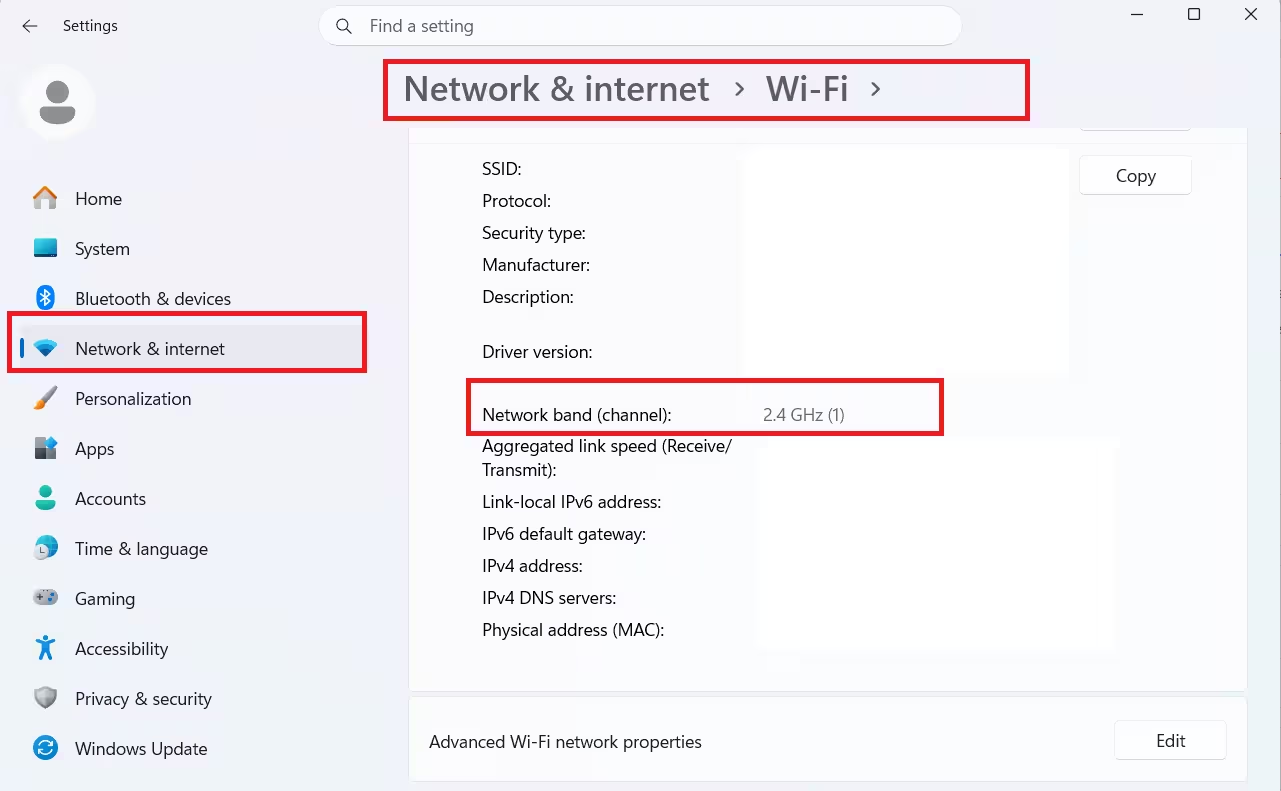
If you sit far from the router or have walls and floors between you and the router, switch to the 2.4 GHz network. Your router broadcasts each band as a separate network name (SSID), often labeled with a “2G” or “5G” suffix.
Connect to the 2.4 GHz network from your device’s Wi-Fi settings and check whether the connection succeeds.
7. Update Your Wi-Fi Adapter Driver (Windows)
An outdated or corrupted Wi-Fi driver on Windows causes connection failures, dropped signals, and authentication errors. Updating the driver often fixes these problems completely.
Steps to update the Wi-Fi driver on Windows 11:
- Right-click the Start button and select Device Manager.
- Expand Network Adapters.
- Right-click your Wi-Fi adapter and select Update driver.
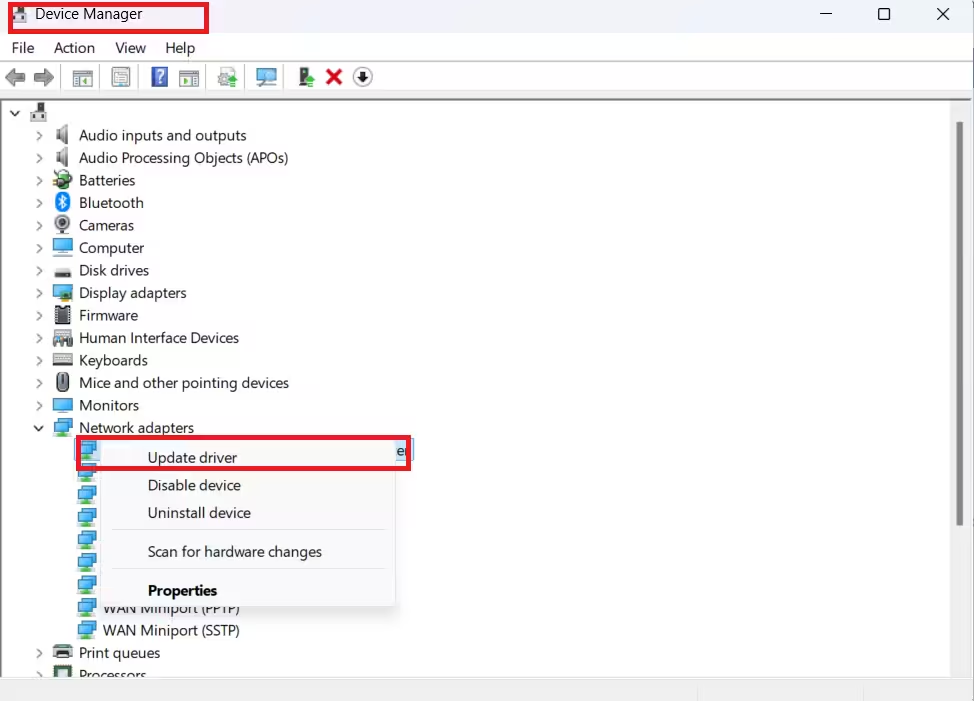
- Choose Search automatically for drivers and let Windows check for an update.
If Windows finds no update, visit the laptop manufacturer’s support website or the Wi-Fi adapter manufacturer’s site, download the latest driver manually, and run the installer.
After installing the driver, restart your PC and attempt to connect again.
8. Check Wi-Fi Compatibility on Your Router
Older devices support only older Wi-Fi security standards. If your router uses WPA3 only, an older device that only supports WPA or WPA2 will fail to connect.
How to check and fix this:
- Log in to your router’s admin panel. Type 192.168.1.1 or 192.168.0.1 into your browser address bar and sign in with your admin credentials.
- Navigate to the Wireless or Wi-Fi settings.
- Set the security mode to WPA2/WPA3 (mixed mode) rather than WPA3 only.
- Save the settings and restart the router.
For very old devices, such as consoles or IoT hardware that only support WEP or WPA, you may need to create a separate legacy network or update the device’s firmware.
9. Reduce Interference and Change the Wi-Fi Channel
Wi-Fi signals share frequency space with other household devices. Microwaves, baby monitors, cordless phones, and neighboring Wi-Fi networks all create interference that can disrupt connections on the 2.4 GHz band.
To reduce interference:
- Move the router away from microwaves, refrigerators, and other large metal objects.
- Change the Wi-Fi channel in your router’s admin panel. Under Wireless settings, switch from Auto to a specific channel. For 2.4 GHz, try channels 1, 6, or 11 since these do not overlap.
- If you have neighbors on the same channel, switching reduces congestion.
Also consider distance. Wi-Fi signal strength drops significantly as you move farther from the router. If you are more than two rooms away, move closer and test the connection.
10. Look for a Captive Portal Login Page
Public Wi-Fi networks at hotels, airports, coffee shops, and offices often require you to log in through a browser page before granting internet access. Your device connects to the network successfully, but all traffic sits blocked until you complete the login.
Steps to access the portal:
- Connect to the Wi-Fi network as normal through your device settings.
- Open a browser and visit any HTTP website, such as
http://example.com. - The network automatically redirects you to the login page.
- Enter the credentials provided by the business or accept the terms of service.
If the redirect does not happen, try navigating directly to http://captive.apple.com on iPhone or http://connectivitycheck.gstatic.com on Android to trigger it manually.
11. Try a Different Wi-Fi Adapter
If only one specific device fails to connect while other devices on the same network work fine, the issue points to the Wi-Fi adapter on the problem device.
On a Windows desktop or laptop, you can plug in a USB Wi-Fi adapter to test whether the built-in adapter has failed. Disable the original adapter in Device Manager, enable the USB adapter, and try to connect. If the USB adapter connects successfully, the original adapter is either failing or needs a driver reinstall.
On mobile devices, a factory reset is usually the last resort if all other steps fail. Back up your data before attempting this.
12. Replace the Router as a Last Resort
If no fix works across multiple devices, the router itself may be faulty. Signs of a failing router include random disconnections, inability to assign IP addresses, and overheating.
Contact the router manufacturer’s support team to ask about repair or replacement options. If the router is more than four or five years old, a replacement often makes more sense than a repair. Modern Wi-Fi 6 routers offer significantly better range, speed, and device capacity.
Related Guides
- Your Wi-Fi Router Is Watching You: The BFI Tracking Attack That Needs No Phone or Password
- Wi-Fi Routers Can Track You Without Your Phone: KIT Researchers Reveal the BFId Attack
- Why Snapchat or Signal Can Appear in Router Logs Even When the Apps Are Not Installed
Wi-Fi not connecting usually comes down to a wrong password, a stale network profile, a router glitch, or a driver issue. Work through each fix in order and you will isolate the cause quickly. Drop a comment below if you need help with a specific step.

