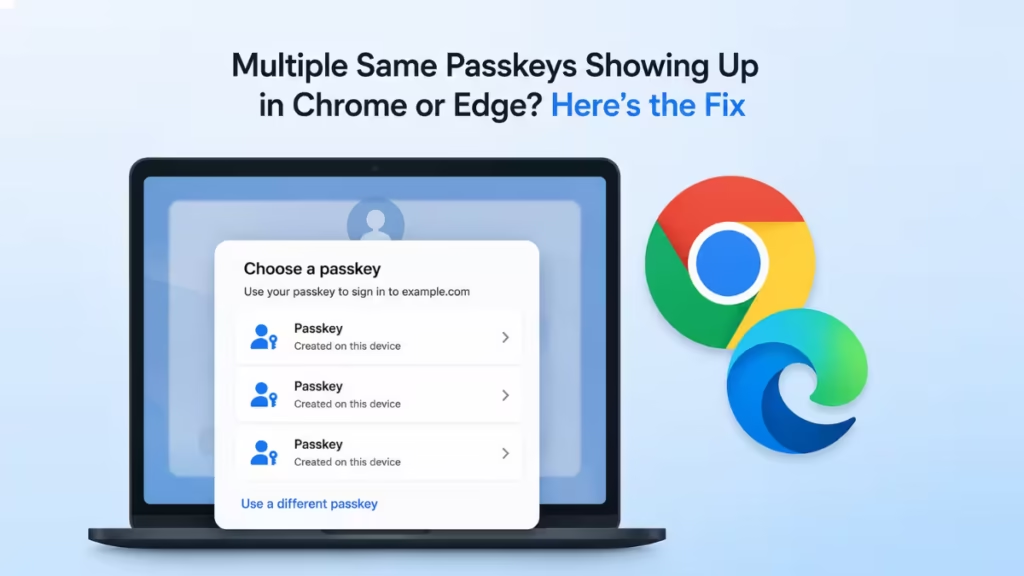
Signing into a website in Chrome or Edge and seeing the same passkey or password listed twice, sometimes even three or four times, makes it hard to know which entry actually works. This happens on Windows 11 when two credential managers, browsers, or synced devices are all storing a copy of the same passkey. Here is how to find the source and fix it.
What Causes Duplicate Passkeys in Chrome and Edge
Credential managers can only hold one passkey per site, so duplicates come from overlap between sources.
- You created passkeys on multiple devices using the same account, and each device synced its own entry
- You use Google Password Manager inside Microsoft Edge, but Edge does not natively use Google Password Manager, so both show separate entries
- The same password is saved in both the browser’s built-in manager and a third-party password manager
- Old credentials were never removed after a password change
- A third-party password manager extension is creating a conflicting entry alongside the browser’s native one
- Edge has also saved the credential separately inside Windows Credential Manager
Fix 1: Disable One of the Two Password Managers
Only one credential source should handle autofill and passkeys at a time.
If you use a third-party password manager extension alongside Chrome or Edge’s built-in manager, disable one of them.
- Open chrome://extensions or edge://extensions
- Find the third-party password manager extension
- Toggle it off, or use its own turn-off option if it runs as a standalone app
- If it still runs in the background, open Task Manager and end its process
- Reload the sign-in page and check if the duplicate entry is gone
Fix 2: Use Only One Browser’s Password Manager
Running both Chrome and Edge with separate password managers on the same account creates two sources for the same credential.
Stick to Microsoft Password Manager in Edge and Google Password Manager in Chrome, not both across the same account. Chrome does not support Microsoft Password Manager directly, so if you use both browsers, save passwords in Google Password Manager while on Chrome, then import them into Microsoft Password Manager for Edge instead of maintaining two separate entries.
Fix 3: Delete Old Duplicate Entries Directly
A leftover entry from a password change or an old device sync will keep showing up until it is removed manually.
- In Chrome, open chrome://password-manager/passwords
- In Edge, open edge://settings/autofill/passwords
- Search for the site showing duplicates
- Delete the extra or older entry, keeping only one
Fix 4: Turn Off Autofill in One Browser’s Password Manager
If Edge and Chrome are both prompting for the same passkey, disable autofill in one of them.
In Chrome:
- Open Settings > Autofill and passwords > Google Password Manager
- Open the Settings tab
- Toggle off Sign in automatically
In Edge:
- Open Settings > Passwords and autofill > Microsoft Password Manager > More settings
- Toggle off Autofill passwords and passkeys
Fix 5: Re-import Passwords Into a Single Manager
An interrupted or incomplete import between browsers can leave duplicate copies of the same credential behind.
- In Edge, open Settings > Passwords and autofill
- Find Import data from Google Chrome and click Import
- Choose Google Chrome from the import menu, select your profile, tick Saved passwords, and click Import
- Open Microsoft Password Manager to confirm the imported passwords appear correctly
Fix 6: Disable Password and Passkey Synchronization
If sync is pulling in the same passkey from multiple signed-in devices, turning it off stops the duplication at the source.
In Chrome:
- Open Settings > You and Google
- Click your profile picture, then go to In your Google Account
- Toggle off Passwords and passkeys
In Edge:
- Open Settings > Passwords and autofill > Microsoft Password Manager
- Toggle off Ask to save password and passkeys
Fix 7: Check Windows Credential Manager
Edge often saves credentials separately in Windows Credential Manager, so a duplicate can exist there even after cleaning up the browser’s own password list.
- Search for Credential Manager in the Taskbar search box and open it
- Select Web Credentials
- Review the entries under Web Passwords
- Find and remove any duplicate entries for the site
Duplicate passkeys in Chrome or Edge almost always come down to two credential managers, two browsers, or two devices holding the same entry. Disabling the conflicting manager, deleting old duplicate entries, turning off sync where needed, and checking Windows Credential Manager clears the issue in most cases.
Frequently Asked Questions
Can you have multiple passkeys for one account?
You can set different types of credentials for a Windows 11 account, such as a picture password, a PIN, and a password, but you cannot set multiple PINs or passwords for the same account.
How do I get Chrome to stop asking about passkeys?
Open Settings > Autofill and passwords in Chrome and remove the specific websites from the saved list to stop it from prompting automatically.
Why does Edge keep asking me to save the same passkey again?
This usually happens when sync is still enabled after you already deleted the duplicate entry, so the browser pulls the old credential back in from another signed-in device. Turn off password and passkey sync in Edge, then delete the leftover entry again to stop the repeat prompt.
Is it safe to delete a duplicate passkey?
Yes, as long as you keep at least one working entry for the site. Deleting a duplicate only removes the extra copy stored locally or in sync, it does not affect your account or require you to set up the passkey again unless you delete every entry for that site.

