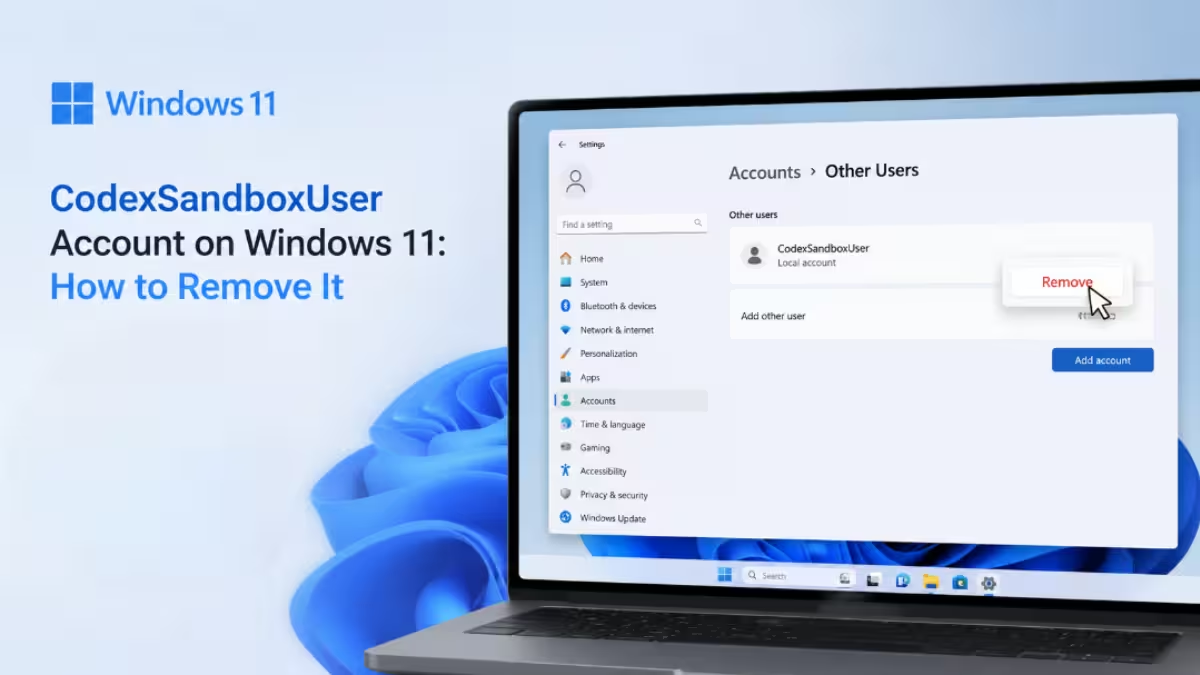
If you install OpenAI’s Codex coding tool on Windows 11, you may spot a new local account on your PC that you never created. Names like CodexSandboxUser, CodexSandboxOnline, or CodexSandboxOffline can look alarming at first, especially if you don’t remember setting them up yourself. Codex creates these accounts on purpose, not as a side effect of a bug or a security issue. This article walks you through what these accounts are, why they show up, whether they are safe to keep, and how to remove them if you no longer need them.
What Is the CodexSandboxUser Account
The CodexSandboxUser account is not a Windows system account. OpenAI’s Codex installer creates it locally to isolate commands run by its AI coding agent.
Codex creates two accounts: CodexSandboxOffline and CodexSandboxOnline. Windows groups both accounts under a shared name called CodexSandboxUsers. When the AI agent runs a command, it runs under one of these accounts instead of your own login. This keeps the agent from directly touching your personal files, settings, or the rest of your system.
Depending on the Codex version installed, you may see just one account named CodexSandboxUser instead of the separate Online and Offline pair. The name can differ, but the job stays the same: keep AI-run commands separate from your main account.
Why Codex Creates These Accounts
Codex runs with full permissions of your Windows account by default, which means it can do anything you can do on your PC. A “sandbox” is a limited, isolated space where a program can run without touching the rest of your system. Before Codex had a sandbox on Windows, users had two options: approve nearly every command by hand, or turn on Full Access mode, which lets Codex run any command with no restrictions at all.
OpenAI built the sandbox accounts to fix this. Each command runs under a locked-down version of CodexSandboxOnline or CodexSandboxOffline, so it has fewer permissions than a normal account. On top of that, Windows only lets these accounts open files inside the specific project folder Codex is working in, not your whole PC.
Is the CodexSandboxUser Account Safe
Yes, the accounts themselves are a legitimate part of how Codex isolates AI-run commands on Windows 11. They are not malware and do not indicate a compromised system.
An earlier version of the sandbox had a bug. It gave these accounts access to your entire C:\Users\ folder and everything inside it, instead of just the one project folder Codex was working in. Some users also reported the same problem on secondary drives. If your Codex installation is outdated, update it first. That closes this gap before you decide whether to remove the accounts.
How to Check Whether the Account Exists
Open Settings > Accounts > Other users and look for CodexSandboxUser, CodexSandboxOffline, or CodexSandboxOnline in the list. This is the quickest way to confirm the account is present without opening Computer Management.
How to Remove the CodexSandboxUser Account
There are two ways to remove the account. The quick way uses Settings and works for most people. The advanced way also clears leftover permissions, which is useful if you want to remove every trace after uninstalling Codex.
Quick Method: Remove via Settings
- Open Settings > Accounts > Other users.
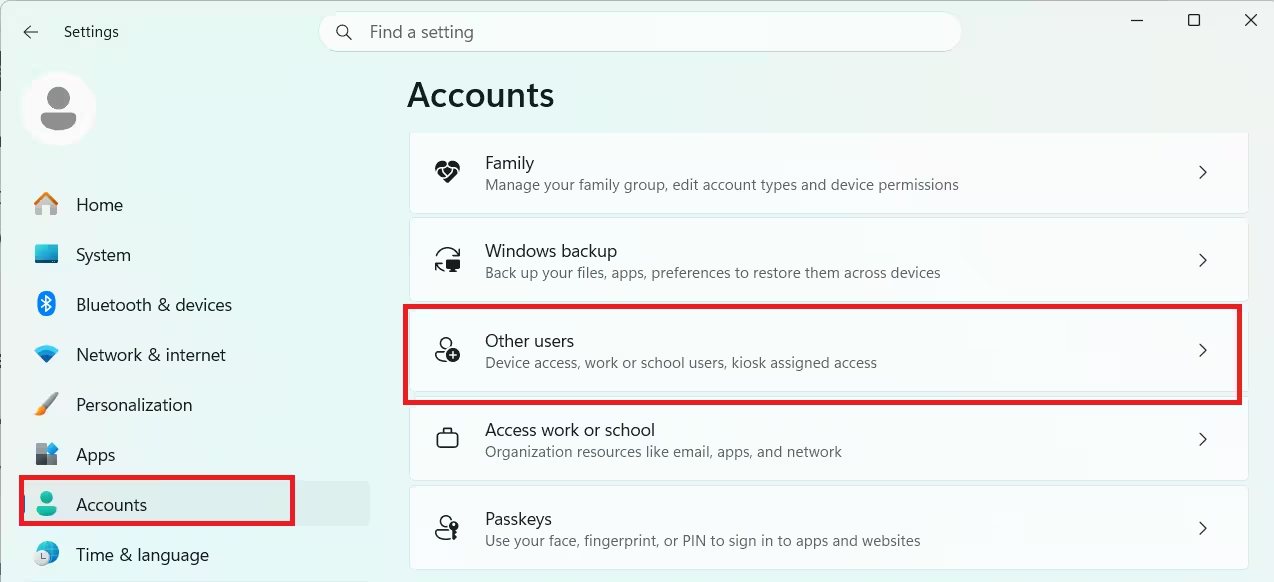
- Select CodexSandboxUser, CodexSandboxOffline, or CodexSandboxOnline.
- Click Remove.
- Confirm the prompt.
If your Codex version created both the Online and Offline accounts, repeat these steps for the second account.
Keep in mind that if Codex is still installed and the sandbox is enabled, the account can come back automatically the next time Codex needs it. Uninstall Codex first if you want the removal to stick.
Advanced Method: Remove and Clean Up Leftover Permissions
Follow these steps in order to avoid leaving orphaned permissions on your system after uninstalling Codex.
Step 1: Uninstall Codex First
Open Windows Settings, go to Apps, find Codex or the Codex Desktop app, and uninstall it. Uninstalling Codex does not automatically remove the sandbox accounts, so this step alone will not finish the cleanup.
Step 2: Delete the Sandbox Accounts
Open Computer Management by right-clicking the Start button and selecting it from the menu. Navigate to Local Users and Groups > Users.
- Right-click CodexSandboxOnline and select Delete. Confirm the prompt.
- Right-click CodexSandboxOffline and select Delete. Confirm the prompt.
Step 3: Remove the CodexSandboxUsers Group
Still inside Local Users and Groups, click Groups. Right-click CodexSandboxUsers and select Delete to remove the group along with the accounts.
Step 4: Check for Leftover Permissions
Right-click your user folder under C:\Users\ and open Properties > Security. Look for any entries referencing CodexSandboxOnline or CodexSandboxOffline. You may also see entries shown only as long strings of numbers instead of a name. These are leftover accounts Windows can no longer identify. Select these entries and click Remove to clear them.
Step 5: Check Secondary Drives
If you store project files on a secondary drive, repeat the Security tab check on those folders as well. Older versions of the Codex sandbox sometimes extended permissions to secondary drives beyond the active project folder.
Disable the Sandbox Instead of Deleting the Account
If you still want to use Codex but don’t want it creating sandbox accounts, disable the Windows sandbox feature inside Codex settings instead of removing the account. This stops new sandbox accounts from appearing. Keep in mind it also removes the isolation that keeps AI-generated commands separate from your main account. Commands will then run directly under your own login.
Frequently Asked Questions
Can I delete the CodexSandboxUser account without uninstalling Codex first?
You can, but Codex will lose its sandbox identity and either fail to run sandboxed commands or fall back to asking for approval on every action. Uninstall Codex first if you plan to stop using it.
Will deleting these accounts affect my personal files?
No. The sandbox accounts only had access to folders explicitly granted to them, typically your active Codex project directories. Deleting the accounts does not delete your files.
Does uninstalling Codex remove all traces of the sandbox setup?
No. Uninstalling the app can leave the sandbox accounts, the CodexSandboxUsers group, and ACL entries on your system. Manual cleanup through Local Users and Groups is required to fully remove them.
Why does the account come back after I delete it?
If Codex is still installed and the sandbox feature is active, Codex can automatically recreate the account the next time it needs to run a sandboxed command. Uninstall Codex if you want the deletion to be permanent.
Can I disable the sandbox instead of deleting the account?
Yes. Turn off the Windows sandbox setting inside Codex to stop it from creating sandbox accounts. Doing so removes the isolation protecting your main account, so weigh that trade-off before disabling it.
Why does Codex need a separate Windows account instead of just asking for permission each time?
Running every command through manual approval is slow and impractical for AI-assisted coding. A dedicated low-privilege account lets Codex work continuously while keeping its access limited to specific folders.

