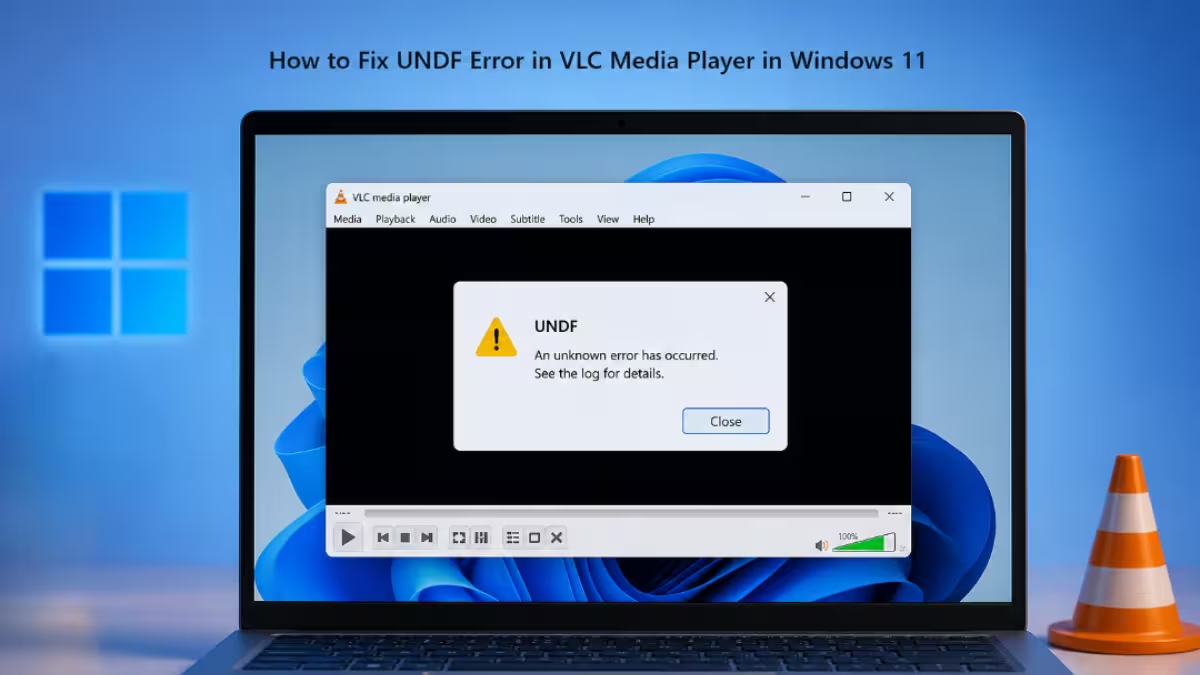
If VLC throws up a message saying it does not support the audio or video format “UNDF” when you try to open a file on Windows 11, the player simply could not identify what format the file is in. The fix usually takes just a few minutes once you know where to look.
What Causes the UNDF Error in VLC
UNDF stands for undefined format, and VLC shows it when it cannot match a file to a codec it recognizes.
- The file was downloaded incompletely or got corrupted during transfer
- VLC is missing the codec needed for that format, or does not support it at all
- Hardware-accelerated decoding is conflicting with the GPU, or the installed VLC build is outdated
- Custom VLC preferences are misconfigured and interfering with codec detection
Fix 1: Check the File for Corruption or Incomplete Download
A broken or partial file is the most common trigger for this error, so ruling it out first saves time on the other fixes.
- Right-click the file, select Properties, and compare its size against the source (torrent client, download page, or original device) to confirm it finished downloading.
- If the file came from the internet, redownload it from the original source.
- If the file was transferred from another device, copy it again and confirm the transfer completes without interruption.
- Try playing the file in another player, such as MPC-HC, to see if the issue is isolated to VLC or the file itself.
Fix 2: Update VLC to the Latest Version
Older VLC builds sometimes lack support for newer or less common codecs, which can cause playable files to throw the UNDF error.
- Open VLC and go to Help > Check for Updates.
- Install any available update and restart VLC.
- If no update is found through the app, download the latest installer directly from the official VideoLAN website and reinstall.
- Try playing the file again once the update finishes.
Fix 3: Disable Hardware-Accelerated Decoding
Hardware acceleration offloads decoding to the GPU, and a conflict there can stop VLC from identifying a stream it would otherwise decode fine in software.
- Open VLC and go to Tools > Preferences.
- Select the Input / Codecs tab.
- Find Hardware-accelerated decoding and set it to Disable.
- Save the changes and restart VLC.
- Try playing the file again.
Fix 4: Reset VLC Preferences
Custom or altered settings in VLC can interfere with how it detects and decodes file formats.
- Open VLC and click Tools in the top menu.
- Select Preferences from the dropdown.
- At the bottom of the Preferences window, click Reset Preferences.
- Restart VLC and try playing the file again.
Fix 5: Install a Codec Pack
If VLC still cannot identify the format after the steps above, the system may be missing codec support that VLC relies on for less common formats.
- Download the Combined Community Codec Pack (CCCP) or K-Lite Codec Pack for Windows.
- Run the installer and complete the setup.
- Open LAV Video Settings (for video files) or LAV Audio Settings (for audio files) from the codec pack’s configuration tool.
- Go to the Formats tab, tick all the checkboxes, and click OK.
- Reopen the file in VLC to check if it now plays.
Fix 6: Convert the File to a Supported Format
If VLC still cannot play the file after the steps above, the codec it uses may not be supported by VLC at all, and converting it replaces that codec with one VLC can decode.
- Use a trusted video converter tool.
- Convert the file to a widely supported format such as MP4 with H.264 video and AAC audio.
- Save the converted file.
- Open the converted file in VLC to confirm it plays.
The UNDF error in VLC almost always comes down to a corrupted file, a missing or unsupported codec, a hardware acceleration conflict, or an outdated VLC build. Working through the fixes above in order, starting with checking the file and updating VLC, resolves the issue in most cases. If the file still will not play after trying a codec pack, converting it to a supported format is the last step that should get it working.
Frequently Asked Questions
What does UNDF mean in VLC?
UNDF stands for undefined format. It shows up when VLC cannot recognize or decode the format of the file being opened.
Can a corrupted file cause the UNDF error?
Yes. An incomplete download or a file damaged during transfer is one of the most common reasons VLC flags it as UNDF.
Why does the UNDF error show up only on certain files and not others?
It usually means the codec used by those specific files is not one VLC supports, while the format is only encoded differently even though the file extension looks the same.
Does disabling hardware acceleration actually help?
It can. Hardware-accelerated decoding relies on the GPU, and if that path fails or conflicts with the stream, VLC may be unable to identify the format. Switching to software decoding removes that conflict.
Will converting the file always fix the UNDF error?
Not always, but it works when the original codec is one VLC does not support at all. Converting to MP4 with H.264 video and AAC audio replaces the unsupported codec with one VLC can decode natively.
Does installing a codec pack fix the UNDF error?
In many cases yes, since VLC’s built-in decoders may not cover every format, and a pack like CCCP or K-Lite fills that gap at the system level.
Is the UNDF error specific to Windows 11?
No. It can occur on any operating system VLC runs on, since the cause is tied to the file’s codec or VLC’s configuration rather than the OS itself.

