Some graphics options cost almost nothing in performance, while others eat your frame rate for a tiny visual gain. Knowing which is which lets you keep a game looking crisp and running smooth, even on mid-range hardware.
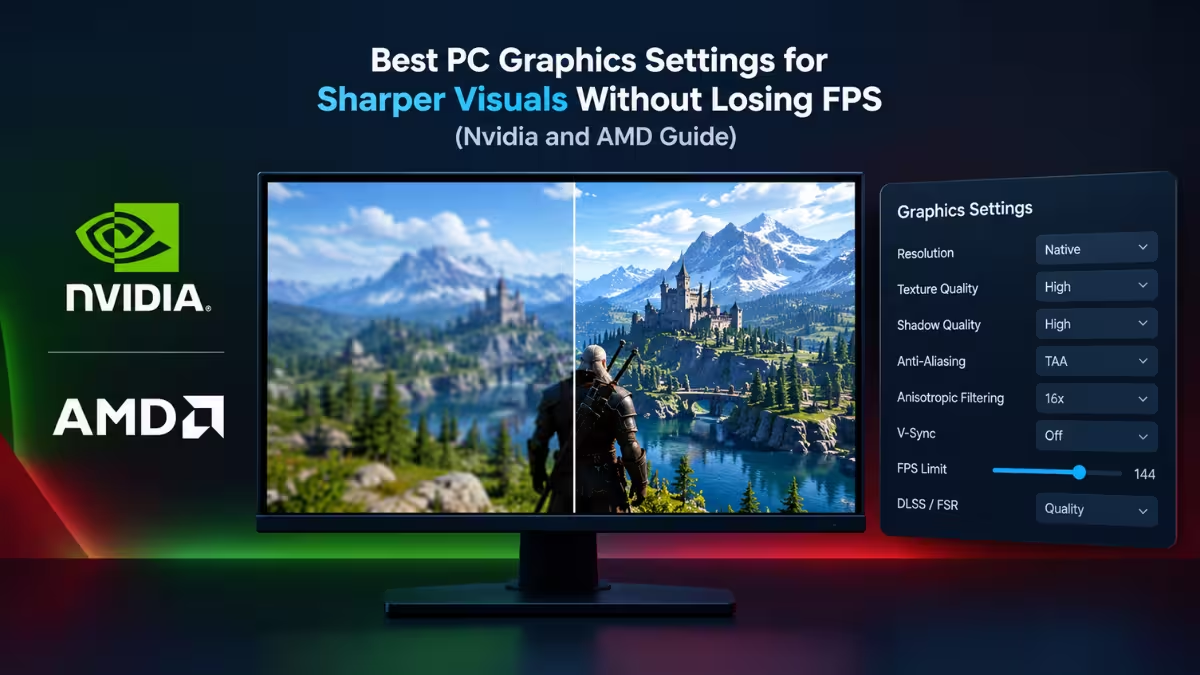
Which PC Graphics Settings Barely Affect FPS?
Anisotropic filtering, texture quality, and SSAO give the biggest visual return for the smallest performance cost. Ray tracing, path tracing, and the top “Ultra” preset sit at the opposite end, since they drain performance and change the picture very little. The sections below cover the cheap wins first, then the expensive settings to cut.
How to Enable 16x Anisotropic Filtering on Nvidia and AMD
Anisotropic filtering keeps floors, roads, and walls sharp when you view them at a steep angle. Many games ship with a low default, so set it once in your driver and every game benefits.
GPUs handle this work in dedicated texture units, and the texture data already sits in fast video memory. The extra sampling therefore adds almost no load. On current cards, the gap between 8x and 16x is usually under one frame per second.
Follow the steps for your card brand. This is a one-time change, and it applies to every game you launch afterward.
Nvidia
- Right-click the desktop and open Nvidia Control Panel.
- Go to Manage 3D Settings and select the Global Settings tab.
- Set Anisotropic Filtering to 16x.
- Click Apply.
AMD
- Open AMD Software: Adrenalin Edition.
- Go to the Gaming tab, then Graphics.
- Expand Advanced Options.
- Set Anisotropic Filtering Mode to Override application settings.
- Set Anisotropic Filtering Level to 16x.
Do Ultra Textures Lower FPS?
No, not as long as your VRAM can hold them. Anisotropic filtering works on how textures are sampled, while texture quality sets how detailed those textures are. Players often avoid the top texture setting out of caution, but it only taxes your VRAM, not your GPU cores. If the game’s texture packs fit in your video memory, the highest setting costs you nothing in frame rate.
Problems start when VRAM fills up. The game then pushes data into slower system RAM, and you see heavy stuttering. If you notice this, drop texture quality one level and the stutter should stop. Keep it at the top level when your card has enough memory. Most games show estimated VRAM usage in the graphics menu, so check that bar before you raise the setting.
Does SSAO Affect FPS?
Only slightly, and the depth it adds is worth the cost. SSAO follows the same pattern as textures: it sounds demanding but costs little. SSAO (screen-space ambient occlusion) adds soft shadows where objects meet, such as the corner of a wall or the base of a crate. It stops objects from looking like they float above the ground.
This is the lightweight form of ambient occlusion. On modern GPUs it typically takes about 1 to 2 percent of your performance, so leave it enabled.
How to Fix a Blurry Image from TAA with Driver Sharpening
After the texture and shadow settings, the last common complaint is a soft image. Temporal anti-aliasing (TAA) smooths jagged edges well, but it often leaves the picture slightly blurry. Instead of switching AA off and accepting shimmering edges, apply a sharpening filter in your GPU software. It restores fine detail at a very small cost.
Nvidia calls its option Image Sharpening in Manage 3D Settings, and AMD offers Radeon Image Sharpening in the Graphics section of Adrenalin. Start at a low strength and raise it until edges look clean without a harsh halo.
Which Graphics Settings to Lower for More FPS
The settings above are cheap to keep. These are the expensive ones, so cut them first when you need more frame rate. They hurt performance the most and change the image the least.
- Ray tracing and path tracing: These cost the most. Many games look nearly as good with baked lighting, which means shadows and reflections the developers precalculated instead of computing live, especially during fast gameplay.
- Upscaling quality level: Upscalers like FSR, DLSS, and XeSS render the game at a lower resolution and scale it up to your screen. Moving from Quality to Balanced mode lowers the internal resolution a bit more and gives a large FPS jump. In motion, most players struggle to spot the difference.
- Ultra preset: Dropping all settings one notch to High usually brings a big performance gain, and the difference only shows when you compare screenshots side by side.
Best Graphics Settings Order for Any New PC Game
Put the tips above together with this routine when you launch a game for the first time. Step 1 happens once in your driver, and the rest happen in each game’s graphics menu.
- Force 16x anisotropic filtering in the driver.
- Set texture quality to the highest level your VRAM supports.
- Turn on SSAO.
- Turn off ray tracing unless the game runs well with it.
- Switch the upscaler to Balanced if your FPS falls short.
- Lower the preset one notch if you still need more speed.
Frequently Asked Questions
Does anisotropic filtering reduce FPS?
On modern graphics cards, the impact is tiny. Moving from 8x to 16x usually changes performance by less than one frame per second, while distant and angled surfaces look noticeably sharper.
Will Ultra textures lower my frame rate?
Not as long as your VRAM can hold them. Performance only suffers when video memory overflows into system RAM, which causes stutter.
Is SSAO worth turning on?
Yes. It adds depth and grounds objects in the scene, and it costs only a small slice of GPU performance on current hardware.
Should I use Balanced upscaling instead of Quality?
If your frame rate is below what you want, yes. Balanced mode delivers a large FPS boost, and the visual loss is small in actual gameplay.
Is Ultra worth it over High?
For most players, no. High delivers much better performance and looks very close to Ultra during normal play.

