Apple Music sounds good out of the box, but it does not use its best quality until you tell it to. The quality options sit in a different menu on each device, and the equalizer hides in yet another spot. This guide walks through every platform so you can set the quality you want in a minute or two.
What Are the Audio Quality Options in Apple Music?
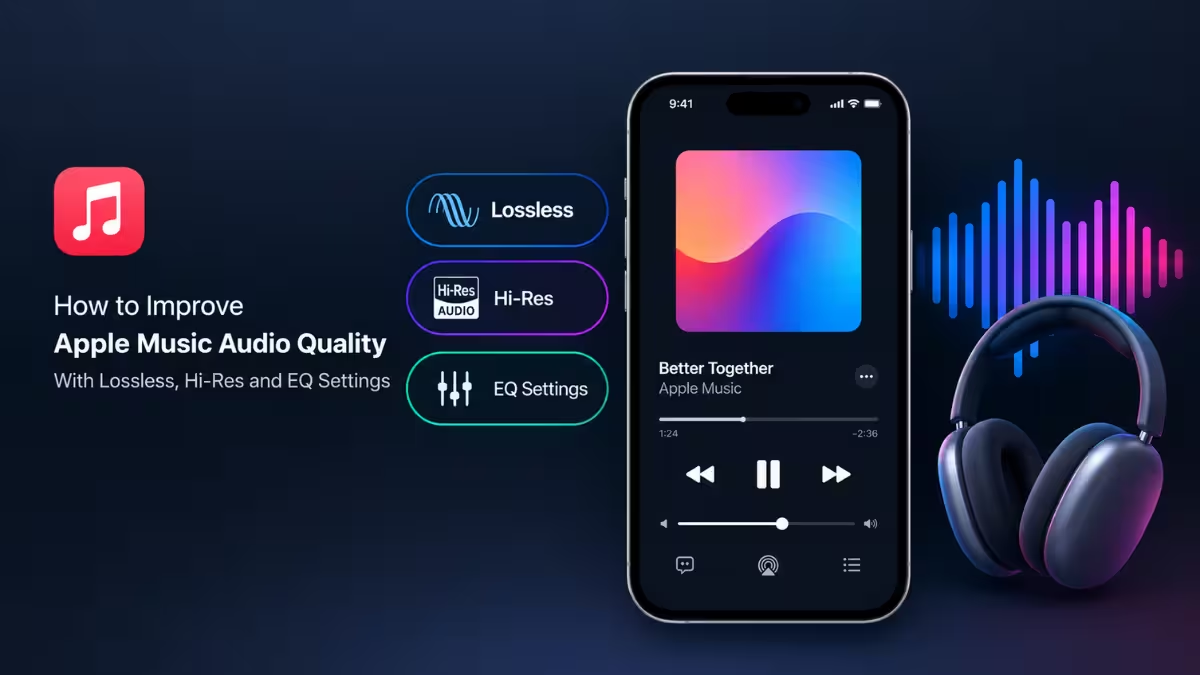
Apple Music offers three quality levels, and each one trades sound detail for data and storage.
- Standard: Streams in compressed AAC at 256 kbps, which is the default and uses the least data.
- Lossless: Keeps the original studio detail, with quality ranging from 16-bit/44.1 kHz up to 24-bit/48 kHz.
- Hi-Res Lossless: Delivers up to 24-bit/192 kHz, but you need a wired connection and external hardware such as a USB DAC to hear the difference.
Lossless files are much larger than standard files, so Apple Music keeps the feature off by default. You must switch it on separately on every device you use.
How to Adjust Audio Quality in Apple Music on iPhone
On iPhone, the quality controls live in the system Settings app instead of inside Music.
Step 1: Open the Music Audio Quality Menu
The Audio Quality screen holds every streaming and download option for Apple Music on your iPhone.
- Open the Settings app.
- Tap Apps, then tap Music.
- In the Audio section, tap Audio Quality.
Step 2: Turn On Lossless Audio
The toggle unlocks higher quality for both streaming and downloads.
- Switch on Lossless Audio.
- Pick the quality level you want for Wi-Fi Streaming, Cellular Streaming and Downloads.
If you are unsure which level to pick, choose Lossless for Wi-Fi streaming and downloads. Save Hi-Res Lossless for setups with the wired hardware covered in the headphones section below. Set cellular streaming to a lower level if you have a limited data plan, because Lossless over mobile data uses far more data than standard quality.
Step 3: Change the Equalizer or Sound Check
The same Music settings page controls how the sound is shaped and leveled.
- Go back to Settings > Apps > Music.
- Tap EQ and choose a preset that suits your music.
- Turn on Sound Check if you want songs to play at a similar volume.
How to Adjust Audio Quality in Apple Music on Android
Android users change quality inside the Apple Music app itself.
- Open the Apple Music app.
- Tap the three-dot menu in the top right corner, then tap Settings.
- Tap Audio Quality.
- Turn on Lossless Audio.
- Choose the quality for Wi-Fi streaming, cellular streaming and downloads.
If you pick Hi-Res Lossless, Apple Music shows a warning that you need dedicated hardware. Tap OK to confirm.
Android has no equalizer built into the Apple Music app. Tapping Equalizer in the app settings sends you to your phone’s own audio settings, where you can adjust the sound for all apps.
How to Adjust Audio Quality in Apple Music on Mac
The Mac app keeps its quality switch in the Playback tab of the app settings.
- Open the Music app.
- Click Music in the menu bar, then click Settings.
- Open the Playback tab.
- Tick the box next to Lossless Audio to enable it.
- Choose your preferred streaming and download quality from the menus that appear.
To open the equalizer, click Window in the menu bar and select Equalizer. It is a ten-band EQ with presets, a preamp and the option to save your own custom presets.
How to Adjust Audio Quality in Apple Music on Windows
The Windows app puts both quality menus and the equalizer behind the three-dot menu.
- Open the Apple Music app.
- Click the three horizontal dots next to the Apple Music logo in the left navigation panel, then click Settings.
- Under Streaming, choose the quality for songs you play over the internet.
- Under Downloads, choose the quality for songs you save for offline playback.
Apple Music may ask you to confirm your choice the first time you select Lossless or Hi-Res Lossless.
To use the equalizer, open the same three-dot menu and turn the equalizer on. You can pick from more than 20 presets or drag the frequency sliders to build your own and save it. The Sound Enhancer slider on the same screen widens the stereo effect by adjusting bass and treble.
Do Your Headphones Support Lossless Audio in Apple Music?
Turning on Lossless in the app is only half the job, because your headphones decide whether you actually hear a difference.
Most Bluetooth headphones compress audio during transmission, which caps the quality below true lossless. An iPhone does not support high-resolution Bluetooth codecs, so wireless headphones cannot play lossless audio from it, even if the box advertises hi-res support. To hear lossless on an iPhone, use wired headphones or a hi-res Bluetooth adapter dongle.
Android handles this better. Android phones can pair with certain headphones and earbuds that support higher-quality codecs, so lossless over wireless works in some cases. For Hi-Res Lossless on any device, plan on a wired setup with a USB DAC or similar external hardware.
Frequently Asked Questions
Does Apple Music Lossless Use More Data?
Yes. Lossless files are far larger than standard 256 kbps AAC files, so streaming or downloading them uses much more data and storage. Use Wi-Fi for Lossless and keep cellular streaming on a lower setting if your data plan is limited.
Why Does Apple Music Sound the Same After Turning On Lossless?
Your headphones or connection probably limit the quality. Bluetooth headphones compress the signal, and iPhones cannot send high-resolution audio over Bluetooth. Switch to wired headphones and check that Lossless Audio is on for the connection you use, such as Wi-Fi, cellular or downloads.
Do I Need to Turn On Lossless Separately on Each Device?
Yes. Apple Music stores the setting per device, so you must enable it on your iPhone, Android phone, Mac and Windows PC one by one.
Is Hi-Res Lossless Worth Using?
Only if you own dedicated hi-fi equipment, such as a USB DAC with wired headphones or speakers. For everyday headphones and earbuds, standard Lossless already delivers the best quality they can reproduce, and Hi-Res Lossless only adds data usage.
How Do I Turn Lossless Off in Apple Music?
Open the same Audio Quality or Playback settings you used to enable it and switch Lossless Audio off. Do this if lossless eats your data or your equipment cannot play it.
Read More
- Apple Pencil Tip Replacement: How Often to Change It and How to Do It
- How to Fix Chrome High Memory Usage on Windows, Mac, and Linux
- 7 Best Online Backup Services in 2026 for PC, Mac, and Mobile
- Windows 11 26H2 Not Showing Up? How to Get the Update Manually
- How to Remove Apps From Roku: Remote, Phone, and 2026 Home Screen Update Steps
- Are Passkeys Safe? How to Secure, Store, and Back Up Yours
