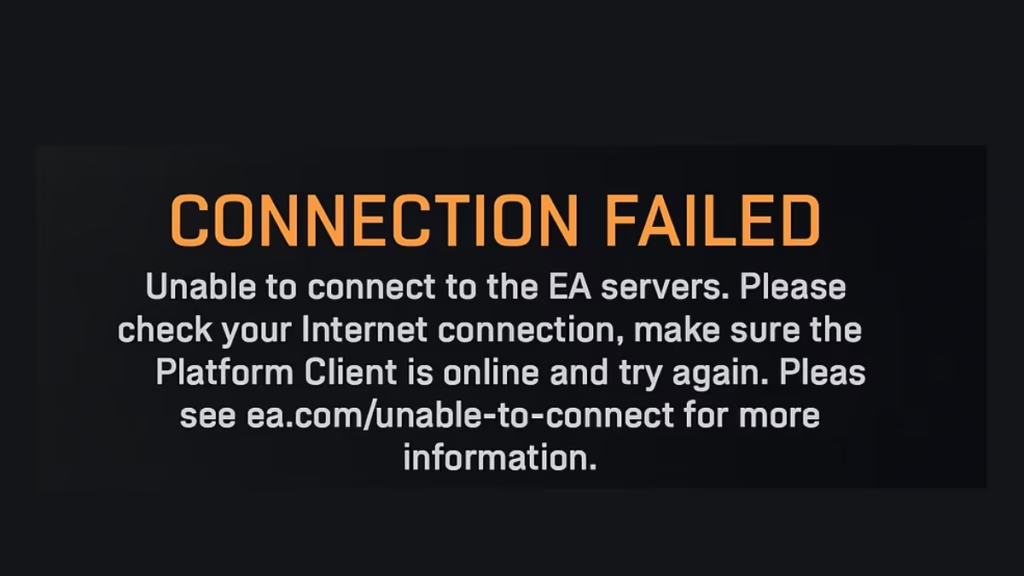
If you’ve launched Battlefield 6 on Steam only to be greeted by a frustrating “Connection Failed” or “Connection Lost” message. Since the rollout of update 1.1.1.0, thousands of players have faced this issue, often paired with the error code 1:86001S:66003S:4688822970:0B. This guide explains what’s really causing the problem, and more importantly, how you can fix it.
What Causes the “Connection Lost” Error in Battlefield 6
This Steam-specific issue usually appears right after launch or when trying to load into the campaign. The message claims the game can’t connect to EA servers even though your internet seems fine.
EA has officially acknowledged it as a known server communication error introduced after the 1.1.1.0 update. The problem often lies in how Battlefield 6 communicates with EA’s authentication servers through the Steam client — not in your own network setup.
However, depending on your configuration, it can also be triggered by:
- Cached network sessions in Steam or EA App
- Router-side IP conflicts or DNS timeouts
- VPN, proxy, or firewall interference
- Corrupted local data from interrupted updates
Quick Fixes to Try First
Before diving into advanced steps, try these quick actions. They solve the issue for most players:
- Restart Both the Game and Steam
- Exit Battlefield 6 and close Steam completely using Task Manager → End Task. Wait 10 seconds, then relaunch both. This refreshes your session tokens.
- Reboot Your Router and Modem
- Power off your router for 30 seconds, then restart it. This resets your public IP and clears any routing issues that might prevent EA’s servers from recognizing your connection.
- Switch to Wired Ethernet
- Wireless connections can drop packets during EA’s server handshake. Using a direct Ethernet cable ensures stability.
- Disable VPN or Proxy
- EA’s anti-cheat and connection filters often reject masked IPs. Turn off your VPN or proxy before launching the game.
Steam-Specific Workarounds
Some players on Reddit and EA Forums have fixed the issue by enabling Steam’s Beta Client, which uses an updated networking layer.
Here’s how to do it:
- Open Steam → Settings → Interface
- Under Client Beta Participation, choose Steam Beta Update
- Restart Steam and launch Battlefield 6 again
This forces Steam to use newer connection protocols that sometimes bypass the authentication bottleneck between EA App and Steam.
Advanced Network Fixes
If the quick fixes don’t work, these deeper troubleshooting steps may help:
1. Change Your DNS Settings
Switch to Google DNS or Cloudflare for faster, more reliable lookups.
- Google DNS: 8.8.8.8 and 8.8.4.4
- Cloudflare DNS: 1.1.1.1 and 1.0.0.1
2. Flush the DNS Cache
Open Command Prompt (Admin) and run:
ipconfig /flushdnsThen restart your PC.
3. Check Firewall and Antivirus Rules
Ensure that Battlefield 6.exe, EA App, and Steam.exe are allowed through Windows Defender Firewall. If you use third-party security software, temporarily disable it to test.
4. Reset Your Network Stack
If everything else fails, reset TCP/IP entirely:
netsh int ip reset
netsh winsock reset
Reboot your PC afterward.
EA Account and App Checks
Sometimes the EA App fails to authenticate even when connected through Steam. Try these account-side steps:
- Sign out of both EA App and Steam, then sign in again.
- Ensure your EA account isn’t logged in on another device.
- If prompted, re-link your Steam and EA accounts.
You can also repair the game via Steam’s Properties → Installed Files → Verify Integrity of Game Files to ensure no network-related DLLs are missing.
When the Problem Is on EA Side
At times, the servers themselves are the culprit. You can check:
- EA Server Status Page
- Battlefield Comms Twitter/X for real-time outages
If servers are under maintenance or experiencing congestion, the only solution is to wait it out. Queue times may vary from 5 to 20 minutes during peak hours.
Additional Tips
- Use NAT Type 1 (Open) or Type 2 (Moderate) – avoid Type 3 (Strict).
- Don’t run the game as Administrator unless needed – it can interfere with EA App’s permissions.
- Reinstall the EA App if it fails to sync with Steam after login.
The Battlefield 6 Connection Lost Steam error can be maddening, especially when you just want to jump into the campaign or multiplayer. In most cases, restarting the game, resetting your network, or switching to a wired connection resolves it. But if not, Steam Beta participation and DNS tweaks are proven to help until EA delivers an official patch.
Until then, stay tuned to the official Battlefield Comms page and server-status portal for updates — and keep those routers refreshed before your next deployment.

