If Windows 11 asks for the BitLocker recovery key on every startup, it means the system no longer trusts the boot environment. This usually happens after crashes, forced shutdowns, firmware changes, or failed updates.
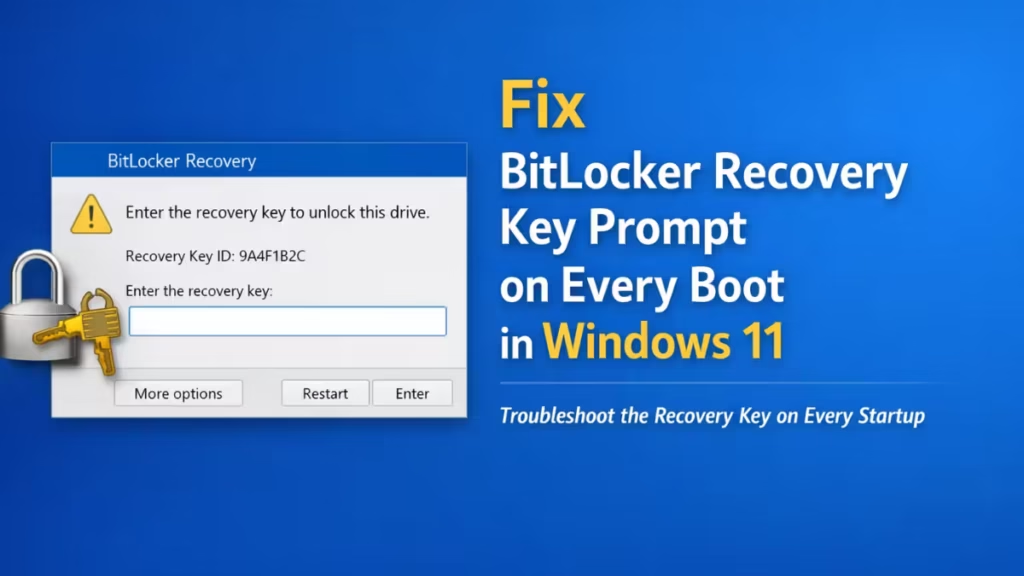
Even if Windows loads normally after entering the key, the repeated prompt indicates underlying instability that should not be ignored. Left unresolved, this can lead to boot failures, data access issues, or further security lockouts.
Fix 1: Repair system files (SFC and DISM)
If BitLocker prompts started after crashes, update failures, or sudden power loss, corrupted system files are the most common cause. Windows may fail early integrity checks and trigger BitLocker protection.
Steps
- Right-click Start and select Windows Terminal (Admin)
- If prompted, select Yes
- Type the following command and press Enter
sfc /scannow- Wait until the scan completes (do not close the window)
- After it finishes, type the following commands one by one and press Enter after each:
DISM /Online /Cleanup-Image /CheckHealth
DISM /Online /Cleanup-Image /ScanHealth
DISM /Online /Cleanup-Image /RestoreHealth- Restart the system normally
If the recovery key prompt stops, the issue was caused by damaged system files. If the prompt continues, move to the next fix.
Fix 2: Check memory stability (Windows Memory Diagnostic)
If system files are intact but the BitLocker prompt persists, unstable memory can cause boot-time verification failures. Even minor RAM errors can trigger BitLocker repeatedly.
Steps
- Press Win + S, type Windows Memory Diagnostic, and open it
- Select Restart now and check for problems
- Let the test complete (the system will reboot automatically)
- After logging back in, wait a few minutes for results to load
If memory errors are reported, hardware servicing is required before continuing. If no errors are found and the issue continues, proceed to the next fix.
Fix 3: Install all Windows updates (including Optional updates)
BitLocker relies on TPM, Secure Boot, and firmware-level drivers. Missing or partially installed updates can break this trust chain and cause repeated recovery prompts.
Steps
- Press Win + I to open Settings
- Go to Windows Update
- Click Check for updates and install everything available
- After that, select Advanced options → Optional updates
- Install all available Driver updates
- Restart the system
If updates were pending and the prompt stops after reboot, the issue is resolved. If the problem continues, move to the next fix.
Fix 4: Perform a Clean Boot
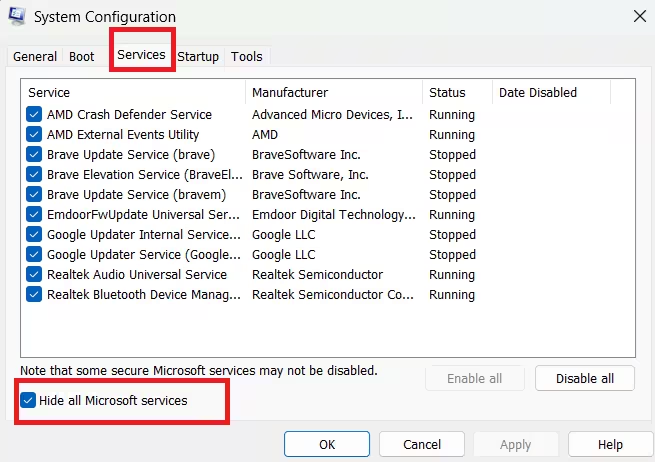
If Windows components are stable but BitLocker still triggers, third-party drivers or security software may be modifying the boot process. A Clean Boot helps isolate this.
Steps
- Press Win + R, type msconfig, and press Enter
- Open the Services tab
- Check Hide all Microsoft services
- Click Disable all
- Go to the Startup tab and select Open Task Manager
- Disable all startup items
- Restart the system
If the recovery prompt stops, re-enable services gradually to find the conflict.
If the issue remains even in Clean Boot, continue to the next fix.
Fix 5: Check the system drive for errors (CHKDSK)
If BitLocker metadata or boot sectors are affected by disk errors, Windows may fail integrity checks during startup and demand the recovery key.
Steps
- Open Windows Terminal (Admin)
- Type the following command and press Enter:
chkdsk C: /f- When prompted, type Y and press Enter
- Restart the system and allow the scan to complete
If disk errors were fixed and the prompt disappears, no further action is needed. If the issue still occurs, proceed to the final fix.
Fix 6: Suspend and re-enable BitLocker protection
If all system checks pass but BitLocker still prompts, the protection state itself may be out of sync with TPM measurements. Resetting it forces Windows to re-establish trust.
Steps
- Press Win + S, type Manage BitLocker, and open it
- Under the system drive, select Suspend protection
- Confirm the action
- Restart the system once
- Return to Manage BitLocker
- Select Resume protection
- Restart again
If the prompt stops after re-enabling protection, BitLocker state mismatch was the cause. If it continues, deeper firmware or TPM investigation is required.
FAQs
Why does Windows 11 ask for the BitLocker recovery key on every boot?
Windows shows the BitLocker recovery screen when it detects changes or instability in the boot environment. This can be caused by system crashes, failed updates, corrupted system files, disk errors, or changes in TPM or Secure Boot settings.
Is it safe to keep entering the BitLocker recovery key every time?
No. While entering the key allows Windows to boot, repeated prompts indicate an unresolved trust or integrity problem. Ignoring it can eventually lead to boot failures or permanent data access issues.
Can Windows updates trigger BitLocker recovery on startup?
Yes. Incomplete Windows updates, driver updates, or firmware updates can break BitLocker’s trust chain, causing Windows 11 to request the recovery key on every restart.
Does a failing hard drive cause BitLocker recovery prompts?
Yes. Disk errors or file system corruption can prevent BitLocker from validating system data during startup, which results in repeated recovery key requests.
Will suspending and resuming BitLocker fix the issue?
In many cases, yes. Suspending and re-enabling BitLocker forces Windows to re-sync encryption data with TPM and Secure Boot, which often resolves repeated recovery prompts.
Can RAM problems cause BitLocker recovery on every boot?
Yes. Unstable or faulty memory can corrupt boot-time integrity checks, causing BitLocker to believe the system has been tampered with.
What if BitLocker still asks for the recovery key after all fixes?
If the issue persists, a Windows repair install or firmware-level hardware diagnostics (TPM, SSD, motherboard) may be required to fully restore system trust.
In most cases, this issue is resolved during the early fixes, especially system file repair or Windows updates. If the recovery key prompt persists after all steps, a Windows repair install or firmware-level hardware check may be necessary.

