If your HP laptop shows a black screen with a blue message saying Boot Device Not Found, the PC cannot locate the hard drive or SSD to load Windows. This guide covers every fix, from a simple hard reset to repairing Windows with a bootable USB, including what to do when F8 asks for an admin password and locks you out.
What Is the Boot Device Not Found Error on HP Laptops?
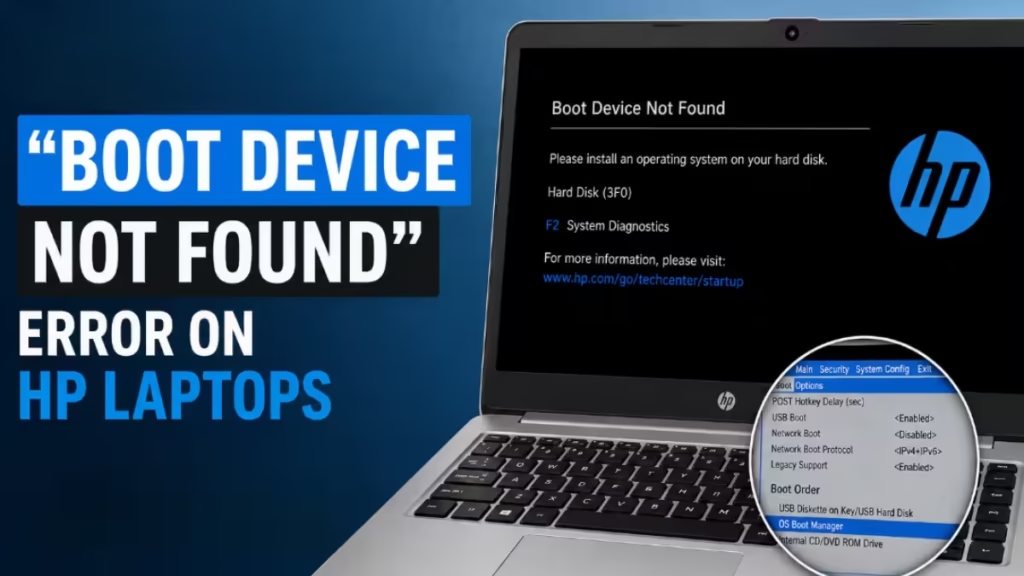
When HP shows this error, the firmware completed its startup check but found no drive with a valid operating system. The full message reads:
Boot Device Not Found. Please install an operating system on your hard disk. Hard Disk (3F0)
The 3F0 error code is HP-specific. It means the BIOS either cannot detect the drive at all, or the drive is present but has no readable boot partition. Both hardware failure and software corruption can trigger it.
Common causes:
- The SSD or HDD has physically failed or is loose
- A Windows update or crash corrupted the boot partition
- The BIOS boot order changed after a firmware update
- The hard drive cable or connector is damaged (on older HP models)
Step 1: Perform a Hard Reset
A hard reset clears residual power that can cause false hardware detection errors.
- Shut down the HP laptop completely.
- Unplug the power adapter.
- If the battery is removable, take it out.
- Hold the power button for 15 seconds.
- Reinsert the battery and plug in the adapter.
- Power on and check if the error clears.
On HP ENVY X360 and other sealed units, you cannot remove the battery externally. Skip the battery step and hold the power button for 15 seconds with the adapter unplugged.
Step 2: Enter BIOS and Check If the Drive Is Detected
If the hard reset does not help, check whether the BIOS sees the drive at all.
- Power on the laptop.
- Press Esc repeatedly as soon as the HP logo appears.
- From the HP startup menu, press F10 to enter BIOS Setup.
- Navigate to Storage or Main (varies by BIOS version).
- Look for your SSD or HDD listed under storage devices.
If the drive does not appear in BIOS, the hardware is the problem. The drive may have failed, or the connection is loose. Skip to Step 6.
If the drive appears, the hardware is fine and the boot configuration is broken. Continue to Step 3.
Step 3: Fix the Boot Order in BIOS
A wrong boot order makes the BIOS skip the hard drive entirely.
- Inside BIOS Setup, go to Boot Options or Boot Order.
- Confirm your internal SSD or HDD is first in the list.
- Move it to the top using the on-screen instructions (usually F5/F6 or + / -).
- Press F10 to save and exit.
- Let the laptop restart and see if Windows loads.
Also check that Legacy Boot or CSM is not enabled when it should be disabled, or vice versa. If Windows was installed with UEFI, Legacy mode will cause a boot failure even when the drive shows up in BIOS.
Step 4: Run HP Hardware Diagnostics (F2)
HP includes built-in diagnostics that test the hard drive directly. The error screen itself shows F2 for System Diagnostics.
- Power on and press Esc to reach the HP startup menu.
- Press F2 to launch HP PC Hardware Diagnostics.
- Select Hard Drive under the component tests.
- Run Quick Test first (around 2 minutes).
- If Quick Test passes, run Extensive Test (can take 1 to 2 hours).
If the diagnostics report a SMART Failure, 1 Hard Drive Short DST Failure, or Hard Drive Not Present, the drive has failed and needs replacement. Note the failure ID code shown on screen before you contact HP support.
If diagnostics pass, Windows boot files are corrupted. Move to Step 5.
Step 5: Repair Windows Using a Bootable USB
A Windows 11 bootable USB lets you access the recovery environment and repair boot files without reinstalling Windows.
Create the bootable USB on another PC:
- Download the Windows 11 Media Creation Tool from Microsoft.
- Run it and select Create installation media.
- Choose USB flash drive and follow the prompts.
Boot from the USB on the HP laptop:
- Plug the bootable USB into the HP.
- Power on and press Esc, then F9 to open Boot Device Options.
- Select the USB drive from the list.
- On the Windows Setup screen, click Next, then Repair your computer.
- Go to Troubleshoot > Advanced options > Startup Repair.
- Let Startup Repair run and restart the PC.
If Startup Repair does not fix it, run Command Prompt from the same Advanced options menu.
HP ENVY X360 uses UEFI with a GPT disk. On these systems, bootrec /fixmbr and bootrec /fixboot do not apply and will either do nothing or return “Access is denied.” Use the UEFI boot repair commands below instead.
Step 1: Find the EFI partition number
diskpart
list volume
Look for a small FAT32 volume labeled EFI or System, usually around 100 MB. Note its volume number.
Step 2: Assign it a drive letter and rebuild the boot files
select volume <number>
assign letter=V
exit
bcdboot C:\Windows /s V: /f UEFI
Replace <number> with the actual volume number from the list. If Windows is on a drive other than C:, adjust accordingly.
Step 3: Restart the laptop and remove the USB. Windows should load normally.
If you also need to rebuild the BCD store:
bootrec /rebuildbcdType Y and press Enter if asked to add the installation to the boot list.
Step 6: Replace the Hard Drive
If HP diagnostics confirmed a drive failure, the SSD or HDD needs replacement. For the HP ENVY X360, the internal drive is an M.2 NVMe SSD.
After installing a new drive:
- Boot from the Windows 11 bootable USB you created in Step 5.
- Select your language and click Install now.
- Follow the on-screen steps to install a fresh copy of Windows.
Make sure Secure Boot is enabled in BIOS before the fresh install. HP ENVY models support UEFI, so a clean install with Secure Boot active avoids future boot conflicts. You can verify your Secure Boot status after Windows loads.
What to Do If F8 Asks for an Admin Password (System Disabled Fix)
On HP laptops, pressing F8 from the boot error screen opens an advanced boot option that requires a BIOS administrator password. If you never set one or forgot it, you have two paths:
If you have not hit 3 failed attempts yet:
Do not guess. Each wrong entry counts toward the lockout. Close the prompt and try the other recovery steps above (F2 diagnostics, F10 BIOS, bootable USB) instead.
If the laptop already shows “System Disabled” after 3 failed attempts:
HP locks the BIOS with a challenge code to prevent unauthorized access. The screen shows a numeric code (the halt code). Contact HP Support with that code and they will generate a one-time master password to clear the lock.
Do not use third-party BIOS unlock tools. They are unreliable and can permanently damage the firmware.
Once you regain BIOS access, immediately clear the forgotten BIOS password under Security > BIOS Administrator Password to avoid future lockouts.
Quick Fixes:
| Symptom | Fix |
|---|---|
| Drive not detected in BIOS | Reseat or replace the SSD/HDD |
| Drive detected, no boot | Repair with bootable USB or bootrec commands |
| Wrong boot order | Fix boot priority in BIOS Setup (F10) |
| Diagnostics show SMART failure | Replace the drive |
| System Disabled after wrong password | Contact HP Support with halt code |
FAQs
What does Boot Device Not Found mean on an HP laptop?
The HP BIOS completed startup but found no drive with a valid operating system. Either the SSD or HDD is not detected, or the boot partition is corrupted.
How do I fix Boot Device Not Found on HP without losing my files?
Boot from a Windows installation USB, go to Repair your computer, and run Startup Repair or the bcdboot command. This rebuilds the boot files without touching your personal data, as long as the drive is not physically failed.
What is error code 3F0 on HP?
3F0 is an HP BIOS code that means no bootable device was detected. It appears alongside Boot Device Not Found and points to either a missing or failed drive, or a missing boot partition on an otherwise healthy drive.
How do I fix HP laptop System Disabled after wrong BIOS password?
Contact HP Support and provide the halt code shown on the locked screen. HP generates a one-time master password to clear the lock. Do not use third-party BIOS unlock tools.
Does Boot Device Not Found mean the hard drive is dead?
Not always. Run HP Hardware Diagnostics by pressing F2 at startup. If the drive passes all tests, the boot partition is corrupted and repairable. If diagnostics report a SMART failure or DST failure, the drive needs physical replacement.

