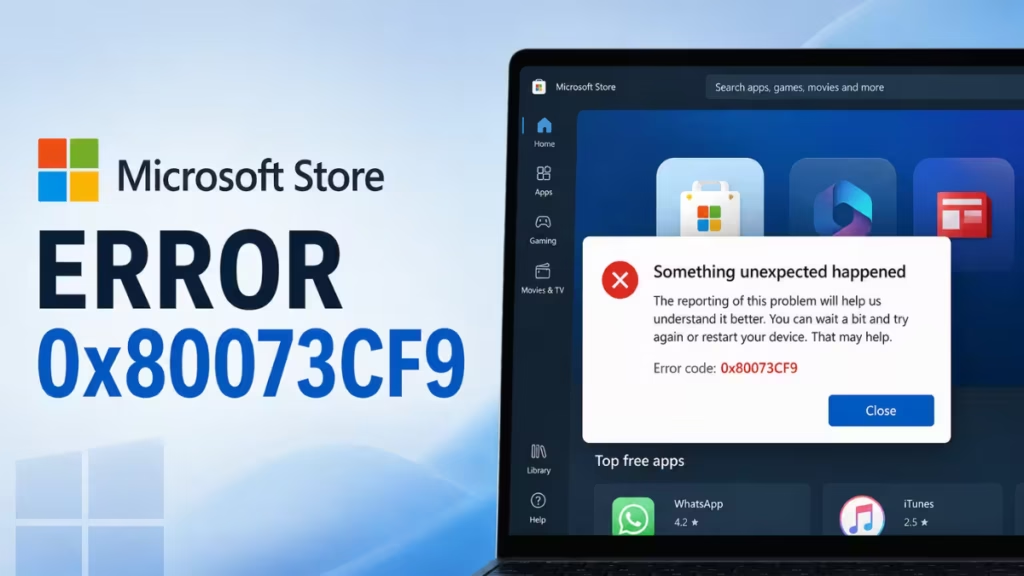
Microsoft Store error 0x80073CF9 blocks you from installing or updating apps, showing a message like “Something went wrong” or “Install failed.” The error usually points to a missing system folder, a corrupted Store cache, or a background process blocking the installation.
This guide walks you through every fix that works, starting with the simplest ones.
What Causes Error 0x80073CF9?
The error typically appears because of one or more of these reasons:
- The AUInstallAgent or AppReadiness folders are missing from the Windows directory
- The Microsoft Store cache has become corrupted
- The app you want to install is still running in the background
- System files have been corrupted by a recent update
- The Microsoft Store app itself has broken files
If you have recently run a Windows reset and the error persists, the issue is likely a missing system folder rather than a Store problem.
Fix 1: Create the AUInstallAgent Folder
The AUInstallAgent folder manages app updates and installations. Windows does not recreate it automatically when it goes missing.
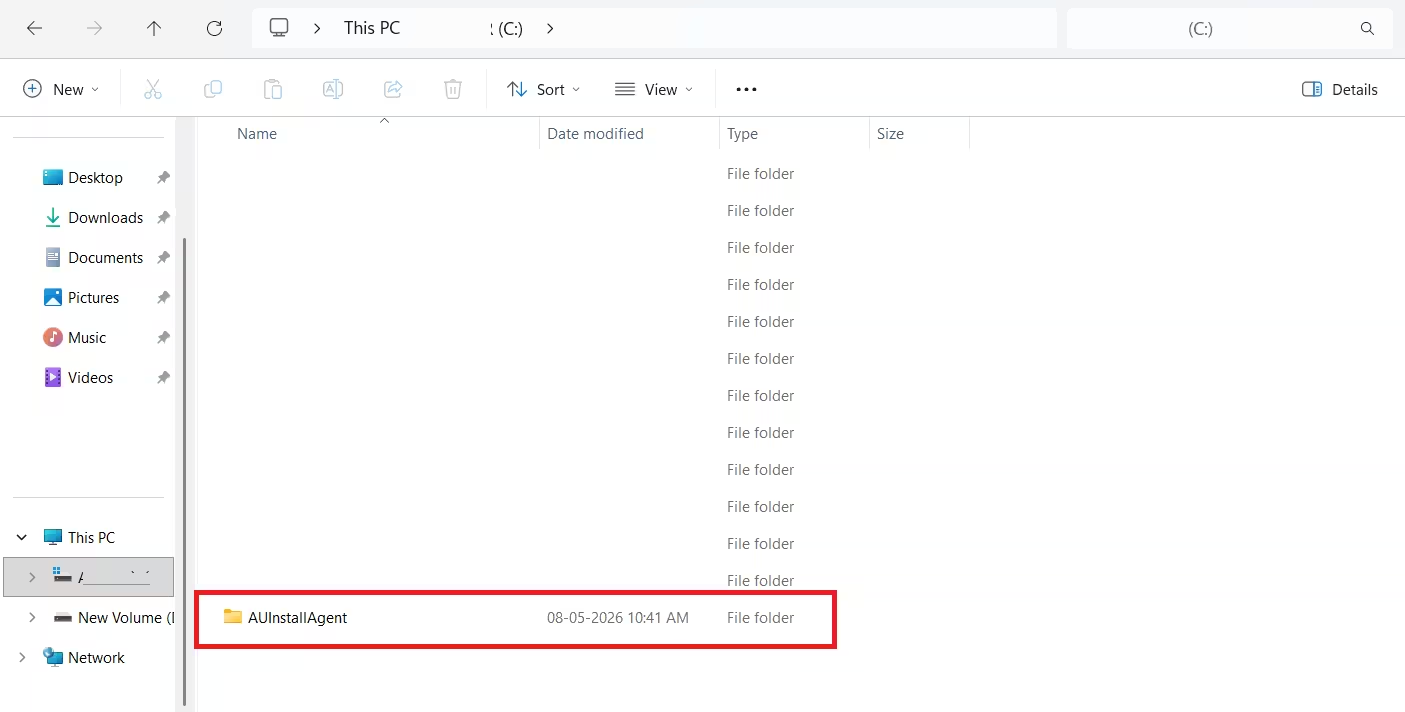
- Press Win + E to open File Explorer.
- Navigate to
C:\Windows. - Right-click on an empty space, hover over New, and select Folder.
- Name the folder
AUInstallAgentexactly. - Restart your PC and try installing the app again.
Fix 2: Create the AppReadiness Folder
The Microsoft Store saves installation data inside AppReadiness. If this folder does not exist, the Store cannot complete installations.
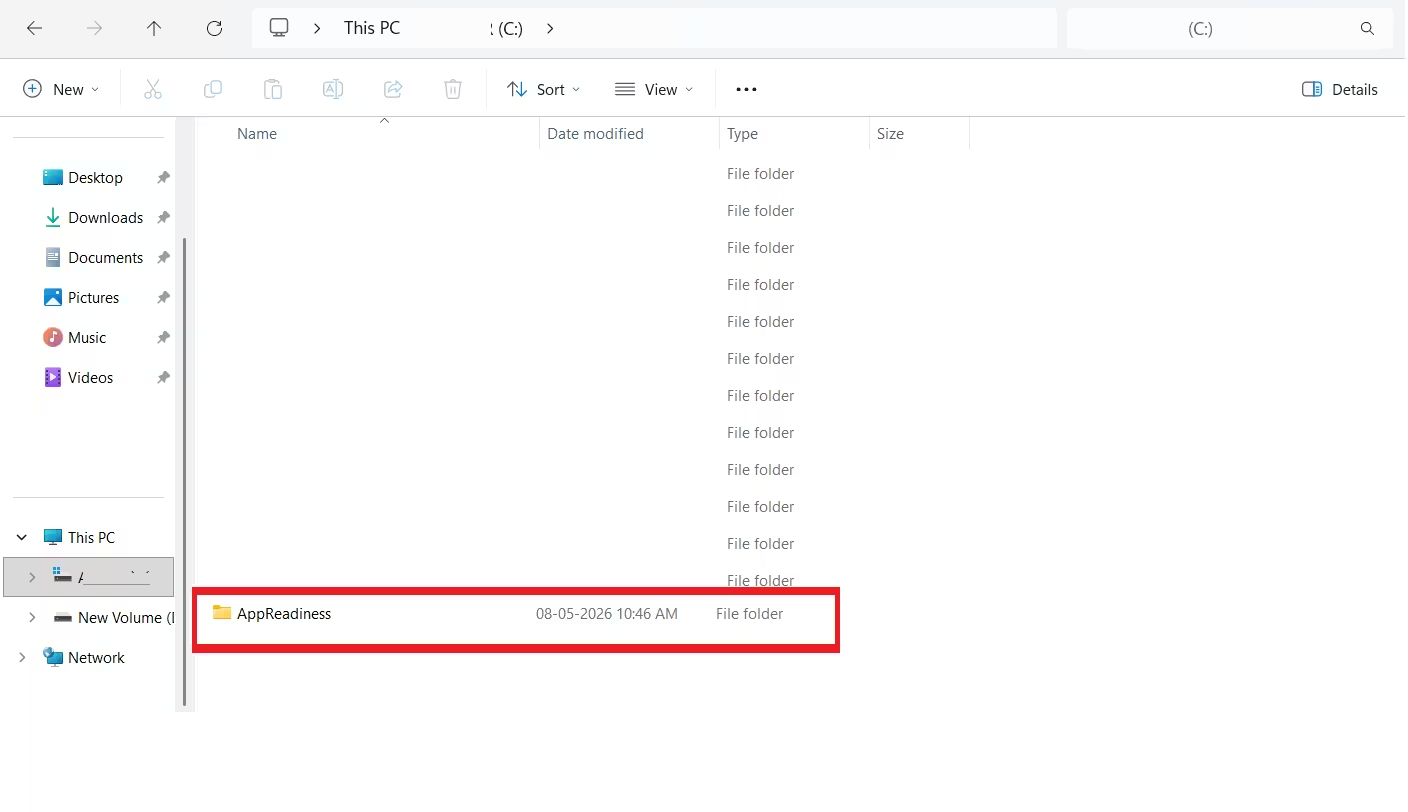
- Open File Explorer and go to
C:\Windows. - Check whether an AppReadiness folder already exists.
- If it does not, right-click on empty space and select New > Folder.
- Name it
AppReadinessand leave it empty. - Try installing the app again.
Fix 3: Reset the Microsoft Store Cache
A corrupted cache prevents the Store from functioning correctly. Resetting it clears outdated or damaged temporary files.
- Press Win + R to open the Run dialog.
- Type the following and press Enter:
wsreset.exe- A black command prompt window opens and closes automatically.
- The Microsoft Store launches after the reset. Test the installation again.
Fix 4: Terminate the App Before Updating
If the app you want to update is already running, Windows cannot replace its files during installation.
- Press Win + I to open Settings.
- Go to Apps > Installed Apps.
- Find the app giving the error, click the three-dot menu next to it, and select Advanced Options.
- Scroll down and click Terminate.
- Return to the Microsoft Store and retry the installation.
Fix 5: Run an SFC Scan
Corrupted system files can break how the Microsoft Store handles installations. An SFC scan finds and repairs them automatically.
- Press Win + S, type
cmd, right-click Command Prompt, and select Run as Administrator. - Run the following command:
sfc /scannow- Wait for the scan to finish. If it finds and repairs files, restart your PC and test the Store again.
Fix 6: Give the Packages Folder Full System Permissions
If the AppReadiness folder exists but installations still fail, the Store may lack permission to write to the Packages folder.
- Open File Explorer and navigate to:
C:\ProgramData\Microsoft\Windows\AppRepository
(Enable Hidden items under the View tab if you cannot see this path.) - Right-click the Packages folder and select Properties.
- Go to the Security tab, click Advanced, then click Continue.
- Make sure SYSTEM has Full Control. If it does not, click Edit and grant it.
- Click Apply, then OK, and restart your PC.
Fix 7: Reinstall the Microsoft Store via PowerShell
Reinstalling the Store replaces corrupted app files and resets it to a clean state.
- Open the Start Menu, search for Windows PowerShell, right-click it, and select Run as Administrator.
- Run the first command to remove the Store:
Get-AppxPackage -allusers Microsoft.WindowsStore | Remove-AppxPackage- Run the second command to reinstall it:
Get-AppxPackage -allusers Microsoft.WindowsStore | Foreach {Add-AppxPackage -DisableDevelopmentMode -Register "$($_.InstallLocation)\AppXManifest.xml"}- Restart your PC and check if the error is gone.
Fix 8: Run the Windows Store Apps Troubleshooter (Windows 10 Only)
Windows 10 includes a built-in troubleshooter for Store app problems. Microsoft removed this troubleshooter from Windows 11, so skip this fix if you are on Windows 11.
- Press Win + I to open Settings.
- Go to Update & Security > Troubleshoot > Additional troubleshooters.
- Find Windows Store Apps in the list and click Run the troubleshooter.
- Follow the on-screen steps and apply any fixes it recommends.
Fix 9: Perform an In-Place Upgrade
If nothing else works, an in-place upgrade reinstalls Windows while keeping your apps, files, and settings intact. It repairs corrupted system components that simpler tools cannot reach.
- Go to the official Microsoft website and download the Windows 11 or Windows 10 ISO file matching your current version.
- Double-click the downloaded ISO to mount it.
- Run Setup.exe from the mounted drive.
- Choose Keep personal files and apps when prompted.
- Let the upgrade complete. It repairs system files without removing your data.
Which Fix Should You Try First?
Start with Fix 1 (create the AUInstallAgent folder) and Fix 3 (reset the Store cache). These two resolve the error in most cases. If the error appeared after a Windows update or reset, also run Fix 5 (SFC scan) before trying anything else. Use Fix 9 (in-place upgrade) only as a last resort when all other fixes fail.
The error affects apps like Xbox, Microsoft 365 Copilot, the Help app, Sea of Thieves, Minecraft, Forza Horizon 5, and Game Pass titles. All the fixes above apply regardless of which app triggers it. If you also encounter Microsoft Store error 0x800704CF, that error has a separate set of causes related to network connectivity rather than missing folders.
FAQs
What does Microsoft Store error 0x80073CF9 mean?
It means Windows failed to install or update an app due to a missing system folder, corrupted Store cache, or a file conflict blocking the installation process.
Why does error 0x80073CF9 appear even after resetting Windows?
A Windows reset does not always recreate the AUInstallAgent or AppReadiness folders. If either folder is missing after the reset, the Store cannot stage installations and throws this error again.
Which fix works fastest for error 0x80073CF9?
Creating the AUInstallAgent folder in C:\Windows and running wsreset.exe resolve the error in most cases. Try both before moving to advanced fixes.
Does error 0x80073CF9 affect specific apps only or all apps?
It can affect specific apps like Xbox, Microsoft 365 Copilot, and the Help app, or all Store apps depending on the underlying cause. Missing folders typically affect all apps, while background process conflicts affect only the app currently running.
Can error 0x80073CF9 come back after fixing it?
Yes, if a future Windows update removes or corrupts the AUInstallAgent folder again. If the error returns after an update, recreating the folder and resetting the Store cache fixes it again immediately.

