Some PC games feel choppy even when frame rates look excellent. Players often report stable 120–150 FPS, yet camera movement or gameplay still feels uneven. In many cases, lowering graphics settings or updating drivers does not solve the issue.

While game engines, drivers, and CPU limits remain the most common causes, one Windows security feature—Control Flow Guard (CFG)—can also influence smoothness in certain CPU-sensitive games. This article explains what CFG does, how it can affect frame pacing, and how to safely test it without reducing system-wide security.
Why Games Can Stutter Even at High FPS
High FPS does not guarantee smooth gameplay. What matters more is frame-time consistency—how evenly each frame is delivered to the screen.
Stuttering can occur due to:
- CPU scheduling delays
- Heavy scripting or simulation logic
- Asset streaming and decompression
- Shader compilation
- Security checks running on frequently executed code paths
When a game already pushes the CPU close to its limits, even small overhead can disrupt frame pacing.
See also: Best PC Settings for Highguard: Max FPS, Fix Stutter, and Improve Visibility
What Is Control Flow Guard (CFG)?
Control Flow Guard is a Windows exploit-mitigation feature that protects applications from certain memory-corruption attacks. It works by validating indirect function calls at runtime, ensuring programs only execute code from trusted locations.
In practical terms:
- CFG improves system security
- It introduces lightweight runtime validation
- That validation slightly increases CPU workload
CFG is enabled by default on Windows 10 and Windows 11, and many games run with it automatically.
How CFG Can Affect Some Games
CFG does not reduce average FPS in most cases. Instead, it can affect frame-time stability under specific conditions.
This usually happens when a game:
- Is CPU-bound rather than GPU-bound
- Uses frequent indirect calls or scripting systems
- Runs large simulations or complex AI logic
- Was not heavily optimized with CFG overhead in mind
In such scenarios, CFG’s additional runtime checks can amplify existing CPU bottlenecks, leading to microstutter even when FPS remains high.
See also: Grounded 2 Low FPS Fix: Boost Frame Rate for Smooth Gameplay
Why Disabling CFG Can Improve Smoothness (Sometimes)
When CFG is disabled for a specific game executable, Windows skips those extra validation checks for that program only. If the game is sensitive to CPU timing, this can result in:
- More consistent frame times
- Reduced microstutter
- Smoother camera movement
This does not increase raw FPS. The improvement comes from better frame pacing, not higher performance numbers.
See also: How to Fix Minecraft Bedrock Stuttering and Lag on PC
How to Disable Control Flow Guard (CFG) for a Specific Game
Windows allows CFG to be adjusted per application, which makes it possible to test performance changes without weakening overall system protection. This is the recommended and safest way to test CFG.
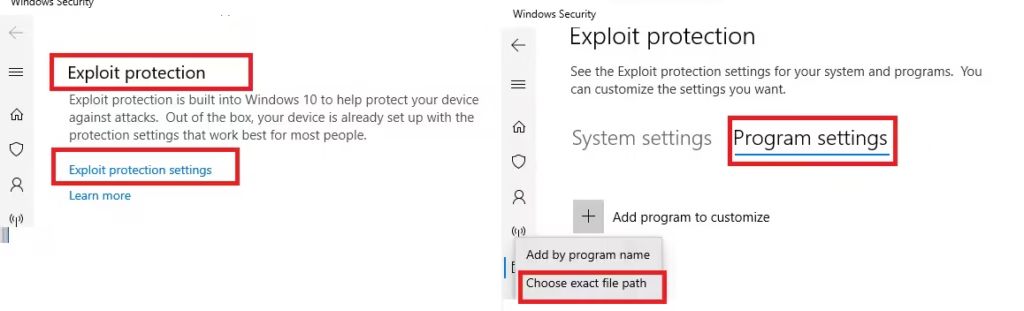
Step-by-Step Instructions (Windows 10 & Windows 11)
- Open Windows Security
- Press Windows + S
- Search for Windows Security
- Open it
- Go to App & browser control
- Click Exploit protection settings
- Found near the bottom of the page
- Open the Program settings tab
- Do not change System settings
- Click Add program to customize
- Choose Add by program path
- Browse to the game’s executable file
- Example paths:
Steam\steamapps\common\GameName\Game.exeEpic Games\GameName\Game.exe
- Example paths:
- Scroll down to Control flow guard (CFG)
- Check Override system settings
- Set CFG to Off
- Click Apply and restart the game
The change applies only to that game.
Important Security Notes
- This affects only the selected game
- CFG remains enabled for Windows and all other apps
- Do not disable CFG under System settings
- Avoid disabling CFG for browsers, launchers, or unknown software
If no improvement is noticed, it’s best to revert the setting.
How to Re-Enable CFG for a Game
To restore default protection:
- Return to Exploit protection → Program settings
- Select the game
- Remove the override or set CFG to Use system settings
- Apply changes
This restores Windows’ default security behavior for the game without affecting other applications.
FAQs
Does Control Flow Guard cause game stuttering?
Control Flow Guard does not cause stuttering in most games, but it can affect frame-time consistency in some CPU-bound or simulation-heavy titles.
Can disabling CFG improve gaming performance?
Disabling CFG for a specific game may improve smoothness by reducing CPU overhead, but it does not increase average FPS.
Is it safe to disable Control Flow Guard for games?
Disabling CFG per game is generally safe, but it should not be disabled system-wide or for critical applications like browsers.
Does CFG affect GPU performance?
No. Control Flow Guard impacts CPU-side execution only and does not directly affect GPU performance.
Should CFG be disabled for all games?
No. CFG should only be adjusted when troubleshooting unexplained stutter in CPU-sensitive games.
Will disabling CFG fix shader stuttering?
No. Shader stuttering is caused by compilation and asset loading, not Control Flow Guard.
Control Flow Guard plays an important role in Windows security, but in some CPU-sensitive games, it can affect frame-time consistency. Adjusting CFG on a per-game basis may improve smoothness in specific cases, but it is not a replacement for proper performance troubleshooting.

