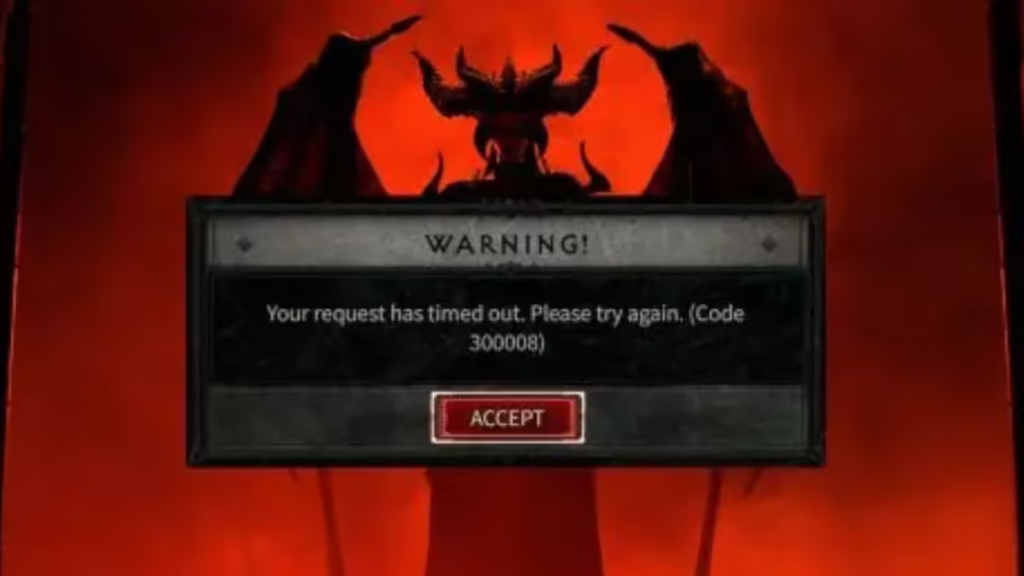
Diablo 4 Error Code 300008 hits you with a blunt message: "Your request has timed out. Please try again." It typically strikes during season launches or high-traffic periods when thousands of players rush the servers at the same time. The error blocks you from logging in entirely, or kicks you mid-session without warning.
This guide walks you through every fix, from the quickest one-tap solutions to deeper network-level troubleshooting for PC players.
What Is Error Code 300008 in Diablo 4?
Error 300008 is a DNS communication failure between your device and Blizzard's servers. In plain terms, your game client sends a login request, the server takes too long to respond, and the connection times out.
Two main culprits trigger this:
- Blizzard server overload during season launches, major patches, or expansion releases
- Local network issues such as a stale DNS cache, router problems, or firewall interference
Since the error can come from either end, you need to work through both possibilities.
See also: Best Build for the Tower in Diablo 4 Season 11
How to Fix Diablo 4 Error Code 300008
Fix 1: Hit "Try Again" First
The error prompt itself gives you a Try Again button. Do not close the game immediately. Press it a few times. During server congestion, some players get through on the second or third attempt without changing anything else.
Fix 2: Check the Diablo 4 Server Status
Before diving into network troubleshooting, confirm the problem is not entirely on Blizzard's end.
- Open your browser and head to the Blizzard Support site.
- Check Downdetector for Diablo 4 to see real-time player reports.
- Follow the @Diablo Twitter/X account for official maintenance announcements.
If the servers are down, no amount of local troubleshooting will help. Wait for Blizzard to resolve the issue on their side.
Fix 3: Restart Diablo 4 and Battle.net
A simple restart re-establishes your connection and clears any stuck session data.
- Fully close Diablo 4.
- Close the Battle.net launcher completely (check your system tray).
- Relaunch Battle.net, then start Diablo 4 again.
This fix works surprisingly often when the error stems from a dropped session rather than a full server outage.
Fix 4: Restart Your Router and Switch to Ethernet
Your home network can cause DNS lookup failures independent of Blizzard's servers. A quick router reset clears the cache and renews your connection.
- Shut down your PC or console.
- Turn off your router and unplug it from power.
- Wait 30 seconds before plugging it back in.
- Once your internet connection restores, boot your PC or console and relaunch Diablo 4.
If you use Wi-Fi, switch to a wired Ethernet connection. A physical cable eliminates packet loss and latency spikes that wireless connections introduce, and it significantly reduces DNS timeout errors in always-online games like Diablo 4.
Fix 5: Flush DNS (PC Only)
PC players accumulate stale DNS cache from previous gaming sessions. Flushing it forces your system to fetch fresh server address data from Blizzard.
- Press Windows Key, type cmd, then right-click Command Prompt and select Run as administrator.
- Type the following commands one at a time, pressing Enter after each:
ipconfig /release
ipconfig /renew
ipconfig /flushdns- Close Command Prompt.
- Restart the Battle.net client and launch Diablo 4.
The /release and /renew commands refresh your IP address, while /flushdns wipes the DNS resolver cache. Running all three gives you the best result.
Fix 6: Change Your DNS Server (PC)
Switching to a faster, more reliable DNS server can prevent timeout failures between your device and Blizzard's login servers. Google DNS (8.8.8.8) and Cloudflare DNS (1.1.1.1) are both solid free options.
- Press Win + R, type ncpa.cpl, and press Enter.
- Right-click your active network connection and select Properties.
- Select Internet Protocol Version 4 (TCP/IPv4) and click Properties.
- Select Use the following DNS server addresses and enter:
- Preferred DNS:
8.8.8.8 - Alternate DNS:
8.8.4.4
- Preferred DNS:
- Click OK and restart your PC.
Fix 7: Disable Firewall or Antivirus Temporarily
Windows Firewall and third-party antivirus software sometimes block Diablo 4 from communicating with Blizzard's servers. Test this by temporarily disabling them.
- Open Windows Security and navigate to Firewall and Network Protection.
- Turn off the firewall for your active network profile (private or public).
- Launch Diablo 4 and check if the error clears.
If the game connects successfully, do not leave your firewall off permanently. Instead, add Diablo 4 and Battle.net to your firewall's exception list to allow them through without disabling your protection entirely.
Fix 8: Verify Game Files (PC via Battle.net)
Corrupted or missing game files can break the client's ability to authenticate with Blizzard's servers.
- Open Battle.net and select Diablo 4 from your game library.
- Click the gear icon next to the Play button.
- Select Scan and Repair.
- Let the scan complete, then relaunch the game.
Fix 9: Wait Out the Queue
During new season launches, Blizzard sometimes activates a login queue system. Players report wait times ranging from 15 minutes to over 120 minutes during peak congestion. If you see a queue timer on the login screen, let it run rather than force-closing the game. Closing and reopening the client often resets your position in the queue and extends your wait time significantly.
Fix 10: Contact Blizzard Support
If none of the fixes above resolve Error 300008, the issue may require account-level investigation. Contact Blizzard Support directly and provide them with:
- Your platform (PC, Xbox, PS5)
- The exact error code and message
- The troubleshooting steps you already attempted
Blizzard support can analyze server-side logs and identify if the problem ties to your specific account or region.
See also: Diablo 4 Rune Linguistics Guide: Quick Completion Trick
Quick Fix: Diablo 4 Error Code 300008
| Fix | Platform | Best For |
|---|---|---|
| Press Try Again | All | First attempt, mild congestion |
| Check Server Status | All | Server outages or maintenance |
| Restart Game and Launcher | All | Dropped session errors |
| Restart Router + Use Ethernet | All | Local network issues |
| Flush DNS | PC Only | Stale DNS cache |
| Change DNS Server | PC Only | Persistent DNS failures |
| Disable Firewall/Antivirus | PC Only | Software blocking connections |
| Verify Game Files | PC Only | Corrupted client files |
| Wait Out the Queue | All | Season launch congestion |
| Contact Blizzard Support | All | Persistent, unresolved errors |
If you are still locked out after working through every fix, Blizzard Support is your best next move.
FAQs
What does Diablo 4 Error Code 300008 mean?
Error Code 300008 means your login request timed out before Blizzard's servers could respond. It points to a DNS communication failure between your device and Diablo 4's servers, caused by either server overload or a local network issue.
Is Diablo 4 Error Code 300008 a server-side problem or my fault?
It can be both. During season launches or major patches, Blizzard's servers get overwhelmed and trigger the error for everyone. Outside of those periods, a stale DNS cache, router issue, or firewall interference on your end is usually the cause.
How do I fix Diablo 4 Error Code 300008 on PS5 or Xbox?
Console players should restart the game, power cycle the router, and switch to a wired Ethernet connection. DNS flush and firewall fixes only apply to PC. If the error persists on console, check Blizzard's server status and wait out any active outage.
Will closing and reopening the game fix Error 300008 faster?
Not always. During login queue periods, force-closing the game resets your queue position and often increases your wait time. Let the queue run if you see a timer on the login screen.
How long does Diablo 4 Error Code 300008 last?
If Blizzard's servers cause it, the error typically clears within a few hours as traffic stabilizes after a launch spike. If a local network issue causes it, flushing your DNS or restarting your router resolves it within minutes.