Spotify has started pushing more video content inside its app. You now see music videos, looping visuals (Canvas), and short clips while playing songs. This shift aims to increase engagement, but it often creates distractions.
Many users prefer a simple audio-only experience. Videos consume data, drain battery, and interrupt focus—especially while working or driving. However you can fully disable videos in Spotify with just a few settings.
What Happens When You Disable Video on Spotify?
Spotify now allows you to disable:
- Music videos
- Canvas (looping visuals)
- Short vertical clips
This update gives you full control over how you consume music. Once you turn these off, Spotify behaves like a pure audio platform again.
Why You Should Turn Off Spotify Videos
Before getting started, here’s why you should disable video on Spotify:
- Saves mobile data instantly
- Improves battery life on phones
- Removes visual distractions
- Creates a clean music-only experience
- Makes the app faster and smoother
If you only care about music, this setting is essential.
How to Disable Video on Spotify (Mobile – Android & iPhone)
Follow these steps to turn off all videos:
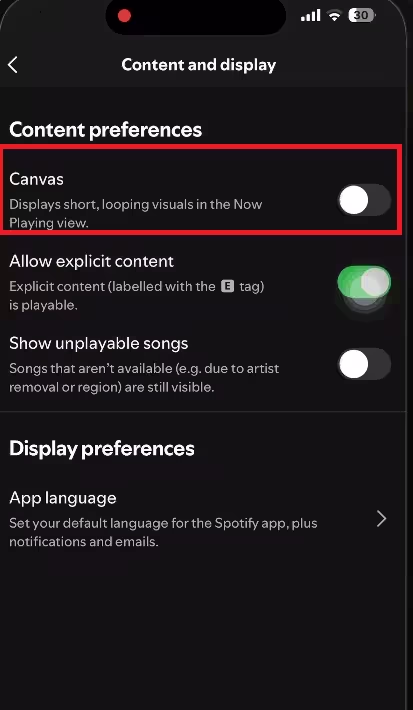
Step-by-step:
- Open the Spotify app
- Tap your profile icon (top left)
- Go to Settings and Privacy
- Tap Content and Display
- Find the Content Perference section
- Turn OFF:
- Canvas
Once you disable these, Spotify stops showing any video content.
These settings sync across devices, so you don’t need to repeat them everywhere.
How to Disable Video on Spotify (PC & Mac)
Spotify desktop also lets you remove visuals quickly.
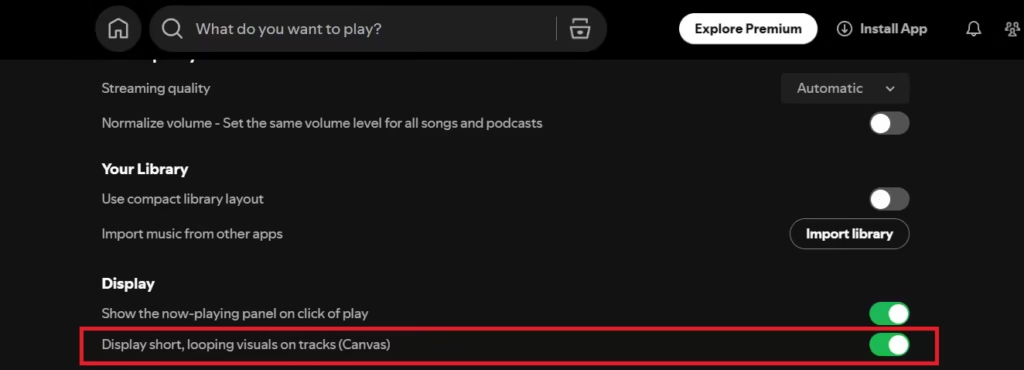
Follow these steps:
- Open Spotify
- Click your profile icon (top right)
- Go to Settings (Preferences)
- Scroll to Display settings
- Turn OFF:
- Display short, looping visuals on tracks (Canvas)
After this, your desktop experience becomes audio-only.
Important Note About Ads
Disabling videos does not remove:
- Video ads
- Visual elements inside ads
Spotify still controls ad formats, especially on the free plan.
Extra Tip: Disable Videos for Family Members
If you use a Spotify Family plan, you can control video settings for others:
- Open Spotify
- Go to Your Premium → Manage Plan
- Select a user profile
- Disable videos under Videos and Canvas
This helps you create a distraction-free experience for kids or shared users.
If you want Spotify to feel like a traditional music player again, these settings are worth applying immediately.
FAQs
Can I completely disable videos on Spotify?
Yes. Spotify now allows you to turn off music videos, Canvas (looping visuals), and other video content from the settings. Once disabled, the app works mostly in audio-only mode.
How do I turn off Spotify Canvas (looping videos)?
Go to Settings and Privacy → Content and Display, then toggle OFF the Canvas option. This removes the short looping visuals that play while listening to songs.
Does disabling videos on Spotify apply to all devices?
Yes. When you turn off video settings on one device, Spotify syncs the changes across all devices linked to your account.
Can free Spotify users disable videos?
Yes. Spotify provides video controls for both free and premium users, so anyone can disable videos from the app settings.
Will turning off videos remove ads on Spotify?
No. Disabling video settings does not remove video ads or visual elements inside ads, especially on the free plan.
Can I disable videos for family members on Spotify?
Yes. If you manage a Family plan, you can go to Your Premium → Manage, select a profile, and turn off video settings for that user.

