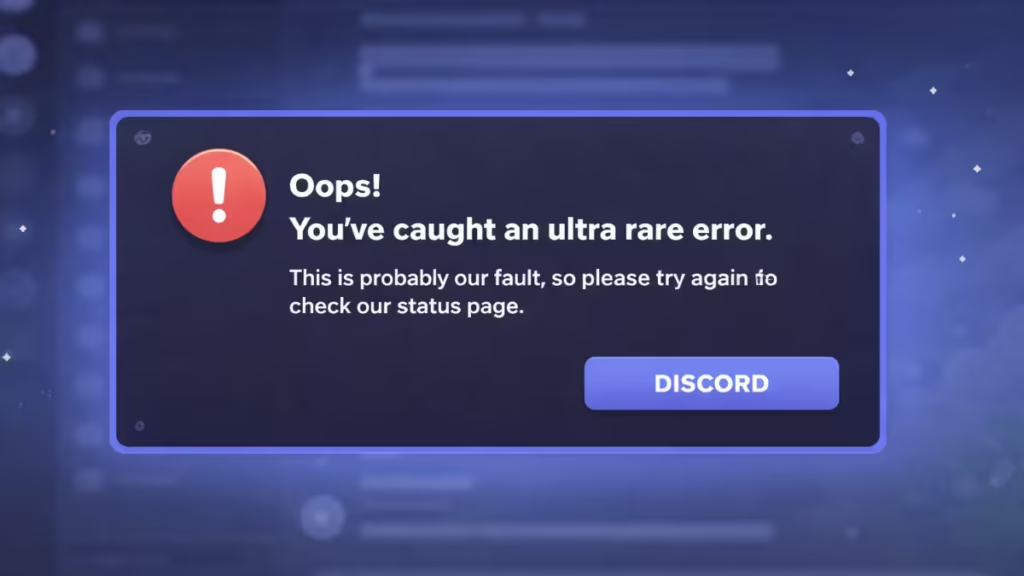
Seeing the message “Oops! You’ve caught an ultra rare error” on Discord can be confusing, especially when it suddenly blocks login or basic app features. The error often appears without a clear explanation, leaving users unsure whether the problem is with their account, device, or Discord itself.
What Does the “Ultra Rare Error” Mean on Discord?
Discord uses the term ultra rare error for unexpected issues that occur during login, syncing, or feature access. While the message suggests it is Discord’s fault, the error can also be triggered by local device problems or network conflicts.
Error Message Shown:
“Oops! You’ve caught an ultra rare error. This is probably our fault, so please try again or check our status page.”
This message commonly appears during:
- Login attempts
- App startup
- Switching servers or accounts
- After a recent Discord update
Common Causes of the Discord Ultra Rare Error
Several known factors can trigger this issue:
- Corrupted cache or temporary files
- Unstable internet connection
- Discord server outages
- Outdated Discord app version
- VPN or proxy interference
- Incorrect system date and time
- Incomplete app updates
How to Fix “Oops! You’ve Caught an Ultra Rare Error” in Discord
Follow the steps below in order. Most users resolve the issue within a few minutes.
1. Check Discord Server Status
Before changing any settings, confirm whether Discord is experiencing server issues.
- Visit Discord’s official Status Page
- Check outage reports on services like Downdetector
- Monitor Discord’s official social channels for maintenance updates
If servers are down, the only solution is to wait until service is restored.
2. Restart Your Internet Connection
Network instability can interrupt Discord’s login process.
- Disconnect and reconnect your Wi-Fi or mobile data
- Switch from public Wi-Fi to a private network
- Restart your router or modem
- Avoid unstable VPN-based connections
Once reconnected, relaunch Discord and try again.
3. Clear Discord Cache Files (Very Effective Fix)
Corrupted cache data is one of the most common causes of this error.
On Windows:
- Press Win + R, type
%appdata%, and press Enter - Open the Discord folder
- Delete the folders:
- Cache
- Code Cache
- GPUCache
- Restart Discord
On Android / iOS:
- Open Settings > Apps > Discord
- Go to Storage & Cache
- Tap Clear Cache
- Relaunch the app
This step alone fixes the issue for many users.
4. Disable VPN or Proxy Services
VPNs and proxy connections can interfere with Discord’s authentication system.
- Disable any active VPN
- Turn off proxy settings in your network configuration
- Restart Discord after disabling them
If Discord works normally afterward, the VPN was likely the cause.
5. Update or Reinstall Discord
An outdated or broken installation can trigger unexpected errors.
- Download the latest version from Discord’s official website
- If updating doesn’t help:
- Uninstall Discord
- Delete leftover files (Windows:
%appdata%/Discord) - Reinstall and log in again
A clean install ensures corrupted files are removed completely.
6. Fix Device Date and Time Settings
Incorrect system time can break secure login connections.
- On Windows:
- Go to Settings > Time & Language > Date & Time
- Enable Set time automatically
- On Mobile:
- Open Date & Time settings
- Enable automatic date and time
Restart Discord after correcting the settings.
7. Double-Check Login Credentials
If the error appears during login:
- Re-enter your username and password carefully
- Try logging in using your previous password
- Reset your password if needed
Incorrect or partially synced credentials can trigger login errors.
See also: Discord Error 2012 Fix: Stream Failed to Start – 10 Working Fixes
8. Contact Discord Support
If none of the fixes work, reach out to Discord Support with:
- Device type and operating system
- Exact error message
- When the issue started
- Troubleshooting steps already attempted
This helps support diagnose the issue faster.
FAQs
Is the Discord ultra rare error caused by a ban?
No. This error is not related to account bans or suspensions. It is usually caused by cache corruption, network issues, or server problems.
Is Discord down when this error appears?
Not always. While outages can trigger it, many users experience this error even when Discord servers are fully operational.
Does reinstalling Discord fix the ultra rare error?
Yes. A clean reinstall often resolves the issue by removing corrupted cache and configuration files.
Can this error happen on mobile devices?
Yes. The ultra rare error can occur on Windows, Android, and iOS, though the fixes may vary slightly.
The “Oops! You’ve caught an ultra rare error” on Discord is frustrating, but it is rarely serious. In most cases, clearing cache files, checking server status, or reinstalling the app resolves the issue quickly. The error does not indicate account problems and is usually temporary.
By following the steps above, you should be able to get Discord working normally again without data loss or account risk.