FOX officially replaced the FOX Sports app with FOX One on May 7, 2026. Samsung Tizen TVs are one of the affected platforms, which means the old FOX Sports app no longer works on your Samsung TV. If FOX One is crashing, showing a black screen, refusing to load, or simply not appearing in your Samsung app store, this guide covers every fix you need to get back to streaming.
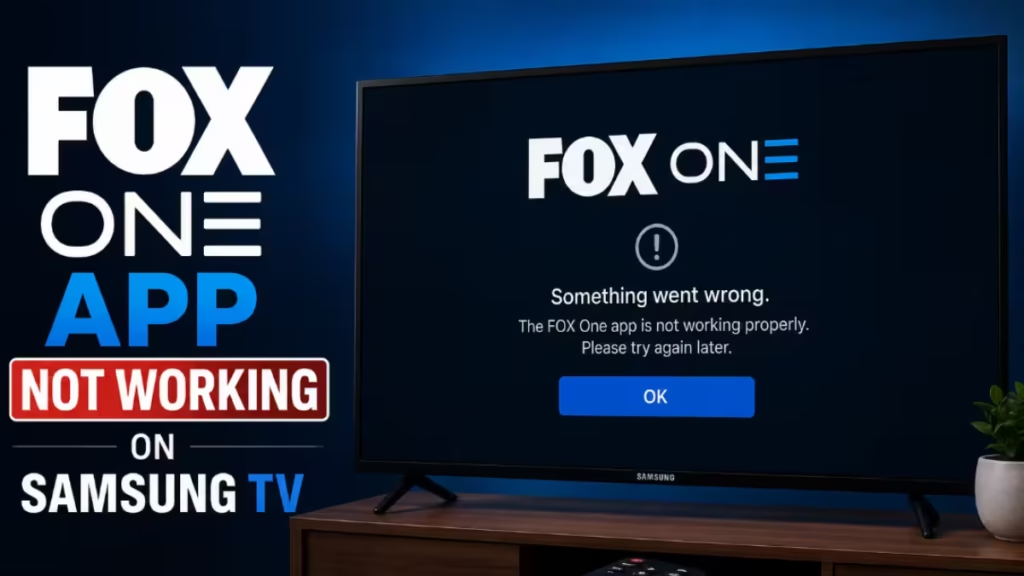
Why FOX One Is Not Working on Your Samsung TV
Several things can stop FOX One from working on a Samsung TV. The most common causes include:
- The old FOX Sports app is still installed instead of FOX One
- FOX One is not yet installed from the Samsung app store
- Login or activation problems after the app switch
- Corrupt cache files from heavy app use
- Outdated Samsung Tizen OS software
- A slow or unstable internet connection
- Incorrect date and time settings on the TV
- A temporary outage on FOX One servers
Work through the fixes below in order. Most users resolve the problem within the first three steps.
Fix 1: Replace FOX Sports with FOX One (Most Common Cause)
If FOX Sports stopped working on your Samsung TV after May 7, 2026, the app itself is the reason. FOX retired the FOX Sports app on Samsung Tizen and all other major TV platforms on that date. FOX One is now the official replacement.
FOX One carries everything the old app had, including live FOX Sports, FOX News, FOX Weather, FS1, FS2, FOX Business, FOX Deportes, Big Ten Network, local FOX stations, and the FOX Network. It also adds Multiview (up to 4 live streams at once) and personalized on-demand content.
To get FOX One working, open your Samsung TV app store and download FOX One. The next two sections cover installation and sign-in in detail.
Fix 2: Download and Install FOX One on Samsung TV
Follow these steps to install FOX One on your Samsung TV:
- Press the Home button on your Samsung remote.
- Navigate to the Apps section from the home screen.
- Select the Search icon at the top of the Apps page.
- Type FOX One and press the search button.
- Select FOX One from the search results.
- Click Install and wait for the download to complete.
- Open FOX One once the installation finishes.
FOX One is officially supported on Samsung Tizen TVs. If you cannot find it in the Samsung app store, make sure your TV's Tizen OS is up to date (covered in Fix 9).
Fix 3: Sign In to FOX One on Your Samsung TV
After installing FOX One, you need to sign in to start watching. You have two options depending on whether you have a TV provider subscription.
Option A: Sign in with a TV Provider (Free)
If you already pay for a cable or satellite TV package that includes FOX channels, you can access FOX One at no extra cost.
- Open FOX One on your Samsung TV.
- Select Connect Provider in the app.
- Follow the on-screen instructions.
- Sign in through your TV provider's login page.
- Your device activates automatically after sign-in.
Option B: Subscribe Directly on Fox.com
If you do not have a TV provider, you can subscribe directly to FOX One.
- Visit fox.com on your phone or computer.
- Create a FOX account or log in to an existing one.
- Choose a subscription plan. FOX One costs $19.99 per month and includes a 7-day free trial.
- Complete the purchase, then open FOX One on your Samsung TV and sign in with your FOX account credentials.
Fix 4: Restart Your Samsung TV
A simple restart clears temporary system glitches and refreshes the TV's network connection. This fix resolves a large number of app loading problems.
- Unplug your Samsung TV from the power outlet.
- Leave it unplugged for 60 seconds.
- Press and hold the physical power button on the TV for 30 seconds to drain residual power. Skip this step if your TV has no physical power button.
- Plug the TV back in and turn it on.
- Open FOX One and check if the issue is resolved.
Fix 5: Check Your Internet Connection
A slow or unstable internet connection causes FOX One to freeze, buffer endlessly, or fail to load entirely. Run through the following steps to rule out network issues.
Restart your router:
- Unplug your router from the power outlet.
- Wait 30 seconds.
- Plug it back in and allow it to fully reconnect.
- Try FOX One on your Samsung TV again.
Additional network fixes to try:
- Switch from Wi-Fi to a wired Ethernet connection for a more stable signal.
- If using Wi-Fi, connect to your router's 5 GHz band instead of 2.4 GHz for faster speeds.
- Test your network speed using another device. FOX One requires a stable connection of at least 5 Mbps for HD streaming.
- Update your Samsung TV's DNS to Google DNS (8.8.8.8) by going to Settings > General > Network > Network Status > IP Settings, then set DNS manually to 8.8.8.8.
Fix 6: Clear FOX One App Cache on Samsung TV
Corrupt cache files build up over time and cause apps to behave erratically. Clearing the cache forces FOX One to reload cleanly.
- Press the Home button and go to Settings.
- Select Support.
- Choose Self Diagnosis.
- Select TV Device Manager.
- Click Clean Now under both Memory Boost and Clear Running Apps.
- After cleaning, select Show App List under Manage Storage.
- Scroll to FOX One, select View Details, then tap Clear Cache.
On some Samsung TV models, the path is Settings > Support > Device Care > Manage Storage.
Restart your TV after clearing the cache, then open FOX One to check if the problem is fixed.
Note: You can also choose Clear Data on the same screen. This removes all saved login information, so you will need to sign in to FOX One again afterward. It is worth doing if clearing the cache alone does not fix the problem.
Fix 7: Reinstall FOX One on Samsung TV
If clearing the cache does not help, reinstalling the app replaces any corrupt app files.
- Press Home and go to Apps.
- Select the Settings icon at the top right of the Apps page.
- Find FOX One in the app list.
- Click Reinstall under the app icon.
- After reinstalling, restart your Samsung TV.
- Open FOX One and sign in again.
Fix 8: Reset Samsung Smart Hub
A corrupted Samsung Smart Hub can prevent apps from loading or displaying a black screen on launch. Resetting it clears the Smart Hub data and often fixes persistent app issues.
- Go to Settings on your Samsung TV.
- Select Support.
- Choose Self Diagnosis.
- Select Reset Smart Hub.
- Enter your PIN if prompted (default PIN is 0000).
- Wait for the reset to complete, then restart your TV.
- Reinstall FOX One from the Samsung app store and sign in.
Fix 9: Update Samsung TV Software
Outdated Tizen OS software can cause apps like FOX One to crash or display a black screen. Updating the firmware often resolves compatibility issues between the TV system and streaming apps.
- Press Home and go to Settings.
- Select Support.
- Choose Software Update.
- Select Update Now.
- Wait for the update to download and install. Your TV will restart automatically.
After the update completes, open FOX One and check if it works.
Fix 10: Fix Date and Time Settings
An incorrect date or time on your Samsung TV can cause apps to fail authentication checks and refuse to connect to streaming servers.
- Go to Settings > General > System Manager > Time > Clock.
- Set the Clock Mode to Auto.
- Confirm that the displayed date and time match your current local time.
- If the time is wrong despite Auto mode, switch to Manual and set the correct time and date yourself.
After correcting the time settings, restart your TV and try FOX One again.
Fix 11: Check If FOX One Servers Are Down
Occasionally, FOX One servers experience outages that affect all users, not just Samsung TVs. If everything on your end looks fine but the app still will not load, check whether FOX One is having a service disruption.
Visit downdetector.com and search for FOX One to see if other users are reporting issues.
If servers are down, wait a few hours and try again. There is nothing else you can do until FOX restores service.
Fix 12: Factory Reset Samsung TV
A factory reset restores your Samsung TV to its original settings and removes all apps, accounts, and customizations. Use this only after all other fixes have failed.
For Samsung TVs from 2022 to present:
- Go to Settings > General and Privacy > Reset.
- Enter your reset PIN (default is 0000).
- Select Reset to confirm.
For Samsung TVs from 2019 to 2021:
- Go to Settings > General > Reset.
- Enter your reset PIN (default is 0000).
- Select Reset to confirm.
For Samsung TVs from 2016 to 2018:
- Go to Settings > Support > Self Diagnosis > Reset.
- Enter your reset PIN and confirm.
Not sure which year your TV is? Check the model number on a sticker at the back of the TV or go to Settings > Support > About This TV to find the model information.
After the factory reset, set up your TV again, reinstall FOX One from the Samsung app store, and sign in with your account.
Forgot your Samsung TV reset PIN?
On the Samsung Smart Remote, press these buttons in sequence as quickly as possible: VOL > Volume Up > Return/Back > Volume Down > Return/Back > Volume Up > Return/Back
On the standard remote, press: Mute > Volume Up > Return > Volume Down > Return > Volume Up > Return
Contact FOX One Support
If none of the fixes above resolve the problem, contact FOX support directly.
- Visit Help.Fox.com to submit a support request or browse the FOX One help center.
- You can also reach Samsung TV support at samsung.com/us/support if you suspect a hardware or firmware issue specific to your TV.