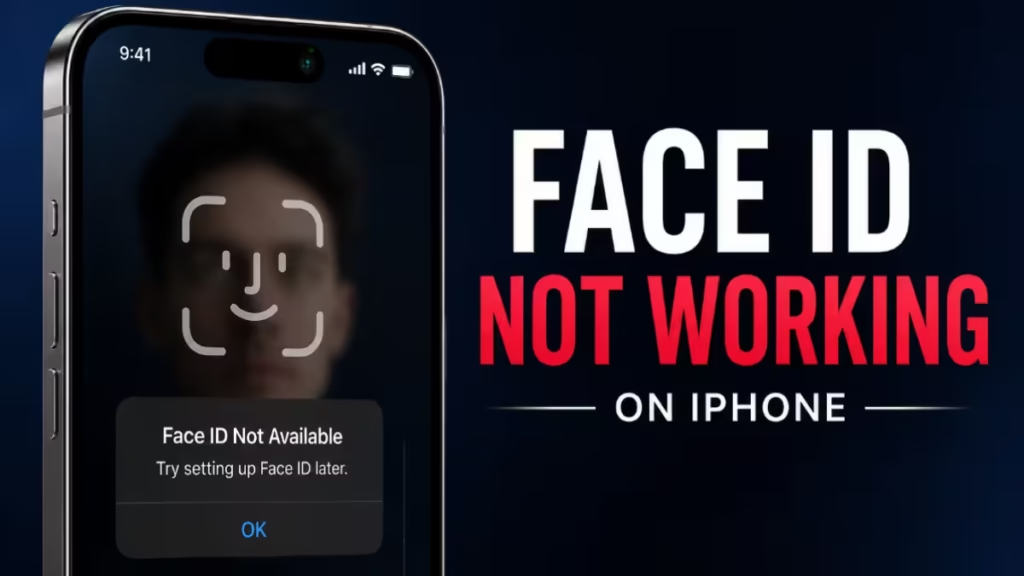
Face ID stops working for a handful of well-known reasons: a blocked TrueDepth camera, a software glitch, a wrong setting, or a security lockout your iPhone triggered automatically. This guide walks you through every fix in order, from the fastest to the most thorough.
Why Is Face ID Not Working on My iPhone?
Before jumping into fixes, it helps to know what triggers a Face ID failure. Your iPhone intentionally disables Face ID under these conditions:
- You restarted or powered on the device recently
- The device has not been unlocked for more than 48 hours
- Face ID failed five times in a row
- You have not used your passcode in the last six and a half days and Face ID has not unlocked the device in the last four hours
- Someone sent a remote lock command to your iPhone
- You opened the Emergency SOS screen
- Your iPhone model does not support Face ID (iPhone SE and models older than iPhone X)
If none of these apply, one of the fixes below will solve the problem.
1. Clean the TrueDepth Camera
The TrueDepth camera sits at the top of your iPhone screen inside the notch or Dynamic Island. A smudge, fingerprint, dust, or a thick screen protector can block the infrared sensors and stop Face ID from scanning your face.
Wipe the front of your iPhone with a clean, dry microfiber cloth. Remove your case and screen protector temporarily, then test Face ID again.
2. Hold Your iPhone at the Right Distance and Angle
Face ID works best when you hold your iPhone at arm's length, roughly 10 to 20 inches (25 to 50 cm) from your face. The camera needs a clear, straight-on view of your eyes, nose, and mouth.
On iPhone 12 and earlier, Face ID only works in portrait orientation. Starting with iPhone 13 running iOS 16, landscape orientation is also supported.
Make sure your face is fully visible to the camera. Do not tilt the phone too far to one side.
3. Check What Is Covering Your Face
Face ID requires a clear view of your eyes, nose, and mouth by default. Check the following:
- Face mask: If you wear a mask, enable Face ID with a Mask (iPhone 12 or later, iOS 15.4 or later). Go to Settings > Face ID & Passcode > Use Face ID with a Mask and follow the setup steps.
- Sunglasses: Regular sunglasses work fine. Polarized sunglasses block the infrared light the TrueDepth camera uses. Remove them and try again.
- Hands or fingers: On iPad in landscape mode, make sure your palm is not covering the camera.
4. Check Your Face ID Settings
Face ID might be toggled off for specific features. Go to Settings > Face ID & Passcode and enter your passcode.
Under Use Face ID For, confirm these toggles are on:
- iPhone Unlock
- iTunes & App Store
- Wallet & Apple Pay
- Password AutoFill
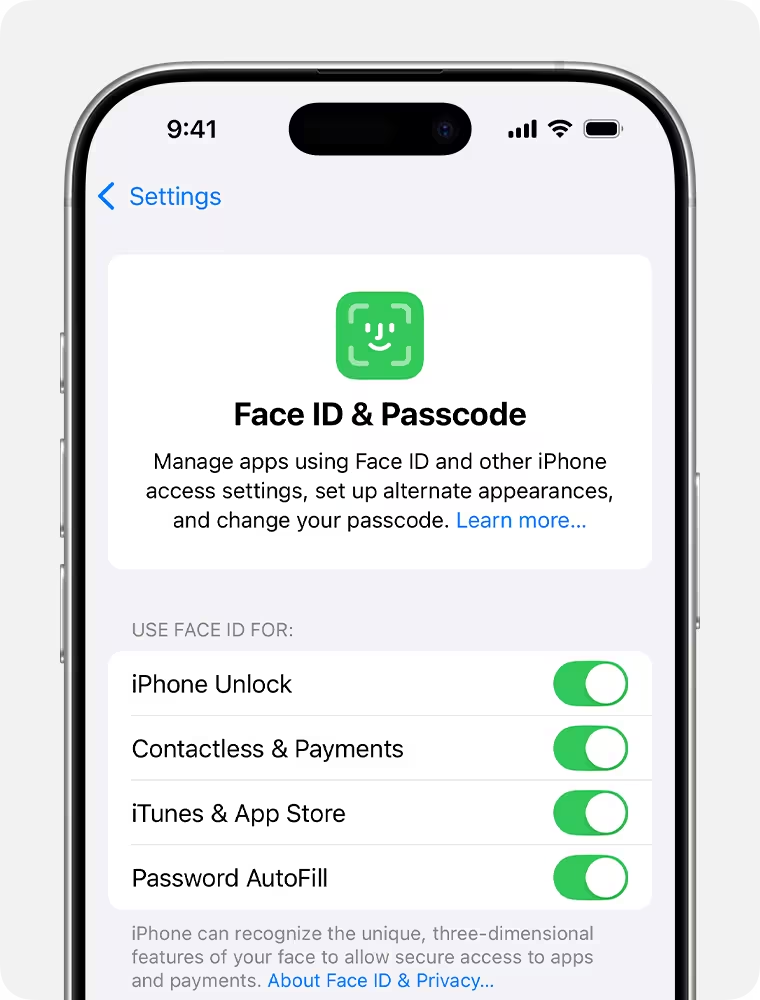
If Face ID is not working with a specific third-party app, scroll down to Other Apps and turn on that app individually.
5. Restart Your iPhone
A restart clears temporary software glitches that can freeze the TrueDepth camera sensors.
iPhone X and later (no Home button):
- Press and hold the Side button and either Volume button.
- Drag the slide to power off slider.
- Wait 30 seconds, then press the Side button to turn it back on.
- Enter your passcode, then test Face ID.
iPhone SE (2nd or 3rd gen) and iPhone 8:
- Press and hold the Side button.
- Drag the slide to power off slider.
- Wait 30 seconds, then press the Side button to restart.
6. Update iOS
A software bug in an older version of iOS can break Face ID. Apple pushes fixes for sensor and biometric issues through iOS updates.
- Connect your iPhone to a charger and join a Wi-Fi network.
- Go to Settings > General > Software Update.
- Tap Download and Install if an update appears.
- Enter your passcode and let the update finish.
- Test Face ID after the iPhone restarts.
7. Add an Alternate Appearance
Face ID learns your face gradually over time, but significant changes in appearance (new glasses, facial hair, heavy makeup) can confuse it. Adding an alternate appearance gives Face ID a second reference scan to work from.
- Go to Settings > Face ID & Passcode.
- Tap Set Up an Alternate Appearance.
- Follow the on-screen instructions to scan your face.
You can also add up to four pairs of glasses. Tap Add Glasses on the same page and scan while wearing each pair.
8. Reset Face ID and Set It Up Again
If Face ID keeps failing after the steps above, a corrupted Face ID profile is likely the cause. Resetting it clears the stored facial data and lets you start fresh.
- Go to Settings > Face ID & Passcode.
- Enter your passcode.
- Tap Reset Face ID.
- Tap Set Up Face ID and follow the prompts to scan your face twice.
When you scan, do it in the lighting conditions where Face ID usually fails (for example, bright sunlight or a dark room). This trains it to handle those situations better.
9. Check for a Hardware Problem
A hardware fault with the TrueDepth camera requires a repair, not a software fix. You will usually see one of these error messages:
- "Face ID is Not Available"
- "A problem was detected with the TrueDepth camera. Face ID has been disabled."
To check the hardware status on iPhone 12 and later:
- Go to Settings > General > About > Parts & Service History.
- Look for TrueDepth Camera.
- If it says Unknown Part or Face ID Issue Detected, the hardware needs service.
If the camera status shows a problem, contact Apple Support or visit an Apple Authorized Service Provider.
10. Contact Apple Support or Visit an Apple Store
If Face ID still does not work after every fix above, the TrueDepth camera likely has physical damage or a manufacturing defect. Apple repairs Face ID hardware for free when the issue is a manufacturing defect. If it is out of warranty, the repair cost is the same as replacing a camera part.
Book an appointment at an Apple Authorized Service Provider or visit Apple Support to start a repair request.
Face ID Not Working After iOS Update
If Face ID stopped working right after an iOS update, a software conflict is the likely cause. Try these steps in order:
- Restart your iPhone.
- Reset Face ID and set it up again (Step 8 above).
- If that fails, check for a follow-up iOS update in Settings > General > Software Update. Apple often releases quick patches for post-update bugs.
Face ID Not Working on Specific Apps
If Face ID works for unlocking your iPhone but fails inside a specific app, the issue is with the app settings, not the hardware.
- Go to Settings > Face ID & Passcode > Other Apps.
- Find the app in the list and turn on its toggle.
- Open the app and test Face ID again.
If the toggle is already on, delete and reinstall the app. A corrupted app installation can break Face ID authentication for that app only.
Related Guides
- What Is “Indexing in Progress” on iPhone After iOS 27 Update and How Long Does It Last
- iPhone Charging Port Not Working? 10 Fixes to Try
- How to Fix Apple Pay “Payment Not Completed” Error on iPhone and iPad
- How to Fix Wi-Fi Not Connecting on Windows, Android, and iPhone (2026)
- iPhone Personal Hotspot Not Working? 11 Fixes That Actually Work