Google launched Gemini Daily Brief at Google I/O 2026 as a dedicated morning planning agent built directly into the Gemini app. Once you set it up, it pulls from your Gmail and Google Calendar, surfaces urgent emails, flags upcoming meetings, and compiles a skimmable summary before your day begins. It can also suggest next steps based on your goals and priorities.
Daily Brief is currently rolling out in the U.S. for Google AI Plus, Pro, and Ultra subscribers. If your account qualifies, here is how to get it running on Android.
Requirements Before You Start
Before setting up Gemini Daily Brief, confirm you have the following:
- An Android device running Android 10 or later
- The latest version of the Gemini app installed
- An active Google AI Plus, Pro, or Ultra subscription
- A U.S-based Google account
- Gmail and Google Calendar connected to your Google account
Daily Brief works by accessing your connected apps in the background, so both Gmail and Calendar need to be active and signed in on the same Google account you use with Gemini.
How to Set Up Gemini Daily Brief on Android
Step 1: Update the Gemini App
Open the Google Play Store, search for Gemini, and tap Update if an update is available. Daily Brief requires the latest app version to appear in your settings.
Step 2: Open the Gemini App
Launch the Gemini app on your Android device. If you are not already signed in, sign in with the Google account attached to your AI Plus, Pro, or Ultra subscription.
Step 3: Access the Daily Brief Feature
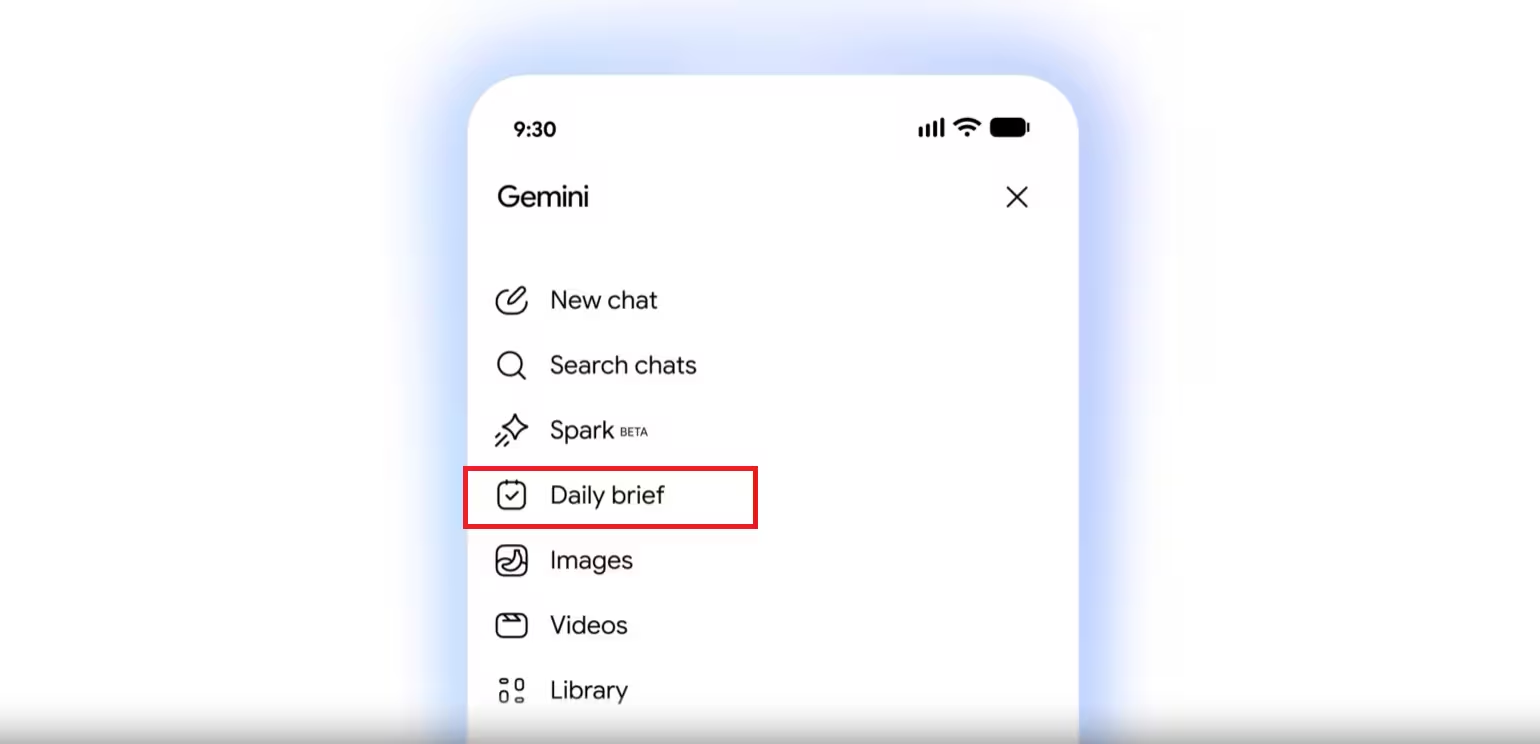
Tap your profile icon in the top-right corner of the Gemini home screen. Navigate to Settings, then look for the Daily Brief option in the Agents or Personalization section.
If Daily Brief has not rolled out to your account yet, this section may not appear. Google is rolling it out in stages across eligible U.S. accounts.
Step 4: Opt In and Connect Your Apps
Tap Daily Brief and select Turn On or Get Started to opt in. Gemini will prompt you to connect your Gmail and Calendar accounts if they are not already linked.
Grant the required permissions so Daily Brief can read your inbox and calendar events. Without these permissions, the agent cannot generate your morning summary.
Step 5: Set Your Preferred Delivery Time
Choose the time you want your Daily Brief to appear each morning. Most users set this 15 to 30 minutes before their first scheduled meeting or commitment of the day.
You can adjust this time at any point by returning to the Daily Brief settings screen.
Step 6: Review Your First Brief
Once set up, Gemini generates your first Daily Brief at the scheduled time. Open the Gemini app at that time to view your summary. The brief includes:
- Urgent emails from your Gmail inbox
- Upcoming meetings and calendar events
- Relevant follow-up tasks
- Suggested next steps based on your activity
Step 7: Train Daily Brief With Feedback
Tap the thumbs up or thumbs down icons on individual cards inside your brief. This feedback teaches Daily Brief what to prioritize and what to filter out over time. The more feedback you give, the more accurate your morning summaries become.
How to Manage Daily Brief Permissions
To review or adjust which apps Daily Brief can access, go to Settings > Daily Brief > Connected Apps. From here you can disconnect Gmail, Calendar, or any other linked service without disabling Daily Brief entirely.
Gemini is designed to ask for your confirmation before taking high-stakes actions like sending emails or making purchases. You stay in control of what the agent does on your behalf.
How to Turn Off Daily Brief
If you want to disable Daily Brief, go to Settings > Daily Brief in the Gemini app and toggle it off. This stops the background activity and removes the morning summary without deleting your connected app permissions.
Gemini Daily Brief Not Showing Up? Check These Things
If Daily Brief does not appear in your Gemini settings, work through this list:
- Your subscription tier does not qualify: Daily Brief is only available on Google AI Plus, Pro, and Ultra plans. Free Gemini accounts do not have access.
- Your account region is not supported: The feature is launching in the U.S. first. Accounts based outside the U.S. may not see it yet, even with a qualifying subscription.
- Your app is outdated: Go to the Play Store and confirm you are running the latest Gemini version. Older builds do not include Daily Brief.
- The rollout has not reached your account: Google is staging the rollout across eligible accounts. If everything else checks out, wait a few days and check again.
What Makes Daily Brief Different From a Regular Reminder
Standard reminders and calendar notifications tell you what is scheduled. Daily Brief goes further by pulling context from your inbox alongside your calendar, identifying which emails need attention, and organizing that information into a single prioritized summary. It also surfaces suggested actions rather than just listing events.
If you run into issues while using other Gemini features, the Gemini usage limit guide covers how Google tracks your activity across its new usage counters, which can affect how Daily Brief and other agents perform under your current plan.

