Your Start menu does not list every app on your PC. Windows builds it from a limited set of shortcut locations, so plenty of installed software never gets an entry there. A few built-in tools show you the full picture, and each one takes under a minute.
Why Windows Hides Some Apps From the Start Menu
Start works as a curated launcher, not an inventory. It reads shortcuts from specific folders and applies its own filters. An app can run perfectly well on your system and still stay invisible in Start and in search.
Four situations cause most of the gaps:
- The installer skipped the Start menu shortcut and relied on a desktop icon or its own launcher.
- The app lives in a folder that Start does not scan, such as a portable app you copied over years ago.
- A Store app was installed for one user account only, so other accounts do not see it.
- A background utility starts through Task Scheduler or arrived bundled with other software.
Nothing is missing in these cases. You only need to look where Windows keeps its complete records.
Method 1: Find Hidden Apps With shell:AppsFolder
The fastest method is a special virtual folder called the Applications folder. It lists traditional desktop programs and packaged Store apps together, including built-in components that have no normal shortcut.
- Press Windows + R to open the Run dialog.
- Type
shell:AppsFolder. - Press Enter.
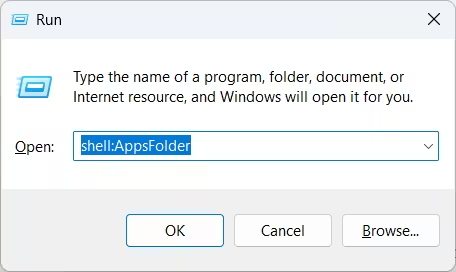
File Explorer opens a grid of every app registered with Windows. Right-click any entry to create a shortcut, open its properties, or uninstall it, depending on the app type. You can also paste shell:AppsFolder into the File Explorer address bar.
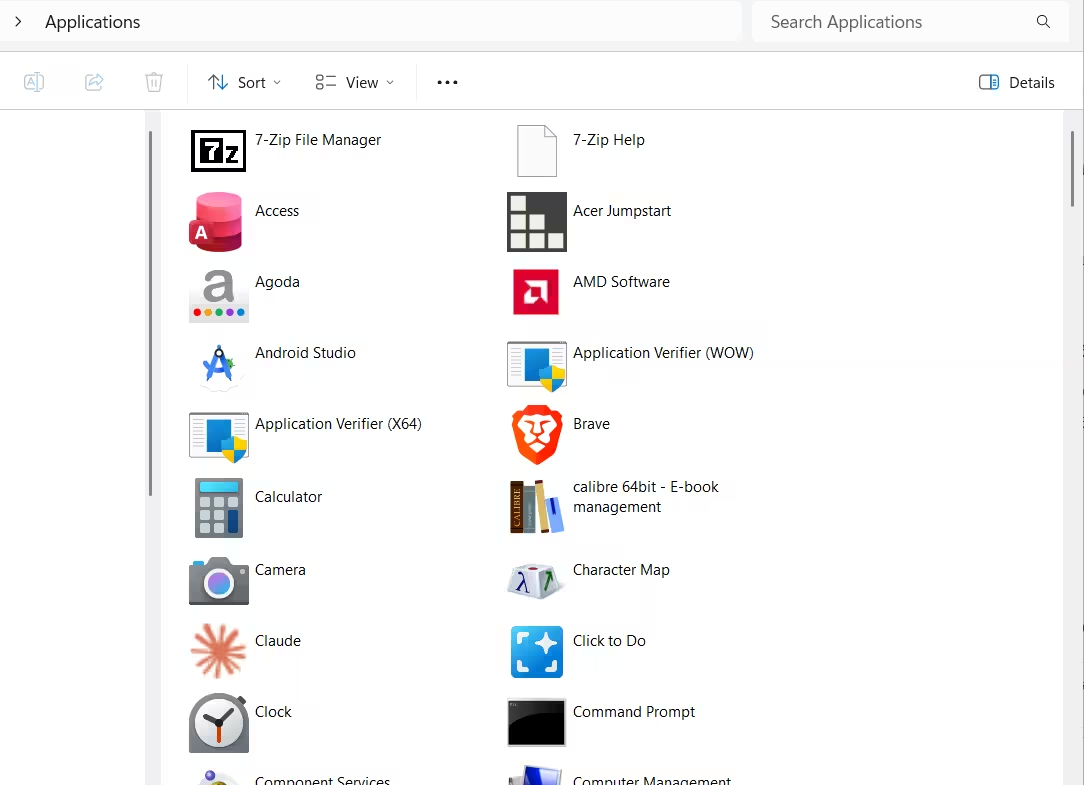
Expect some entries to look unfamiliar. System components and tools without Start shortcuts often appear with plain names or generic icons.
Method 2: Check Installed Apps in Windows Settings
The Settings app gives you a sortable, searchable list with direct uninstall buttons.
- On Windows 11, go to Settings > Apps > Installed apps.
- On Windows 10, go to Settings > Apps > Apps & features.
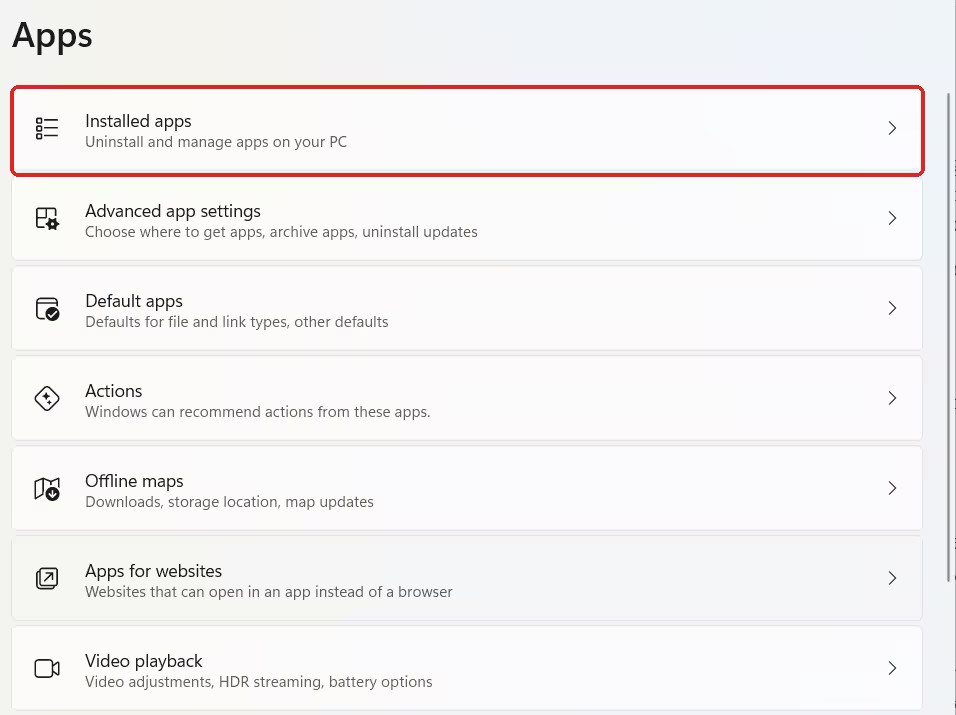
Use this page when you want to confirm an app exists or remove one you no longer need. It also helps when you free up storage, because you can sort by size and see the biggest programs first.
Method 3: Browse the Program Files and ProgramData Folders
Classic desktop programs install to disk, and the folders show you exactly what sits there. Open File Explorer and check both locations:
C:\Program Filesholds 64-bit applications.C:\Program Files (x86)holds 32-bit applications on a 64-bit system.
Start menu shortcuts for all users live in %ProgramData%\Microsoft\Windows\Start Menu. Press Windows + R, enter %ProgramData%, and press Enter to jump there. If an installed app has no shortcut in that folder, you have found the reason it never shows in Start.
If an app refuses to launch from search, open its folder and run the executable directly.
Method 4: List Hidden Store Apps With PowerShell (Get-AppxPackage)
PowerShell gives you the most accurate view of Microsoft Store style packages (AppX and MSIX). Open PowerShell and run:
Get-AppxPackage | Select-Object Name, PackageFullName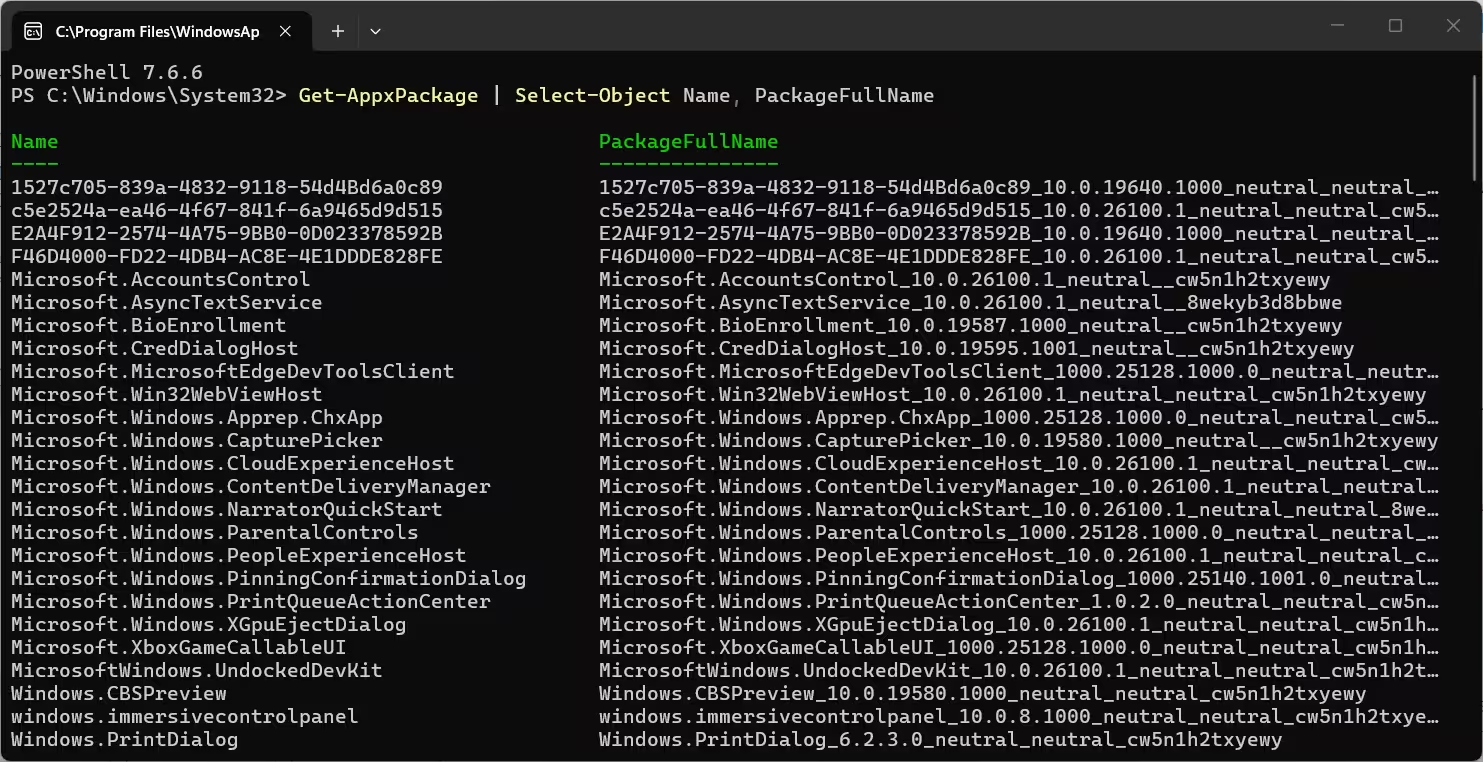
This command lists packages installed for your current user account, including ones that never appear as regular apps in Start. Add InstallLocation to the selected fields if you want to see where each package sits on disk.
To search for one specific package, use a wildcard:
Get-AppxPackage -Name "*Calculator*"You need an elevated PowerShell window (run as administrator) if you want to inspect packages for other accounts with the -AllUsers switch.
How to Fix an Installed App Missing From the Start Menu
Sometimes the app exists and Start simply fails to show it. Work through these steps in order, and stop as soon as one works.
- Search for it. Press the Windows key and type the app name. If it appears, right-click the result and choose Pin to Start.
- Check the app list setting. On Windows 10, open Settings > Personalization > Start and turn on Show app list in Start menu. On Windows 11, open Start and select All to see the full list instead of only the pinned area.
- Repair the app. Go to the app’s Advanced options page in Settings and select Repair. Use Reset only if Repair fails, because Reset erases the app’s local data.
- Re-register the package. If the app appears in
Get-AppxPackagebut still will not launch, run this command for that single app, swapping in its package name:
Get-AppxPackage -Name "*Calculator*" | ForEach-Object { Add-AppxPackage -DisableDevelopmentMode -Register "$($_.InstallLocation)\AppxManifest.xml" }
Restart your PC afterward so Start and Search refresh their cached state.
If several built-in apps break at once, run DISM.exe /Online /Cleanup-image /Restorehealth followed by sfc /scannow from an elevated terminal to repair deeper system corruption.
How to Show the All Apps List in the Windows 11 Start Menu
If the All apps button is missing from Start entirely, a registry value or a Group Policy setting probably hides it. On a work or school PC, an administrator may have set this on purpose, so check with your IT team first.
Registry Editor
- Press Windows + R, type
regedit, and press Enter. - Go to
HKEY_CURRENT_USER\Software\Microsoft\Windows\CurrentVersion\Policies\Explorer. - Find the
NoStartMenuMoreProgramsvalue. Set it to0or delete it to show All apps. A value of1hides the list.
PowerShell
Open PowerShell as administrator and run:
Set-ItemProperty -Path "HKCU:\Software\Microsoft\Windows\CurrentVersion\Policies\Explorer" -Name "NoStartMenuMorePrograms" -Value 0Group Policy (Windows Pro and higher)
- Press Windows + R, type
gpedit.msc, and press Enter. - Open User Configuration > Administrative Templates > Start Menu and Taskbar.
- Double-click Remove All Programs list from the Start menu and select Not Configured or Disabled.
- Run
gpupdate /forcein an elevated Command Prompt.
Restart File Explorer or sign out and back in to apply the change. Hiding the All apps list never uninstalls anything. The apps stay reachable through search, the Run dialog, and File Explorer.
Which Hidden Apps Are Safe to Remove?
A long list does not mean a bloated PC. Many entries are frameworks, runtimes, and system components that Windows or other apps depend on. Removing the wrong one can break features or other software.
Remove an app only when you recognize it and know you no longer need it. Search for any package name you do not recognize before you uninstall it.
Which Method Should You Use? (Quick Comparison)
| Goal | Best method |
|---|---|
| See nearly everything registered | shell:AppsFolder |
| Uninstall or sort by size | Settings > Apps |
| Find where a program sits on disk | Program Files folders |
| Audit Store and MSIX packages | Get-AppxPackage |
| Bring back a missing Start entry | Search, then Pin to Start |
| Restore a hidden All apps button | Registry or Group Policy |
Start with shell:AppsFolder the next time something seems to vanish. In most cases the app is still on your PC and only needs a different route to reach it.
Frequently Asked Questions
Why can’t I see all my installed apps in the Start menu?
Start only shows apps that have a shortcut in the folders it scans. Portable apps, background tools, and programs installed without a shortcut stay out of the list even though Windows registered them.
What does shell:AppsFolder do?
It opens a virtual folder in File Explorer that lists every app registered with Windows, including desktop programs and Microsoft Store apps. You can sort the list, search it, and right-click entries to create shortcuts or uninstall them.
Does Get-AppxPackage show all installed programs?
No. It lists only AppX and MSIX packages for your current user account. Traditional programs installed with an EXE or MSI installer do not appear there. Use shell:AppsFolder or Settings > Apps to see those.
Is it safe to delete the unfamiliar apps I find?
Not always. Many entries are system components or frameworks that other software needs. Look up any package name you do not recognize before you remove it, and uninstall only apps you know you do not need.
How do I bring back the All apps list in the Windows 11 Start menu?
Set the NoStartMenuMorePrograms registry value to 0 (or delete it), or switch the “Remove All Programs list from the Start menu” policy to Not Configured. Then restart File Explorer or sign out and back in.
Read More
- How to Hide Name and Profile Picture on Start Menu in Windows 11
- Windows 11 Gets Modular Start Menu With Resize and Section Toggles in Build 26300.8553
- Windows 11 New Start Menu Categories Layout Is Rolling Out: Why It Needs a Resize Button
- Windows 11 KB5074157 Update Brings Start Menu, Taskbar, and Bluetooth Fixes
