Your Gmail address does far more than receive mail. It acts as the master key for shopping sites, banking alerts, cloud storage, social logins, and every password reset you ever request. If someone breaks into it, they can take over much of your digital life without touching another account.
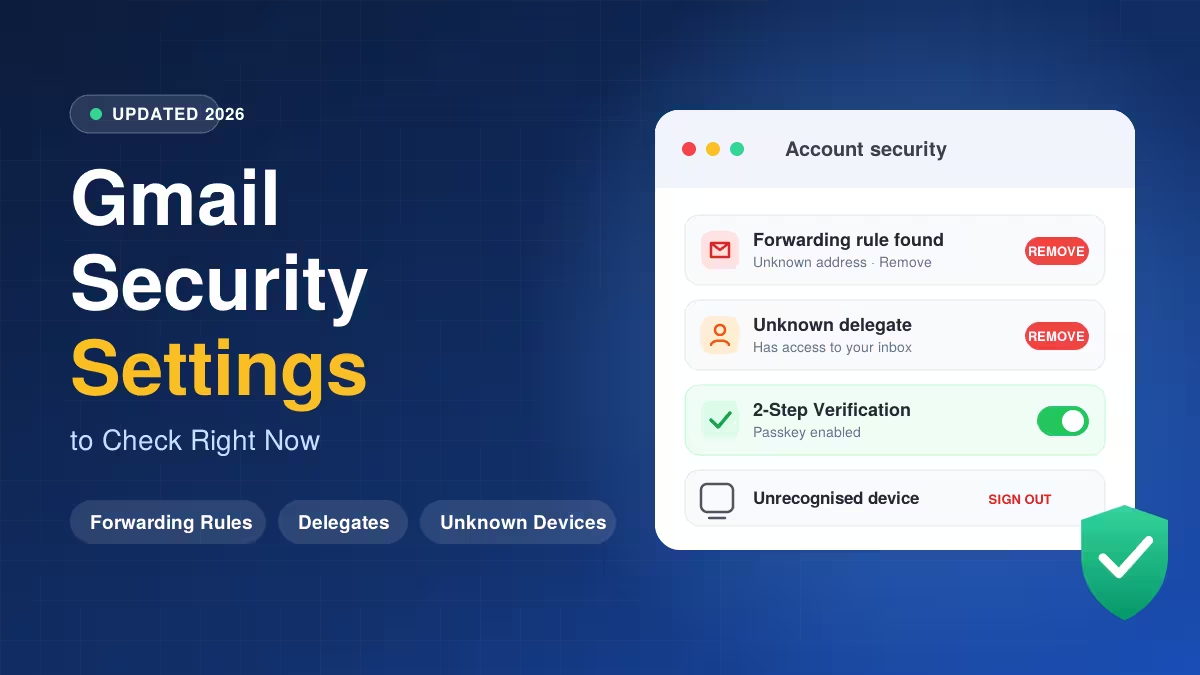
The good news is that Google gives you strong tools to stop that. This guide walks you through the Gmail security settings worth your time, in the order that protects you best.
Run the Google Security Checkup First
Google's Security Checkup gives you a personalized list of fixes in one place, so it makes the best starting point. Open your Google Account, select Security, and look at the status icon near the top. A green shield means nothing needs attention. A yellow, red, or blue alert means Google found something to fix, such as a missing recovery phone number or a weak sign-in method.
Work through each recommendation, then move on to the deeper Gmail checks below. You can also open the Google Security Checkup directly at any time.
Check Gmail for Hidden Forwarding Rules, Filters and Delegates
Most people change their password after a scare and consider the problem solved. It is not. A password change signs out live sessions, but it does not remove settings that an intruder planted inside your mailbox. Those settings keep working quietly in the background, so check them first.
Turn Off Gmail Auto-Forwarding to Unknown Addresses
Forwarding sends a copy of every new message to another address, and you never see it happen. An attacker who gets in for just a few minutes can switch it on and read your password resets and receipts for months.
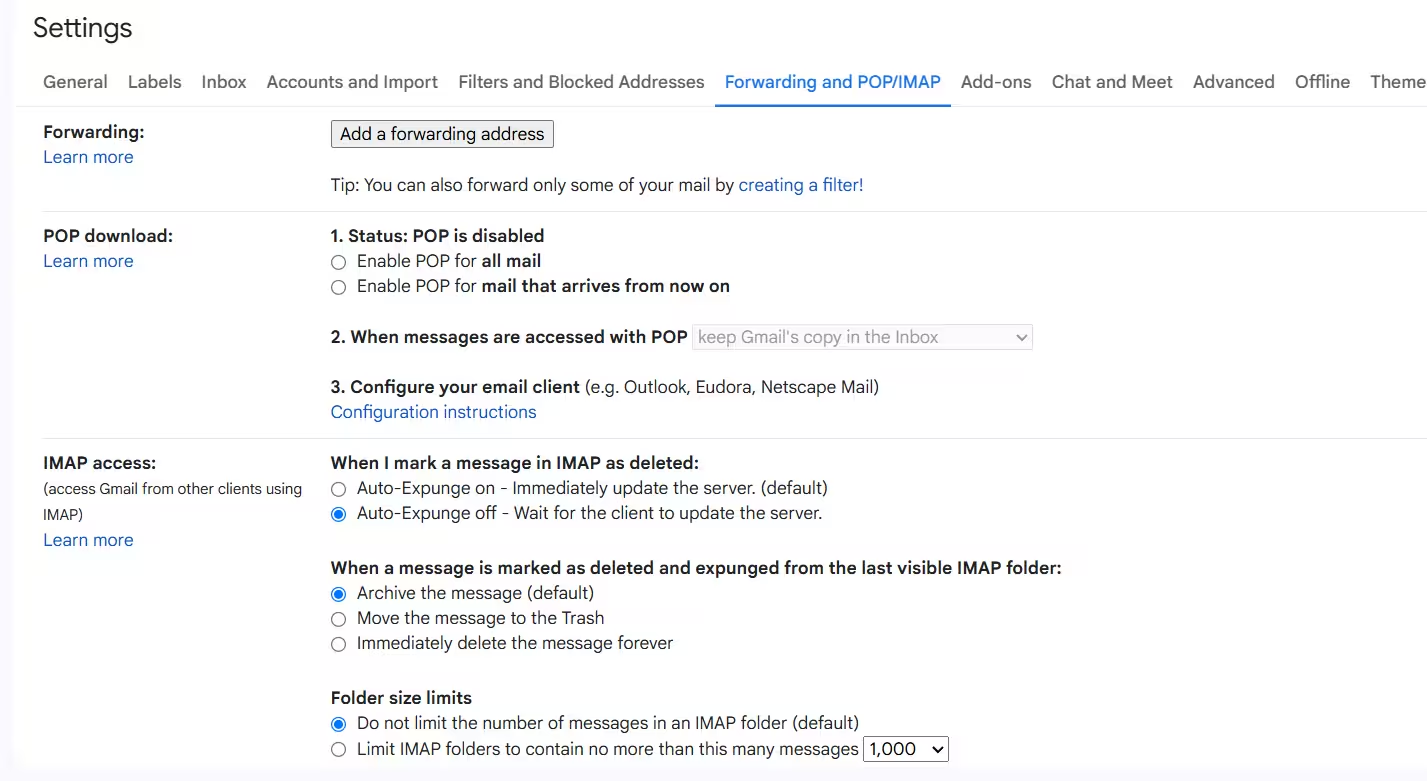
- Open Gmail on a computer and click the gear icon.
- Select See all settings.
- Open the Forwarding and POP/IMAP tab.
- If you see an address you do not recognize, remove it and choose Disable forwarding.
- Click Save Changes.
Delete Suspicious Gmail Filters
Filters can forward mail too, and they will not appear on the Forwarding tab. Some also delete messages automatically, which lets an intruder bury Google's security alerts before you read them.
Open the Filters and Blocked Addresses tab and read each rule. Delete anything that forwards to an unknown address or sends mail straight to the trash. If you did not create the rule, remove it.
Remove Unknown Gmail Delegates
Delegation lets another Google account open your inbox, read messages, send mail as you, and delete conversations. Delegates do not need your password, and their activity looks like your own.
Go to Settings, open Accounts and Import, and find Grant access to your account. Delete any address you do not know. You can only manage delegates from the desktop site, not the Gmail app.
Clean Up First, Then Change Your Password
Do this cleanup before you change your password. A delegate who stays connected can get back in and rebuild everything you just removed.
Review Gmail Account Activity and Sign Out Unknown Devices
Gmail keeps a log of your recent connections. Scroll to the bottom right of your inbox on a desktop browser and click Details under the "Last account activity" line. The pop-up lists the most recent sessions with their IP addresses, access types, and times. If anything looks wrong, click Sign out all other web sessions.
For a wider view, open your Google Account, go to Security, and select Manage all devices under Your devices. Look for unfamiliar devices, odd locations, or browsers you never use. Stay calm before you act, though. An airport network, a hotel computer, or a freshly reset phone can look strange without meaning trouble. If a device truly is not yours, select it and choose Sign out.
Turn On 2-Step Verification and Pick the Right Method
Two-step verification, often called 2FA, makes a stolen password useless on its own. A thief also needs something you physically hold, such as your phone.
To enable it, open your Google Account, go to Security, and select 2-Step Verification. Then follow the prompts. Google offers several methods, and they differ in strength:
- Google prompts ask you to tap a confirmation on your phone.
- Authenticator apps generate a short-lived code on your device.
- SMS codes arrive by text, which is convenient but weaker, because criminals can hijack a phone number through SIM swap attacks.
- Hardware security keys use a physical tap and give the strongest protection.
Most people do well with a prompt or an authenticator app. If you manage a business account, a public profile, or anything attackers would love to own, add a hardware key.
Set Up a Passkey for Phishing-Proof Gmail Sign-In
A passkey lets you sign in with your fingerprint, face, or screen lock instead of typing a password. Nobody can copy it, share it, or trick you into typing it on a fake page, so it resists phishing far better than a password does.
Create one from your Google Account's passkey page and select Create a passkey. Use this only on devices you own and control. Anyone who can unlock that device can reach your account through the passkey, so protect your screen lock with a strong PIN.
Audit Third-Party Apps With Access to Your Gmail
Over the years you probably clicked "Sign in with Google" on plenty of sites and apps. Some of them can still read, send, or delete your email.
Open your Google Account and find the section for third-party apps and services, then choose See all connections. Select any app to check what it can do and when you approved it. Remove anything you no longer use or do not recognize. Revoking access does not erase data the app already collected, so contact the company directly if you want that deleted.
Update Your Gmail Recovery Phone and Email
Recovery phone number and backup email addresses decide whether you can get back into a locked account. They also power the suspicious-activity alerts Google sends you. Open the Security page, confirm both are correct, and update them if you changed numbers or abandoned an old inbox.
Who Needs Google's Advanced Protection Program
Google offers a free Advanced Protection Program for people attackers target on purpose, such as journalists, activists, executives, and election staff. It requires a passkey or security key to sign in, limits which third-party apps can touch your data, and adds stricter recovery checks.
The extra safety has a cost. You cannot sign in on a new device without your key, some apps will lose access, and account recovery takes longer. Most everyday users do not need it, but high-profile users should seriously consider it.
Gmail Security Habits That Keep Your Account Safe
Settings only help if you maintain them. Keep these habits:
- Never share a verification code with anyone. Google will not phone you to ask for one.
- Rerun the Security Checkup every few months, because recommendations change and old devices pile up.
- Watch for warning signs, such as missing mail, friends reporting spam from you, sent messages you never wrote, or emails that vanish without reaching Trash.
If any of those signs appear, remove forwarding rules, filters, and delegates first. Then change your password and sign out of every device.
Frequently Asked Questions
Does changing my Gmail password remove a hacker's access?
It signs out active sessions, but it does not delete forwarding rules, filters, or delegates. Remove those first, then change your password.
How do I check if someone else is reading my Gmail?
Click Details at the bottom right of your inbox to review recent sessions, then check Forwarding, Filters, and Accounts and Import in settings. Also review Your devices in your Google Account.
Which two-step verification method is safest?
Hardware security keys and passkeys offer the strongest protection. Authenticator apps and Google prompts work well for most people, while SMS codes are the weakest option.
Can a Gmail delegate see my emails without my password?
Yes. A delegate signs in from their own Google account and can read, send, and delete mail from yours. Remove any delegate you do not recognize under Accounts and Import.
Is Google's Advanced Protection Program worth it?
It suits high-risk users such as journalists, activists, and executives. Regular users can usually stay safe with 2-Step Verification, passkeys, and regular checkups.