You restart your laptop and a blue BitLocker screen asks for a recovery key. You find the key, type it in, and Windows still refuses to load. Instead, you see "Your device ran into a problem and couldn't be repaired," and every attempt to continue ends with the stop code CRITICAL_SERVICE_FAILED (0x5A).
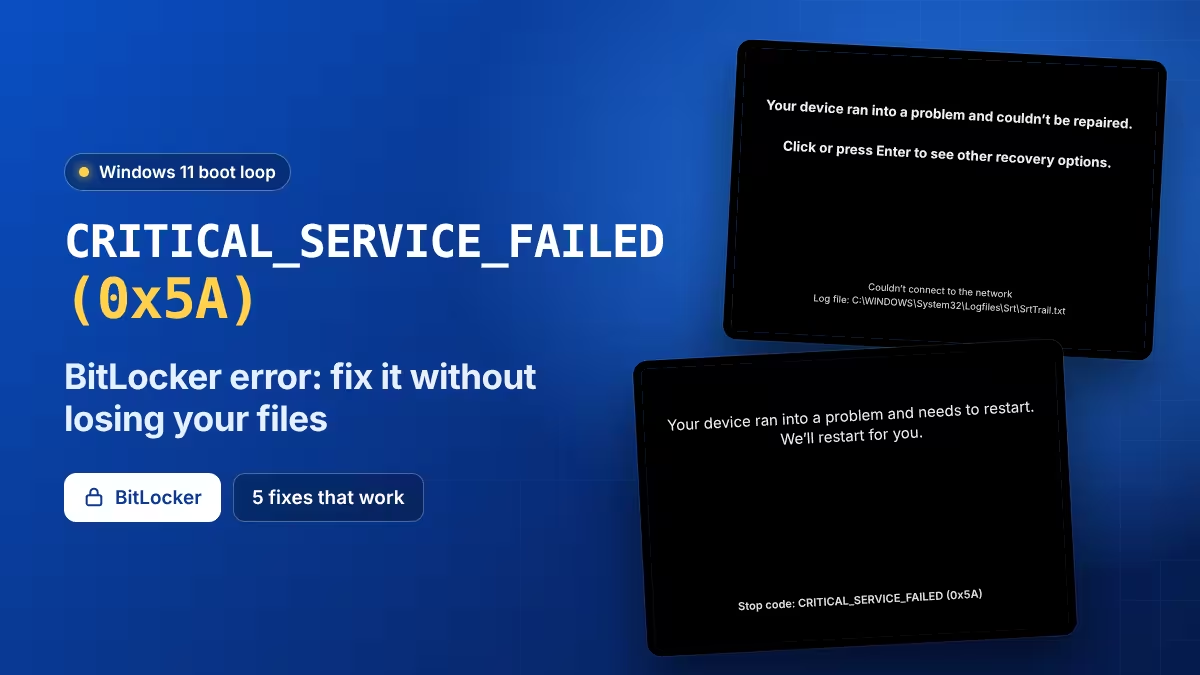
This combination looks scary, but in most cases your files are safe. BitLocker did its job once you entered the key. The real problem is a boot failure inside Windows itself, and you can usually fix it from the recovery menu without losing anything.
What Causes CRITICAL_SERVICE_FAILED (0x5A) After the BitLocker Screen?
Windows throws the 0x5A stop code when a critical service or driver fails to start during boot. A bad driver update, a broken Windows update, or a low-level program such as an anti-cheat or antivirus driver can trigger it.
BitLocker often appears first because a firmware or BIOS update, a hardware change, or a failed boot makes the TPM chip distrust the startup process. When that happens, Windows asks for the recovery key before it unlocks the drive. So the BitLocker screen is a symptom, not the cause.
If BitLocker keeps asking for the key after you enter it correctly, you have a boot problem, not an encryption problem.
How to Find Your BitLocker Recovery Key in Windows 11
You need the 48-digit BitLocker recovery key for almost every fix below, because the recovery tools must unlock the drive.
- On another phone or PC, sign in at the Microsoft recovery key page with the same Microsoft account you use on the laptop.
- Match the Key ID shown on the BitLocker screen with the one listed on the page.
- Write the key down or keep the page open.
If you use a work or school PC, your IT admin may hold the key instead. Nobody can bypass BitLocker without it. If your account page shows nothing, see the fix for a recovery key not showing.
Fix 1: Use System Restore From Windows Recovery (Works for Most Users)
System Restore rolls back system files, drivers and updates to an earlier point. It leaves your documents, photos and other personal files alone. This fix solves the problem for most users.
- On the "couldn't be repaired" screen, press Enter or click to see other recovery options.
- Select Troubleshoot, then Advanced options, then System Restore.
- Enter your BitLocker recovery key if Windows asks for it.
- Pick a restore point created before the crash started. Windows often creates one automatically before updates or driver installs.
- Confirm and let the restore finish. Your PC restarts on its own.
If Windows boots normally, back up your files right away, then reinstall any app you suspect caused the crash.
Fix 2: Boot Windows 11 in Safe Mode and Remove the Faulty Driver or App
Safe Mode loads Windows with only basic drivers. If a third-party driver breaks the boot, Safe Mode usually skips it.
- From the recovery menu, open Troubleshoot, then Advanced options, then Startup Settings, and click Restart.
- After the restart, press 4 or F4 for Safe Mode.
- Once you reach the desktop, open Settings, then Apps, and uninstall anything you added just before the crash, such as a game anti-cheat, a VPN, an antivirus or a new driver utility.
- Restart normally.
You can also open Device Manager in Safe Mode and roll back any driver you recently updated.
Fix 3: Uninstall the Latest Windows 11 Update From Recovery
A faulty cumulative update can break a critical service. Removing it often brings Windows back. For a related case, see the KB5083769 BitLocker and reboot issues.
- In the recovery menu, go to Troubleshoot, then Advanced options, then Uninstall Updates.
- Choose Uninstall latest quality update first.
- If that does not help, come back and try Uninstall latest feature update.
Fix 4: Run SFC and DISM Commands in Recovery Command Prompt
Corrupted system files can also stop Windows services from starting. You can repair them from the recovery Command Prompt.
- In the recovery menu, open Troubleshoot, then Advanced options, then Command Prompt.
- Enter your recovery key if prompted.
- Find your Windows drive. Recovery mode sometimes assigns a different letter, so type
dir C:\anddir D:\until you see the Windows folder. - Run these commands, replacing C: with your Windows drive letter:
sfc /scannow /offbootdir=C:\ /offwindir=C:\Windows
DISM /Image:C:\ /Cleanup-Image /RestoreHealth- Type
exitand restart the PC.
If the drive shows as locked, unlock it first with:
manage-bde -unlock C: -RecoveryPassword YOUR-48-DIGIT-KEYFix 5: Reset Windows 11 and Keep Your Files (Last Resort)
Use this option only when nothing else works. Reset reinstalls Windows and removes your installed apps, but the Keep my files option preserves your personal files.
- Go to Troubleshoot, then Reset this PC.
- Choose Keep my files. Never pick Remove everything unless you have a backup.
- Pick Cloud download or Local reinstall and follow the prompts.
Even with Keep my files, back up your data first if you can. The next section shows how.
How to Back Up Your Files When Windows 11 Won't Boot
If your laptop holds work or college files without a backup, copy them out before you reset anything.
- Create a Windows 11 installation USB on another PC using the Media Creation Tool.
- Boot the laptop from the USB and press Shift + F10 on the setup screen to open Command Prompt.
- Unlock the drive with
manage-bde -unlock C: -RecoveryPassword YOUR-48-DIGIT-KEY. - Type
notepadand press Enter. In Notepad, use File, then Open as a simple file browser to copy folders onto a second USB drive.
A Linux live USB with BitLocker support works too, but the Windows USB method needs no extra tools.
How to Stop BitLocker Recovery and Boot Errors From Coming Back
- Save your BitLocker recovery key in your Microsoft account, on paper, and in a password manager.
- Keep System Protection turned on so Windows creates restore points automatically.
- Back up important folders to OneDrive or an external drive every week.
- Update your BIOS and chipset drivers from your laptop maker's support site, since firmware changes can trigger BitLocker recovery.
- Suspend BitLocker before you update the BIOS, then resume it afterward.
Frequently Asked Questions
Will System Restore delete my files?
No. System Restore changes system files, drivers, settings and installed programs. It does not touch your documents, pictures, downloads or other personal files.
Why did BitLocker turn on by itself?
Many Windows 11 laptops enable device encryption automatically when you sign in with a Microsoft account. It stays invisible until something, like a firmware update or a boot failure, makes Windows ask for the recovery key. Once Windows works again, you can turn off BitLocker if you do not want it.
Can I fix CRITICAL_SERVICE_FAILED without the recovery key?
Not if the drive uses BitLocker. Every repair tool needs to unlock the drive first. Check your Microsoft account, your work IT team, or any printout you saved during setup.
Can a game anti-cheat cause this error?
It can. Anti-cheat programs install kernel-level drivers that load early in the boot process, so a broken update may stop Windows from starting. Uninstall or reinstall the game from Safe Mode if you suspect it.
Will reinstalling Windows from a USB erase my data?
A clean install that formats the BitLocker drive erases everything. An in-place install or Reset this PC with Keep my files preserves personal files, but always copy them out first when you can.
Related Guides
- How to Disable BitLocker on Windows 11 (4 Easy Methods)
- How to Turn Off BitLocker in Windows 11 (5 Methods That Work)
- How to Fix HP BIOS Update BitLocker Recovery Loop on Windows 11
- Fix BitLocker Recovery Key Prompt on Every Boot in Windows 11
- YellowKey BitLocker Vulnerability (CVE-2026-45585) on Windows 11: What It Is and How to Fix It