The EA App is a widely used platform for launching and playing games. However, players may occasionally encounter login issues, such as EA Error Code EC:10005, which prevents them from accessing their accounts or launching games. This error is typically related to network connectivity issues between the EA app and its servers.
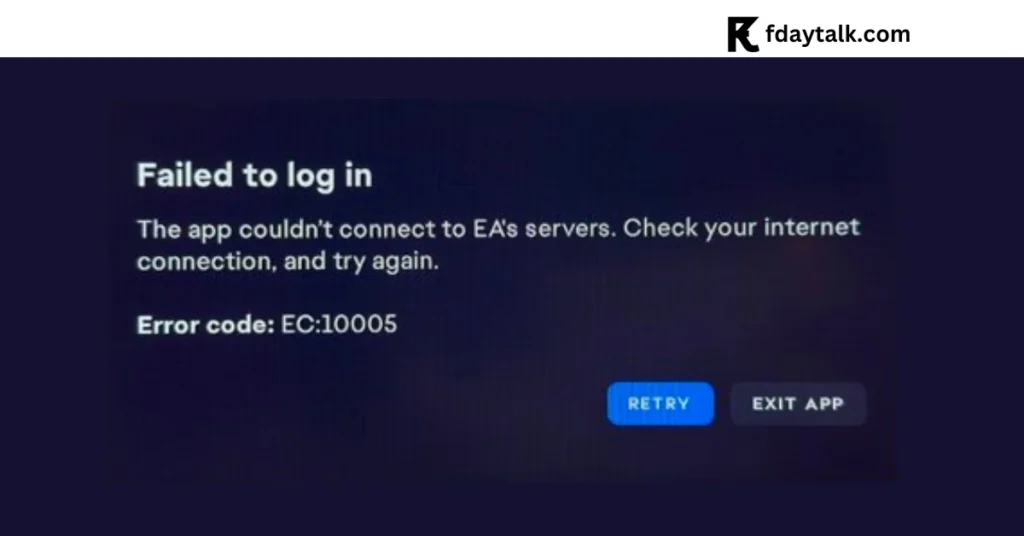
Failed to log in
The app couldn't connect to EA's servers. Check your internet connection, and try again.
Error code: EC:10005
In this guide, we’ll explore the possible causes of this error and provide comprehensive solutions to resolve it quickly.
Causes of EA Error Code EC:10005
The EC:10005 error often occurs due to the following reasons:
- Server outages: EA’s servers may be down due to maintenance or technical issues.
- Internet connectivity problems: Weak or unstable internet connections can interfere with the EA app’s functionality.
- Network restrictions: Firewall, VPN, or proxy settings may block EA app connections.
- Corrupted cache files: The EA app’s stored cache files can become corrupted, affecting login.
- Software conflicts: Background applications may interfere with the EA app’s network access.
- Recent Windows or EA App Updates: Some users reported issues after updating their OS or EA App.
How to Fix EA Error Code EC:10005
Here are several effective solutions to resolve this issue:
1. Check EA Server Status
- Visit the EA Help Server Status Page to check for ongoing outages.
- If the servers are down, wait for EA to resolve the issue before attempting to log in again.
2. Run the EA App as an Administrator
- Right-click on the EA App icon.
- Select Run as administrator.
- Try logging in again.
3. Clear the EA App Cache
- Open the EA App.
- Click on Help from the menu.
- Select App Recovery.
- Click Clear Cache and restart the app.
4. Restart Your Internet Connection
- Power off your router and modem for at least 30 seconds.
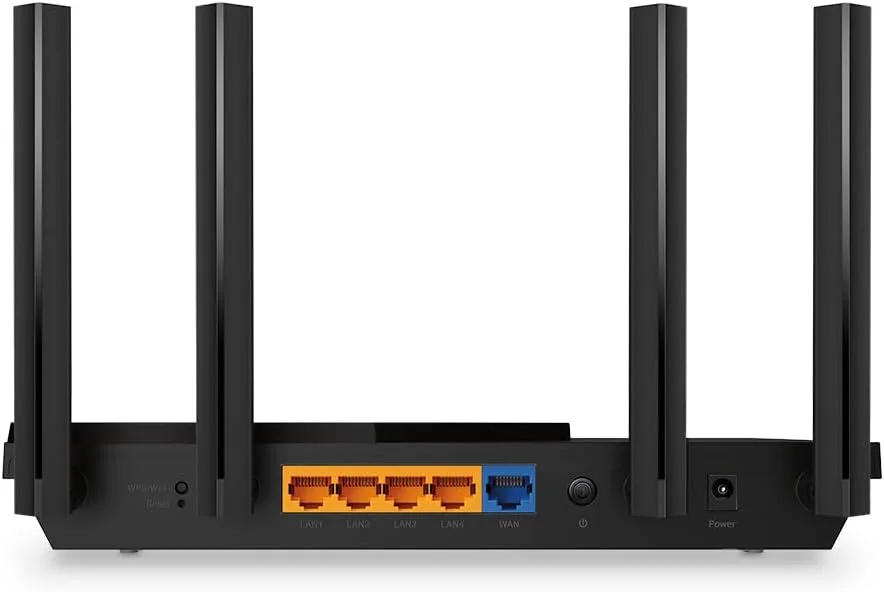
- Restart them and try logging in again.
- If possible, switch to a different network (e.g., mobile hotspot) to see if your ISP is causing the issue.
5. Disable VPNs and Proxy Settings
- Some users reported that they could log in while using a VPN, but lost connection when disabling it. If this happens, your ISP might be blocking EA services.
- Try the following steps to disable proxies:
- Press
Win + R, typeinetcpl.cpl, and press Enter.
- Press
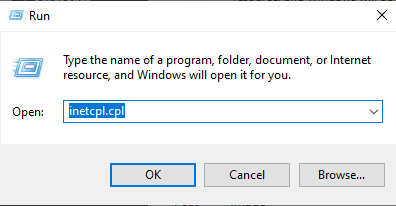
- Go to the Connections tab and click LAN settings.
- Ensure that Use a proxy server for your LAN is unchecked.
6. Perform a Clean Boot
If other background applications are interfering with the EA app, performing a clean boot can help:
- Press
Win + R, typemsconfig, and hit Enter.
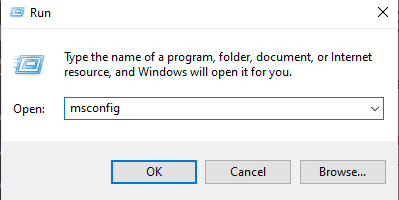
- Go to the Services tab, check Hide all Microsoft services, and click Disable all.
- Restart your computer and try launching the EA app.
7. Reinstall the EA App
If none of the above solutions work, reinstalling the EA app can help:
- Uninstall the EA App from Control Panel > Programs > Uninstall a program.
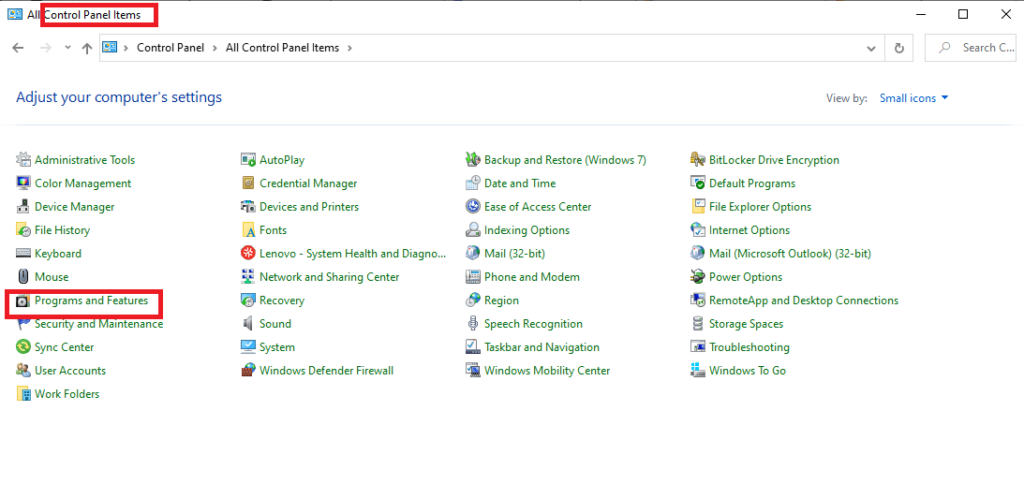
- Download the latest version from the EA website and reinstall it.
- Try logging in again.
8. Use an Alternate Login Method
- If you linked your EA account to Steam, Epic Games, or Xbox, try logging in via those platforms instead of using your EA credentials.
- Some users found success by using the EA website to log in first before launching the app.
9. Contact EA Support
If none of these fixes work, you may need to contact EA Support:
- Visit EA Help.
- Select your game and describe the issue.
- Provide any Error Report IDs if available.
Conclusion
EA Error Code EC:10005 is a common issue that can often be fixed by clearing the app cache, checking EA server status, troubleshooting network connections, or reinstalling the EA app. If the issue persists, reaching out to EA’s customer support may be necessary.
Have you encountered this error before? Let us know in the comments if these solutions worked for you!