Type a query into the Edge address bar and you land on Bing, whether you want it or not. If you prefer Google, DuckDuckGo, Brave Search or another provider, you can switch in under a minute. Edge just buries the setting inside its privacy menu, so most people never find it.
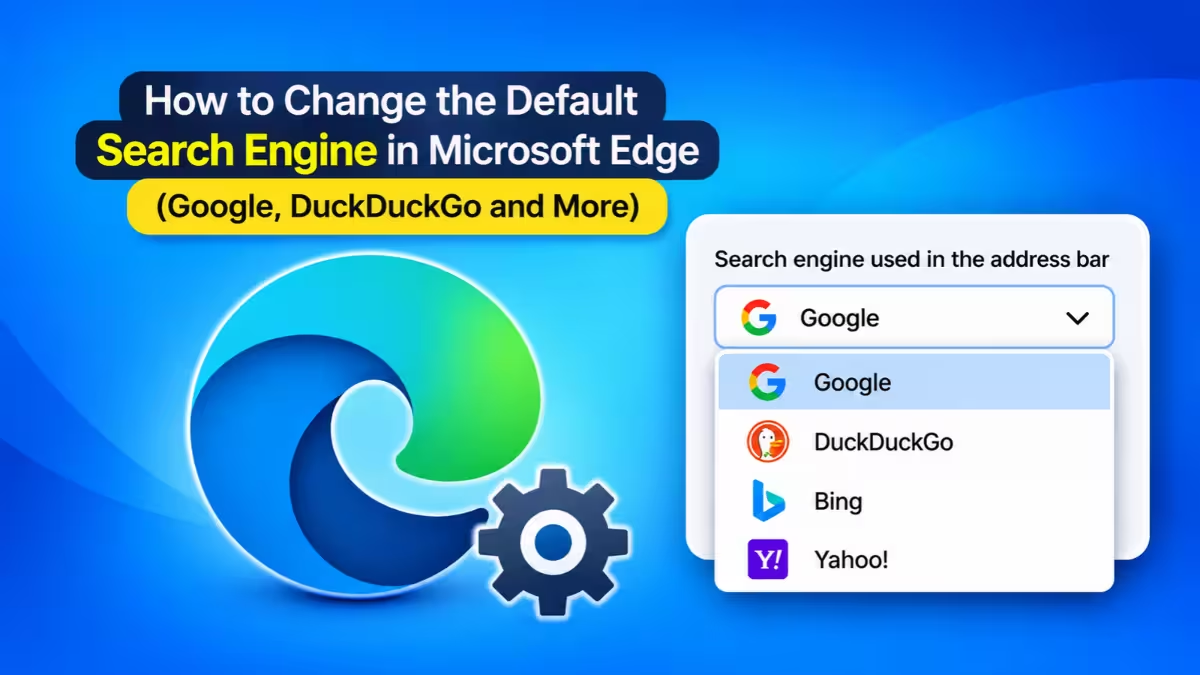
This guide covers the quick switch, the fix for engines missing from the list, and the extra tweaks that make Google your home and startup page too. Every step works on Windows 11 and Windows 10.
Quick Steps to Change the Edge Search Engine
- Paste
edge://settings/privacy/services/searchinto the Edge address bar and press Enter. - Open the Search engine used in the address bar dropdown.
- Pick your preferred provider.
Edge applies the change instantly, with no restart needed.
Check Your Edge Profile Before Changing Search Settings
Edge saves search settings per profile. If you run separate work and personal profiles, look at the profile picture in the top-right corner before you start. A change in one profile does not carry over to the others.
How to Make Google the Default Search Engine in Edge
Use this method when your preferred engine already shows up in the dropdown. The list varies by region, but Google, DuckDuckGo, Yahoo and Bing usually appear.
- Open Microsoft Edge.
- Click the three-dot Settings and more button in the top-right corner and choose Settings.
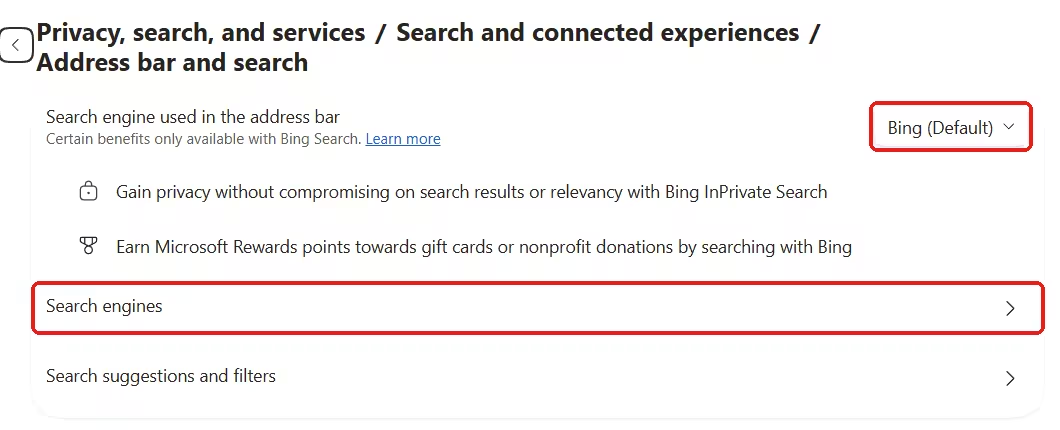
- Select Privacy, search, and services from the left panel.
- Open Search and connected experiences (some builds call it Search and connected services).
- Click Address bar and search.
- Open the Search engine used in the address bar dropdown and choose Google or another provider.
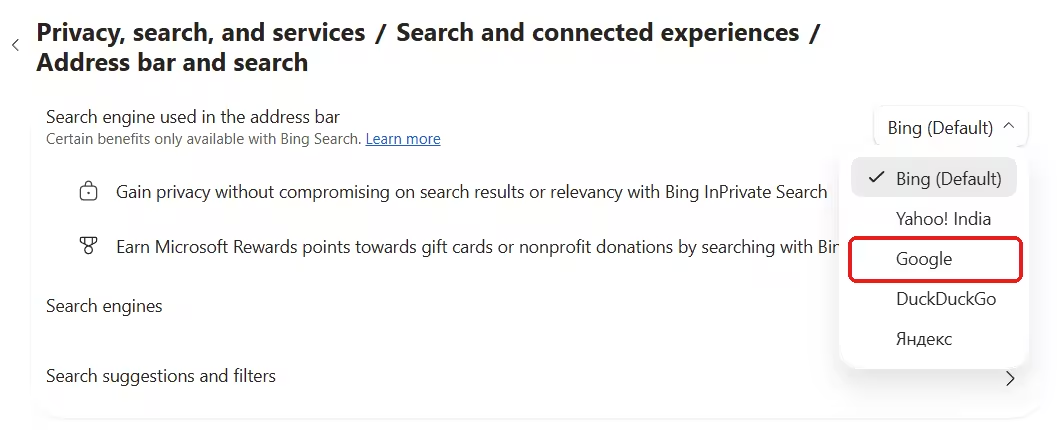
Type any query in the address bar and press Enter to confirm the new engine handles it.
Tip: Skip the menu clicks entirely. Typing
edge://settings/privacy/services/searchtakes you straight to the right page.
Add Any Search Engine to Edge Automatically
Edge detects any site that supports OpenSearch. This works for search engines and for sites with their own search box, like a wiki.
- Visit the search engine or website you want to add.
- Run any search on that site.
- Go back to Address bar and search in Settings.
- Open the dropdown. The site you just searched now appears as an option, so select it.
Microsoft describes the same behavior on its official Edge support page.
How to Add Google to Edge Manually When It's Missing
Google sometimes disappears from the list after a fresh Edge install, a profile reset, or a cleanup tool that wipes browser data. You can add it back yourself in a few seconds.
- Open Settings > Privacy, search, and services > Address bar and search.
- Click the Search engines row on that page.
- Click the Add button.
- Fill in the three fields:
- Search engine:
Google- Shortcut:google.com- URL with %s in place of query:https://www.google.com/search?q=%s - Click Add (or Save on some versions).
- Find the new Google entry, click its three-dot menu and choose Make default.
The %s works as a placeholder. When you type a query, Edge swaps your words into that spot and sends the request to Google. One wrong character breaks the template, so copy the URL exactly.
Search URLs for DuckDuckGo, Brave and Other Engines
Follow the same steps with these templates to add a different provider:
| Search engine | URL template |
|---|---|
https://www.google.com/search?q=%s |
|
| DuckDuckGo | https://duckduckgo.com/?q=%s |
| Brave Search | https://search.brave.com/search?q=%s |
| Startpage | https://www.startpage.com/do/search?q=%s |
| Ecosia | https://www.ecosia.org/search?q=%s |
Make Google the Home Page in Microsoft Edge
The search engine setting only controls the address bar. To make the Home button open Google as well:
- Go to
edge://settings/startHomeNTP(or Settings > Start, home, and new tab page). - Turn on Show home button on the toolbar.
- Under the toggle, choose Set custom site.
- Type
https://www.google.comin the Enter URL box.
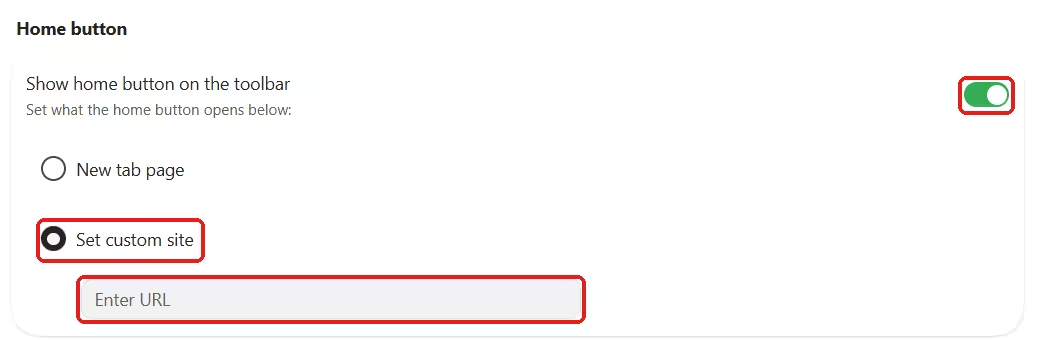
- Click the Home icon next to the refresh button to test it. Edge opens your page.
Open Google on Startup in Microsoft Edge
- On the same Start, home, and new tab page settings page, find the On startup section.
- Select Open custom sites.
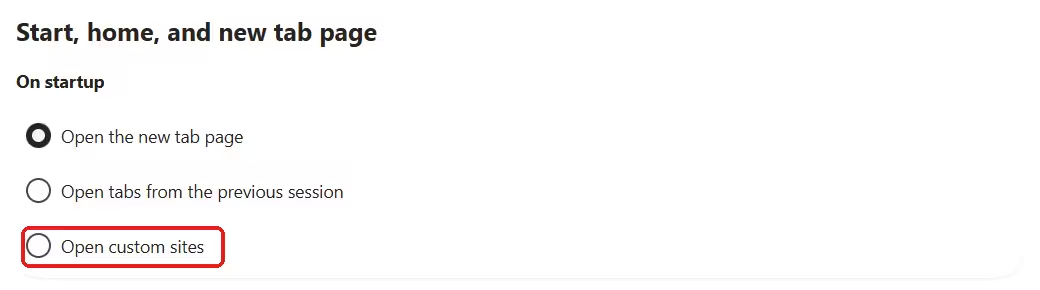
- Click Add a new page, type
https://www.google.comand click Add.
Edge now loads Google every time you launch it.
Why Does Edge Keep Switching Back to Bing? (Fixes)
If Edge returns to Bing or your manual entry fails, work through these fixes in order:
- Check the URL. Open the Search engines row and confirm the template matches exactly, including
%s. - Confirm the default. Make sure the entry shows as the default, not just as an extra option.
- Restart Edge. Close every Edge window and reopen the browser.
- Recreate the entry. Delete the faulty search engine and add it again from scratch.
- Audit your extensions. Bundled toolbars and "search helper" extensions often hijack the default engine. Visit
edge://extensionsand disable anything you don't recognize. - Update Edge. Go to
edge://settings/helpto install the latest version. - Check for policy control. IT admins often lock the search engine on work or school PCs. If you see a "managed by your organization" notice, only your admin can change it.
Will Changing the Search Engine Affect Your Edge Data?
No. Your bookmarks, history, passwords and saved form data stay exactly as they were. The change only decides where address bar queries go. You can switch back to Bing at any time from the same dropdown or from the Search engines row.
Use Search Engine Shortcuts in the Edge Address Bar
Every engine in the Search engines list has a shortcut keyword. Type that keyword in the address bar, press Tab or Space, then type your query. Edge searches that site directly and leaves your default engine untouched. This works well for sites you search often, like YouTube or Wikipedia.
Frequently Asked Questions
Why can't I find Google in the Edge search engine list?
Edge only lists engines it has detected or that ship preloaded. A reset or fresh install can clear the list. Search on google.com once, or add Google manually with the URL template above.
What is the Google search URL for Edge?
Use https://www.google.com/search?q=%s.
Can I change the search engine in Edge on Android or iPhone?
Yes. Open Edge, tap the menu, go to Settings > General > Select search engine, and pick your provider. Menu labels can differ slightly between versions.
Why does Edge switch back to Bing on its own?
An extension, bundled software, or an organization policy usually causes it. Remove suspicious extensions and check whether your device is managed.
Does Microsoft Rewards still work if I leave Bing?
No. Rewards points for searching only count when you search with Bing.
Related Guides
- How to Restore Last Session in Microsoft Edge (Windows 10 & 11)
- How to Import Chrome Passwords to Microsoft Edge and Enable Autofill
- How to Remove New York Times Ads on Your New Tab Page: Different Browsers and Ad Blockers
- How to Fix Microsoft Edge "Cannot Sign In to Work Profile" (Error Code 3, 65, 4000)
- How to Fix "Hmm Can't Reach This Page Error" in Edge and Chrome (Full Guide)