The Minecraft getsockopt error prevents the game from connecting to multiplayer servers. Many players see messages such as “Connection timed out: getsockopt” or “Connection refused: getsockopt” when trying to join a LAN world, private server, or hosted server.
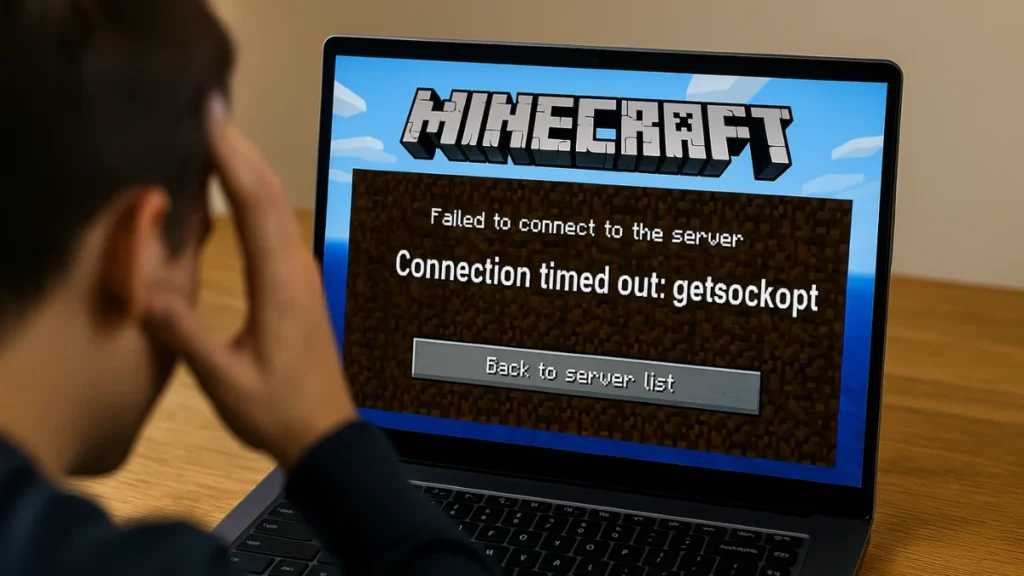
This problem usually appears in Minecraft Java Edition and happens when the game cannot establish a network socket connection to the server. In most cases, the issue is caused by firewall restrictions, incorrect server IP settings, or blocked ports.
See also: How to Fix Minecraft Java Edition Showing “Buy Now” After Purchasing the Bundle
Quick Fix Guide for Minecraft Getsockopt Error
Before trying detailed troubleshooting, check which situation matches your problem.
| Situation | Likely Fix |
|---|---|
| Cannot join LAN server | Use the correct local IP address |
| Friends cannot join your server | Fix port forwarding settings |
| Only your PC cannot connect | Allow Java through firewall |
| Works on mobile hotspot but not home Wi-Fi | ISP CG-NAT restriction |
| Server appears offline | Verify server port listening |
Quick Checks Before Troubleshooting
Before adjusting network settings, confirm a few basic things:
- Minecraft launcher is updated
- The server is running without errors
- You entered the correct IP address and port
- Java is updated
- VPN software is not interfering with the connection
If the error continues, try the fixes below.
Fix 1 – Allow Java and Minecraft Through Windows Firewall
Windows Defender Firewall often blocks Java network traffic silently. Simply disabling the firewall rarely fixes the problem because the rule still exists.
Steps
- Press Windows + S and search Firewall & Network Protection
- Click Allow an app through firewall
- Select Change settings
- Enable both Private and Public access for:
- Java(TM) Platform SE binary
- javaw.exe
- Minecraft Launcher
- Restart your PC after saving the changes.
See also: How to Fix Feather Launcher Failed to Get Minecraft Profile (Not Found Error)
Fix 2 – Use the Correct Server IP Address
Many players accidentally use the wrong IP address when connecting to a server.
Correct Usage
For LAN multiplayer
Use the local IP address:
192.168.x.xFor online servers
Use the public IP or domain address provided by the server host.
Important Router Limitation
Most routers do not support NAT loopback, which means you cannot connect to your own public IP while on the same network.
If you host a server locally, connect using your local IP address instead.
Example:
192.168.0.5:25565Fix 3 – Flush DNS Cache
Sometimes cached DNS records prevent Minecraft from resolving the correct server address.
Steps
- Open Command Prompt as Administrator
- Run the following command:
ipconfig /flushdns- Restart Minecraft and try joining the server again.
This clears outdated DNS records and refreshes network routing.
Fix 4 – Change DNS Server
Switching to a reliable DNS provider such as Google DNS can improve server connectivity.
Steps
- Open Control Panel
- Go to Network and Sharing Center
- Click Change Adapter Settings
- Right-click your Wi-Fi or Ethernet connection
- Select Properties
- Choose Internet Protocol Version 4 (IPv4)
Enter the following values:
Preferred DNS: 8.8.8.8
Alternate DNS: 8.8.4.4
Restart your network connection and reconnect to the server.
Fix 5 – Reconfigure Port Forwarding (Server Hosts Only)
If you host your own Minecraft server, your router must forward the correct port to your computer.
Required Settings
- Port: 25565
- Protocol: TCP
- Internal IP: your computer’s local IPv4 address
Best Practice
- Delete old port forwarding rules
- Assign a static IP address to your computer
- Recreate the forwarding rule
- Restart the router
Incorrect or outdated port forwarding rules are one of the most common causes of the getsockopt error.
See also: Minecraft Account Transfer From Stolen Microsoft Account: Is It Possible?
Fix 6 – Check for ISP Restrictions (CG-NAT)
Some internet providers block inbound connections using Carrier-Grade NAT (CG-NAT). When this happens, external players cannot connect to your server.
Signs of CG-NAT
- LAN works but internet players cannot join
- Server works on hotspot but not home Wi-Fi
Possible Solutions
- Request a public IPv4 address from your ISP
- Use a VPN with port forwarding
- Host the server on a cloud VPS provider
Fix 7 – Confirm the Server Is Listening on Port 25565
The Minecraft server must actively listen on the correct port.
Test Locally
Try connecting using:
localhostor
127.0.0.1Advanced Check
Open Command Prompt and run:
netstat -ano | find "25565"If nothing appears, the server is not running correctly or is using a different port.
Check the server.properties file and verify the port configuration.
Additional Situations That Trigger Getsockopt Error
Sometimes the issue is not on your computer. The error may also occur if:
- The Minecraft server is temporarily offline
- The server is restarting or updating
- Your Minecraft version does not match the server version
- A school or workplace network blocks game ports
In these cases, waiting or switching networks may solve the problem.
FAQs:
What causes the Minecraft getsockopt error?
The error occurs when Minecraft cannot establish a network connection with a server. Firewall blocks, incorrect IP addresses, missing port forwarding, and ISP restrictions are the most common causes.
How do I fix Minecraft connection timed out getsockopt?
Allow Java through the firewall, verify the correct server IP and port, flush DNS cache, and confirm that port 25565 is open and forwarded properly.
Why does Minecraft say connection refused getsockopt?
This message appears when the server rejects the connection request. Firewall rules, incorrect IP addresses, or server configuration problems usually cause this error.
Can antivirus software cause the getsockopt error?
Yes. Antivirus programs can block Java network traffic and prevent Minecraft from connecting to multiplayer servers.
Which port does Minecraft use?
Minecraft Java Edition uses TCP port 25565 by default for multiplayer server connections.