Windows notifications help you stay informed, but they often interrupt work, gaming, or presentations. If pop-ups, sounds, or alerts distract you, you can turn them off in a few simple steps. This guide explains how to disable Windows notifications completely or selectively, depending on your needs.
How to Turn Off All Notifications in Windows 11
Turning off all notifications stops banners, sounds, and alerts system-wide.
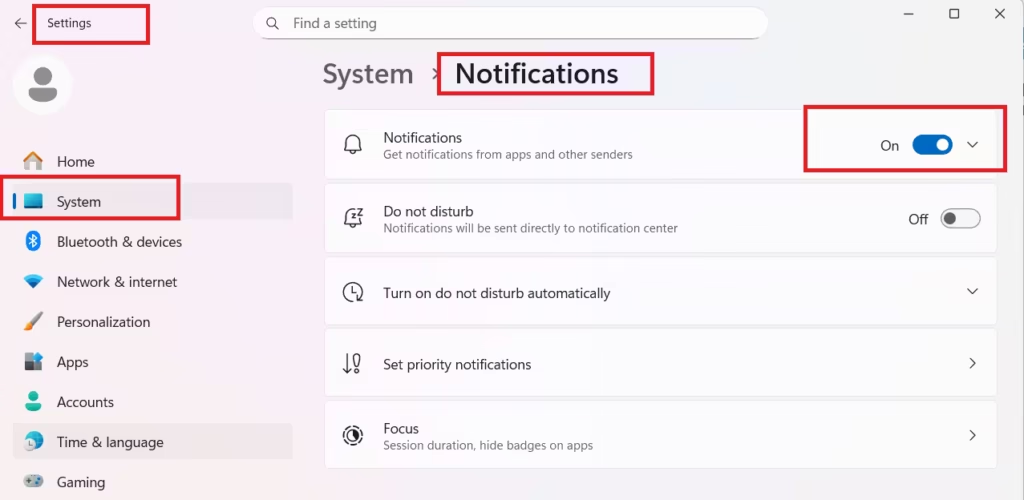
Steps
- Press Win + I to open Settings
- Click System
- Select Notifications
- Turn Notifications Off
Windows immediately stops showing alerts from all apps and system services.
How to Turn Off All Notifications in Windows 10
Steps
- Press Win + I to open Settings
- Go to System
- Click Notifications & actions
- Turn Get notifications from apps and other senders Off
This disables all notification pop-ups and sounds.
How to Turn Off Notifications for Specific Apps
If you want alerts from important apps but not from others, turn off notifications app by app.
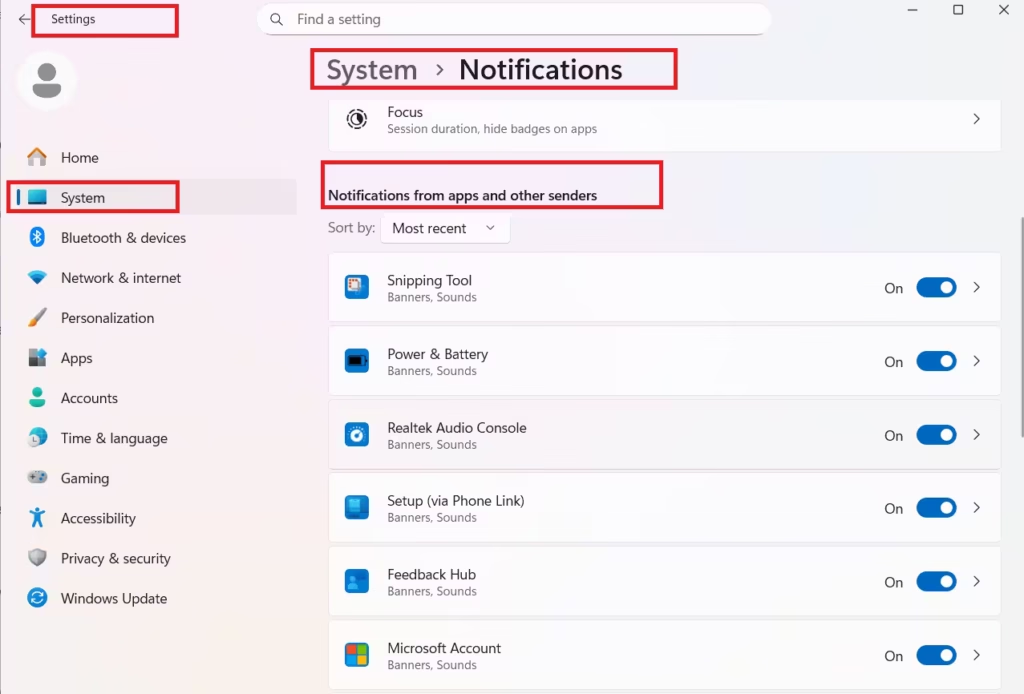
Steps
- Open Settings → System → Notifications
- Scroll to Notifications from apps
- Click the app you want to mute
- Turn Notifications Off
This method works well for browsers, messaging apps, and productivity tools.
How to Use Focus Assist to Silence Notifications Temporarily
Focus helps reduce distractions by temporarily silencing notifications. When you start a focus session, Windows automatically applies Do Not Disturb and hides visual alerts on the taskbar.
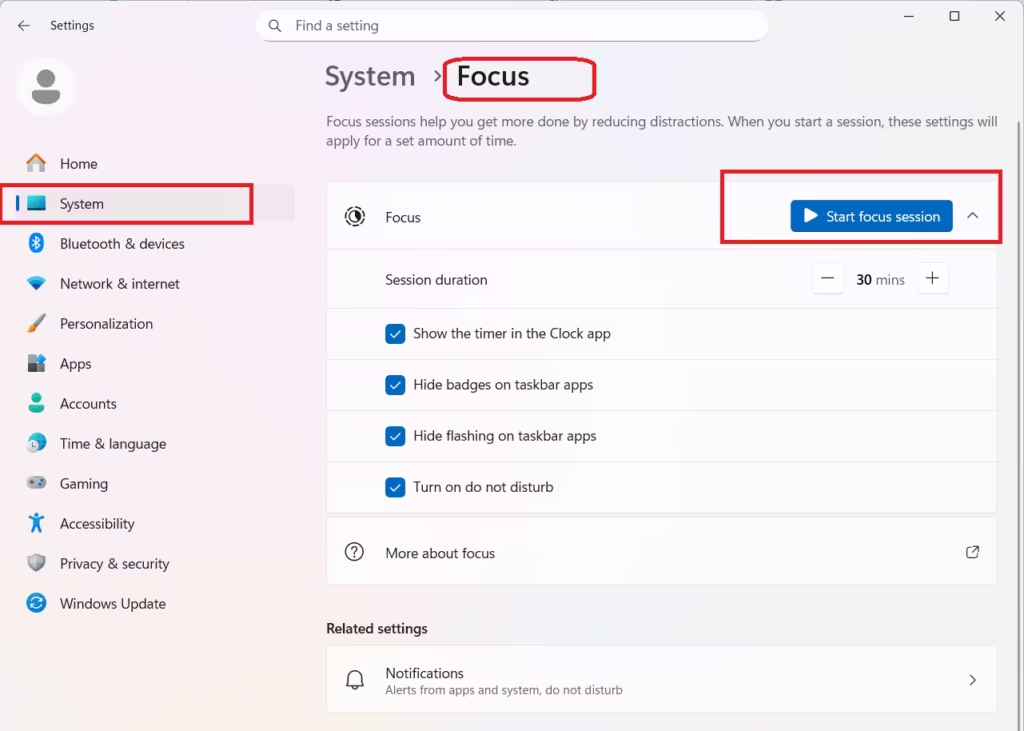
Steps
- Open Settings
- Go to System → Focus
- Set a session duration
- Make sure these options are enabled:
- Turn on Do not disturb
- Hide badges on taskbar apps
- Hide flashing on taskbar apps
- Click Start focus session
Windows hides notifications automatically until the session finishes.
How to Disable Notification Sounds Only
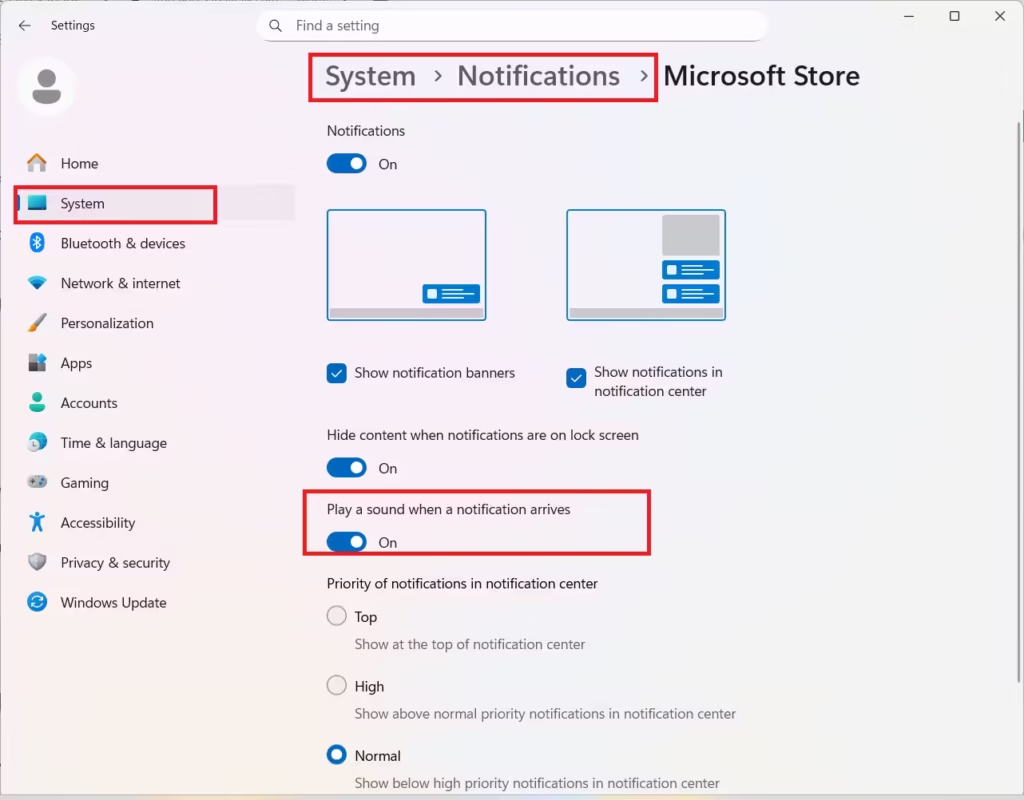
If pop-ups do not bother you but sounds do, disable sounds instead of alerts.
Steps
- Go to Settings → System → Notifications
- Select an app
- Turn off Play a sound when a notification arrives
Windows continues showing alerts without audio interruptions.
Fastest Way to Silence Notifications Instantly
You can mute notifications in seconds without opening Settings.
Steps
- Click the notification bell on the taskbar
- Select Focus assist
- Choose Alarms only
This instantly stops all distractions.
Does Turning Off Windows Notifications Help You Focus?
Windows notifications break focus and reduce efficiency, especially during deep work or gaming. Turning them off helps you:
- Stay focused longer
- Avoid pop-up interruptions
- Reduce background noise
- Improve performance during full-screen tasks
You can always re-enable notifications when needed.
If you still see alerts after disabling notifications, check browser notification permissions and startup apps, as they can trigger alerts separately.

