Windows 11 ships with a long list of apps and background services you never asked for. Even after a clean install, Microsoft loads your system with Store apps, telemetry services, Copilot integrations, and promotional software that runs quietly in the background. Removing this unwanted software is called debloating, and Windows 11 gives you several ways to do it safely.
This guide covers the best methods to debloat Windows 11, from built-in Group Policy options to trusted third-party tools, along with honest warnings about what actually works and what to avoid.
Which Debloat Method Should You Use?
| Method | Skill Level | Risk Level | Best For |
|---|---|---|---|
| Win11Debloat | Beginner | Low | Most users who want guided app removal |
| FlyOOBE | Beginner | Low | Bulk app removal without PowerShell typing |
| Group Policy | Intermediate | Very Low | Pro/Enterprise users who want a native, durable fix |
| Install Workaround | Beginner | Very Low | Anyone doing a fresh clean install |
| Winhance | Advanced | Medium | Users who want full manual control over every toggle |
| NTLite | Advanced | High | Building a custom Windows ISO before installation |
| WinUtil | Intermediate | Medium | Power users comfortable reviewing live scripts |
| Manual Removal | Beginner | Very Low | Anyone who wants no third-party tools at all |
What Debloating Windows 11 Actually Does to Your PC
Debloating Windows 11 means removing built-in apps, disabling unnecessary background services, and stripping out components you do not use. These components waste system resources, drain battery life, and collect usage data (telemetry) in the background.
The process does not dramatically reduce RAM usage. A fresh Windows 11 install on 4 GB of RAM already uses roughly 1.9 GB to 2.1 GB at boot. Most debloat tools shave off only 100 MB to 200 MB at best. The real benefit is a cleaner Start menu, fewer background processes, and reduced telemetry collection.
Before You Start: Create a Backup
Removing system components can break things, sometimes permanently. Before you run any debloat tool or make registry changes, create a full system backup or restore point. If something goes wrong, you will need it.
Method 1: Debloat Windows 11 Using Win11Debloat (Recommended for Most Users)
Win11Debloat is a lightweight open-source PowerShell tool that walks you through choosing exactly what to remove. It does not run silently in the background or make changes without your approval.
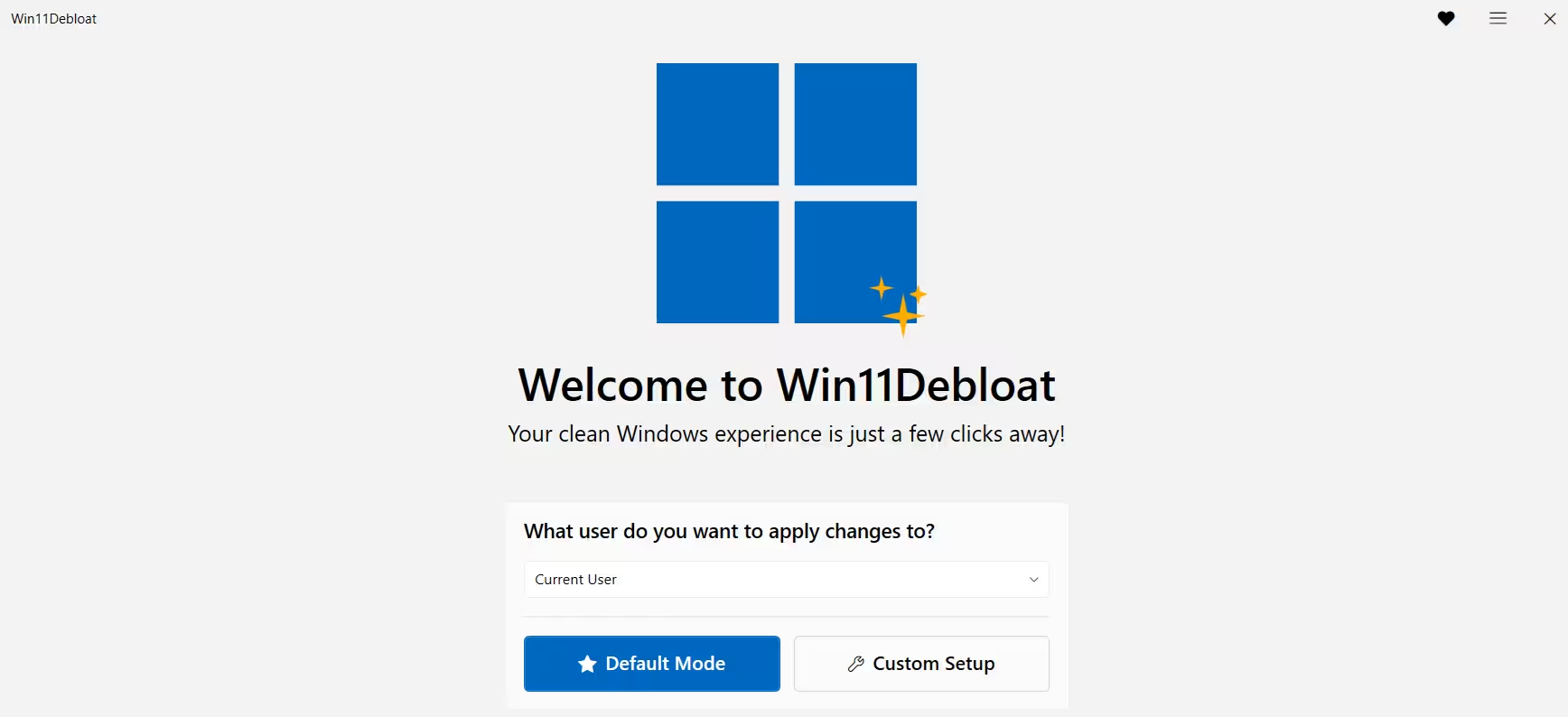
What it removes: Built-in apps, third-party manufacturer apps, AI features, Start menu clutter, Taskbar bloat, and unnecessary File Explorer integrations.
Steps to use Win11Debloat:
- Open the Start menu and search for PowerShell.
- Right-click the top result and select Run as administrator.
- Paste the following command and press Enter:
& ([scriptblock]::Create((irm "https://debloat.raphi.re/")))- When the Win11Debloat app opens, click Start.
- Check the Only show installed apps option.
- Select every app you want to uninstall.
- Click Next.
- Choose the system tweaks to apply, such as disabling telemetry and AI features.
- Click Next.
- Check the Create a restore point option.
- Click Apply Changes.
Win11Debloat will remove your selected apps and apply your chosen tweaks. It also offers the option to apply changes to all users or only the current account.
Note: Win11Debloat includes a toggle to disable telemetry, but Windows 11 Home and Pro editions will ignore this setting unless you run a Long-Term Servicing Channel (LTSC) version. Microsoft requires diagnostic data on standard editions.
Method 2: Debloat Windows 11 Using FlyOOBE
FlyOOBE (previously called Flyby11) is a third-party utility originally built to install Windows 11 on unsupported hardware. It also includes a dedicated debloat section that lets you bulk-remove preinstalled apps without touching PowerShell.
Steps to use FlyOOBE:
- Download the latest version of FlyOOBE from its official page..
- Save the zip file to your computer.
- Select the zip file and click Extract all from the Compressed Folder Tools tab.
- Click Extract.
- Open the extracted folder and double-click FlyOOBE.exe.
- Click OOBE in the left pane.
- Click Apps.
- Select a debloat level: Balanced, Full Microsoft Experience, Minimal Windows, or Community.
- Check the components you want to remove.
- Click Remove Selected Apps.
FlyOOBE lists components by their system names (for example, Microsoft.WindowsCamera instead of Camera). If you do not recognize a component, search for it online before removing it. Stick to removing applications rather than system components unless you know exactly what you are doing.
Method 3: Debloat Windows 11 Using Group Policy (Built-in, No Third-Party Tools Needed)
Starting with Windows 11 24H2 and 25H2, Microsoft added a native Group Policy option that prevents built-in Microsoft Store apps from installing on new accounts. This method works on Windows 11 Pro, Education, and Enterprise editions.
If you run Windows 11 Home, you need to make the same change through the Registry instead of Group Policy.
Steps to debloat using Group Policy:
- Open Start and search for gpedit.
- Click the top result to open the Local Group Policy Editor.
- Navigate to this path:
Computer Configuration > Administrative Templates > Windows Components > App Package Deployment- Double-click Remove Default Microsoft Store packages from the system.
- Select Enabled.
- Under the Options section, check every application you want to remove.
- Click Apply, then click OK.
Windows 11 will now prevent those apps from installing on any new account you create on the PC.
Tip: Group Policy-based debloating resists app reinstallation better than most scripts. Windows feature updates are less likely to undo your changes compared to PowerShell-based methods.
Method 4: Install Windows 11 Without Bloatware From the Start
If you plan to do a clean install, you can prevent most third-party promotional apps from ever touching your system by choosing a specific region setting during setup.
Steps:
- Boot from your Windows 11 USB drive.
- Press any key to continue.
- On the Time and Currency format screen, select English (World) or English (Europe) instead of your local region.
- Choose your installation language.
- Click Next and proceed with the normal installation steps.
- After setup completes, go to Settings > Time and Language > Region and change your region back to your actual location.
This method skips the third-party apps that Microsoft bundles based on your region. You will still see Microsoft Edge, Xbox, and other core Microsoft apps, but the promotional third-party software will not be present.
Method 5: Winhance (Best for Advanced Users Who Want Full Control)
Winhance is a free, open-source application that lets you remove default apps, disable optional Windows features like Hyper-V or WSL, and even customize a Windows 11 ISO before installation.
Unlike most debloat scripts, Winhance does not run anything automatically. You click every toggle yourself, so nothing changes without your explicit approval.
Standout feature: Winhance lets you modify a Windows 11 ISO in advance and inject drivers before you even install the OS. This is useful if you install Windows on hardware that requires specific drivers to function during setup (such as Surface devices that need keyboard and trackpad drivers before the desktop loads).
Winhance is free, portable, and runs directly from a USB drive without installation.
Method 6: NTLite (Best for Creating a Custom Windows ISO)
NTLite is a full graphical tool for customizing Windows 11 installations. It lets you remove individual apps, strip out system components, and build a modified Windows ISO tailored exactly to your needs.
Key limitation: Some components you remove through NTLite cannot be reinstalled without a full Windows reinstall. Treat every removal as permanent.
NTLite offers a free tier for home use. A lifetime home license costs around $48. Professional and business licenses run $106 and $295 respectively.
Method 7: ChrisTitusTech WinUtil (Popular, But Use With Caution)
WinUtil is one of the most widely used Windows debloat utilities. You do not need to download it in advance. A single PowerShell command fetches and runs it directly:
irm "https://christitus.com/win" | iexRun PowerShell as Administrator first, then paste the command. Once WinUtil opens, go to the Tweaks tab and select what you want to remove or change.
Security warning: This command downloads and runs a script from the web in real time with administrator privileges. If the site is ever compromised, malicious code runs instantly on your PC. Always verify the URL before executing it.
WinUtil also makes changes beyond simple app removal. It sets many background services to launch manually rather than automatically. This does not save much RAM but can introduce delays in normal use. Review each preset before applying it.
How to Debloat Windows 11 Manually (Safest Approach)
You can remove most bloatware from Windows 11 without any third-party tool:
- Uninstall apps: Open the Start menu, right-click any app you do not want, and click Uninstall.
- Remove OneDrive: Go to Settings > Apps > Installed apps, search for OneDrive, and uninstall it.
- Turn off ads: Go to Settings > Personalization > Device usage and disable all options. Then go to Settings > Privacy and security > General and turn off personalized ads.
- Disable Copilot: Go to Settings > Personalization > Taskbar and toggle off Copilot.
- Free up disk space: Open Settings > System > Storage and run Storage Sense to clear temporary files and system junk.
Manual removal takes more time, but you stay in complete control and never expose your system to unknown scripts.
What Debloating Windows 11 Will Not Fix or Remove
Set realistic expectations before you start:
- RAM usage will not drop significantly: Most tools save 100 MB to 200 MB at best on a system that already runs lean.
- Telemetry will keep running on Home and Pro: Windows 11 ignores Group Policy telemetry toggles on non-LTSC editions.
- Windows Update may reinstall removed apps: Feature updates can restore Microsoft apps you removed via scripts. Group Policy and install-time methods are more resistant to this.
- Removing Edge can cause problems: Edge integrates deeply into Windows 11. Removing it can break other features or trigger errors in future updates.
FAQs
Is it safe to debloat Windows 11?
Yes, if you remove only non-essential apps. Removing system components without understanding their purpose can cause instability. Always create a restore point first.
Does debloating improve performance?
It reduces background CPU usage, disk activity, and battery drain, especially on older or lower-end hardware. RAM savings are minimal.
Can I debloat Windows 11 Home without PowerShell?
Yes. FlyOOBE, the install workaround, and manual uninstallation all work without PowerShell. Group Policy requires the Registry on Home edition.
Will updates reinstall removed apps?
Sometimes. Group Policy debloating and install-time region workarounds resist reinstallation better than script-based methods.
Can I undo debloating?
Yes, depending on the method. You can reinstall many apps from the Microsoft Store, restore from a backup, or run a Windows repair install. Some components removed through NTLite or deep scripts may require a full reinstall.
Should I debloat a work PC?
Use Group Policy or manual removal on work machines. Avoid aggressive scripts on production systems.
Does debloating Windows 11 improve gaming performance?
Marginally. Removing background processes frees up a small amount of CPU and RAM that games can use. On mid-range or high-end hardware the difference is hard to notice. On older or low-spec machines, the gain is more meaningful.
Can I debloat Windows 11 without admin rights?
No. Every method in this guide requires administrator access. If you are on a managed work or school PC, contact your IT department instead of trying to work around restrictions.
Does debloating affect Windows Security or Defender?
Not if you use the methods in this guide. Reputable tools like Win11Debloat and FlyOOBE leave Windows Security intact. Avoid any script that offers to disable Defender entirely, as that removes your primary malware protection.
How often do I need to debloat after feature updates?
Group Policy and install-time methods rarely need to be reapplied. Script-based methods may need to be re-run after major feature updates (such as a version upgrade from 23H2 to 24H2) if Windows restores removed apps.
What is the difference between debloating and a clean install?
A clean install wipes everything and starts from scratch. Debloating removes unwanted components from your existing installation without wiping your files, apps, or settings. Both can be combined: install clean, then debloat immediately before adding your personal software.
Related Windows How-To
- How to Clean Install Windows 11 from USB (Step-by-Step Guide)
- FT232R USB UART Driver: Download and Installation Guide for Windows 11
- How to Create a macOS Bootable USB on Windows 11 (TransMac + DiskPart)
- How to Enter BIOS in Windows 10 and 11 (6 Methods)
- How to Use Ventoy to Create a Bootable Windows 11 USB Drive
- How to Create Bootable Windows 11 26H2 USB Install Media