Neverness to Everness does not include a visible uninstall button in its launcher, which leaves many players digging through settings or hunting for a hidden option they never knew existed. This guide covers every reliable method to fully remove NTE from your PC, including how to clean up leftover files and confirm the anti-cheat driver is completely gone.
One thing worth knowing before you start: your progress in NTE is stored server-side, not locally. Every character you unlocked, every free S-Rank Arc you collected, and all your currencies stay attached to your account. Reinstalling later restores everything as long as you have your login credentials.
Before You Start
Close NTE and its launcher completely before running any uninstaller. Open Task Manager (right-click the taskbar and select Task Manager), find every process related to Neverness to Everness or its launcher, and end them all. Running the uninstaller while the game is active causes it to fail or leave files locked on disk.
A quick reboot before uninstalling also helps, especially if the launcher recently downloaded an update. Rebooting releases any file handles the updater still holds open.
Method 1: Uninstall NTE Through Windows Settings
This is the standard method and works for most players who installed NTE through the official installer.
- Press Windows + I to open Settings.
- Go to Apps, then select Installed apps.
- Type Neverness in the search bar to filter the list.
- Click the three-dot menu next to Neverness to Everness and select Uninstall.
- Confirm the prompt and approve the UAC dialog when Windows asks for permission.
- Follow the uninstaller steps until the process finishes.
- If a separate NTE Launcher entry appears in the list, repeat the same steps to remove it.
- Restart your PC after the uninstaller closes.
The restart matters here. NTE installs a kernel-mode anti-cheat driver called HtAntiCheatDriver that only unloads at shutdown. Skipping the reboot leaves the driver resident in memory and prevents certain leftover files from being deleted.
Method 2: Uninstall NTE Through the Game Launcher
If you prefer to start from inside the game client, the launcher hides an uninstall option inside its settings panel.
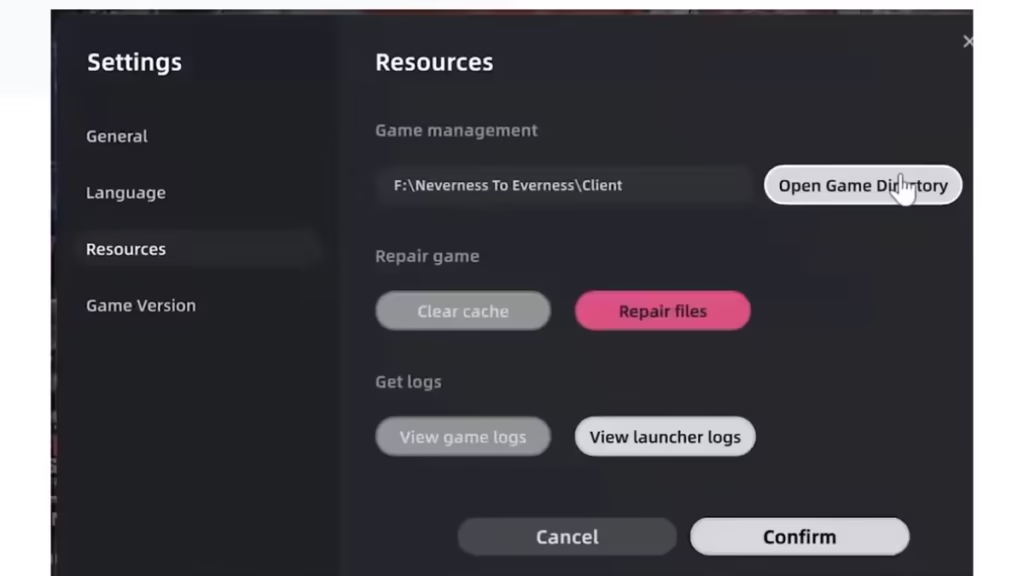
- Open the NTE game client on your PC.
- Click the Settings icon below the game icon in the top-left corner of the launcher.
- Select the Resources tab from the left column.
- Click Open Game Directory to open the installation folder, typically
C:\Neverness To Everness\Client. - Close the game launcher.
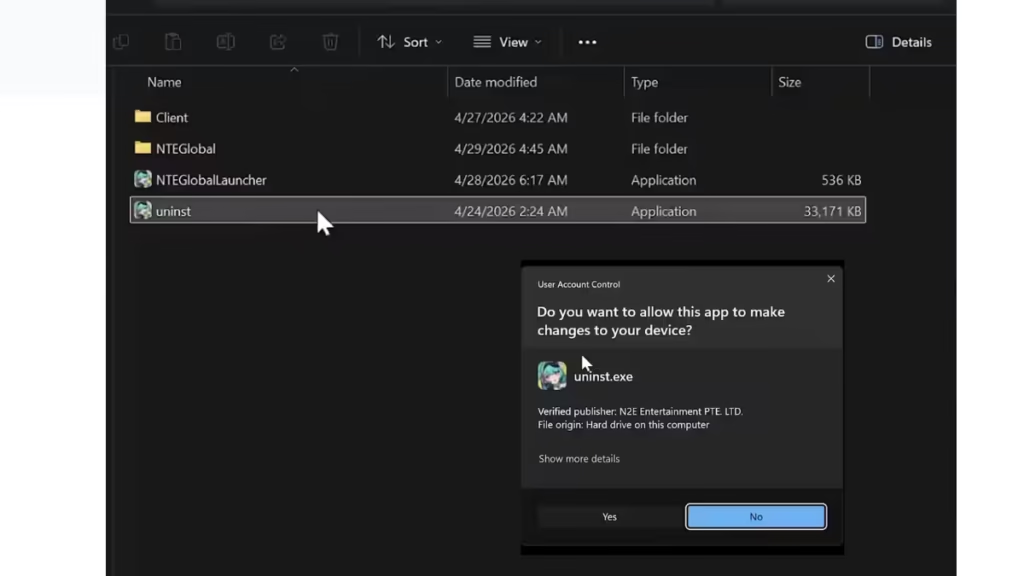
- In File Explorer, click the Neverness to Everness folder in the address bar to move up to the main installation directory.
- Double-click uninst.exe to launch the uninstaller.
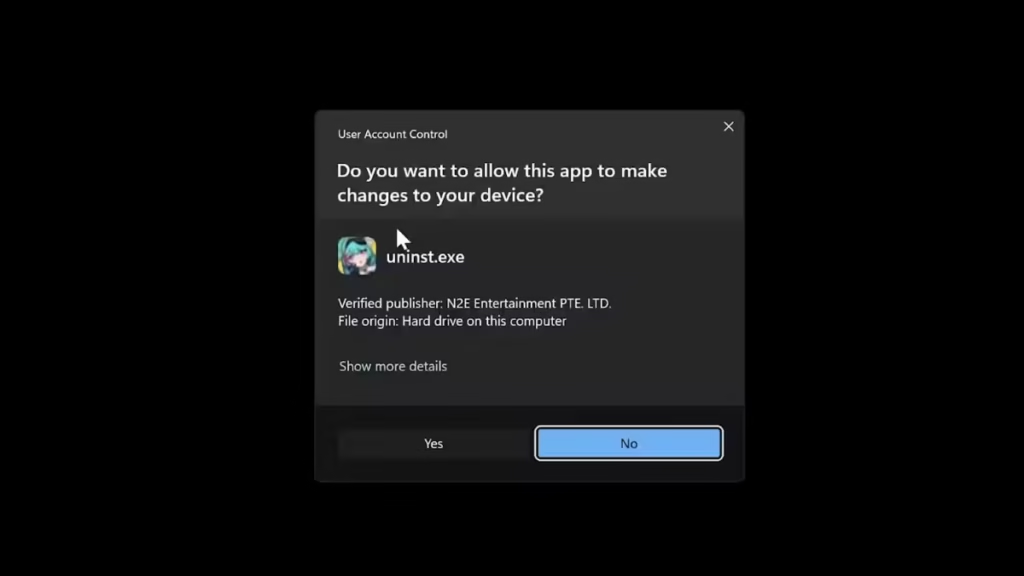
- Click Yes when Windows prompts for confirmation.
- Click Uninstall inside the launcher window to finalize the removal.
- Restart your PC once the process completes.
Method 3: Run the Bundled Uninstaller Directly
Use this method if the Windows Settings entry is missing or the Settings uninstall fails to complete.
- Right-click the NTE desktop shortcut and choose Open file location. If no shortcut exists, navigate manually to your install path, typically
C:\Program Files\Neverness to Evernessor the custom folder you selected in the launcher’s resource settings. - Move up one folder to reach the top-level NTE directory.
- Find uninst.exe or uninstall.exe, right-click it, and choose Run as administrator.
- Click Uninstall, then Confirm, and wait for the process to finish.
- Click Confirm again on the completion screen.
- Restart your PC.
Delete Leftover Folders and Cache
After rebooting, check the locations below and remove any remaining NTE-related folders. Leftover files cause reinstall failures, stuck updates, and launcher errors if you ever return to the game.
Press Windows + R, type the folder path listed below, and press Enter to open each location:
%LocalAppData%: Delete any folder named after NTE or its launcher%AppData%: Remove any NTE-related folders%ProgramData%: Remove NTE or anti-cheat related folders%ProgramFiles%: Relete the main NTE install folder if it still exists
Delete only folders that clearly belong to Neverness to Everness or its launcher. Leave every other folder untouched.
Verify the HtAntiCheatDriver Service Is Removed
This step is the one most uninstall guides skip entirely, and it matters. NTE registers a kernel-mode anti-cheat driver as the Windows service HtAntiCheatDriver. The standard uninstaller does not always remove this service, and a leftover driver causes conflicts with other games. This is also what triggers Roblox’s “third-party software is interfering” error after NTE is gone.
Step 1: Press the Windows key, type PowerShell, right-click Windows PowerShell, and select Run as administrator. Approve the UAC prompt.
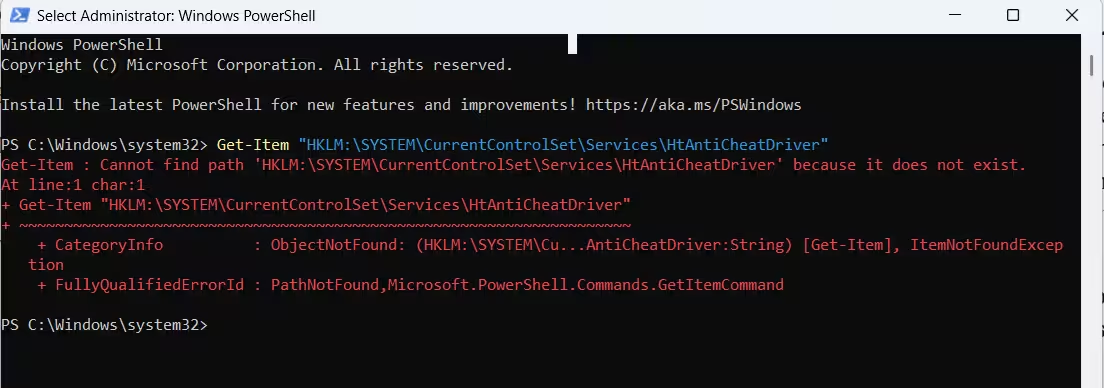
Step 2: Run the following command:
Get-Item "HKLM:\SYSTEM\CurrentControlSet\Services\HtAntiCheatDriver"Step 3: If the command returns a “path does not exist” error, the service is already gone and the uninstall is clean.
Step 4: If the key still exists, run this command to disable the driver so it stops loading at boot:
Set-ItemProperty -Path "HKLM:\SYSTEM\CurrentControlSet\Services\HtAntiCheatDriver" -Name "Start" -Value 4Step 5: Reboot, then run the Get-Item check again to confirm the service is no longer active.
The Start value of 4 sets the driver to Disabled, which prevents it from loading on the next boot. The table below shows what each value means for reference.
| Start Value | Meaning |
|---|---|
| 0 | Boot (loads before OS) |
| 1 | System (loads early in boot) |
| 2 | Automatic |
| 3 | Manual |
| 4 | Disabled |
How to Confirm the Uninstall Is Complete
The removal is complete when all three of the following are true:
- Neverness to Everness no longer appears in Settings > Apps > Installed apps
- The install folder under Program Files (or your custom path) is empty or gone
- The PowerShell Get-Item check on HtAntiCheatDriver returns a “path does not exist” error
If you uninstalled NTE specifically to fix a Roblox conflict, launch Roblox after the final reboot. It should load into a game session without the third-party interference popup.
How to Reinstall Neverness to Everness
If you plan to come back to NTE, complete every cleanup step above before reinstalling. Starting from a clean state prevents the launcher’s update process from getting stuck on stale cache files and avoids duplicate registrations of the anti-cheat driver. Download the official client from the same platform or store you originally used.
When you return, brushing up on combat tips and tricks is a solid starting point before diving into harder content. You can also set up co-op right away by learning how to add and invite friends in NTE, or check which currencies to prioritize once you are back in Hethereau City. Play Now!

